Business Documents Page Configurations
Last updated: May 12, 2026
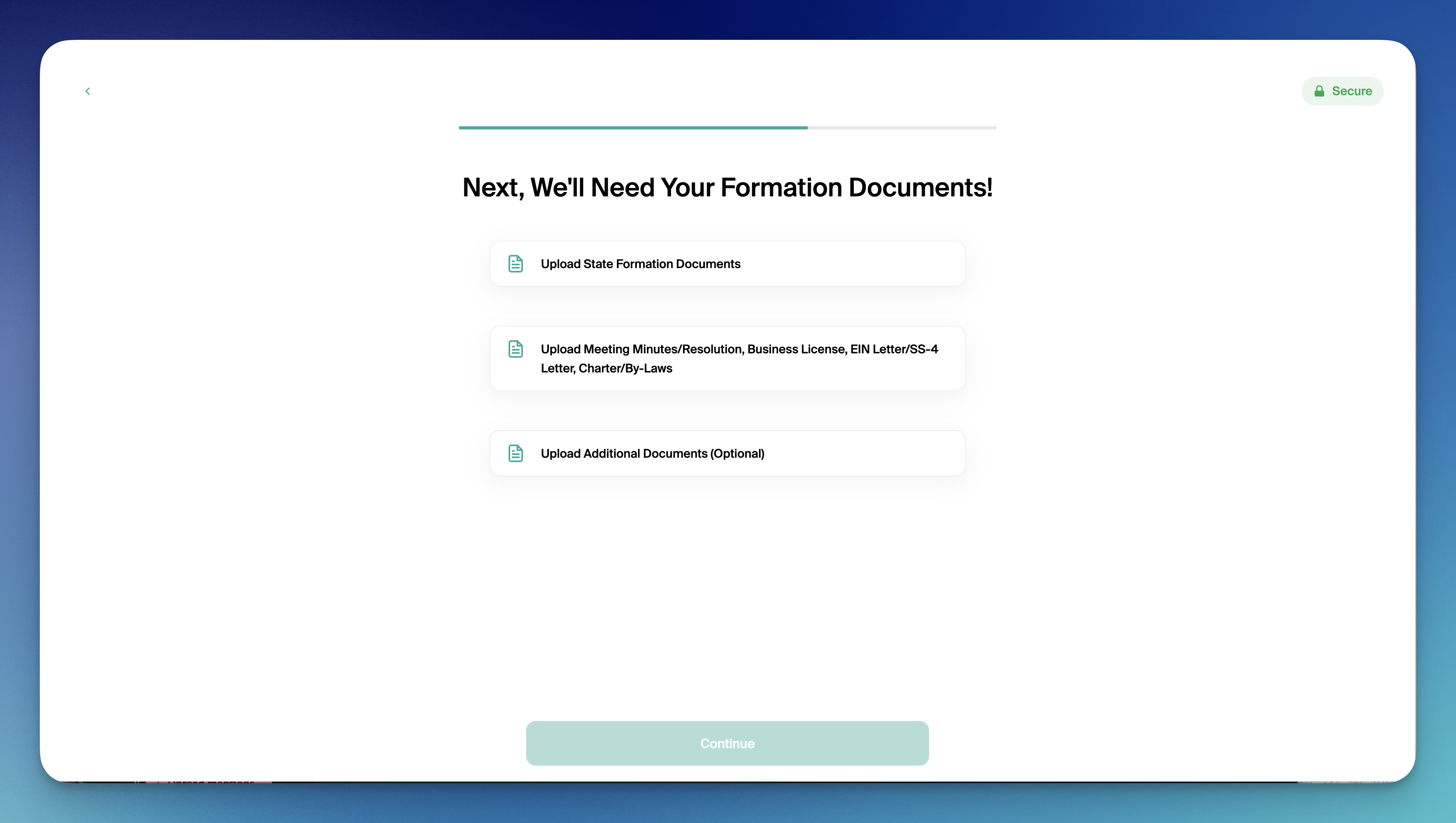
The Business Documents page is where can configure any required or optional documents to be uploaded during the business account opening application. (Articles of Incorporation, Operating Agreements, Partnership Agreements, EIN letters, etc.). The list of documents shown depends on the applicant's selected legal structure and how your FI is configured.
This article covers everything you can configure for this page, file upload limits, and how the page interacts with the rest of the business account opening flow.
When Documents Are Collected in the BAO Journey
Documents are collected at two points in the business account opening flow:
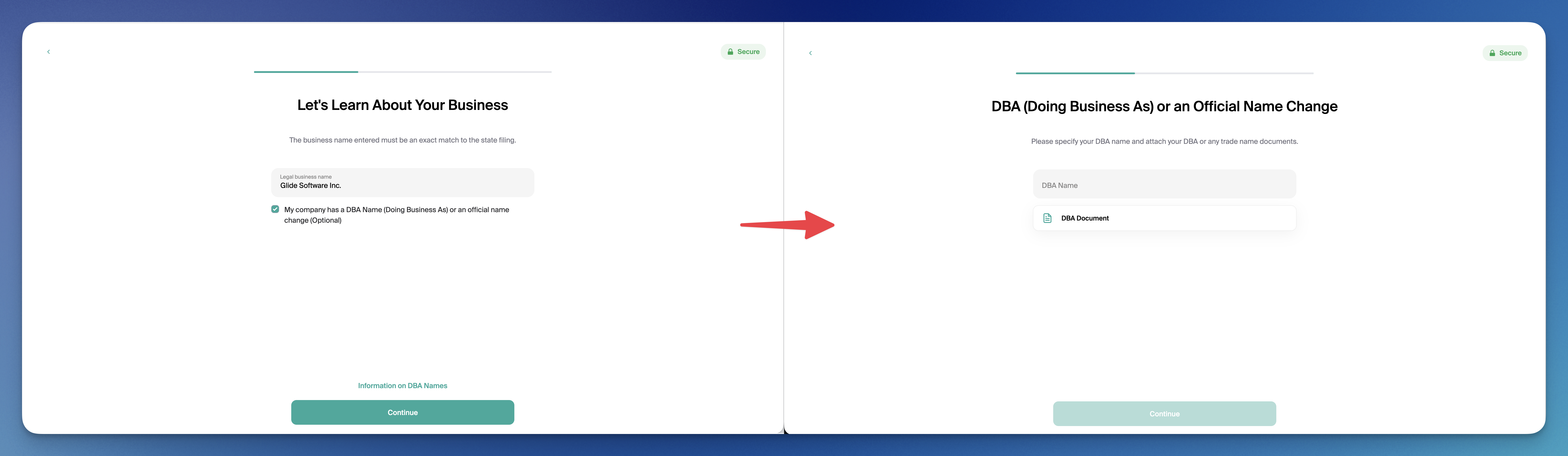
DBA document. Collected during the Business Information step. If the applicant selects they have a DBA (Doing Business As) name, a document upload appears so they can provide supporting paperwork. See the "DBA Document" section below for configuration options.
Formation documents. Collected on the Business Documents page, which appears after the Business Information step and before the Transaction Questions step. This is the main document collection point and the focus of this article.
Skipping the Documents Page for Sole Props and LLCs
For Sole Proprietorships and LLCs (to handle the case of single member LLCs), the Documents page is automatically skipped when both of the following are true:
The applicant's last name appears in the legal business name
The applicant's SSN matches the business Tax ID/EIN
This is built-in behavior and is not configurable. It avoids asking single-owner businesses for paperwork they wouldn't reasonably have.
Skipping the Documents Page by Entity Type
You can configure specific legal structures to skip the Documents page entirely. Applicants with that structure move from the Business Information step directly to the Transaction Questions step.
This is useful when:
You don't want to collect any formation paperwork for a given entity type
You want to keep the flow short for structures where document collection isn't meaningful for your FI
If you want documents collected for an entity type but none of them required, that's a separate configuration. You can mark every document in the group as optional, which lets applicants move past the page without uploading anything while still giving them the option to provide documents.
Default Documents by Entity Type
If your FI has not customized the configuration, the following defaults apply:
Corporation: Articles of Incorporation, EIN document (optional)
LLC: Articles of Organization, Operating Agreement, EIN document (optional)
LP / GP / LLP: Partnership Agreement, EIN document (optional)
Sole Proprietorship: Fictitious Name Statement (optional), EIN document (optional)
Non-Profit: Organization Charter / By-Laws, EIN document (optional)
These can be fully replaced or extended per entity type. Glide can support any legal structure your FI accepts, so the document list for each can be tailored to your requirements.
Per-Document Configuration Options
For each document slot in the configuration, you can set:
Document name: The label the applicant sees on the upload box (e.g. "Articles of Incorporation"). Supports plain text or translations for multilingual FIs. If you'd like to allow the applicant to select from a list of 2 or 3 different documents, you can simply include this as "Upload Document A or Document B"
Description / helper text: Optional text shown beneath the document title. Use this to explain what the document is, what it should contain, or where the applicant can find it.
Required vs Optional: Each document defaults to required. Mark a document optional if you'll accept an application without it. Optional documents show "(optional)" in the title and do not block the Continue button.
Hide the "(optional)" label: An FI-wide toggle that keeps documents optional behind the scenes but suppresses the visible "(optional)" suffix in titles. Useful if you prefer cleaner-looking upload boxes.
File Upload Limits
These limits apply to every document upload across the business account opening flow. They are platform-level and not configurable per FI:
Maximum file size: 5 MB per file
Allowed file types: JPG, JPEG, PNG, HEIF, HEIC, RAW, DOC, DOCX, TXT, PDF
One file per document slot: If an applicant picks a second file for the same slot, it replaces the first
If an applicant exceeds the size limit or selects an unsupported type, they see an inline error and the file is not uploaded.
Maximum Number of Documents
There is no enforced maximum on the number of documents you can configure per entity type. Practical guidance:
Most FIs collect 2 to 4 documents per legal structure
Every document is a separate upload box on a single scrolling page
Keep the list focused, especially for applicants on mobile
The DBA Document
The DBA (Doing Business As) name is collected during the Business Information step (/business/detail/name), on a separate page from formation documents. If they enter a DBA name, the supporting document upload appears (/business/detail/dba) and is by default required to upload.
Configuration options for the DBA document:
DBA document optional toggle: By default, applicants who enter a DBA name must upload supporting paperwork to continue. Turn this on to collect the DBA name without requiring the document upload.
The DBA name itself is always collected if the applicant indicates they have one. Only the document is configurable.
Document Verification
Documents uploaded on the Business Documents page are stored and made available to FI staff for review in the dashboard. Glide does not automatically verify formation documents for authenticity.
Note that other verification happens elsewhere in the flow:
Identity verification for individual roles (owners, signers, control persons) runs through Plaid IDV
KYB verification for the business entity runs through Middesk
These run independently of the documents uploaded on this page.
What Is Not Supported
To set expectations clearly, the Business Documents page does not support:
Conditional document logic (e.g. "only show document X when the applicant answered Y to a previous question")
Multiple files per document slot
Per-document file-type or file-size overrides
Automated verification of uploaded formation documents