Testing Business Accounts
Last updated: October 9, 2026
Overview
There are two ways to test business verification in Glide. The path you use depends on whether your financial institution (FI) has received access to its own Middesk dashboard.
Build Your Own Test Profiles: For FIs with their own Middesk dashboard. Create sample businesses and choose their verification results in Settings → Sandbox Configuration.
Legacy Sandbox Credentials: For FIs that have not received their own Middesk dashboard and are still using the legacy sandbox. Use the existing test values in the table below.
1. Build Your Own Test Profiles
Use this path if your FI has received access to its own Middesk dashboard and Glide staging is connected to that account’s enhanced sandbox.
A test profile is a simulated business record with the information and results you choose. These are test application values, not dashboard usernames or passwords. Create profiles in your FI’s own sandbox before using them; the examples below are recommendations and are not automatically installed in every account. Do not assume that the legacy names or TINs in section 2 will produce the same results here.
Step 1: Sign in and select Sandbox
Sign in to Middesk with your individual dashboard login. Check that you are in your FI’s account, then change the environment selector from Live to Sandbox. Use your Glide staging application for testing.
Step 2: Open Sandbox Configuration
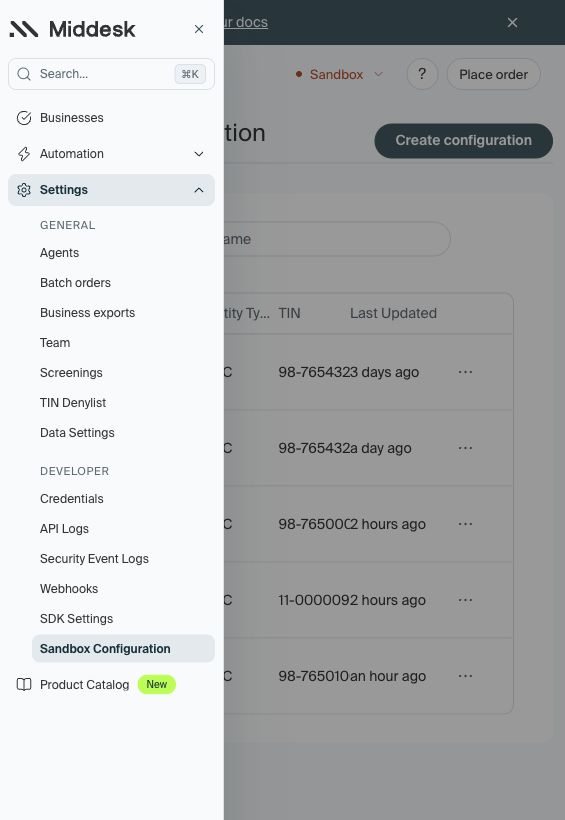
Open Settings, select Sandbox Configuration, and click Create configuration. On a narrow screen, open the navigation menu first. If the tab or create button is unavailable, contact your FI’s Middesk administrator or your Glide team.
Step 3: Enter the business information
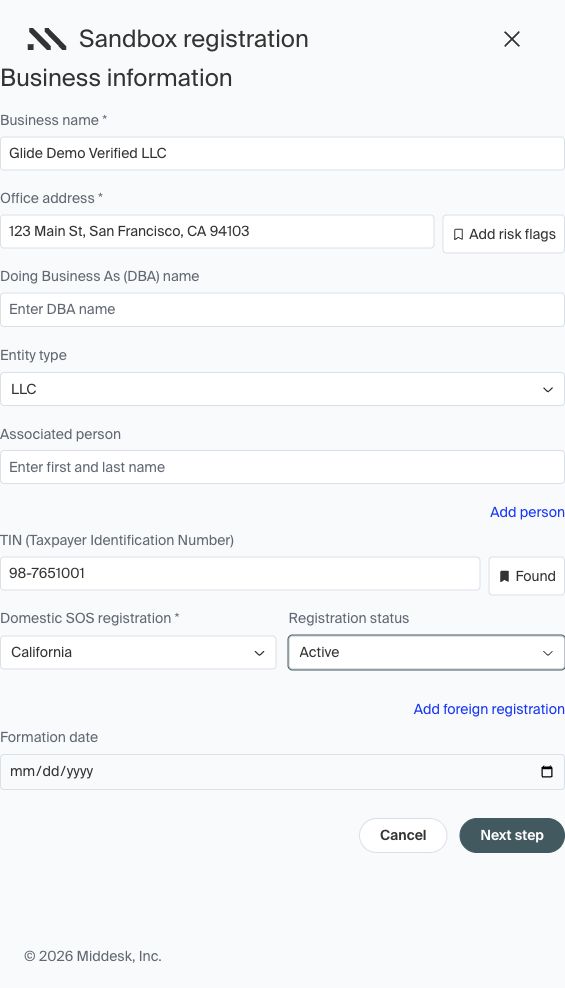
Enter a unique Business name and a complete Office address. Choose an Entity type and enter a test TIN. Add a DBA or associated person if your scenario needs one. Record the exact values so other testers can reuse the profile.
For the example below, use Glide Demo Verified LLC, 123 Main St, San Francisco, CA 94103, entity type LLC, and TIN 987651001. These are synthetic sandbox inputs only.
Step 4: Choose the TIN and registration results
Next to the TIN, click Select outcome. Select Found for a business TIN match; Person match is available for person-based scenarios. Choose the Domestic SOS registration state and Registration status. For this example, select California and Active. Add a foreign registration or formation date if needed.
Step 5: Add address risk flags, if needed
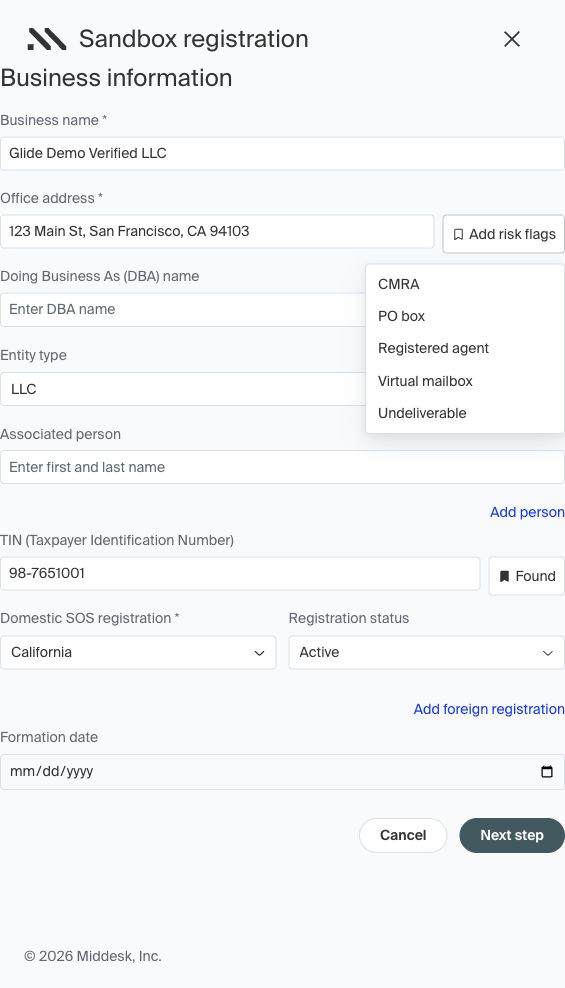
Click Add risk flags beside the office address. Options include CMRA (Commercial Mail Receiving Agency), PO box, Registered agent, Virtual mailbox, and Undeliverable. Leave these unset for the successful-verification example. Start with one risk flag at a time so the result is easy to interpret.
Step 6: Select the attributes to simulate
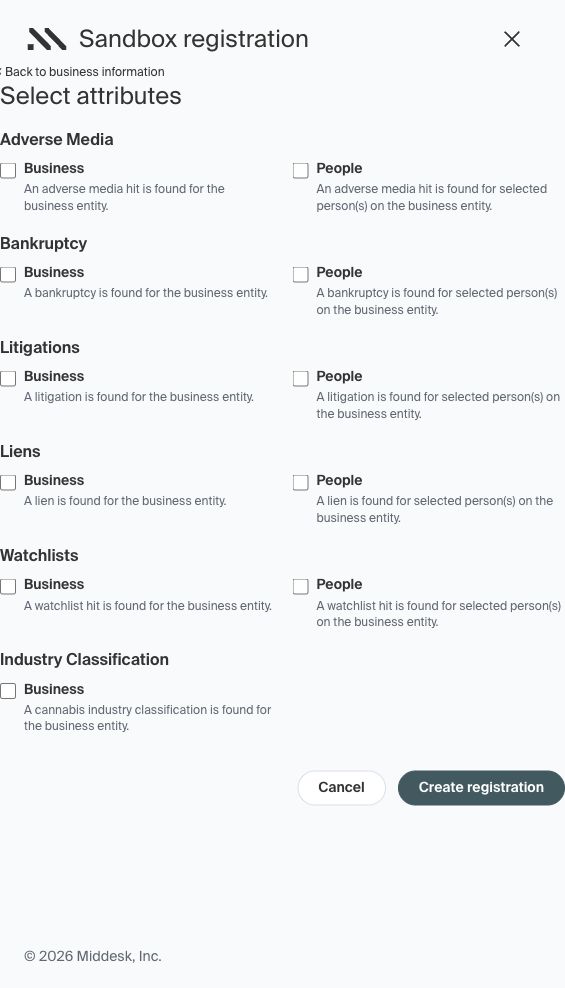
Click Next step. On Select attributes, choose the findings you want to simulate for the business or associated people. The screen includes adverse media, bankruptcy, litigations, liens, watchlists, and industry classification. Leave all attributes unchecked for the successful-verification example. For a business watchlist scenario, select Business under Watchlists and complete any additional list-selection prompts.
Selecting an attribute does not enable or order the corresponding service. The service must also be available on your account and included in the test order.
Step 7: Save the profile
Click Create registration. If a People Data step appears for your selected person attributes, complete the required synthetic person details and finish the remaining prompts. Confirm that the business appears in the Sandbox Configuration list before testing.
Step 8: Run and review a test
Submit a new business application in your FI’s Glide staging environment using the saved profile’s exact business name, address, TIN, and relevant person details. Follow the intentional name difference described below only when testing a TIN/name mismatch.
Review the KYB checks in Glide and, when enabled, select Open in Middesk to inspect the associated sandbox report. You can also use Place order directly in Middesk’s Sandbox to check a profile; that alone does not test the complete Glide application flow. Include any additional service required for your scenario.
Verify the individual checks you intended to test. A successful business verification does not guarantee automatic application approval; other checks and your FI’s review rules still apply. If results differ, confirm the account, Sandbox selection, saved input values, enabled services, and Glide staging connection with your Glide team.
Five recommended test profiles
Create these profiles separately in your FI’s Sandbox Configuration. Unless stated otherwise, use 123 Main St, San Francisco, CA 94103, entity type LLC, a California / Active domestic registration, TIN outcome Found, no address risk flags, and no selected attributes. Use a unique TIN for each profile. Add the test signer as an associated person if you also want to test that person’s link to the business.
Successful verification — Glide Demo Verified LLC
TIN: 987651001. Use the default setup above and submit the same business details. Expected: matching business name, address, and TIN, with an active registration and no configured watchlist hit. Use this as the baseline before testing exceptions.Business watchlist hit — Glide Demo Watchlist LLC
TIN: 987651002. Under Watchlists, select Business and choose the SDN list when prompted. Submit the saved business details. Expected: a business watchlist finding. Use it to practice investigation and the dismissal/comment workflow for a simulated false positive, then check the corresponding result in Glide.TIN/name mismatch — Glide Demo TIN Reference LLC
TIN: 987651003. Save this reference business with outcome Found. In the test application, intentionally submit Orchid Bicycle Repairs LLC with the same TIN and address; do not create a second configuration for that submitted name. Expected: the TIN is associated with the reference business, producing a TIN/name mismatch. Other name checks may also require review.Address risk — Glide Demo CMRA LLC
TIN: 987651004. Select CMRA under Add risk flags; keep the other defaults. Submit the saved business details. Expected: a CMRA address-risk finding. Use it to practice reviewing a business that uses a mail-receiving address.Inactive registration — Glide Demo Inactive LLC
TIN: 987651005. Set the California domestic registration status to Inactive; keep the other defaults. Submit the saved business details. Expected: an inactive domestic Secretary of State registration requiring review.
Start with one exception per profile. Once you have confirmed the individual outcomes, create additional profiles that combine the conditions your team needs to practice.
2. Legacy Sandbox Credentials
Use this path if your FI has not received access to its own Middesk dashboard and your Glide staging environment still uses the legacy sandbox. These are the existing sandbox test values. Enter one or more of the values below in a staging application to generate the corresponding scenario. They are not a setup checklist for Sandbox Configuration.
Applicant and signer identity verification
For the applicant, use the Leslie Knope test credentials to pass Plaid Identity Verification. The existing sandbox guidance uses ZIP code 46001 to pass identity verification for signers. Plaid identity verification is separate from the Middesk business profile; use test identities only in staging.
Example Sandbox Business Attributes
Type | Value | Description |
Name | Unregistered Business | The business has no Secretary of State filings. The Business returned will have no associated registrations. |
Name | Similar Name Business | The business has a Secretary of State filing with a similar name to the submitted business name. The "name" review task indicates that a similar name was found to the submitted name. |
Name | Corporation, LLC, Partnership, Sole Proprietorship , Trust, Agent, and Non Profit | The business will have a formation entity_type matching the type of the submitted business name. Corporation is the default if there's no entity type provided. |
Name | Young Business | The business will have been formed 10 days ago. The formation date should be ten days before the current date. |
Address | 123 Grand St., New York, NY 10013 | Unable to identify a match to the submitted Office Address. The submitted address is not found to match any address listed in Business records. |
Address | 223 Grand St., New York, NY 10013 | Identified a similar address. The submitted address is similar to an address that has been found. |
Address | 423 Grand St., New York, NY 10013 | Identified an approximate address. Identified an address within 0.2 miles of the submitted Office Address |
Address | New York, NY | Identified an incomplete address. Identified a partial match with a submitted address that is incomplete |
Address - CMRA | Include "cmra" in address_line1 or full_address (i.e 991 cmra st., New York, NY 10013")You may also combine this w/ Office Address -Verification values. For example, "423 Grand St. cmra" will trigger an Approximate Match + CMRA task | Identified a CMRA address. Submitted Office Address is zoned by USPS as a Commercial Mail Receiving Agency |
Address - Registered Agent | Include "registered agent" in address_line1 or full_address (i.e 991 registered agent st., New York, NY 10013")You may also combine this w/ Office Address -Verification values. For example, "423 Grand St. registered agent" will trigger an Approximate Match + Registered Agent task | Identified a Registered Agent address:Submitted Office Address is actually the address of a Registered Agent, not the actual business |
Address - Deliverability | Include "undeliverable" in address_line1 or full_address (i.e 991 st. undeliverable, New York, NY 10013"You may also combine this w/ Office Address -Verification values. For example, "423 Grand St. undeliverable" will trigger an Approximate Match + Undeliverable task | Identified an Undeliverable address:The USPS is unable to deliver mail to the submitted Office Address |
SOS Filings - Domestic | Business Name = "Domestic Missing" | Missing Domestic Secretary of State Filing: The business has no domestic filing |
SOS Filings - Domestic | Business Name = "Domestic Inactive" | Domestic Secretary of State Filing is Inactive: Inactive domestic filing found |
SOS Filings - Domestic | Business Name = "Domestic Unknown" | Unable to detect status of Domestic Filing: No domestic filing status provided |
SOS Filings - Partially Inactive | Business Name = "Partial Inactive" | At least one Secretary of state filing is inactive and another active: At least one filing is active. Another inactive. |
Person | J Doe | Unable to identify a match to the submitted person. The person input will result in an unverified Person, meaning there's no match found to the Person's name on any Business record. |
TIN | 110000099 | TIN Name mismatch. The submitted TIN was found to be associated with a different entity name. |
TIN | 111222333 | TIN Name unknown and issued. The submitted TIN's status is unknown. The TIN's issued status will be issued. |
TIN | 444555666 | TIN Name unknown and not issued This TIN will return unverified with the submitted name and will also be marked as unissued. |
TIN | TIN = 222333444Person = Jane MatchIf SSN or SSN and EIN is added to the end of the Person name, then the returned tin_type will change accordingly | TIN Name matches the submitted person.The submitted TIN is associated with the submitted person. |
TIN | Business name ends with SSN or SSN and EIN | TIN type changed The submitted TIN will have a tin_type of whichever type is added to the submitted business name |
TIN | 333444555 | IRS Unavailable. The IRS is unavailable at this time. TIN will be rerun once the IRS is available again. |
Bankruptcy | A business name containing the word bankruptcy | The business will have a bankruptcy. The Business will have a bankruptcy attached. |
Watchlist | A Business name or Person name containing the phrase watchlist hit. | The business or person will have a watchlist hit on them |
Industry Classification | Any website | The business' website will have an industry classification |
Industry Classification | A website containing the words highrisk | The business' website will have an industry classification with a high risk result. |
Any | Any | Verified. If none of the above inputs match, the Business will fallback to verifying all information. Given most inputs then, you can expect to receive a Review object with successful tasks. |
Name | Any business name | No liens will be found. The liens search will return no records for this business. Note: Liens is a premium feature and will not be included unless this is part of the order package. |
Name | A business name containing the phrase short analyst review | This will simulate a standard case of a business being flagged for the Analyst-in-the-Loop flow by delaying the completion of the Identity order by 2 minutes. After 2 minutes the business will move into pending. |
Name | A business name containing the phrase long analyst review | This will simulate a long-running case of a business being flagged for the Analyst-in-the-Loop flow by delaying the completion of the Identity order by 10 minutes. |
NPI Records | A business named "Healthcare Provider" | This will return a business with https://en.wikipedia.org/wiki/National_Provider_Identifier returned. The submitted address will be linked to an NPI record. |
FMCSA Registrations | A business named "Trucking Business" | This will return a business with https://en.wikipedia.org/wiki/Federal_Motor_Carrier_Safety_Administration. The submitted address will be linked to an FMCSA registration. |
entity_type | CORPORATION | This will cause the entity_type_match insight to return a failure |
entity_type | LLC | This will cause the entity_type_match insight to return a success |
You can combine legacy values to create a scenario with multiple outcomes. For example, use 423 Grand St., New York, NY 10013 for an approximate address match and J Doe for an unverified person. Additional services, such as liens, must be included in the order package to return results.
If your FI moves to its own enhanced sandbox, follow Build Your Own Test Profiles above instead of relying on this table. Contact your Glide team if you are unsure which path applies.