Business Debit Card Request Configuration
Last updated: September 23, 2026
Glide supports an optional set of screens within the business account opening flow that lets the applicant request a debit card for themselves and for any authorized signers they invite to the application. This article describes how the feature works, what is configurable, and what happens to the answers after submission.
Overview
When this feature is enabled, two additional screens are added to the business account opening flow:
A Debit Card Preference screen for the primary applicant.
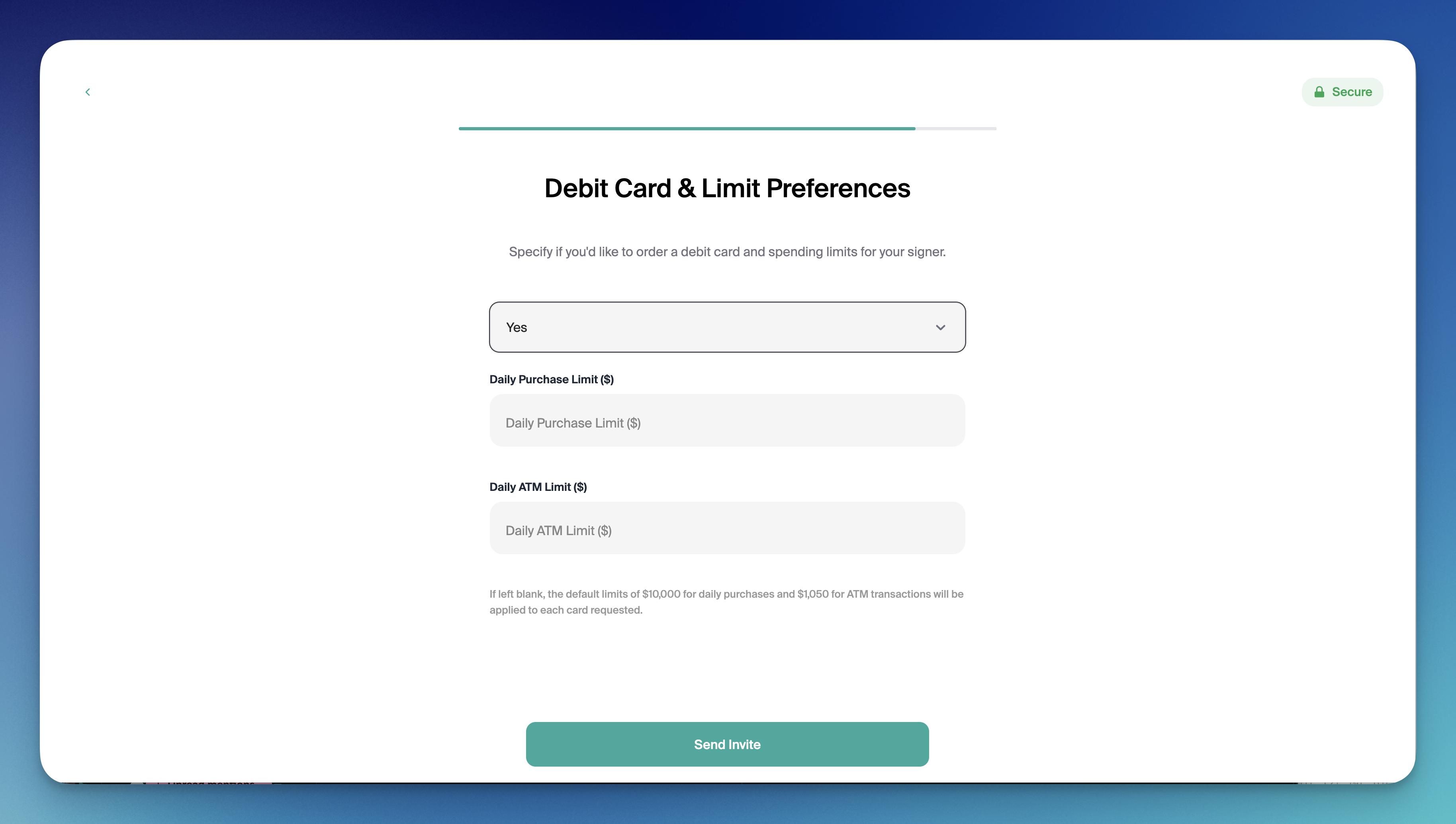
A Debit Card & Limit Preferences screen for each invited authorized signer.
Both screens collect a yes/no answer on whether a debit card should be issued, plus optional daily limit on the signer screen. If a card is requested, Glide creates a debit card record tied to that user when the application is submitted.
Where the Screens Appear
1. Primary Applicant: Debit Card Preference
Shown to the primary applicant during the additional questions step of the business application.
Single question: "Would you like to request a debit card for yourself?" (Yes / No)
No limit fields are shown on this screen. If the applicant selects Yes, the configured default daily purchase and ATM limits are applied to the card.
2. Invited Authorized Signer: Debit Card & Limit Preferences
Shown only when the added person is marked as an authorized signer on the application. If the added owner is not a signer, this screen is skipped.
Question 1: "Would you like to request a debit card for this signer?" (Yes / No)
If Yes, two optional fields appear:
Daily Purchase Limit ($)
Daily ATM Limit ($)
Example of footnote shown to the applicant (Configurable): "If left blank, the default limits of $10,000 for daily purchases and $1,050 for ATM transactions will be applied to each card requested."
3. Staff Dashboard
The same set of questions is rendered in the staff dashboard when a financial institution employee adds an authorized signer to a business application manually. The dashboard surfaces the debit card question and the two limit fields under the same configuration toggle, so applicant and staff flows stay aligned.
Document Generation
If your business membership/signature card includes per-signer debit card limit fields, Glide writes each signer's chosen Daily Purchase Limit and Daily ATM Limit into the corresponding document fields at signing time. Whatever the applicant specified prints onto the signed form. If a signer requested a card but left the limit fields blank, the configured defaults are written to the document.
Supported Customizations
Turn the entire debit card request flow on or off
Configure the default and maximum Daily Purchase Limit for signer cards.
Configure the default and maximum Daily ATM Limit for signer cards.
Adjust the verbiage on both the primary applicant screen and the signer screen, including the question text, helper text, and the limit footnote.
Surface the same debit card questions in the staff dashboard for manual signer adds.
Print signer-level limit answers into the business membership PDF (when the membership document template includes the corresponding fields).
Notes
The signer screen only appears for people added as authorized signers. Owners who are added without signer status will not see the debit card screen.
The Daily Purchase Limit and Daily ATM Limit fields are optional. Leaving them blank is a valid submission and triggers the configured defaults.
The primary applicant screen is not asked to enter limits.