Configuring Your Digital Loan Application: Application Questions (Auto-Pay)
Last updated: September 22, 2026
This feature is currently only supported for MeridianLink LOS'.
Overview
This guide covers how to map the auto-pay question in your Digital Loan Application to the matching custom question in your LOS, so the applicant's answer is sent to the correct field.
Accessing Application Questions
Log in to your Glide Dashboard.
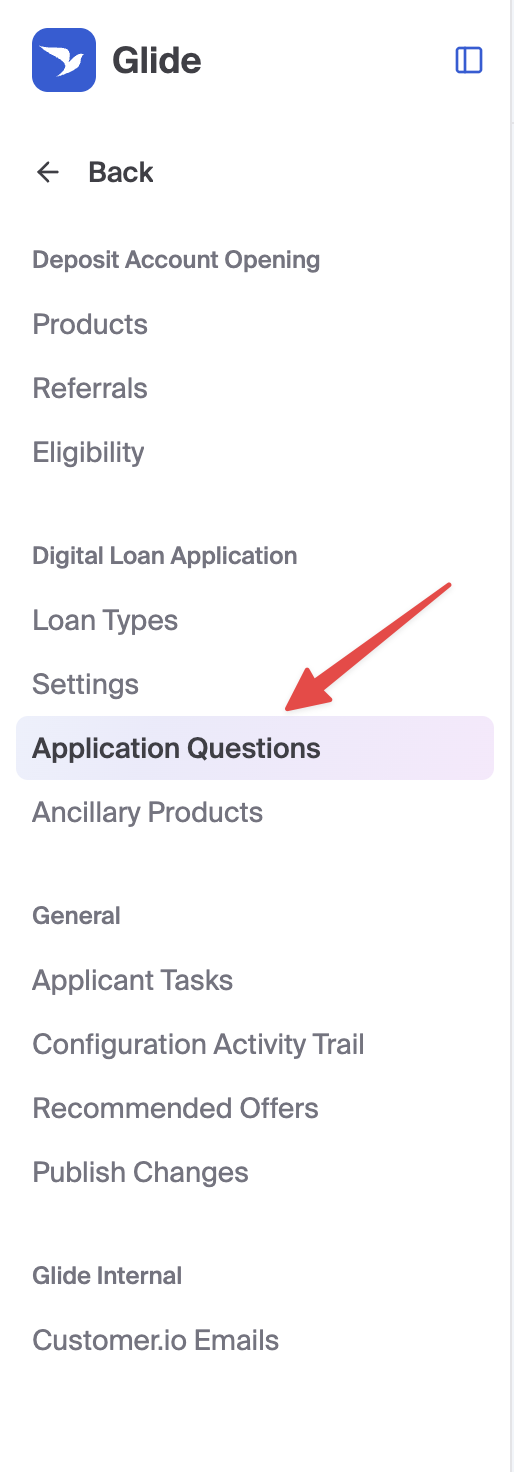
On the left-hand sidebar, navigate to Configure.
Select Application Questions.
Configuring the Auto-pay Question
Each field must match your LOS configuration exactly. See Retrieving your values from MeridianLink below for where to find them.
LOS question name: Enter the Question List Name of the auto-pay custom question in your LOS.
Value sent for Yes: Enter the Value your LOS expects when the applicant opts in to auto-pay.
Value sent for No: Enter the Value your LOS expects when the applicant declines.
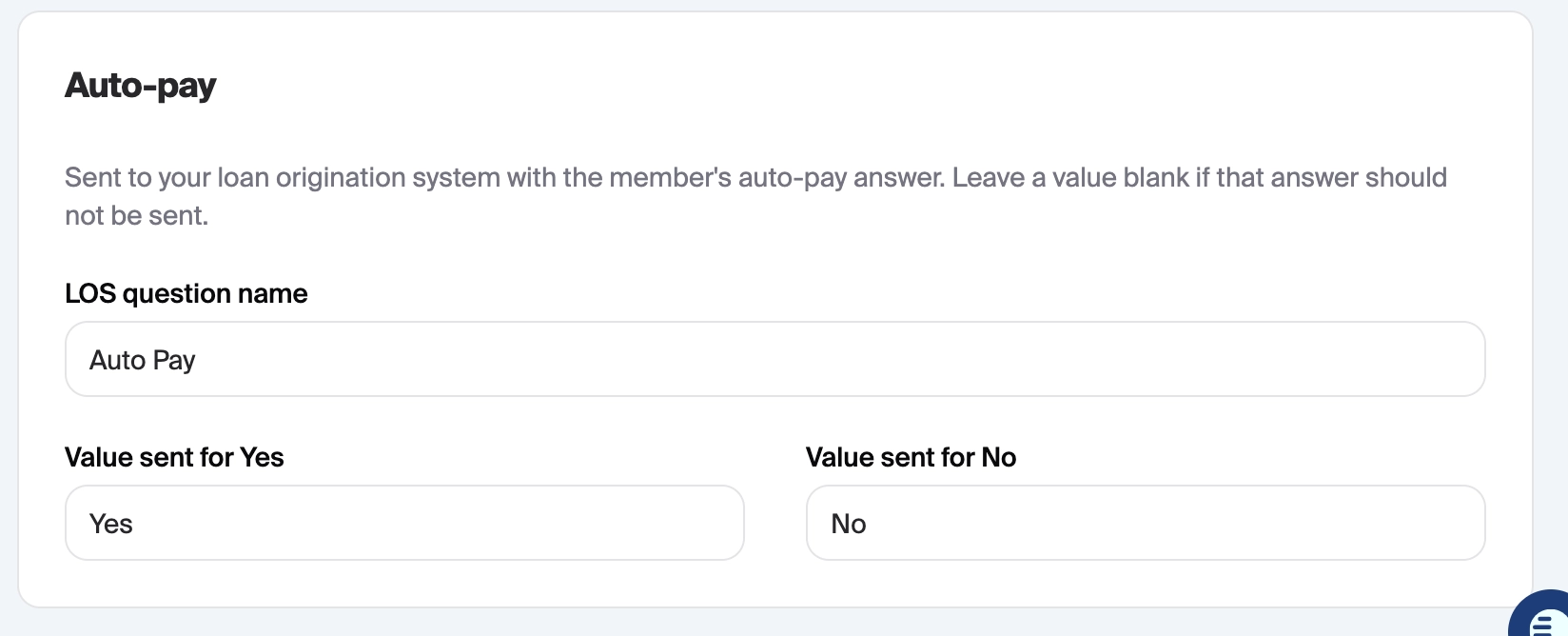
Note: Enter the stored value, not the display text. Values are case-sensitive.
Saving
Click the Save button at the top right of the page to store your configuration.
Retrieving your values from MeridianLink
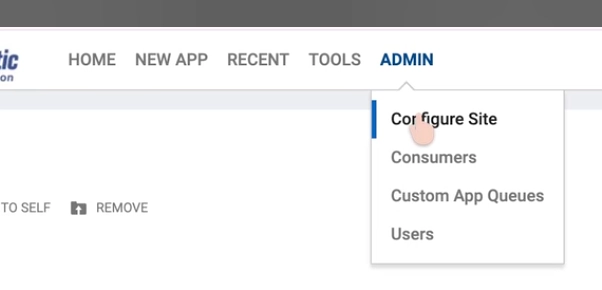
In MeridianLink, go to Admin > Configure Site.
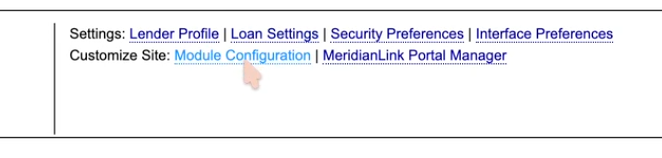
Click Module Configuration.
Under the Other Configuration section, click Custom App Questions.
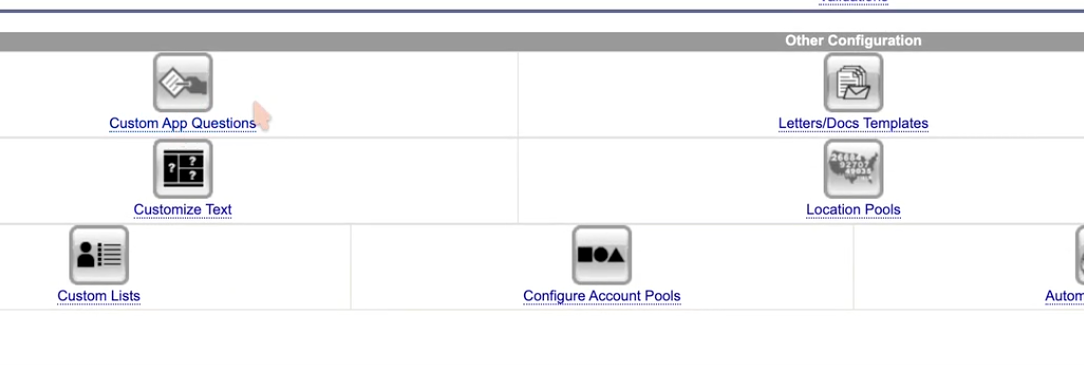
Locate your institution's auto-pay question in the list.

Click the question to open its details.
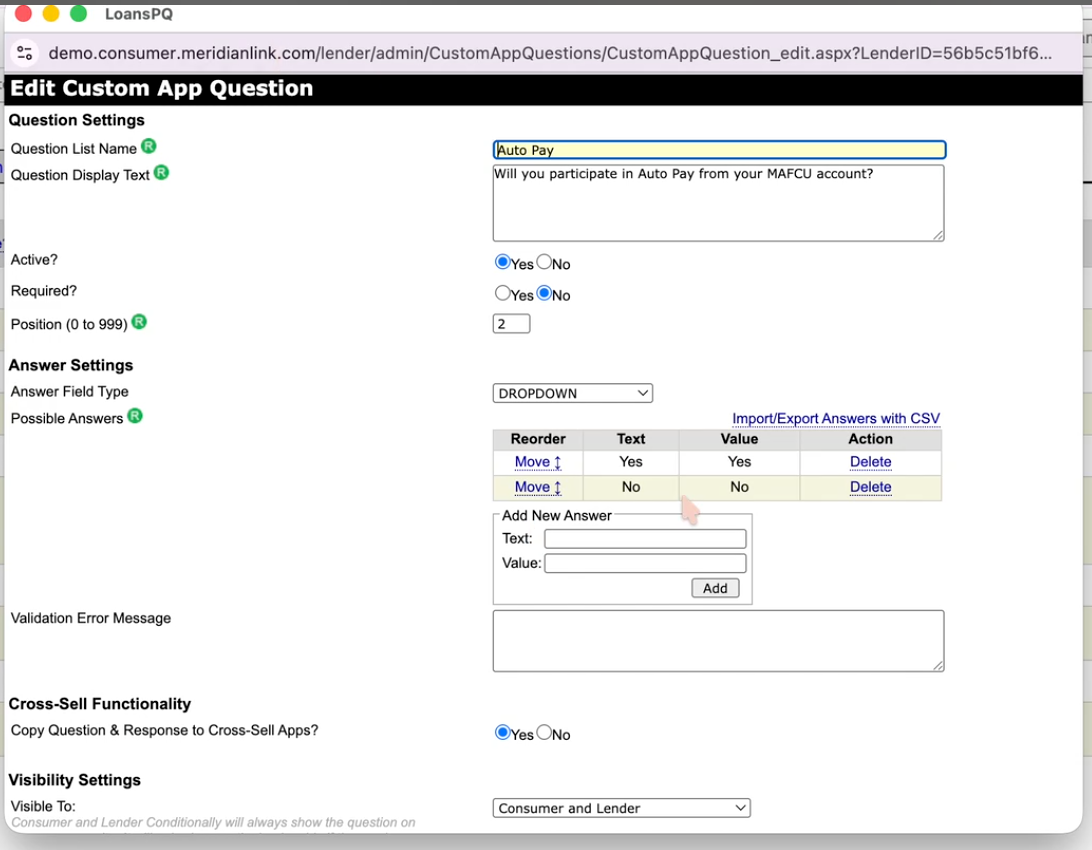
Copy the Question List Name and the Value entries for the Yes and No answers into the corresponding Glide fields above.
FAQs
The answer isn't showing up on the application in MeridianLink.
Check the LOS question name for typos or trailing spaces. It must match the Question List Name exactly.
The answer shows up but is blank or wrong.
Check the Yes/No values against the Value column in MeridianLink, not the text shown to the applicant.
We don't have an auto-pay custom question in MeridianLink.
One must exist in Custom App Questions before Glide can map to it. Contact your MeridianLink administrator.