Configuring Your Digital Loan Application: Personal Loan
Last updated: September 23, 2026
Overview
This guide covers the specific settings for the Personal Loan product, including loan purpose categories, rate table management, and applicant-facing descriptions.
Personal Loan Categories
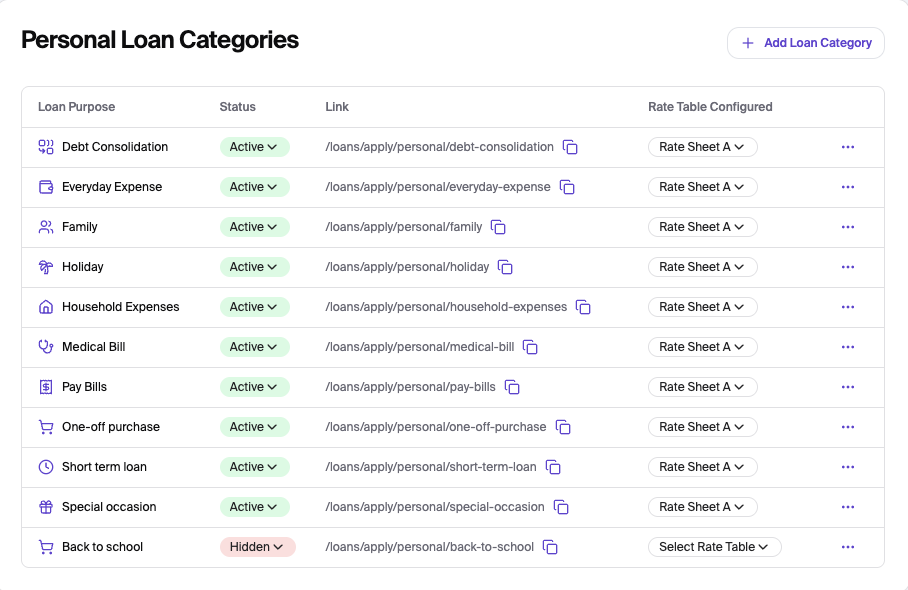
Manage the various reasons an applicant might apply for a personal loan. Each category can have its own unique application path.
Loan Purpose: View standard options such as Debt Consolidation, Everyday Expense, and Holiday.
Status: Use the dropdown to set availability:
Active: Visible to all applicants.
Hidden: Not visible in the application flow.
Active via link: Only accessible through a direct link. Does not appear in the regular loan application journey.
Rate Table Configured: Assign a specific rate sheet (e.g., Rate Sheet A) to the category.
Category Management: Click the three-dot menu (...) to edit, move down, add a sub-type, or hide a category.
Add Loan Category: Use the button at the top of the table to create a new purpose, such as a "Holiday" loan.
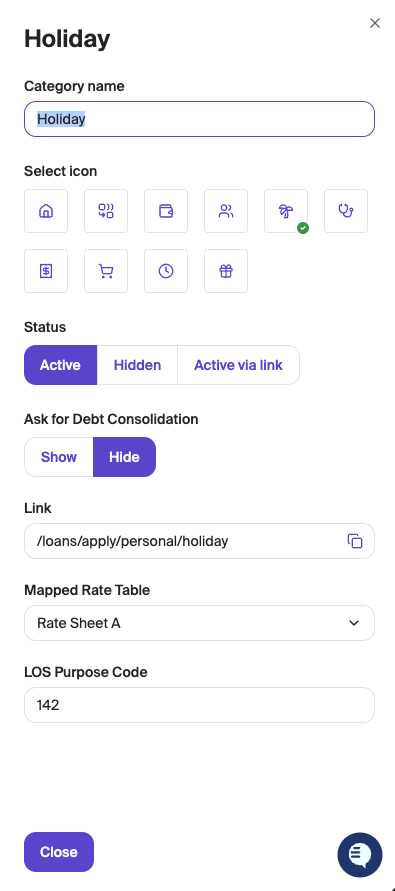
Category Setup: Use the steps below to complete the category setup.
Category Name: Enter the internal name for the loan purpose, such as "Vacation" or "Home Improvement".
Select Icon: Choose a visual icon that best represents the loan category for the applicant's view.
Status: Select the visibility for this specific category:
Active: The category is live and visible to all applicants.
Hidden: The category is saved but not visible in the application flow.
Active via link: The category can only be accessed through a direct, unique URL.
Rate Table Configured: Assign a specific rate sheet (e.g., Rate Sheet A) to the category.
Ask for Debt Consolidation: Toggle between Show or Hide. Enabling this will prompt the applicant to provide details about existing debts they wish to consolidate within the application.
Purpose Code: Enter the specific core-system purpose code associated with this loan type. This ensures that when an application is funded, it maps correctly to your internal processing system.
Click the Close button at the bottom of the configuration window. This "stages" your changes.
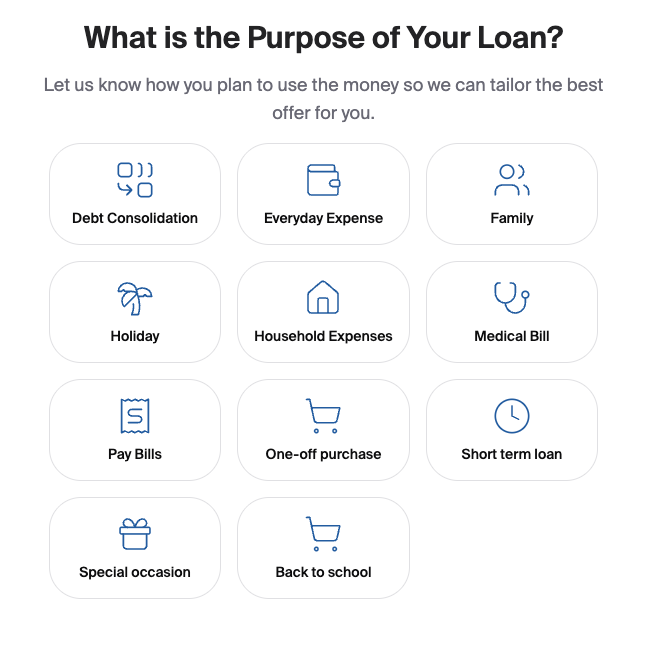
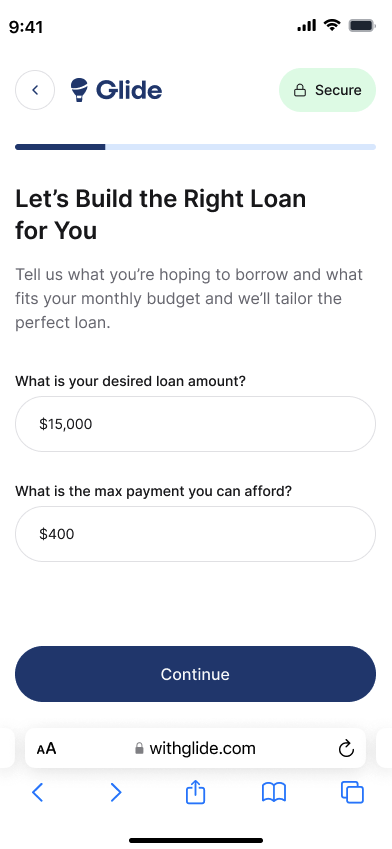
The image below shows the 'End user Display.'
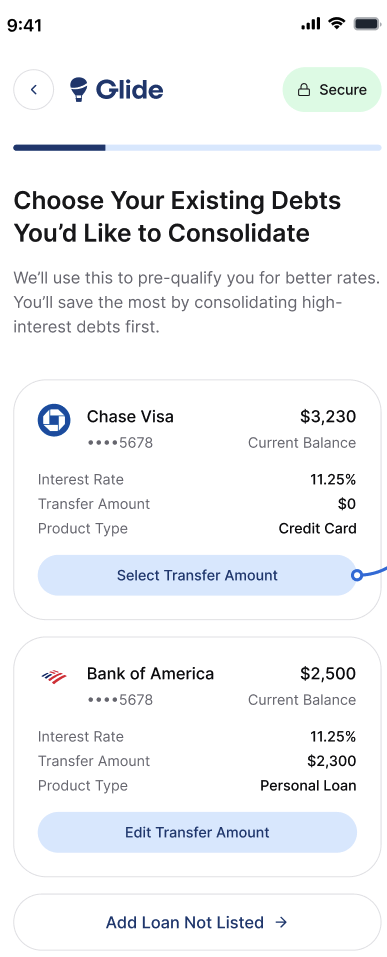
The image below shows the 'End User Display.' When Debt Consolidation is turned on, and the applicant has trade lines.
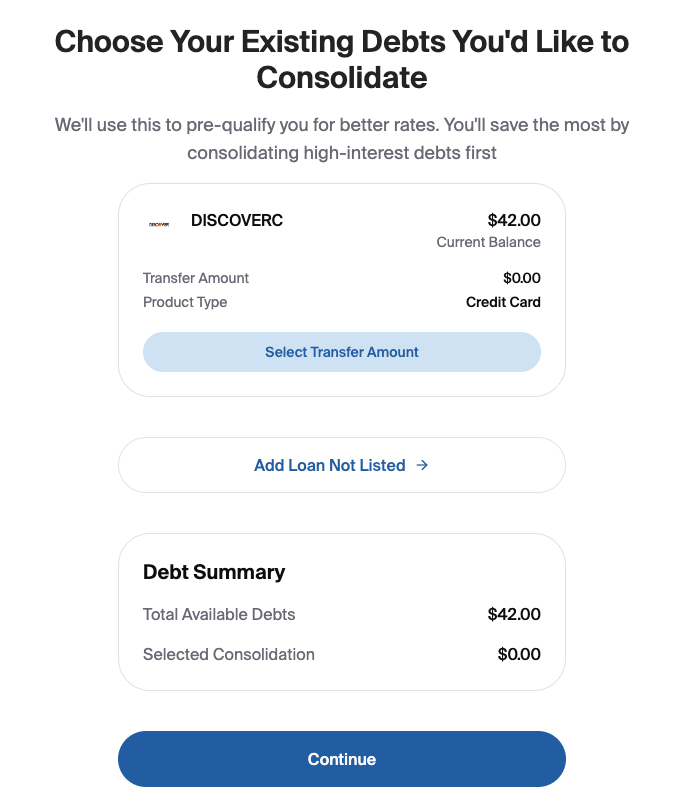
The image below shows the 'End user Display.' When Debt Consolidation is hidden.
Direct Link: A unique URL is automatically generated for this specific loan category to be used in targeted marketing campaigns.
Mapped Rate Table: Use the dropdown to select which pricing structure (e.g., Rate Sheet A) applies specifically to this category.
Rate Table Management
Before making changes, it is important to understand how these two components work together:
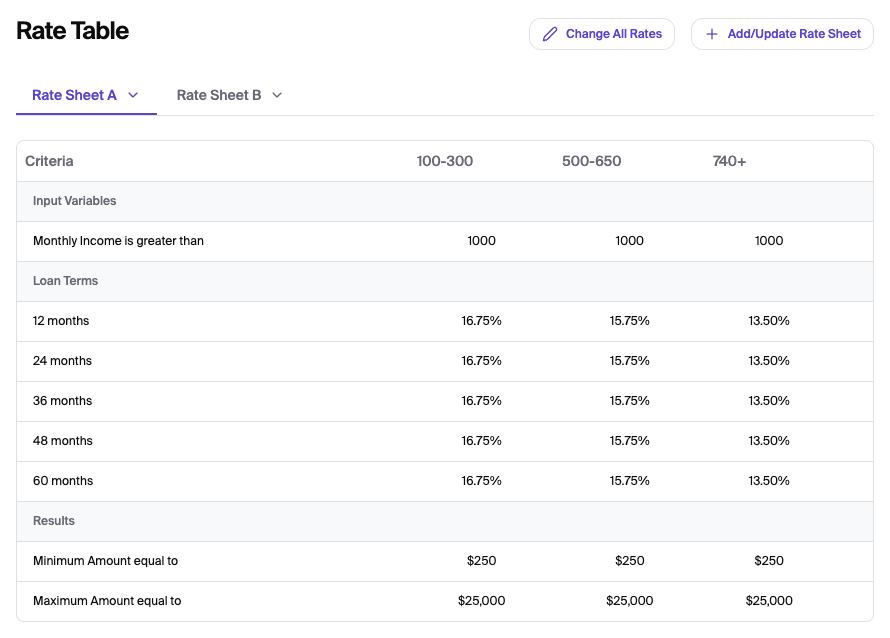
The Rate Table (View-Only): The table you see on your dashboard screen is a live preview of your current configuration. It displays rate sheets that have your active tiers, interest rates, criteria's and loan limits but cannot be edited directly on the screen.
The Rate Sheet (Editable File): To change any data in the table, you must download the Rate Sheet (Recommended) or Start From Blank template, update it in Excel, and re-upload it. This sheet acts as the "source of truth" that updates the dashboard view.
Please see the How to Update Your Rate Sheet Guide for Rate Updates
Saving
Save: Click the Save button at the top right to store your configuration changes.