Configuring Your Digital Loan Application: Recommended Offers
Last updated: July 21, 2026
Overview
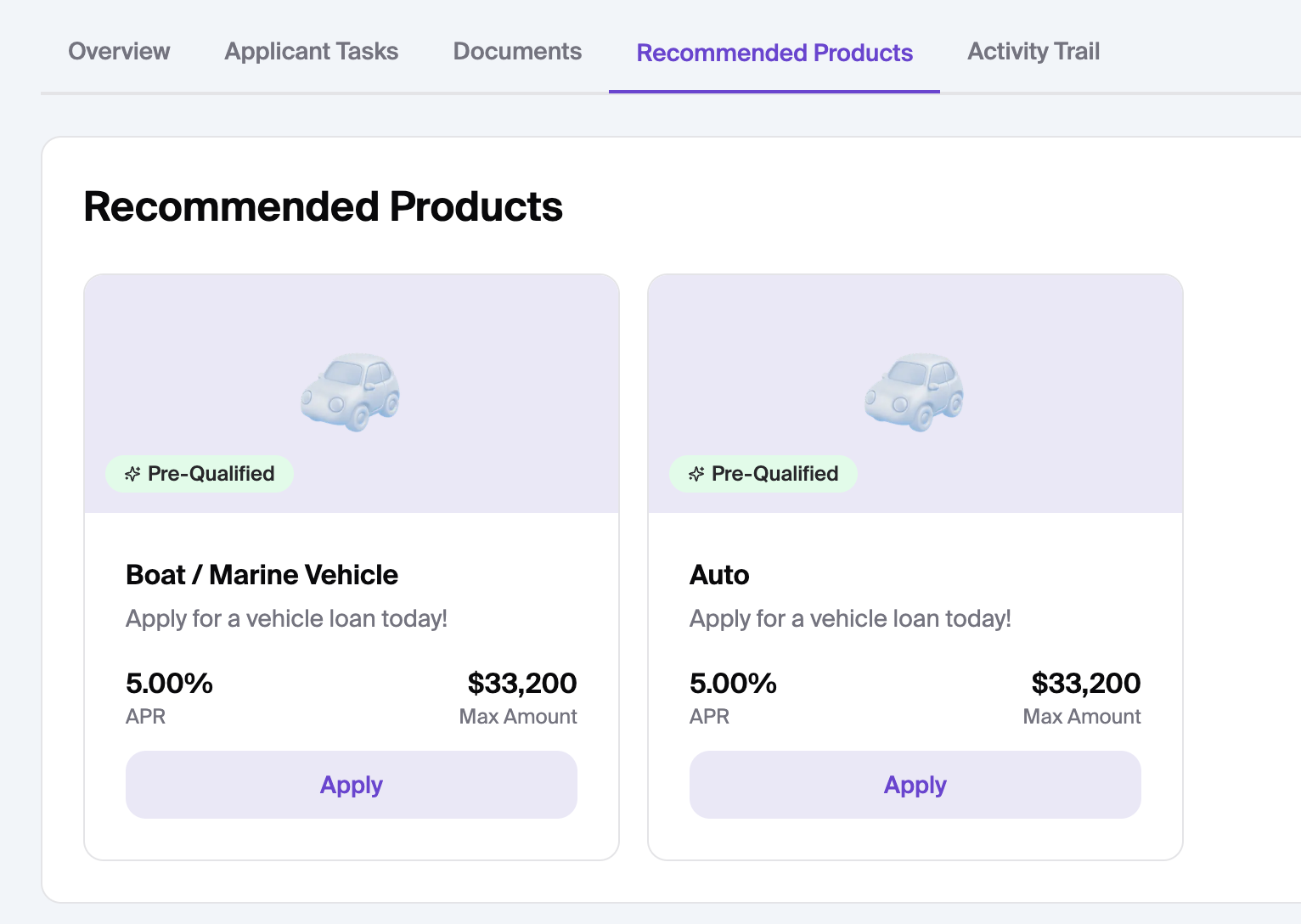
This guide explains how to manage the Recommended Offers section, which allows you to present cross-sell opportunities to applicants. These offers will also appear in the staff dashboard in the loan application view so staff can use that for proactive cross-selling.
1. Landing Page: Section Settings
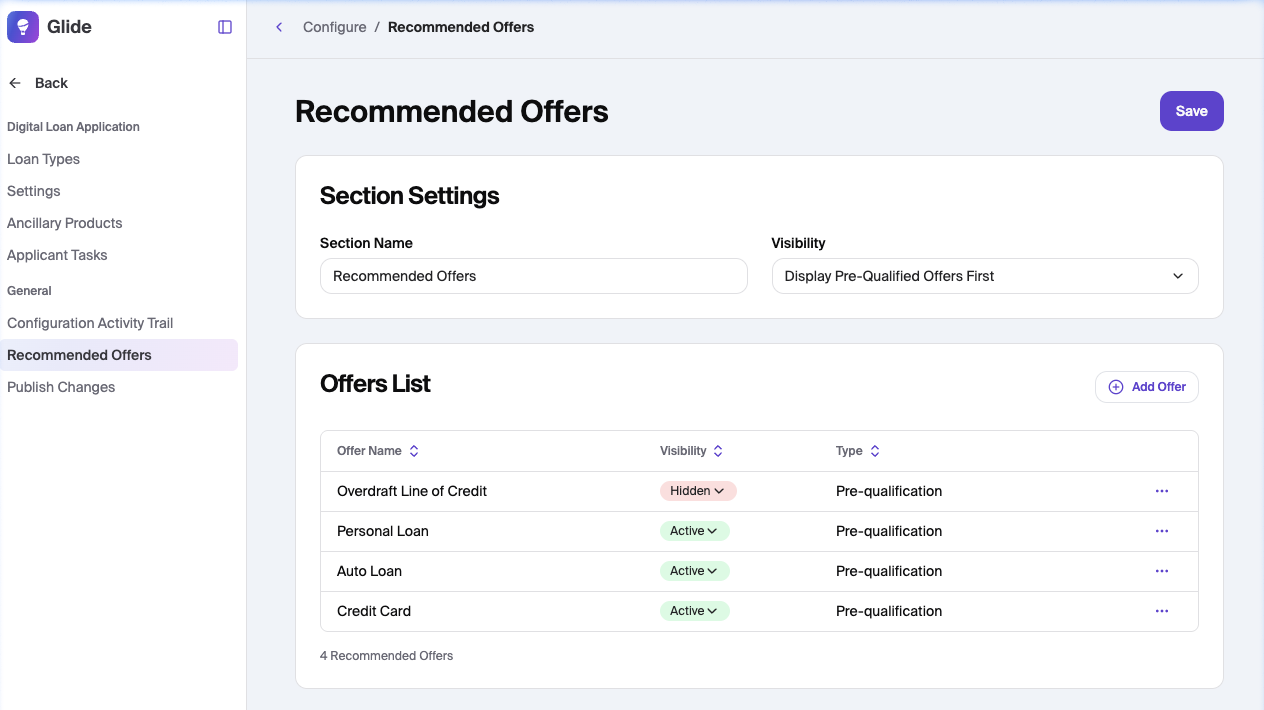
The main landing page serves as your control center for how offers are grouped and prioritized.
Section Name: Customize the heading your borrowers see (e.g., "Recommended Offers").
Visibility Logic: Use the dropdown to choose how offers are prioritized:
Display Pre-Qualified Offers First: Prioritizes credit-based matches.
Hide Recommended Offers Section: Removes the section entirely from the UI.
Set Order Manually: Allows you to define a specific sequence for the offers.
Offers List: View and manage existing products like Overdraft Line of Credit, Personal Loan, and Credit Card.
2. Adding a New Offer
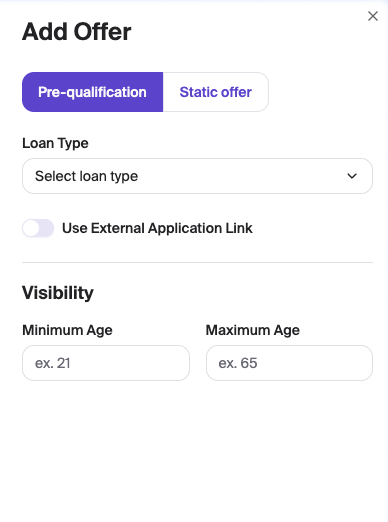
When you click the +Add Offer button, a configuration panel appears with the following steps:
Step A: Select Offer Type
Choose the fundamental nature of the offer:
Pre-qualification: Used for offers based on credit criteria or pre-approval data.
Static offer: Used for general marketing offers shown to all applicants who meet basic eligibility.
Step B: Loan Mapping
Connect the offer to your product suite:
Loan Type: Select the specific loan product from your internal dropdown menu.
External Links: Toggle Use External Application Link if you want to direct the applicant to a third-party site or a different internal portal rather than the standard Glide flow.
Step C: Visibility & Age Requirements
Define the demographic guardrails for the offer:
Minimum Age: Set the youngest age eligible to see the offer (e.g., 21).
Maximum Age: Set the age ceiling for the offer (e.g., 65).
Step D: Add
To add the offer click add at the bottom of the screen under adding a new offer
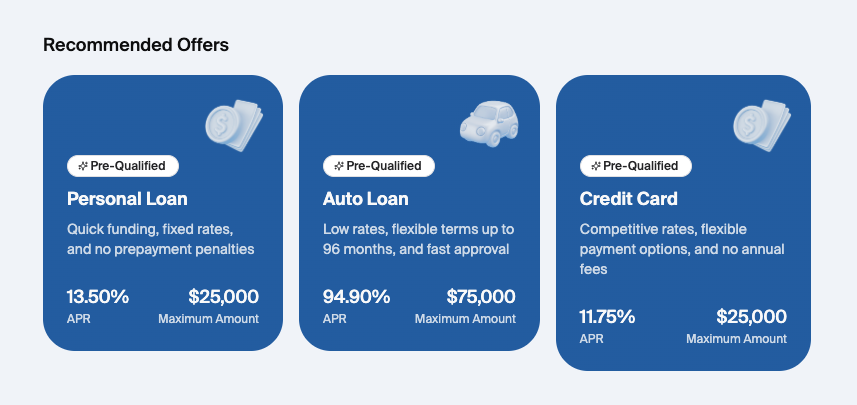
The image below shows the 'End user Display.'
The image below shows the Recommended Offers tab in the Staff Dashboard
Saving and Publishing
Save: Click the Save button at the top right to store your configuration changes.