Configuring Your Digital Loan Application: If/Then Rules
Last updated: September 23, 2026
If/Then Rules allow financial institutions to define conditional adjustments to loan rates, terms, and eligibility based on loan-specific attributes. Rules are evaluated automatically during the prequalification process to modify offers in real time — for example, adding a rate increase when a vehicle's Loan-to-Value ratio exceeds a threshold, or capping the maximum term for high-mileage vehicles.
This guide covers how to configure, manage, and understand If/Then Rules from the Glide Dashboard.
Overview
If/Then Rules follow a simple structure:
IF [field] [operator] [value] THEN [action] [adjustment]
For example:
IF Vehicle Age is greater than 10 years, THEN increase rate by 1.00%
IF LTV is between 91% and 100%, THEN increase rate by 0.50%
IF Vehicle Mileage is greater than 150,000 miles, THEN exclude from prequalification
IF Loan Amount is less than $7,500, THEN set max term to 52 months
For vehicle loans, an additional vehicle type option is available.
Rules are evaluated during prequalification and when applicants adjust loan parameters on the customize slider. All applicable rules are evaluated — there is no short-circuiting.
Accessing the Rules Section
Log in to the Glide Dashboard.
Navigate to Configure > Loan Types.
Select the loan product type you want to configure (e.g., Vehicle, Personal).
Scroll down to the Rules section.
Rules are grouped by type: Rate Rules, Term Restrictions, and Validation Rules.
If no rules have been configured yet, you will see: "No rules configured yet."
Rule Types
Rate Rules
Rate Rules adjust the qualifying APR by a specified number of percentage points. These adjustments directly affect the rate that the applicant sees and the monthly payment calculation.
Actions available:
Increase — Adds percentage points to the base APR
Decrease — Subtracts percentage points from the base APR
Example: IF LTV is between 100% and 110%, THEN increase rate by 1.00%. This means a base rate of 5.50% would become 6.50%.
Note: When multiple rate rules match, their adjustments are added together. For example, if one rule adds +0.50% and another adds +1.00%, the total adjustment is +1.50%.

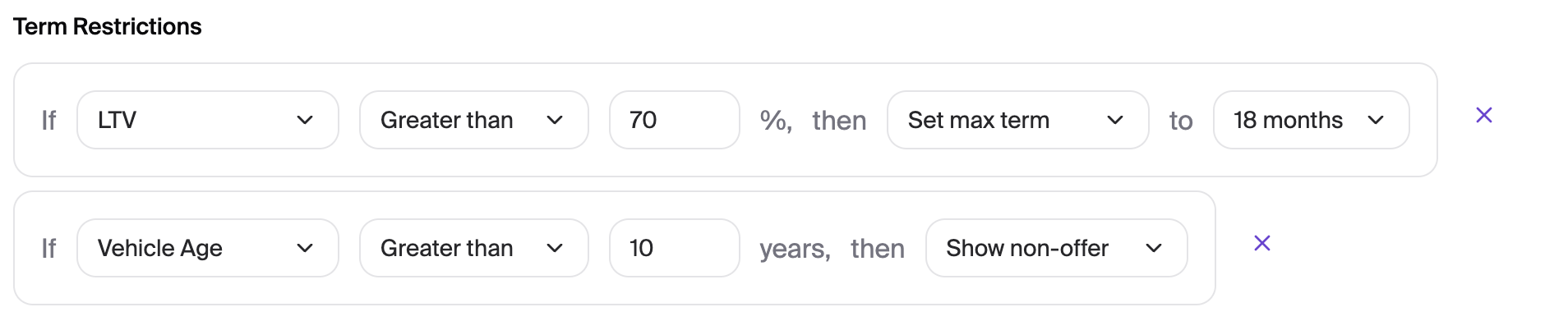
Term Restrictions
Term Restriction rules limit the loan term offered to an applicant or exclude them from prequalification entirely.
Actions available:
Set max term — Caps the maximum loan term (in months) that can be offered
Set min term — Sets a floor on the minimum loan term (in months) that can be offered
Exclude from prequalification — Prevents the applicant from receiving a prequalified offer. An optional message can be displayed to the applicant.
Example: IF Vehicle Mileage is greater than 100,000 miles, THEN set max term to 64 months.
Note: When multiple term restriction rules match, the most restrictive value is used. For max term, this is the lowest value. For min term, this is the highest value. If any rule triggers exclusion from prequalification, the applicant will not receive an offer regardless of other rule results.
Validation Rules
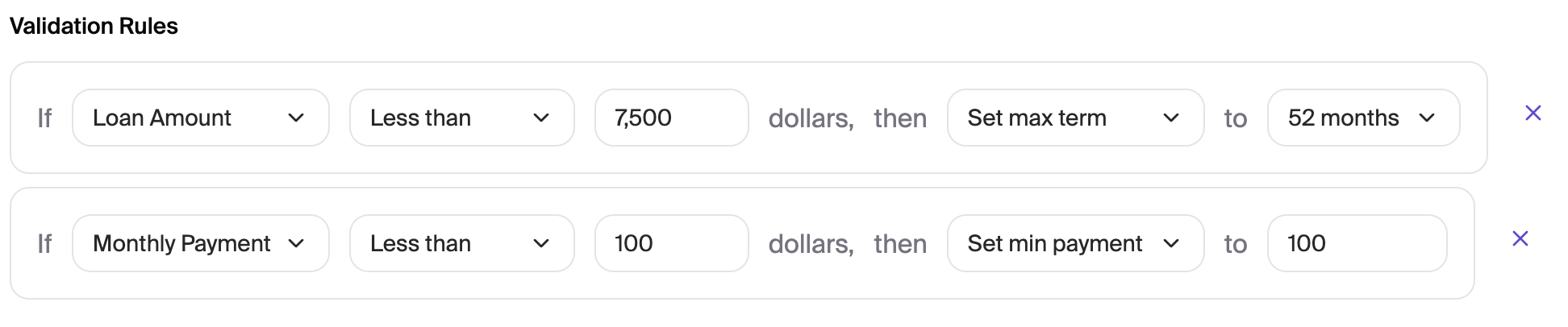
Validation Rules enforce constraints on prequalified loan parameters
Actions available:
Set max term — Limits the maximum term based on a condition
Set min payment — Enforces a minimum monthly payment amount
Set min amount — Enforces a minimum loan amount
Example: IF Loan Amount is less than $7,500, THEN set max term to 52 months. This means an applicant requesting $6,000 would not be able to select a term longer than 52 months on the customize slider.
Supported Fields
The following fields can be used as conditions in your rules:
Field Name | Description | Notes |
Vehicle Age | Age of the vehicle in years | Calculated from the vehicle year |
Vehicle Mileage | Odometer reading in miles | From vehicle details |
Loan-to-Value (LTV) | Ratio of loan amount to vehicle value, shown as a percentage | Loan amount divided by vehicle value |
Loan Amount | Requested or qualifying loan amount in dollars | Requested or max qualifying amount |
Term | Loan term in months | Selected or default term |
Monthly Payment | Monthly payment amount in dollars | Calculated monthly payment |
Credit Score | Borrower credit score | From credit pull |
Note on LTV: LTV is calculated based on the pre-adjusted loan amount in order to avoid conflicting rules.
Supported Operators
Operator | Description | Example |
is less than | Value is strictly below the threshold | Loan Amount is less than $5,000 |
is less than or equal to | Value is at or below the threshold | Credit Score is less than or equal to 650 |
is greater than | Value is strictly above the threshold | Vehicle Age is greater than 10 years |
is greater than or equal to | Value is at or above the threshold | LTV is greater than or equal to 120% |
is equal to | Value exactly matches | Term is equal to 18 months |
is between | Value falls within a range | LTV is between 91% and 100% |
Note on the "between" operator: The range includes the lower value but excludes the upper value. For example, "between 91% and 100%" matches 91%, 95%, and 99.9%, but does not match 100%. This ensures adjacent ranges (e.g., 91–100% and 100–110%) cover every possible value without overlap or gaps.
Adding a Rule
In the Rules section, click the Add Rule button.
Select the Rule Type (Rate Rule, Term Restriction, or Validation Rule).
Configure the condition:
Choose the Field (e.g., Vehicle Age, LTV, Loan Amount)
Choose the Operator (e.g., is greater than, is between)
Enter the Value (for the "between" operator, enter both a low and high value)
Configure the action:
Choose the Action (e.g., increase rate, set max term)
Enter the Adjustment Value (e.g., 0.50 for a 0.50% rate increase, or 60 for a 60-month max term)
Click Save at the top of the page to apply your changes.
All rules are saved together as part of the loan product configuration.
Editing a Rule
All rule fields can be edited inline — simply click on the field, operator, value, action, or adjustment you want to change, make your edits, and click Save.
Deleting a Rule
To remove a rule, click the X button next to the rule you want to delete, then click Save to confirm your changes.
How Rules Are Evaluated
When an applicant goes through the prequalification process, the system evaluates rules in the following order:
Rules are evaluated in the order configured
For each rule, the system checks whether the relevant field value is available (e.g., vehicle value for LTV rules). If the data is not available, the rule is skipped.
If the condition matches, the rule's action is collected.
After all rules are evaluated, results are aggregated:
Rate adjustments are summed together.
Term restrictions use the most restrictive value.
Exclusion from prequalification takes priority over all other adjustments.
Activity Trail
When If/Then Rules are evaluated during prequalification, the results are logged in the Activity Trail for the loan application. This provides full visibility into how an applicant's offer was modified.
Each triggered rule that produced a change is shown as a line item in the activity trail entry, formatted as:
⚙ [Rule Name] : [Attribute] [Previous Value] → [New Value]
For example:
⚙ Vehicle Age > 10 years: Rate 5.50% → 6.50%
⚙ Vehicle Mileage > 150,000: Offer Status Open → Non-Offer
If rules are evaluated but produce no changes, the activity trail will note: "If/Then rules evaluated with no change to the prequalified terms."
Slider Behavior
When validation rules are active, they affect the applicant's experience on the loan customize page:
If the applicant drags a slider past a constrained value and was initially prequalified, a message will display: "This selection is outside your pre-qualified range."
If a rule sets a minimum loan amount for a given term, reducing the amount below that threshold will trigger the same out-of-range message.
If the "Constrain Loan Term Sliders" toggle is enabled, then any rules limiting the term (i.e. Set max term or Set min term) will be applied to the sliders, preventing the user from selecting an option outside of the configured range.
FAQs
Can I create rules that use multiple conditions (e.g., IF vehicle age > 10 AND mileage > 100,000)? Not at this time. Each rule supports a single condition. However, you can create multiple individual rules and they will all be evaluated independently — their effects stack.
What happens if an applicant matches both a rate rule and an exclusion rule? The exclusion takes priority. If any rule triggers exclusion from prequalification, the applicant will not receive an offer, and rate adjustments become irrelevant.
Can I give a rate discount with rules? Yes. You can set a rate rule to decrease the rate, which will subtract the specified percentage points from the base APR.
Do rules apply to all loan products automatically? No. Rules are configured per loan product type (e.g., Vehicle loans, Personal loans). Each product type has its own set of rules.
If you have questions about configuring If/Then Rules or need assistance setting up rules for your financial institution, please contact your Glide representative or reach out to our support team.