Configuring Your Digital Loan Application: Updating Product Details
Last updated: September 23, 2026
Overview
This guide provides the necessary steps to manage, customize, and optimize the loan application experience for your applicants. Using the Glide Dashboard, you can control which products are visible, how they are branded, and the specific financial logic (rates and tiers) that drives each application.
Accessing Loan Types
Log in to your Glide Dashboard.
On the left-hand sidebar, navigate to Configure.
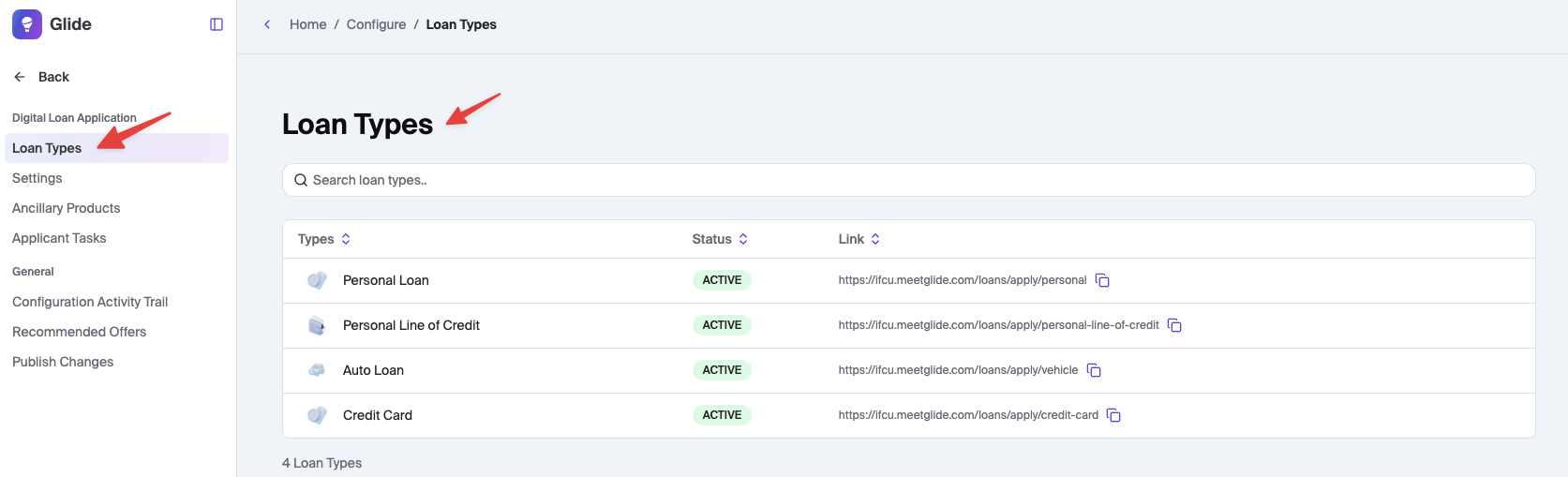
Select Loan Types.
Ensure you are on the Loan Types tab.
View and Filter Current Products
The Loan Types screen provides an overview of all application paths currently available.
Search: Use the Search loan types bar at the top to quickly find a specific product.
Overview: You can see the Type (name), Status (Active/Inactive), and the direct Link for each product at a glance.

Updating Product Details
To customize the details of a specific loan (like the "Personal Loan" or "Vehicle Loan"):
Select the Product: Click on the row of the loan type you wish to edit.
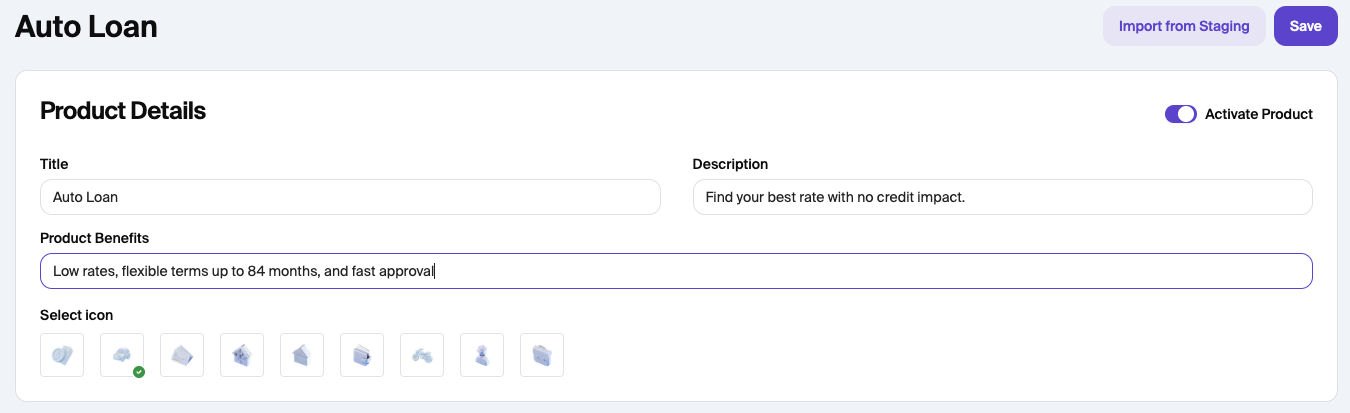
Product Details: Within the product's individual settings, you can update:
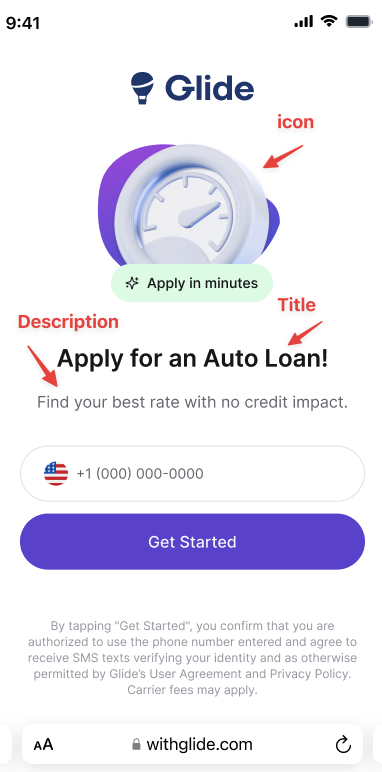
Title: The name applicants see on the application (e.g., Personal Loan).
Description: To provide marketing text to the applicant. This is in the product descriptions in deep links.
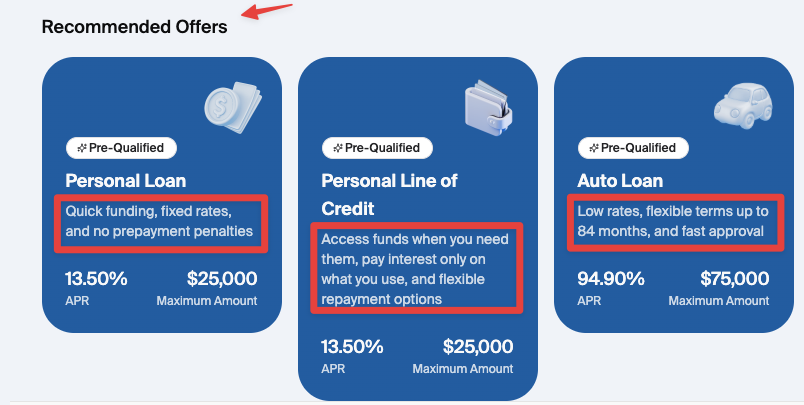
Product Benefits: List key highlights, such as "Quick funding" or "Fixed rates," to encourage applications. This is reflected in the recommended offers.
The image below shows the 'End user Display.' for the product benefits section.
Select Icon: Choose a 3D icon that best represents the product for a visual-first user experience.
Activate Product: Toggle the product between ACTIVE and INACTIVE to show or hide it from the public site.
The image below shows the 'End user Display' for the icon, title, and description for deep links.
Saving Changes
After making any adjustments:
Click the Save button in the top right corner.