Configuring Your Digital Loan Application: Credit Card Configuration
Last updated: October 20, 2026
Overview
This guide covers the specific settings for Credit Card products, including category management, visibility controls, and rate table integration to ensure a seamless applicant experience.
1. Default Loan Criteria
This section sets the baseline financial parameters for all credit card applications across your platform.
Minimum Payment Percentage: Define the Credit Card % Minimum Payment of Balance (e.g., 2%). This value is used to calculate the applicant's estimated monthly debt obligation.
Borrower Collection: Toggle the Enable Co-Borrower Collection switch if you want to allow joint applications for these products.
2. Credit Card Product Management
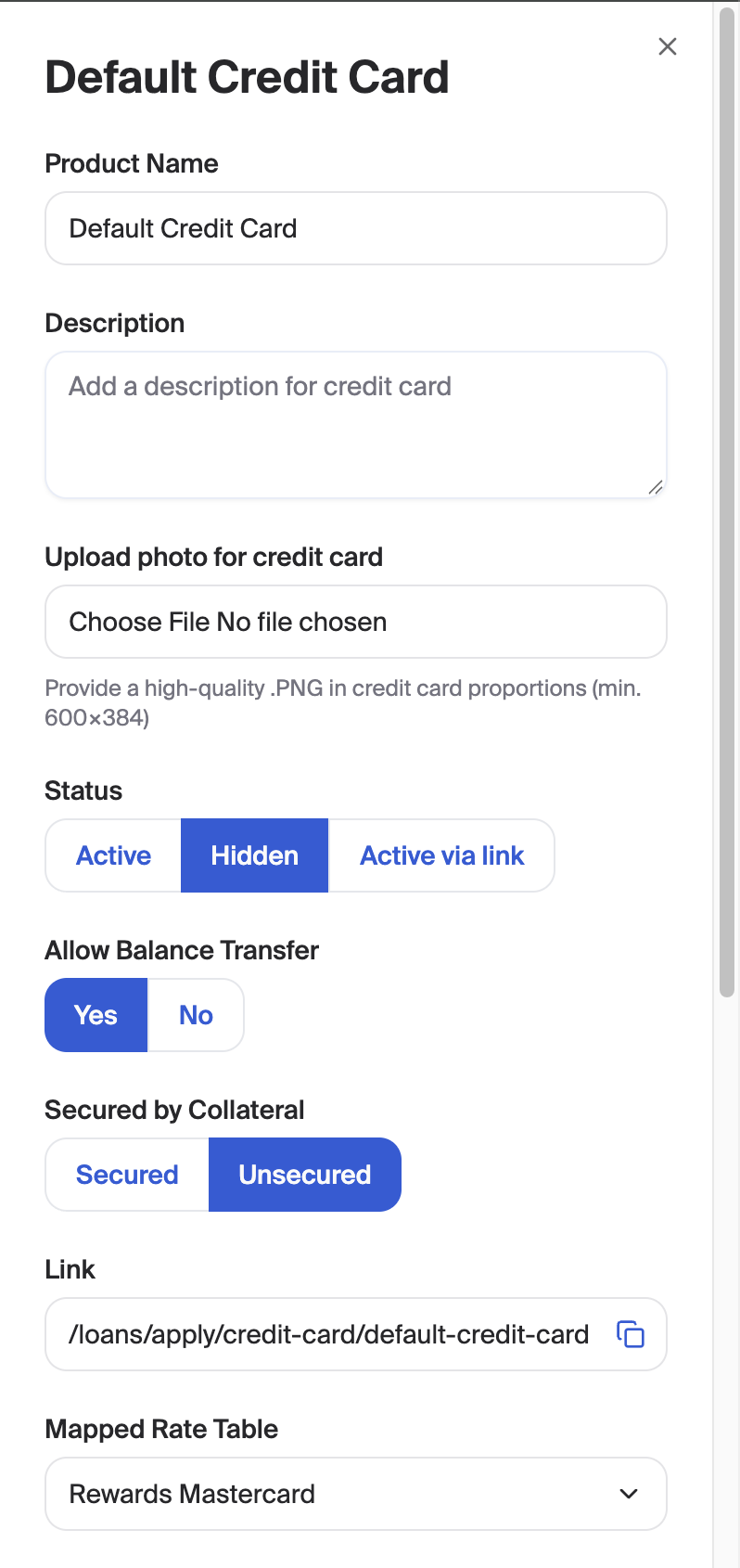
Manage specific card offerings (e.g., Rewards, Platinum, or Secured) within your product suite. To manage a credit card, click the 3 dot menu to the right and then Edit.
Product Name
The name of the card that appears to users
Description
The card description that appears to users
Upload a Photo
Upload an image of the credit card that will appear in the user flow
Status
Active: Visible to all applicants.
Hidden: Configuration is saved but not live.
Active via link: Only accessible through a direct URL for targeted marketing.
Add Credit Card: Use the + Add Credit Card button to create a new card offering.
Product Status: Control visibility for each card using the Status dropdown:
Allow Balance Transfer
Select Yes or No to determine if applicants are prompted to move existing balances during the application.
Secured by Collateral
Indicate if the card is considered secured or unsecured
Link
View and copy the direct link to the card's application.
Mapped Rate Table
Select the rate sheet that is used to pre-qualify users for this credit card
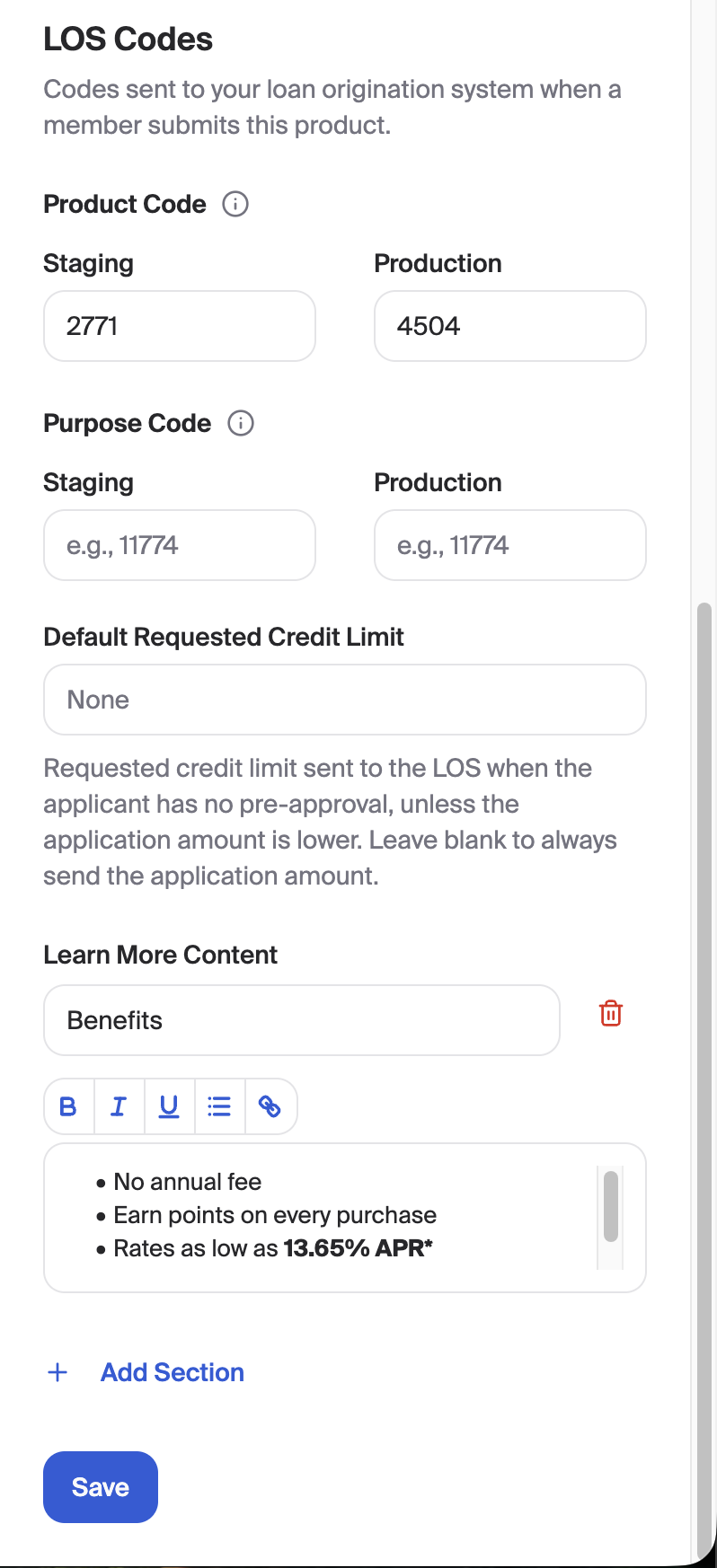
LOS Codes
Configure the product codes/names that are sent to your LOS when a user submits an application for this credit card
Default Requested Credit Limit
Configure the credit limit request that is sent to the LOS when the user is not pre-qualified.
Learn More Content
Configure additional information that the user will see when they click "learn more" in the application flow.
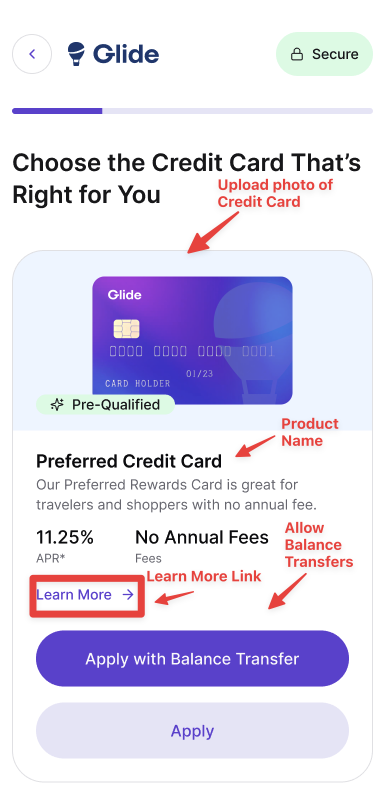
The image below shows the 'End user Display.'
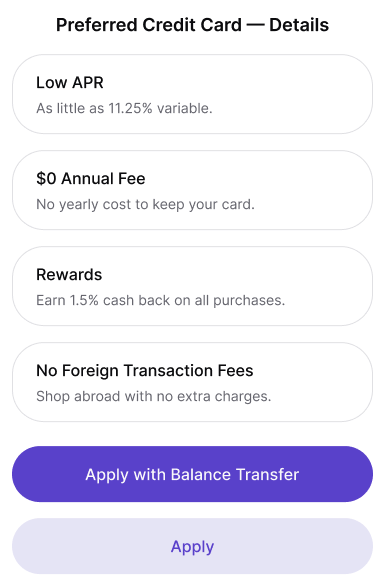
This is how the ''Learn More Content'' is displayed to the applicant.
3. Rate Table Management
Credit card pricing and tiers are managed through a dual-component system to ensure accuracy:
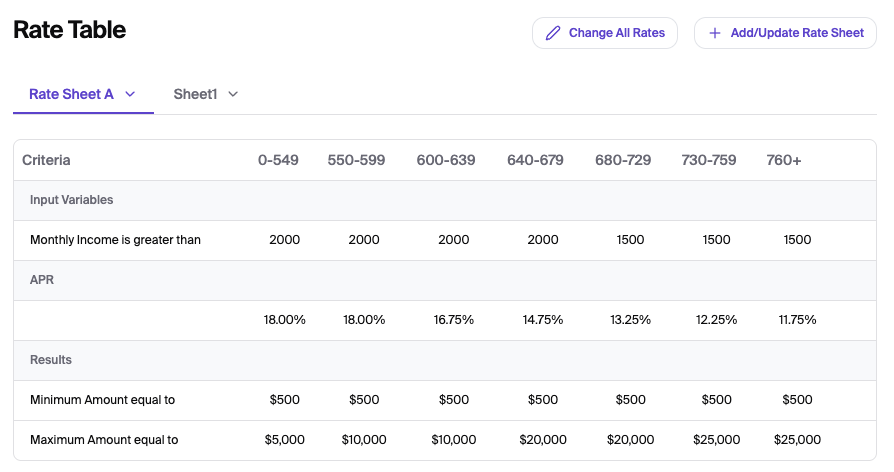
The Rate Table (View-Only): This is a live preview on your dashboard displaying your active tiers, interest rates, and credit limits. It cannot be edited directly on the screen.
The Rate Sheet (Editable File): To update rates or limits, you must download the Rate Sheet template, update the values in Excel, and re-upload it. This sheet serves as the "source of truth" for the card's pricing.
Please see the How to Update Your Rate Sheet Guide for Rate Updates
Mapped Rate Table: Use the dropdown in the category setup to assign a specific rate sheet (e.g., "Rate Sheet A") to the corresponding card category.
Saving
Save: Click the Save button at the top right of the page to store your configurations.