Dashboard Auto-Decisioning for Beneficiaries and Joint Owners
Last updated: September 23, 2026
Automatic Approval for Beneficiaries and Joint Owners on the Dashboard
The Glide staff dashboard now automatically evaluates and approves beneficiaries and joint owners using the same intelligent decision logic applied in the digital channel. This ensures consistent, reliable approval outcomes whether roles are added during membership creation or after account approval.
Benefits:
Faster onboarding: Beneficiaries and joint owners who meet criteria are approved instantly, reducing manual review time.
Consistent decisioning: Roles are evaluated with the same rules across the digital channel (online) and dashboard (in-branch), minimizing errors and discrepancies.
Operational efficiency: Staff can focus on exceptions rather than routine approvals, improving overall productivity.
Improved applicant experience: Instant approvals mean applicants and their added roles gain access without delays, enhancing satisfaction.
How It Works
Auto Approval Logic
Beneficiaries and joint owners are evaluated automatically when added.
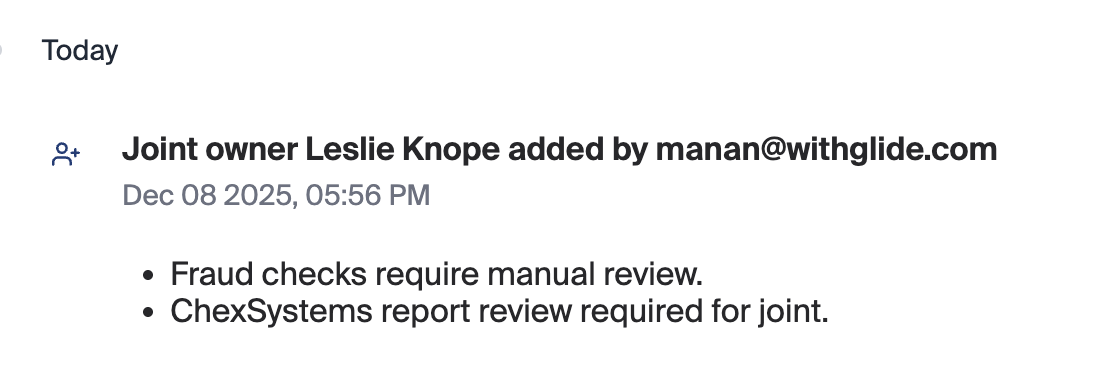
If they meet all criteria, they are approved instantly. If they fail, they are placed in pending, and the reason is logged in the activity trail.
Note: Auto-decisioning checks are performed using a combination of third-party services, including Plaid IDV, Plaid Monitor, and ChexSystems, depending on the requirements of your financial institution.
Activity Trail Updates
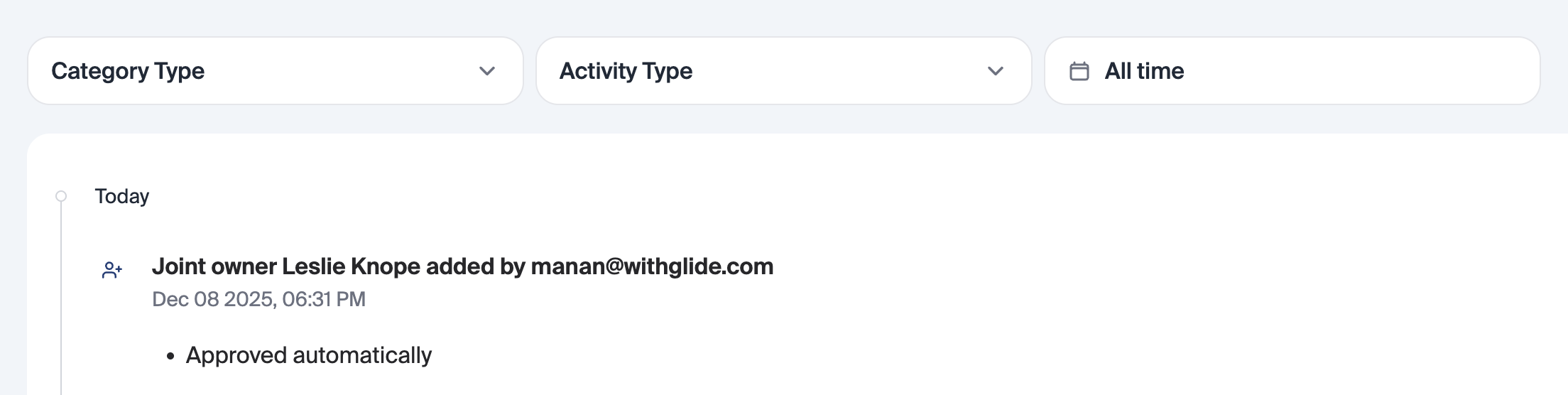
All actions (automatic approval or pending decision) are logged in the activity trail:
Approved automaticallyfor auto-approved rolesPending reason(s) follow the same logic as the digital channel
Requirement to Sign
If a role requires a signature, the requirement-to-sign modal appears immediately after the role is auto-approved.
Primary Applicants
Auto approval logic for primary applicants remains unchanged. If a primary applicant does not meet auto approval, but a joint owner or beneficiary does, the joint or beneficiary moves to pending automatically, with the activity trail reflecting this.
Trusts & Business Roles
Trusts and business roles continue to default to pending, as no auto approval logic exists for these roles.
Adding Roles
Roles can be added in two ways:
During new membership creation
Click + Add a Member and add joint owners or beneficiaries alongside the primary applicant.

After account approval
Use the + Add another role button in the roles table. The auto decision logic applies the same way.


Key Takeaways
Beneficiaries and joint owners are auto-decisioned consistently with digital channel logic.
Activity trail shows why a role was approved or pending.
Requirement-to-sign modal appears immediately after approval.
Trusts and business roles remain manual.