Application States and Queues
Last updated: September 23, 2026
Overview
Overview
Queues are the tabs on the Applications page that staff use to find work. Glide includes a set of standard queues (Pending, Action Required, Auto Approved, and others). You can also create custom queues with a name, which roles can see them, and optional auto-routing rules.
Custom queues sit alongside the standard tabs. An application can appear in a standard queue (for example, Pending) and in one or more custom queues at the same time. Use custom queues for work that the standard tabs do not cover — for example an audit queue for manually approved applications, a card-failure queue, or a queue of applications that have been pending longer than a set number of days.
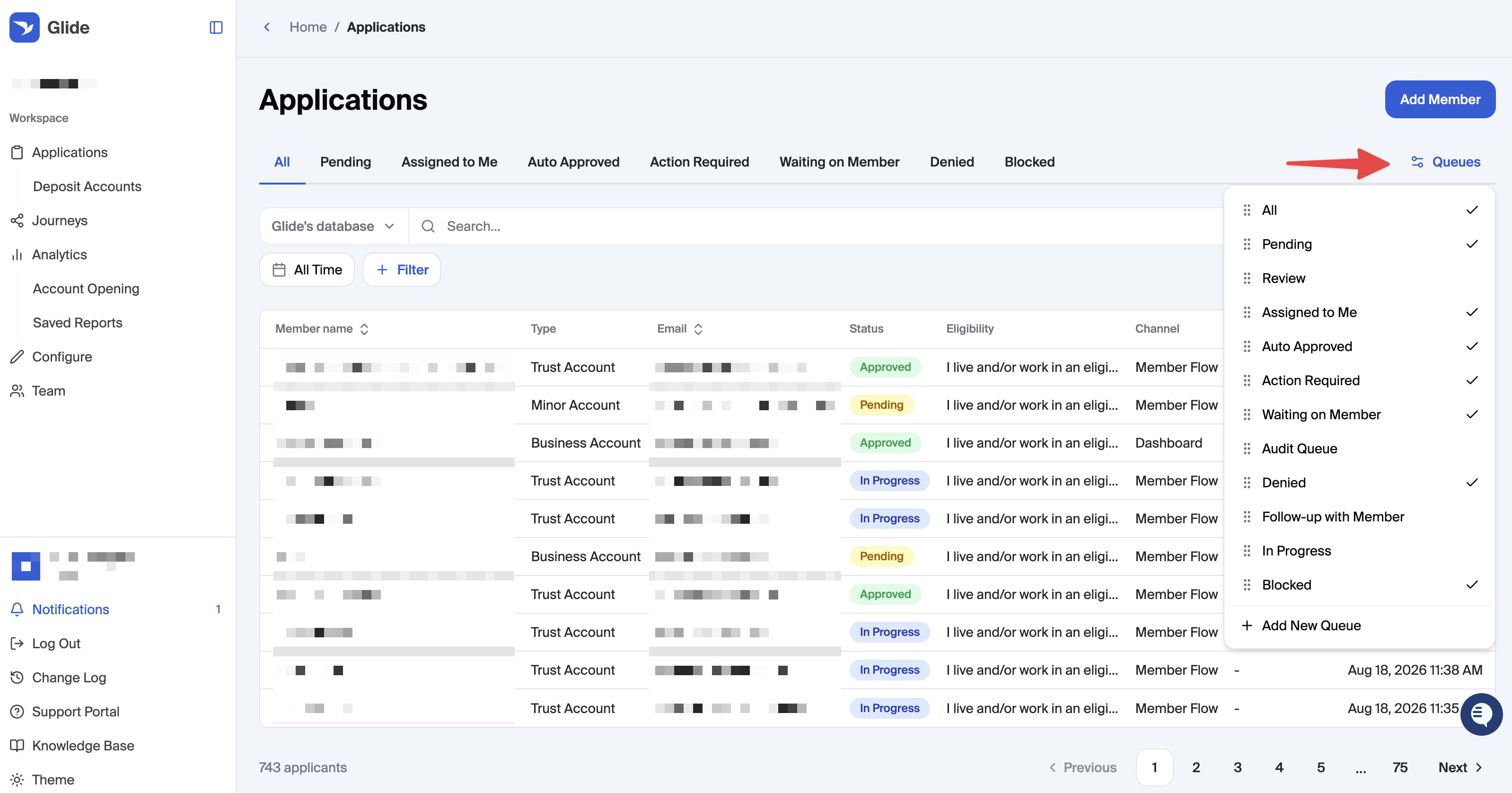
Queue Configurator button
On the Applications page, open Queues (gear icon, top right of the tab bar). That menu is your queue configurator.
From it you can:
Show or hide a queue in your tab bar by clicking the row. A check mark means it is visible. The All tab cannot be hidden.
Reorder queues by dragging the grip handle. Order is saved per employee, so your layout does not change anyone else’s.
Extra queues that do not fit in the tab bar move under More. Dragging a queue left promotes it onto the main row.
Create a custom queue with Add New Queue (only if your role has permission — see Permissions below).
Edit a custom queue by hovering the row and clicking the pencil.
Hiding a queue only changes what you see. It does not delete the queue or remove applications from it.
Add a New Queue
1. Open Queues → Add New Queue.
2. Enter a Queue Name (for example, Audit Queue).
3. Optionally set Role Visibility. Leave this on “All roles” if everyone should see the queue. Restrict it to Admin, Employee, Read Only, and/or specific custom roles if only some staff should see it. Admins can always see every custom queue.
4. Optionally add Auto-Routing Rules. Skip this if staff will add applications by hand. If you add rules, you can also turn on Auto-Removal from Queues in that section. It is off by default; see Auto-Removal from Queues below.
5. Click Create Queue. The new queue appears as a tab.
You can also create a queue from an open application: Queues on the application detail page → Add New Queue.
Auto-routing rules
Rules decide when Glide automatically adds an application to the queue. By default, applications stay in the queue until staff remove them. Turn on Auto-Removal from Queues to also remove auto-routed applications when they no longer match the queue’s rules.
Important behavior:
Rules apply to future matching events. They do not backfill applications that already meet the criteria.
Conditions in the same group must all match (AND). Separate groups are alternatives (OR).
An application can be auto-routed into more than one custom queue if it matches more than one set of rules.
If a staff member removes an application from a custom queue, auto-routing will not put that application back into that same queue. Staff can still add it back manually.
Auto-Removal from Queues
Use auto-removal to keep a custom queue focused on applications that still need attention. In Add New Queue or Edit Queue, find Auto-Removal from Queues in the Auto-Routing Rules section, above the filter groups. Add at least one rule, turn the toggle on, then create or save the queue.
The setting applies to that queue only and is off by default. With it on:
Glide removes an auto-routed application when it no longer matches any rule group. It stays if at least one group still matches.
Applications that staff add manually stay in the queue, even if they do not match its rules.
An application that was automatically removed can be auto-routed back when it matches again. An application that staff remove manually will not be auto-routed back into that same queue; staff can add it back manually.
For example, put Status is Pending and Days in Status more than 7 in one group. With auto-removal on, an auto-routed application leaves the queue after its status changes from Pending, provided it does not match another group.
Turning auto-removal on takes effect at the next routing evaluation, including checks of applications already auto-routed into the queue. Changes may take a short time to appear. Enabling it does not add historical applications that already meet the rules.
Turning it off stops automatic removals and does not restore applications already removed. The toggle is disabled when there are no routing rules. Clearing all rules turns auto-removal off without emptying the queue.
How to build a rule
1. Click Add Group.
2. Click Add filter and choose a field.
3. Add more filters in the same group when every condition should be true together.
4. Add another group when you want a second, independent path into the queue.
Example: Group 1 = Status is Pending; Group 2 = Days in Status more than 7. An application enters the queue if it is Pending or it has been in its current status more than 7 days.
Rule fields
Field | Matches when |
|---|---|
Status | The application’s current status (Pending, Auto Approved, Waiting on Member, and so on). Action Required is not a status option here; use the standard Action Required or Review queue for that work. |
Membership Type | The application is one of the selected membership types (Personal, Business, Trust, and so on). |
Pending Rule | The application is pending for a specific pending reason. Choose the reason from the dropdown rather than typing it. |
Approved By | The application was auto-approved, or it was approved by a specific staff member. |
Days in Status | The application has been in its current status more than or less than a number of days. These rules are checked on a schedule, so an application may take a short time to appear after it crosses the threshold. |
Funding Amount | Total committed funding is more than, less than, or equal to an amount. |
Card Failures | A card funding attempt on the application has failed. |
Applicant Tasks Submitted | The applicant has submitted an applicant task. |
Role Type | The application has a pending holder of one of the selected non-primary account roles, such as Joint Owner or Beneficiary. Select one or more roles available in your institution’s configuration. |
Product Type | The application has a pending or newly created share for the selected product or category. Choose Savings, Checking, Share Certificates, or a specific configured product. Search the list to find a product. |
Role Type and Product Type rules track pending work. Once the matching role or share is approved, it no longer satisfies that condition. With auto-removal on, the application can then leave the queue if no other group matches. These queues show the account application, rather than a separate row for each role or share. Product Type can also match a share on a new account application; add a Status condition when you want to narrow the workflow.
Example queues
These map to common workflows:
Audit — Status is Approved, or Approved By is a specific opener, so a second person can review manual approvals.
Card failures — Card Failures is Yes.
Aging pending — Status is Pending and Days in Status is more than 7 (or another threshold).
Applicant tasks — Applicant Tasks Submitted is Yes.
Pending joint owners or beneficiaries — Role Type is any of Joint Owner and Beneficiary. Turn on auto-removal to remove auto-routed applications when those roles no longer match.
Pending certificates — Product Type is Share Certificates. Add a Status condition if you want to focus on existing approved memberships.
Edit or delete a queue
1. Open Queues, hover the custom queue, and click the pencil.
2. Update the name, role visibility, rules, or Auto-Removal from Queues setting, then Save.
3. To delete, click Delete and confirm. Deleting a queue permanently removes the queue and its memberships. Applications themselves are not deleted.
Standard queues (Pending, All, and the rest) cannot be renamed or deleted. You can only show, hide, or reorder them for yourself.
Add or remove an application
On the application detail page, use the Queues button in the status row.
Click a custom queue name to add the application. A check mark means it is already in that queue.
Click the same queue again to remove it.
The activity trail records both actions, for example “Jane Smith moved application into Audit Queue” or “Jane Smith removed application from Audit Queue.”
Auto-routing writes “Application moved into [queue name] automatically,” plus the rule that matched (for example, “Auto-assign rule: Days in Status more than 7.”).
The activity trail also records automatic removals separately from staff removals, so you can see when an application left because it no longer matched the routing rules.
Anyone who can see the queue can add or remove applications. Creating, editing, and deleting queues requires extra permission.
Permissions
Under Team, Admins can grant Queues → Create and Manage. That permission lets a role create, rename, edit rules, change auto-removal settings, and delete custom queues.
Admin has this permission by default.
Employee, Read Only, and existing custom roles do not, unless you turn it on.
Staff without the permission still see the queues their role is allowed to see, can show/hide/reorder tabs for themselves, and can add or remove applications they can open.
Standard Queues
All
Shows all applications regardless of state
Review Queue
Shows applications in the pending state
Shows applicants who have added roles (joints, benes) but have been flagged for review (ex. joint owner failed fraud check).
Shows previously approved account holders that have added a checking account and failed ChexSystems.
Shows existing account holders that have added a share but there is logic blocking them from doing so, such as a warning code or stop code.
Pending
Shows only pending applications
Assigned to me
Shows applications that have been created or assigned to you
Auto Approved
Shows applications that are auto approved and not yet “confirmed”
Waiting on Member
Shows applications that have been put waiting on member
More > In Progress
Shows applications that have passed the initial fraud check and can be resumed on the dashboard or digital channel
More > Pending
Shows only pending applications
More > Action Required
Shows applicants who have added roles (joints, benes) but have been flagged for review (ex. joint owner failed fraud check).
Shows previously approved account holders that have added a checking account and failed ChexSystems.
Shows existing account holders that have added a share but there is logic blocking them from doing so, such as a warning code or stop code.
Application States
In progress
Applications that have been started in the digital channel and pass the initial fraud check to verify their phone number will appear in the “In Progress” state
Pending
Applications that have been submitted, but require manual review, because Glide may not have been able to verify eligibility or the applicant’s identity automatically.
Waiting on Member
Staff can use the “Waiting on Member” status to mark a previously pending application where additional information was requested. Applicants can be put in “Waiting on Member” if they were already approved if additional information needs to be captured. Our IDV Retry feature is recommended to be used to move applications back into the pending queue at the right time once submitting additional details.
Approved
The “Approved” status identifies an applicant that was manually approved.
Auto Approved
The “Approved” status identifies an applicant that was automatically approved in the digital channel.
Auto Denied
By default, there are no auto-deny rules in place. Auto-deny rules can be added upon request.
Staff Denied
The “Staff Denied” status identifies an applicant that was manually denied by a staff member.
Closed
Applications that expired (Unfinished applications 14 or 30 days after initially applying, set by the FI) or if staff members manually closed an application before it was submitted.