Permissions: Team & Roles Management
Last updated: May 13, 2026
Permissions Overview
Our new Permissions product gives you complete control over employee access in one centralized location. With this module, your FI can:
Give the right people access to the tools and information they need.
Adjust roles and permissions as your team changes.
Make managing access simple and consistent for everyone.
All functionality is available via the Team page in the left-hand navigation panel, providing a single, intuitive hub for managing workforce access.
Quick Access & Navigation
Employees & Roles Search: Easily find employees by name or email, and locate roles by name. Quick filtering helps you manage your team without digging through long lists.


Centralized Navigation: All permissions functionality is available from the Team page in the left-hand navigation panel, giving you a single hub to manage access efficiently and securely.
1. Employee Permissions
Team Page
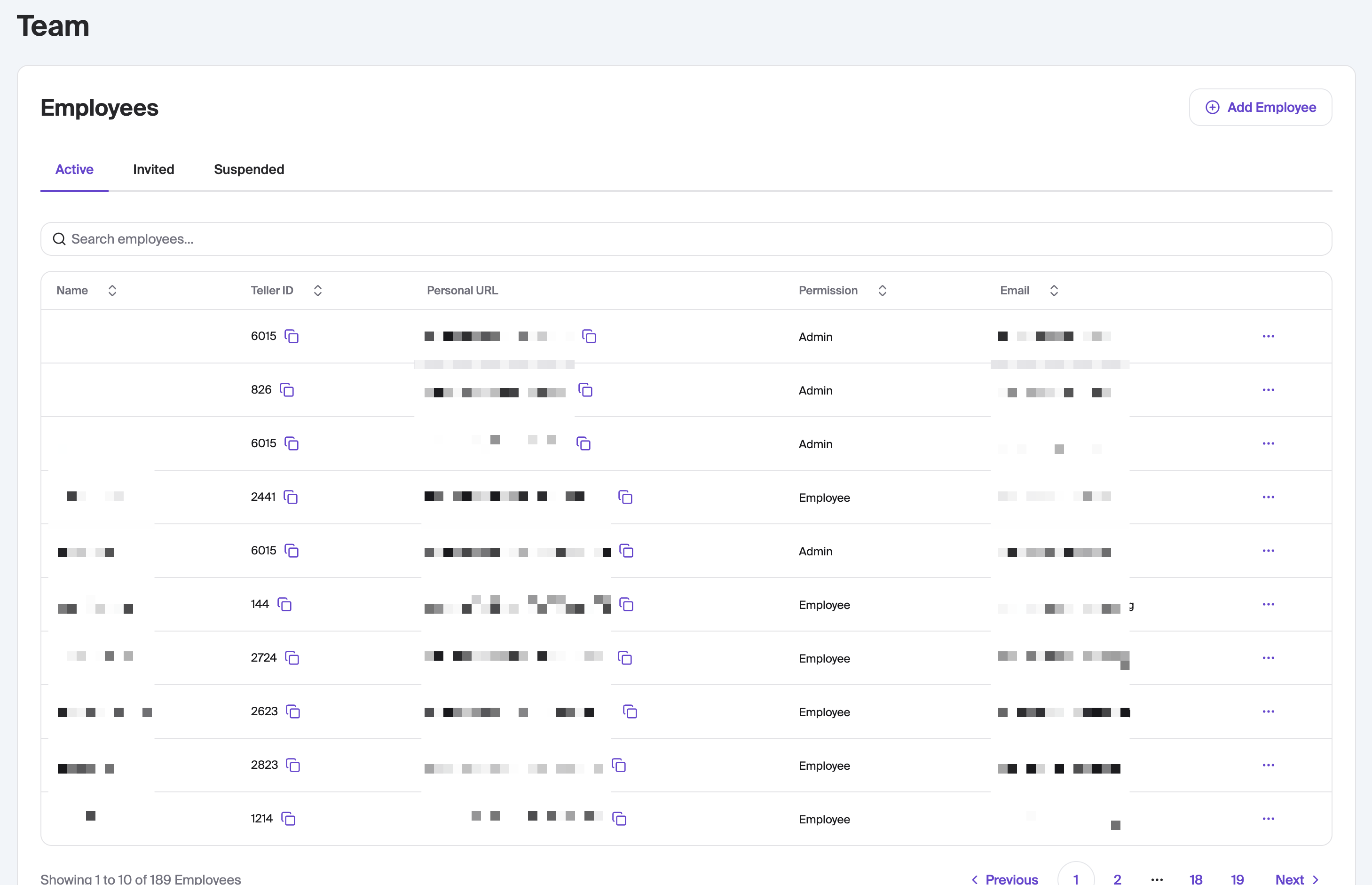
The Team Page gives a clear overview of all employees and their permissions. The table shows:
Employee name and email
Teller ID
Role and assigned permissions
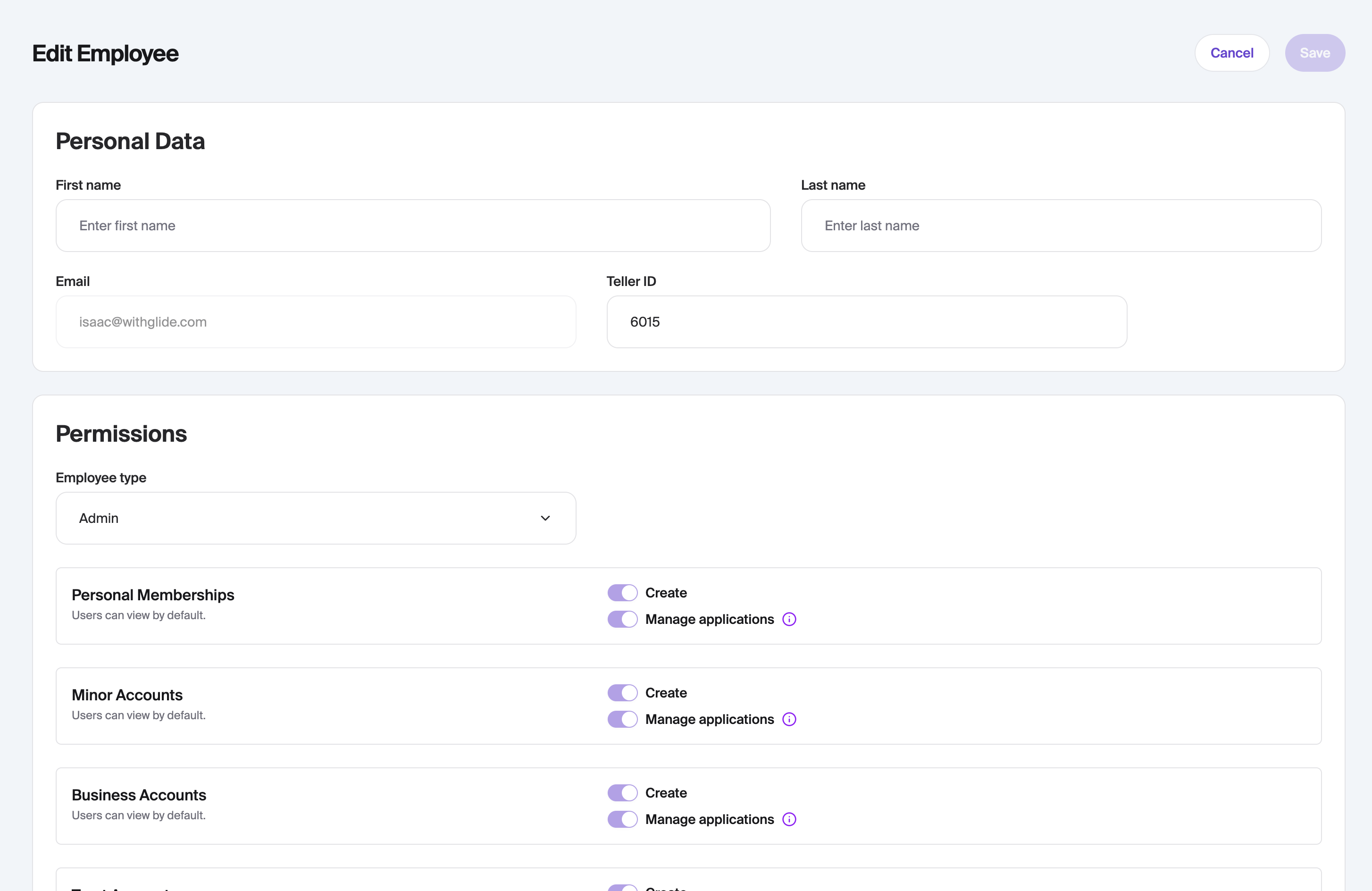
Clicking an employee opens the Edit Employee view to update details and access levels.
Permissions & Roles:
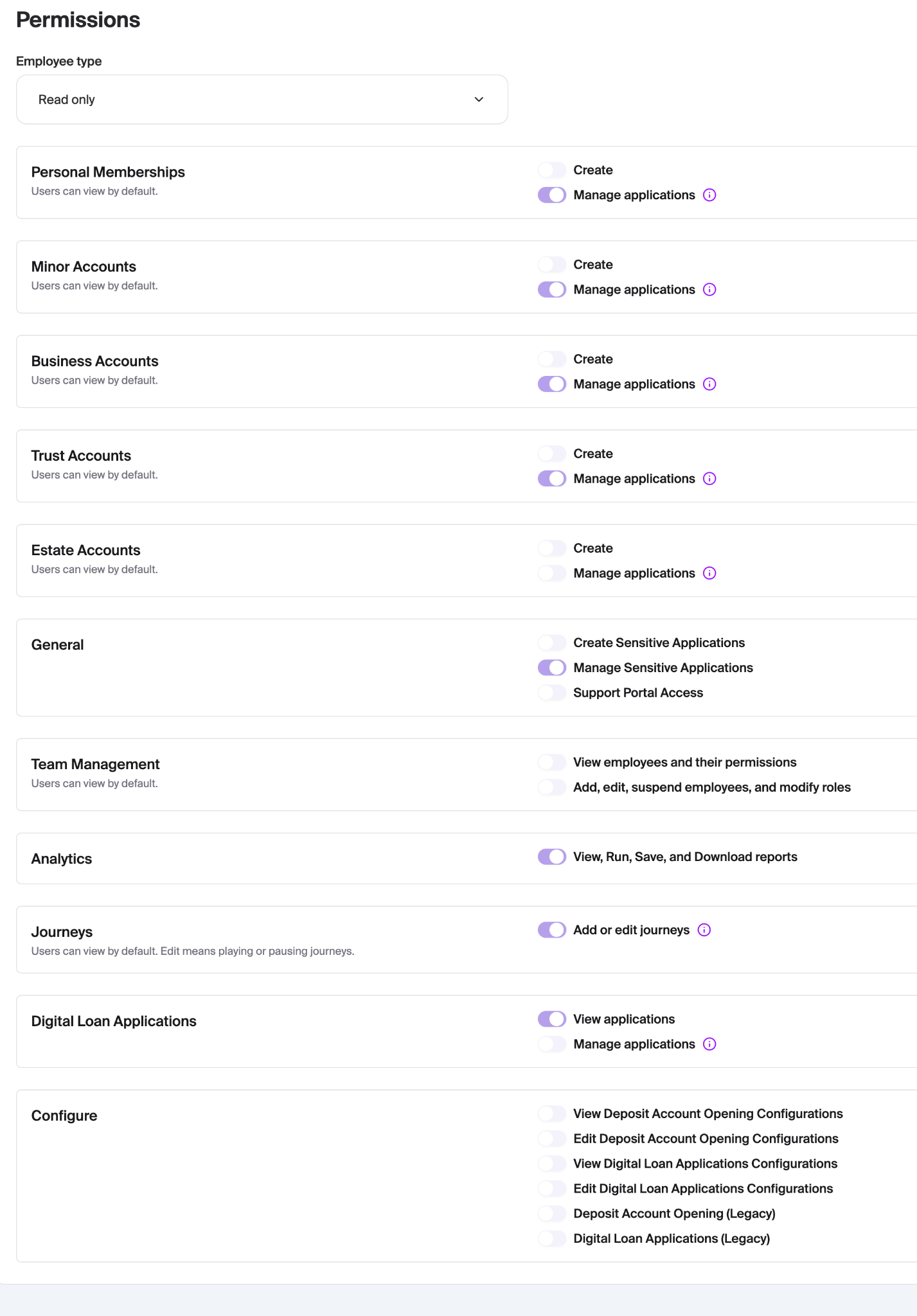
You can assign an employee type and control their access to each module. The employee types available are Admin, Employee, Read Only, or Custom.
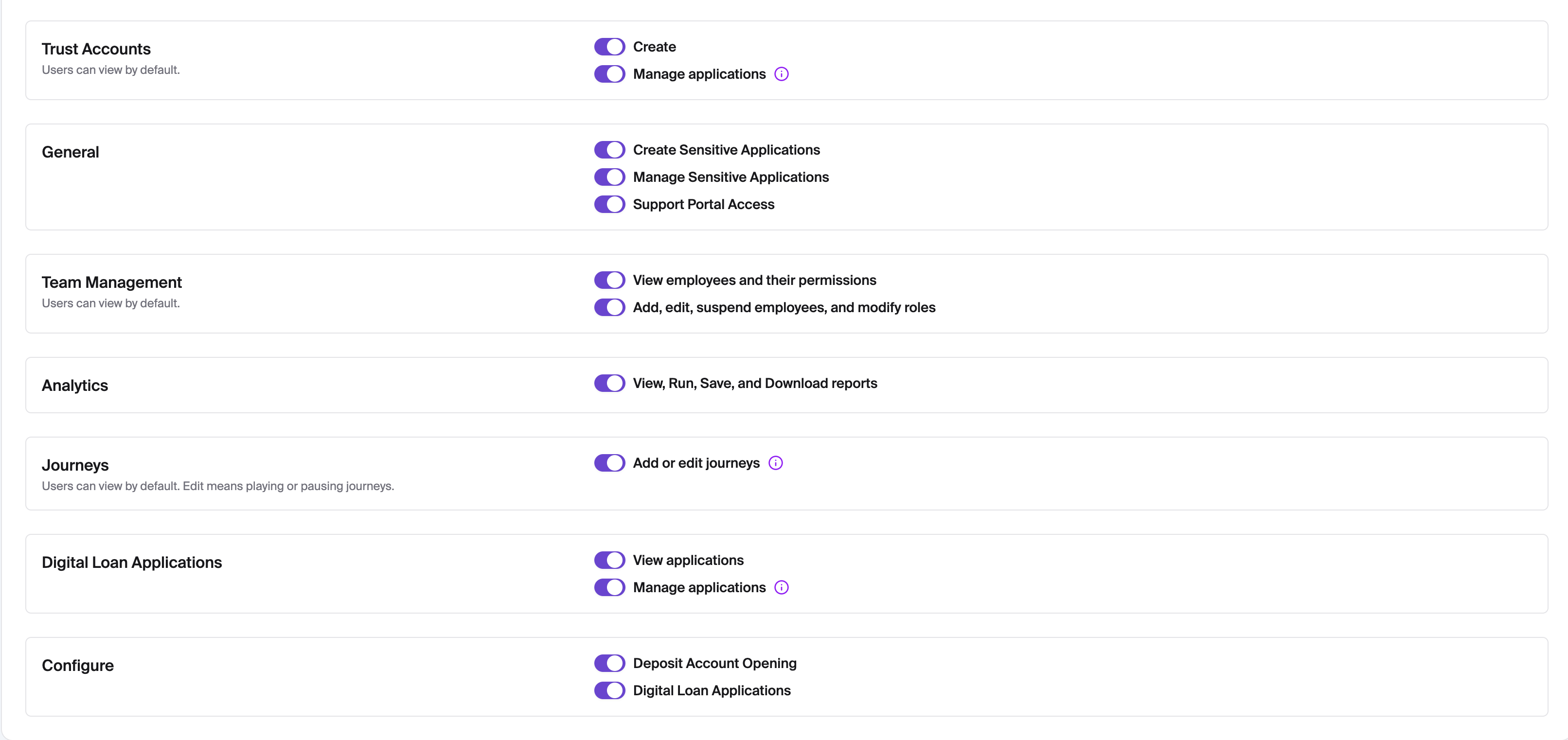
This is a sample of the available toggles:
Personal Memberships, Minor Accounts, Business Accounts, Trust Accounts: view, create, and manage applications
General / Sensitive Members: create and manage applications for sensitive members
Team Management: view employees, modify roles, add/edit/suspend staff
Analytics: view, run, save, and download reports.
Journeys: play, pause, or edit journeys
Digital Loan Applications & Deposit Account Opening: view and configure application.
Actions:
Save: apply changes
Cancel: discard changes
This view makes it easy to adjust access for individuals quickly, ensuring each employee has appropriate permissions.
2. Roles and Permission Sets
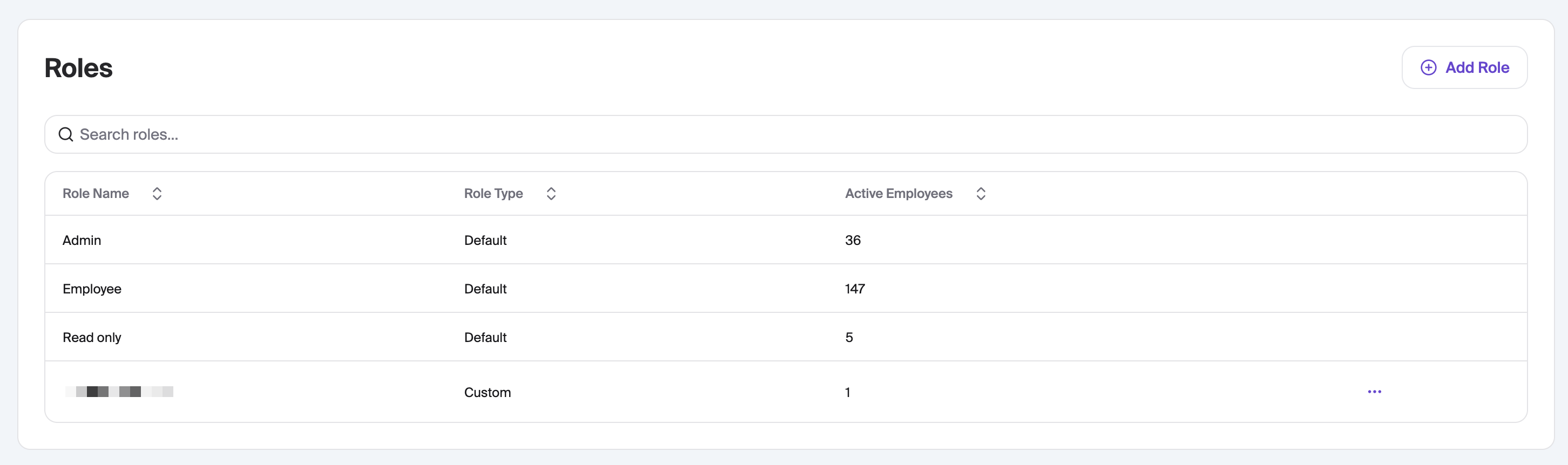
Roles Page
The Roles Page displays all roles and allows creation or editing of permission sets.
Role Name (Example) | Role Type (Example) | Active Employees (Example) |
Admin | Default | 36 |
Employee | Default | 147 |
Read Only | Default | 5 |
Custom Role - MM | Custom | 1 |
Key Capabilities:
Search roles: quickly find any role or permission set
Add Role: create new roles tailored to your team’s needs
Edit Custom Roles: adjust access as responsibilities evolve
This makes managing permissions across your organization simple and consistent.
Adding or Editing Roles
New Role / Custom Role:
Enter a Role Name
Assign permissions (same options as in Edit Employee)
Click Save to create or update the role
With role-based access, you can onboard new employees efficiently and maintain consistent access standards.
Empower Your Team with Permissions
Permissions empowers your FI with control, flexibility, and confidence. By centralizing access management, you can:
Protect sensitive information by ensuring employees only see what they need.
Save time and reduce errors with quick edits, role-based access, and streamlined workflows.
Scale confidently as your team grows or responsibilities shift, without worrying about inconsistent access.
Empower your team to work efficiently, securely, and confidently - all from one intuitive hub.
Permissions gives you the clarity and control you need to keep operations running smoothly while maintaining compliance and security across the organization.
Frequently Asked Questions
1. Can certain users only have access to the Pylon support portal?
Yes. Access to the support portal is controlled through the Permissions system. By default, only users with the Admin role have the support portal toggle enabled. Other default role types (Employee and Read Only) do not have access to the support portal, and these default roles cannot be edited to add it.
However, if you need to grant support portal access to a non-admin user, you can create a custom role with the support portal toggle turned on and assign that role to the appropriate employee. This is the only way to extend support portal access beyond the Admin role.
2. Can I edit the permissions for default roles (Admin, Employee, Read Only)?
No. Default roles cannot be modified. To customize permissions beyond what the default roles offer, create a new custom role with the specific access levels your team needs.
3. How do I create a custom role?
Navigate to the Team page in the left-hand navigation panel, select the Roles tab, and click Add Role. Enter a role name, configure the desired permission toggles, and click Save.
4. Where do I manage employee permissions?
All permissions management is centralized on the Team page, accessible from the left-hand navigation panel. The only way to change an employee's permissions is to change their role to a default role (Admin, Employee, or Read Only) or give them a custom role to toggle specific permissions on/off.
5. Can I change an employee's role after it has been assigned?
Yes. Click on any employee from the Team page to open the Edit Employee view, where you can update their assigned role and adjust individual permission toggles as needed.
6. Can I adjust individual permission toggles when assigning a default role to an employee?
No. When assigning a default role (Admin, Employee, or Read Only) to an employee, the permission toggles associated with that role are fixed and cannot be turned on or off. To customize permissions for a specific employee, create a custom role with the desired access levels and assign it to them.
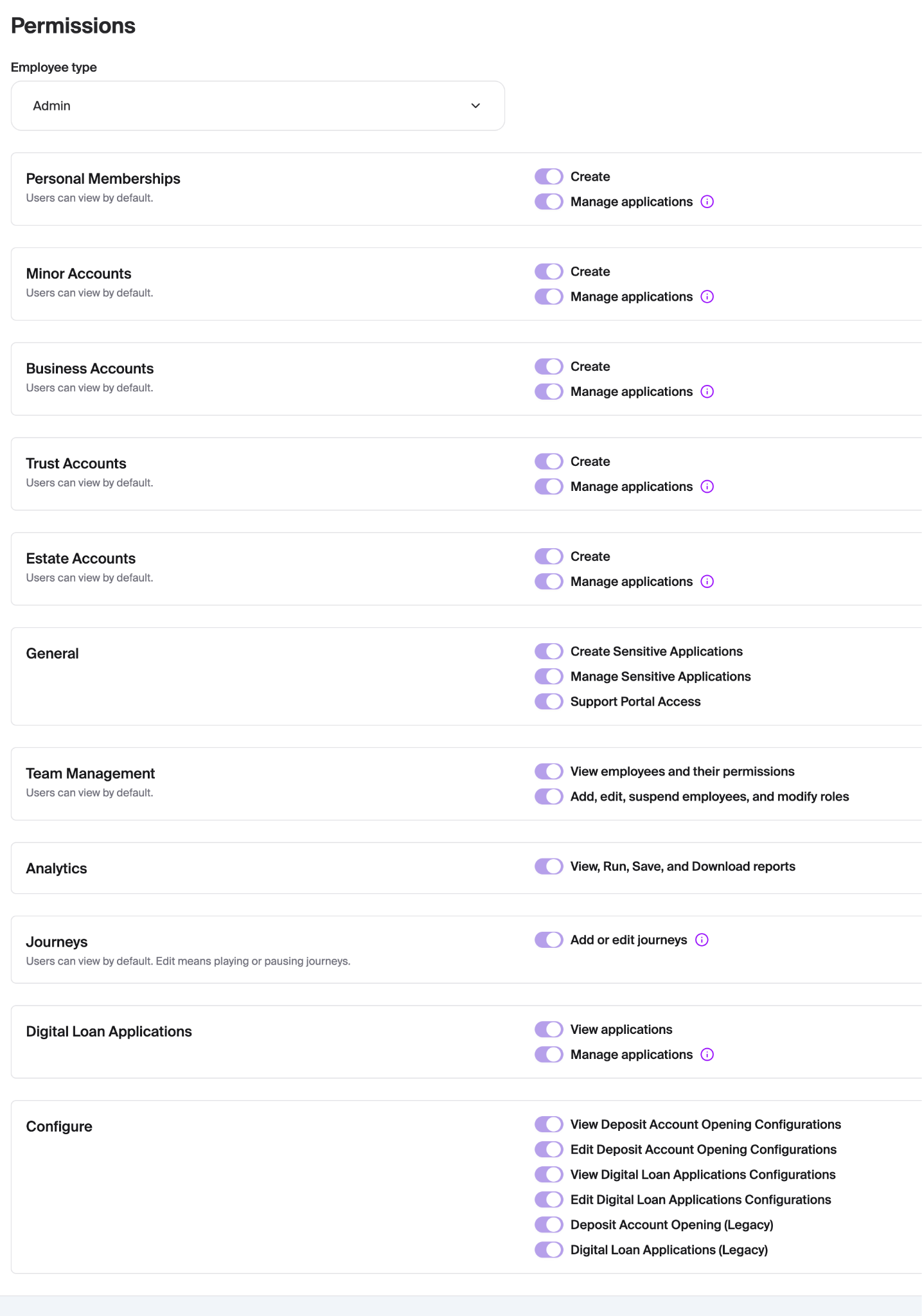
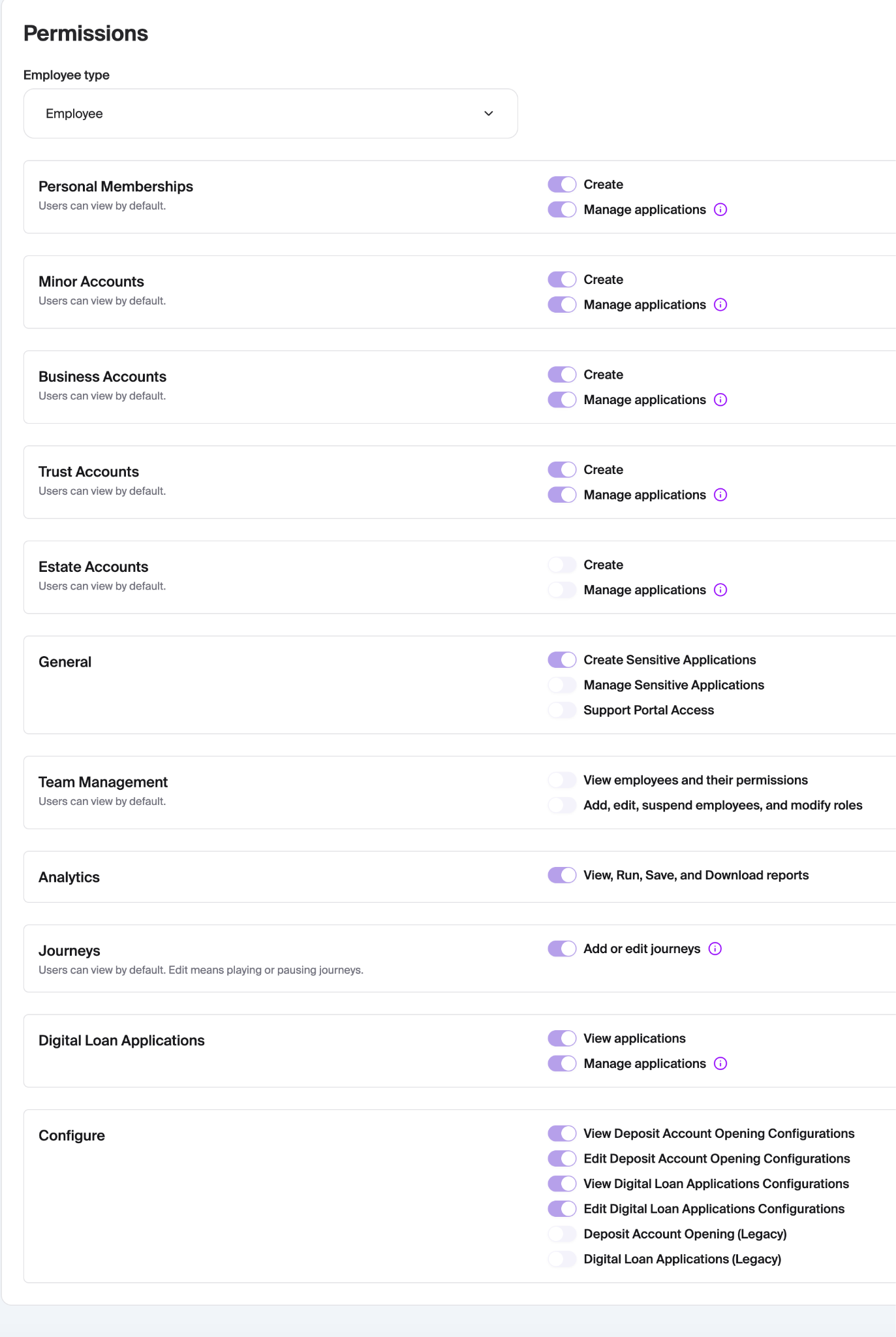
What are the default role permissions (Admin, Employee, and Read Only)?
See screenshots below. For additional information, please contact your DPM.
Admin:
Employee:
Read Only: