Reporting
Last updated: October 5, 2026
Overview
Glide’s reporting tools make it easy for your team to download and analyze key data on memberships, applications, and transactions.
To access reports, go to the Analytics page and click the Create Reports button in the top-right corner. From there, choose your desired report type, set your start and end dates, and click Create Report.
Want reports delivered on a regular schedule? Check out our Scheduled Reporting guide.
Trends
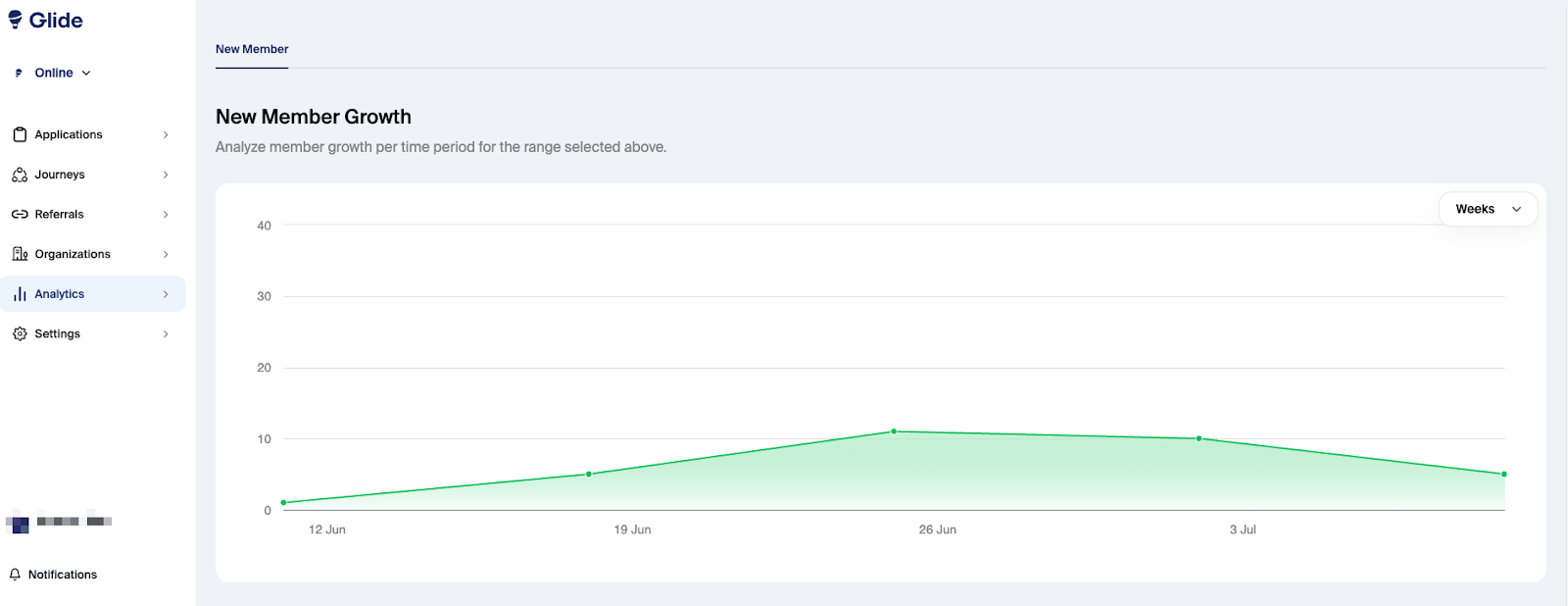
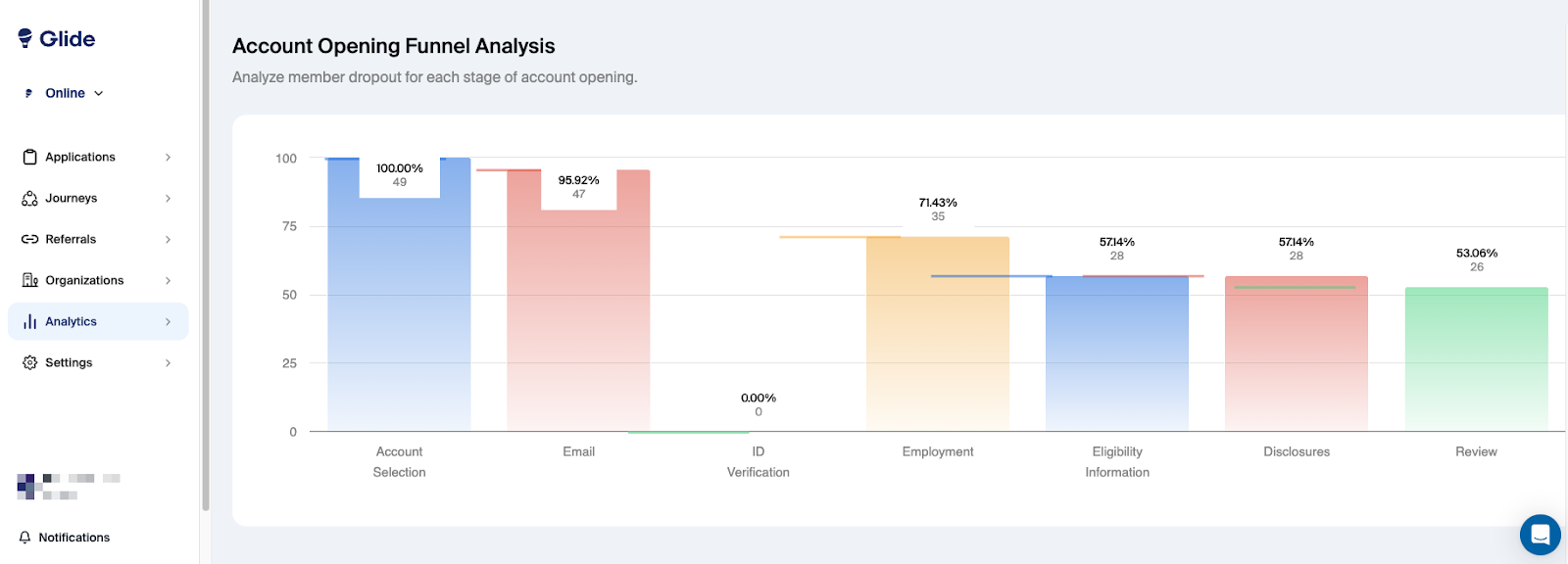
The Trends tab provides at-a-glance insight into your institution’s analytics, including visual summaries of New Member Growth over time and an Account Opening Funnel Analysis to help analyze applicant dropout for each stage of the account opening process.
Build Your Own Reports
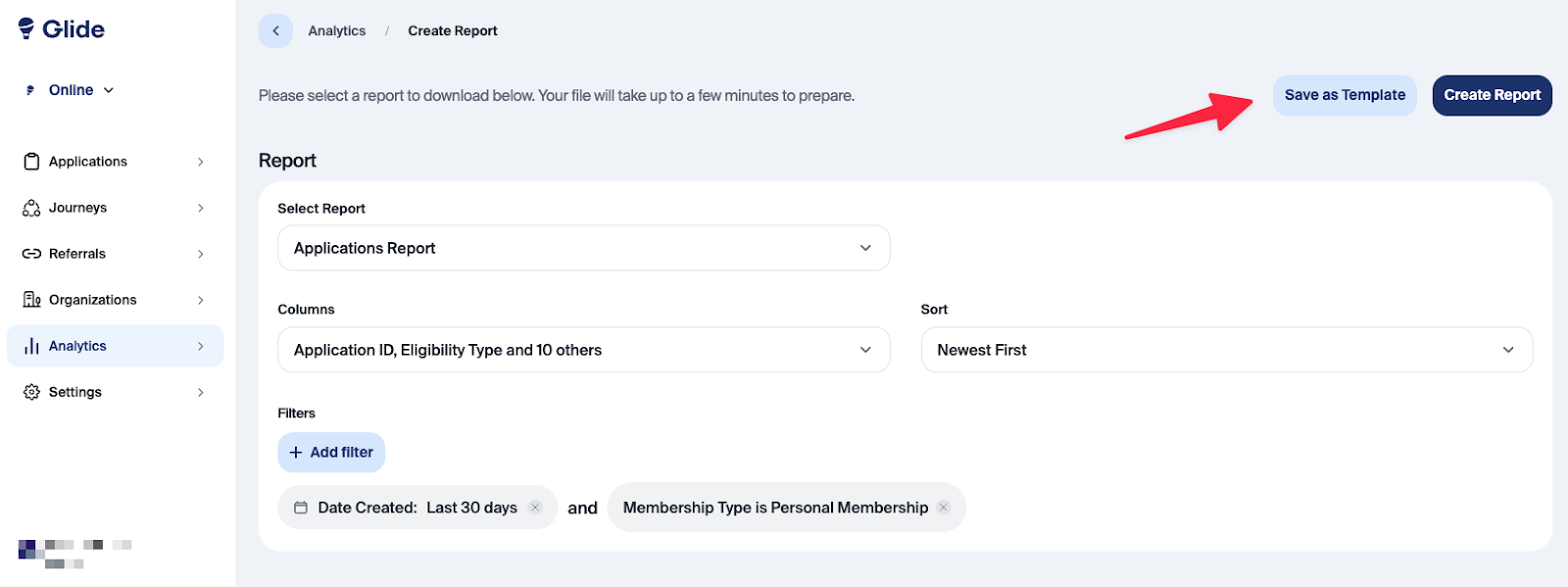
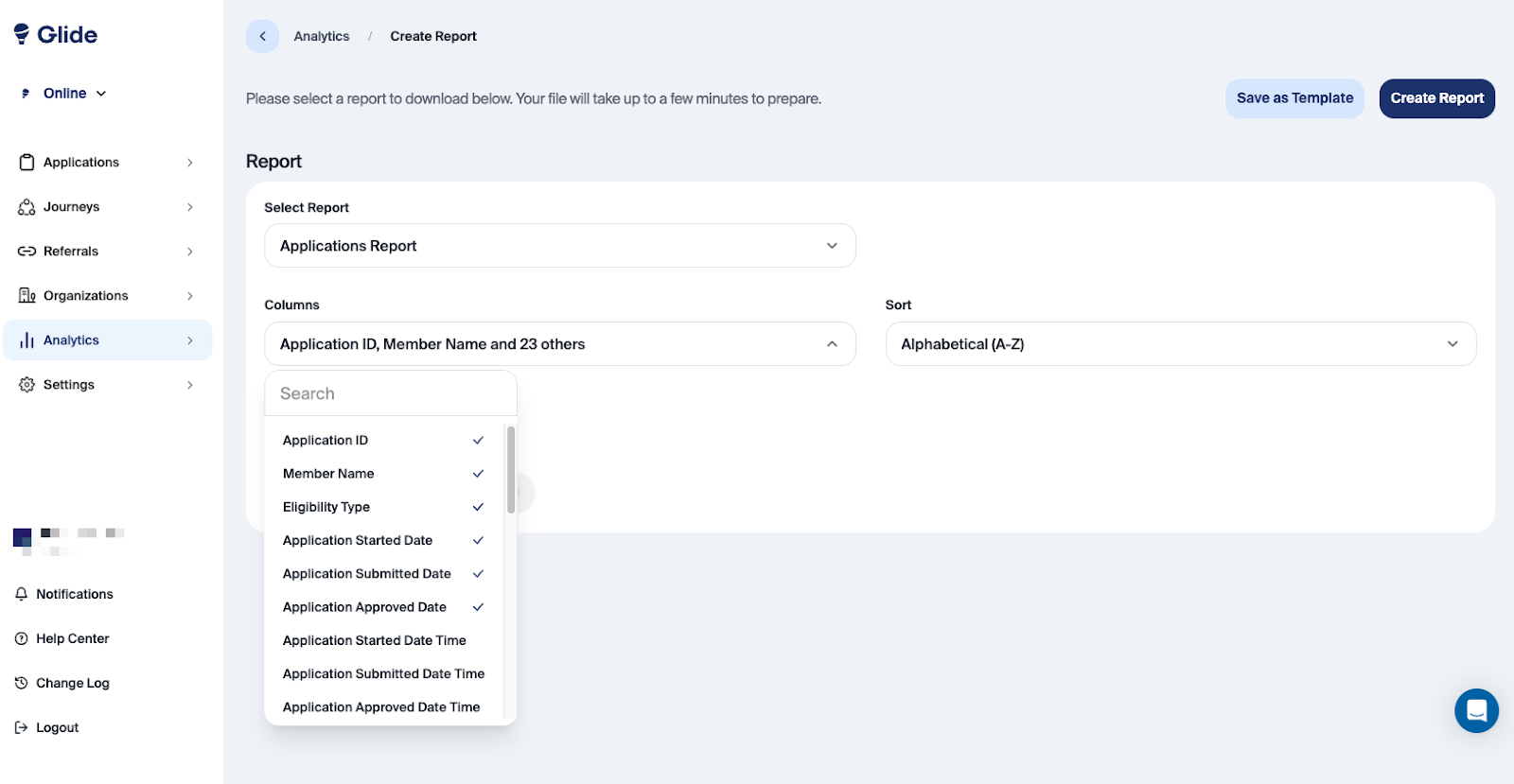
Glide also provides flexibility to build your own reports and extract exactly the information your organization needs. With Glide’s Applications Report and Transactions Report, you can customize your data output using:
Up to 64 column options for the Applications Report:
Eligibility Type and Eligibility Answers are available when eligibility is enabled for your institution. Column labels may use your institution’s terminology for Member and Membership.
Member ID
Member Name
Member Number
Member Email
Eligibility Type
Application Started Date
Application Submitted Date
Application Approved Date
Application Started Date Time
Application Submitted Date Time
Application Approved Date Time
Initial Decision Status
Original Branch
Current Branch
Funding Amount
Promo Code
Referral Code
Share Products
Employee Name
Channel
Application Status
Role Type
Membership Type
Trust Name
Business Name
Approved By
Income
Employer
Eligibility Answers
Custom Questions
Mailing Address
Denied Reason
Application Link
Phone Number
Phone Type
Citizenship Country
Is US Person?
Individual ID
Funded
Banking Accessed
Direct Deposit Attempted
Date of Birth
QualiFile Score
Plaid Name Match Percentage
Plaid Account Holder Name
Last Modified Date
Journey Name
Journey Code
Pending Reason
Member Referral Code
Approval Type
Approval Confirmed Date
Occupation
UTM Source
UTM Medium
UTM Campaign
UTM Term
UTM Content
Google Click ID
Facebook/Meta Click ID
Referrer
Assigned Employee
Membership Account Number
Credit Score
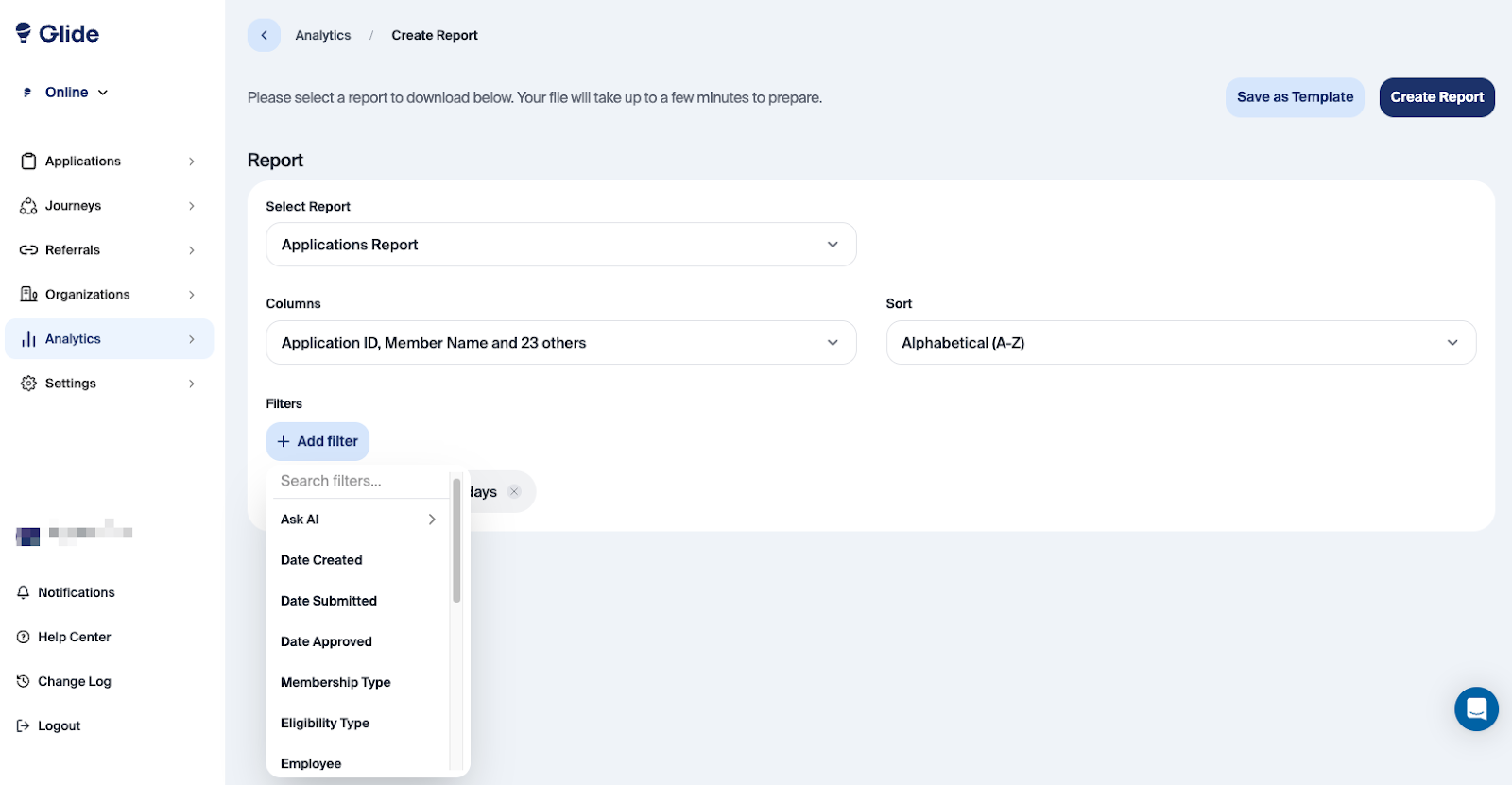
15 dynamic filters, including:
Date Started
Date Submitted
Date Approved
Membership Type
Eligibility Type
Employee
Approved By
Current Branch
Original Branch
Channel
Income
Employer
Pending Reason
Auto Approved
User Status
Time Zone Standardization
All reports in Glide are generated based on your financial institution’s configured time zone. This ensures that metrics are consistent across reports and align with your institution’s local time.
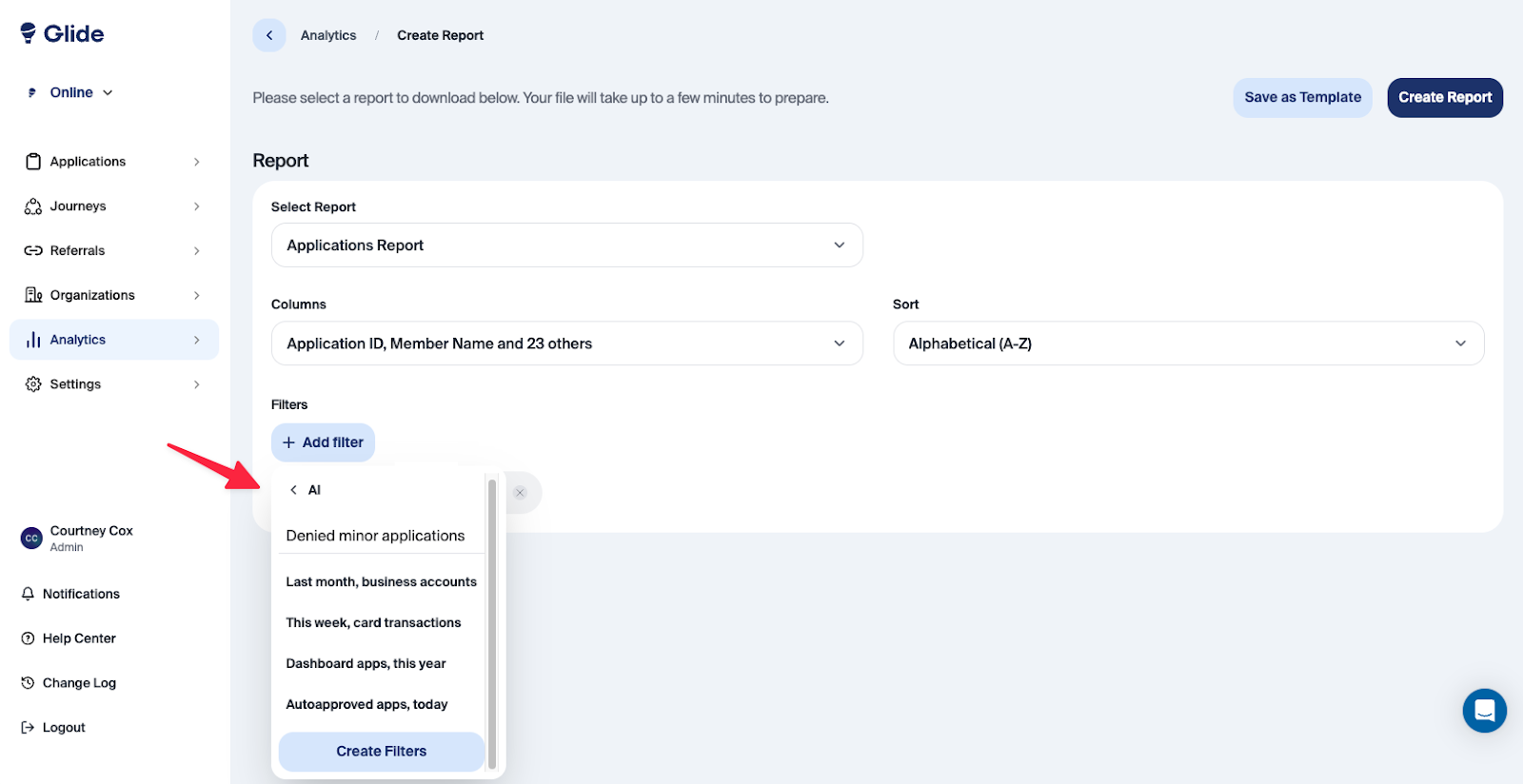
Ask AI
The Ask AI filter lets you describe the type of data you’re looking for in plain language. Glide will then generate a set of filters based on your description.
These filters are created using a language model and validated against Glide’s reporting system. You can review and edit them before running the report.
Note: The AI does not have access to any personally identifiable information (PII) or applicant data. It only uses the prompt you provide to generate filters and does not see or process sensitive data.
Pre-built Reports
Glide provides a variety of pre-built reports, designed to give your team quick access to commonly requested data—no configuration required.
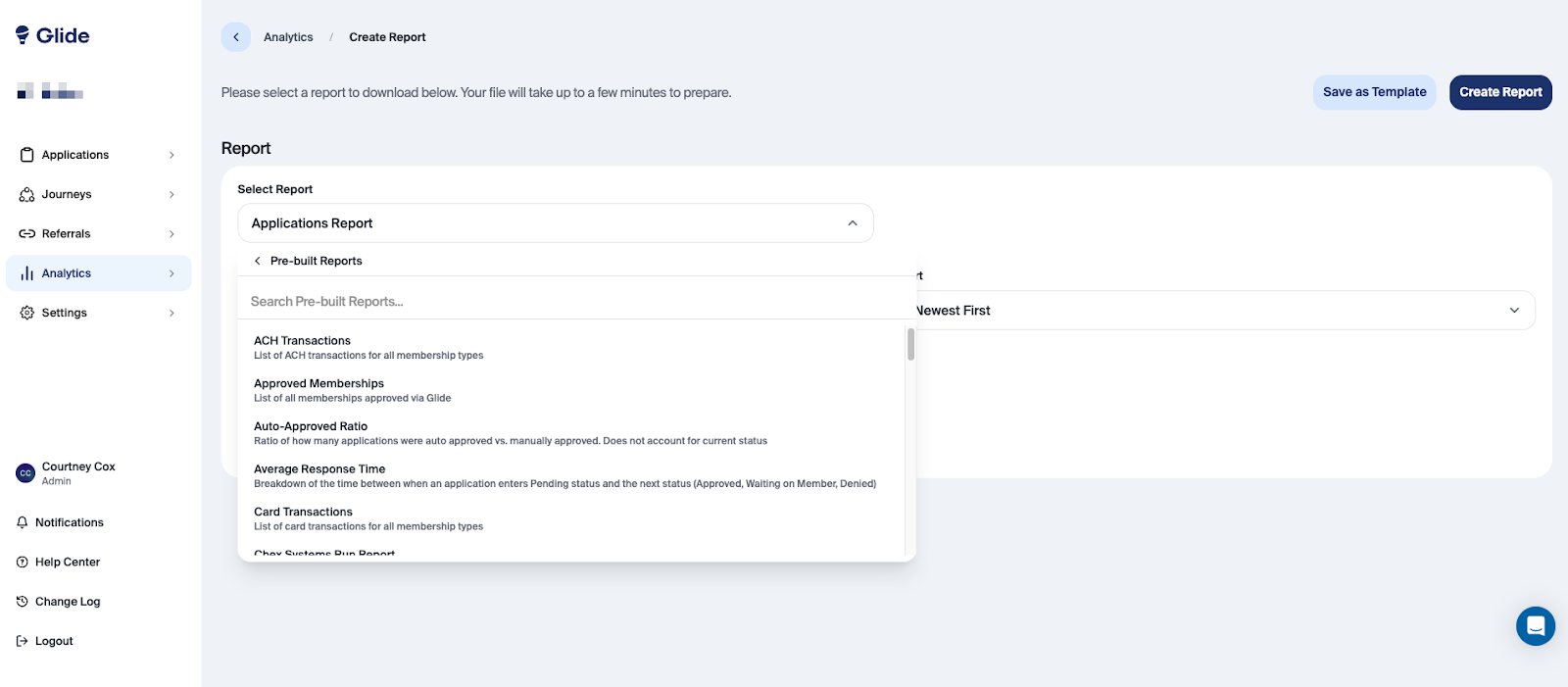
Report | Description |
ACH Transactions | List of ACH transactions for all membership types. |
Affiliation Report (Contact CSM to Enable) | Breakdown of all affiliated organizations and the number of applications associated with each. |
Approved Business Applications | List of business applications approved via Glide. |
Approved Memberships | List of all memberships approved via Glide, regardless of whether they are currently open or closed. |
Approved Student Org Applications | List of student org applications approved via Glide. |
Auto-Approved Ratio | Ratio of how many applications were auto approved vs. manually approved, regardless of the current status. |
Average Response Time | Breakdown of the time between when an application enters Pending status and the next status (Approved, Waiting on Member, Denied). |
Card Transactions | List of card transactions for all membership types. |
ChexSystems Run Report | List of all instances where a ChexSystems check has been performed. |
Dashboard Access List | List of staff members with access to Glide and the last time they have logged into the staff dashboard. |
Debit Card Report | List of all debit cards ordered through Glide. |
Demographics Report (Contact CSM to Enable) | List of Applicants that includes information on their Generation. |
Direct Deposit Switch Report | List of successfully completed direct deposit switches. |
Fraud Check Failure Summary | List of reasons a user failed the Plaid Fraud Checks and how many times they occurred. |
Fraud Override Report (Contact CSM to Enable) | Details any fraud checks that have been overridden, by who, and the override reason. |
Funding Breakdown | Breakdown of $ deposited and # of transactions by funding type (Card, ACH). Includes successful card transactions only. |
Funding Ratio | Accounts with at least 1 funding divided by approved account holders for the date range selected |
Funnel Report | Analysis of the user journey through key stages of the application process to track conversion rate. |
In Branch Individual Report (Contact CSM to Enable) | List of individuals created in the branch via the dashboard. |
In Branch Membership Report (Contact CSM to Enable) | List of memberships created in the branch via the dashboard. |
In Branch Share Report (Contact CSM to Enable) | List of shares created in the branch via the dashboard. |
In Progress Report | List of all currently in-progress applications. |
Individual ID Info Report (Contact CSM to Enable) | List of existing account holders who have applied through Glide with different information than what exists on core. |
Location Breakdown | Breakdown of each "Submitted location" and "Started location" and their counts of applications submitted through Glide. |
Member Report (Contact CSM to Enable) | List of all applications submitted through Glide, including applicant name, email, DOB, and application status. |
Missing Joint Membership card (Contact CSM to Enable) | List of approved joint owners that do not have a signature card within the documents section. Does not include pre-Glide account holders |
Missing Membership card (Contact CSM to Enable) | List of approved new memberships that do not have a signature card within the documents section. Does not include pre-Glide account holders. |
New Shares | List of new shares added via Glide, including those added by pre-Glide account holders. |
Onboarding Actions | Percentage of applications that have completed each onboarding action. |
Pending Reason | List of pending reasons and how many times they have occurred. |
Pending Reason Drill Down Report | List of applications that were sent to Pending status, including the Pending Reasons. |
Personal URL Applications | List of applications created from Personal URLs (personal URL link was used in the digital channel). |
Product Breakdown | Breakdown of the number of each product opened via Glide. Includes shares that have since been closed. |
Promo Codes | List of all memberships that have used a promo code via Glide. |
Referral Applications | List of all applications submitted through Glide's referral program. |
Role Added | Detailed overview of all additional roles assigned to primary applicants within Glide. |
Skipped Signatures Report | List of all applications where staff opted to skip signature collection. |
Staff Created Applications | List of all applications created by staff. Includes applications from Personal URLs and applications that were created via the dashboard. Does not include applications that were approved/denied by employees unless the employee also had created the app. |
Status Overview Report | Breakdown of how many applications currently in each status. Note: Glide does not sync with the core daily, so counts may differ from core. Additionally, this report will not tie to the Auto Approved Ratio report as that is based on historical approvals, not current status. |
Submitted Applications | List of applications submitted via Glide. |
Submitted Business Applications | List of business applications submitted via Glide. |
Submitted Student Org Applications | List of student org applications submitted via Glide. |
Watchlist Screening Override (Contact CSM to Enable) | List of applications that failed fraud checks but were approved by staff. |
Saved Reports
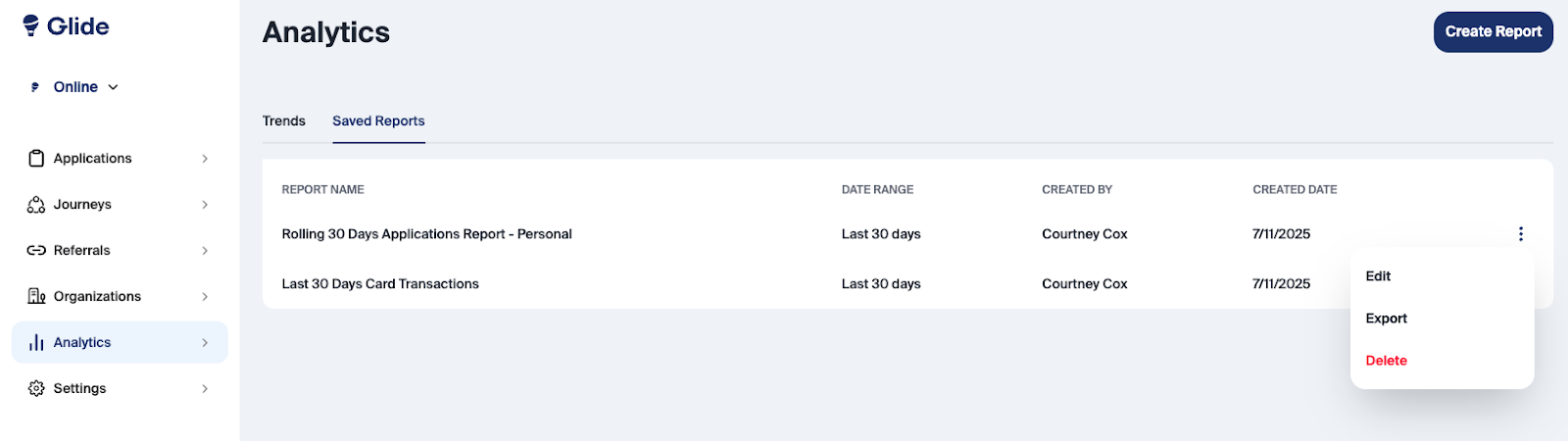
For reports your institution will use regularly, you can save your custom setup as a Saved Report for fast future access.
To create a Template:
Choose your report type
Select your columns, filters, and sorting preferences
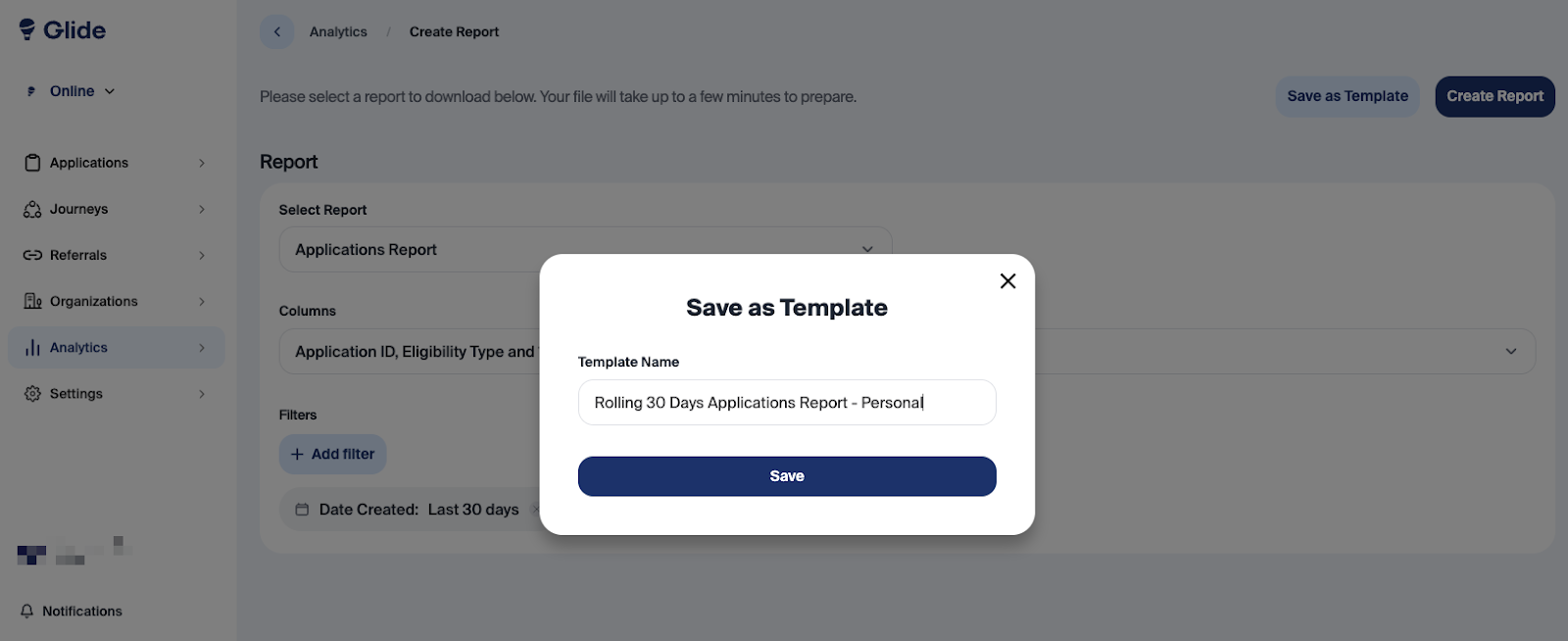
Click Save as Template
Name your template so it's easy to find later
You can view, edit, and export all of your saved reports from the Analytics tab.