Configuring Your Digital Loan Application: Vehicle Loan Configuration
Last updated: October 20, 2026
Overview
This guide covers the specific settings for the Vehicle Loan product, including refinance options, vehicle criteria, and rate management.
Glide classifies every vehicle as New, Used, or Extended from its model year and mileage. The condition picks the rate rows and the LOS codes for the loan.
Default Vehicle Criteria
These settings are the defaults for every vehicle loan. To set different limits for one vehicle type, edit that category or sub-category directly (see Vehicle Restrictions under Edit Category Options). A limit set on a category or sub-category wins over the default.
New Vehicle Criteria and Vehicle Restrictions
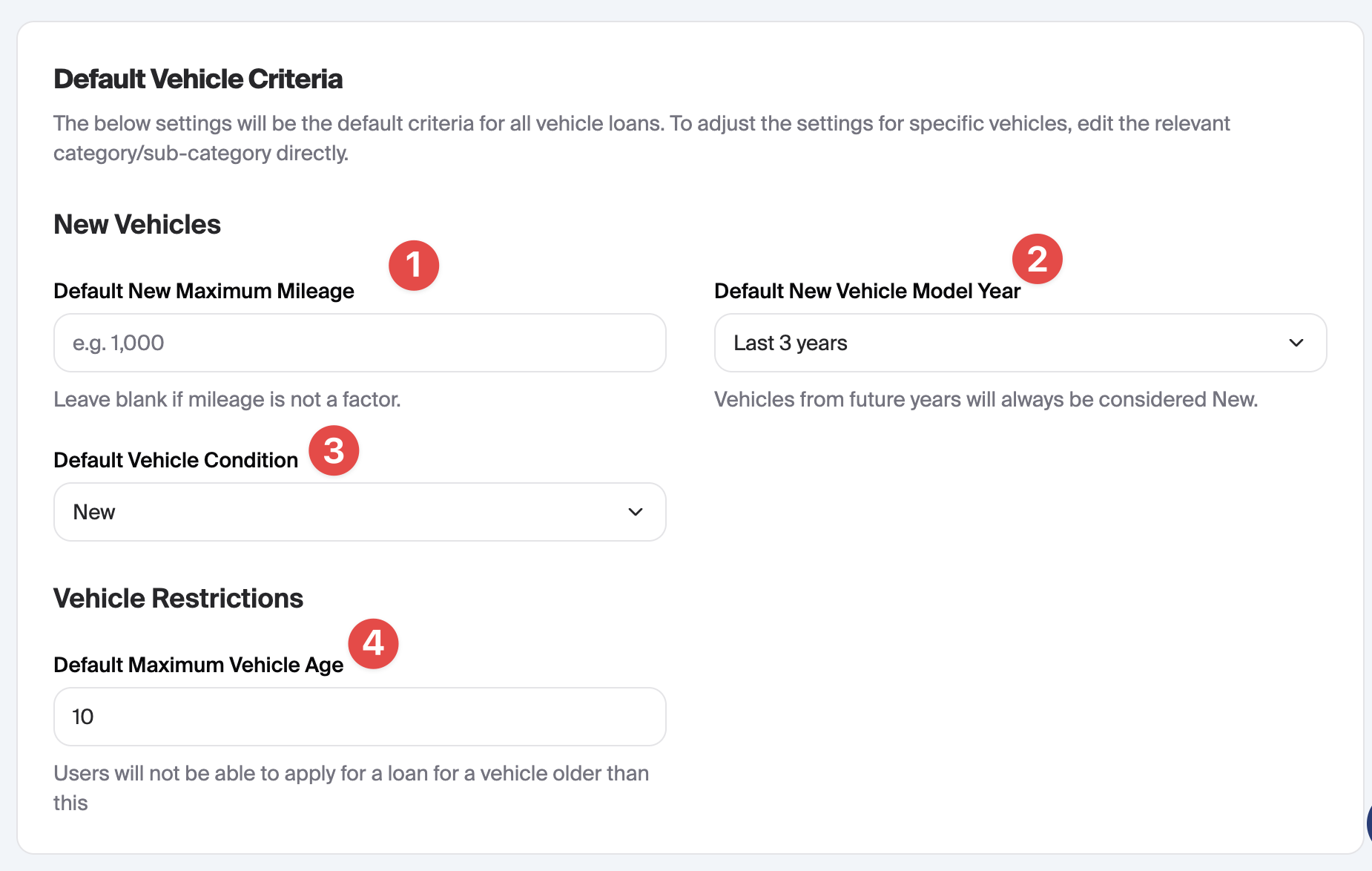
Default New Maximum Mileage: The mileage limit (e.g., 1,000) for a vehicle to count as new. Leave blank if mileage is not a factor.
Default New Vehicle Model Year: The age threshold (e.g., "Current or previous year"). Vehicles newer than this are new. A vehicle from a future model year passes this check. It can still be Used if its mileage is over the New Maximum Mileage.
Default Vehicle Condition: The condition to use when we do not yet have the vehicle's year or mileage. New or Used only.
Default Maximum Vehicle Age: The oldest vehicle a loan can be made on. Applicants cannot select a model year older than this.
How Glide Picks the Condition
Glide checks the vehicle in this order and stops at the first match:
Extended: mileage is over the Used Maximum Mileage, or the vehicle is older than the Used Maximum Vehicle Age. Either one alone is enough.
Used: the model year is older than the New Vehicle Model Year setting, or mileage is over the New Maximum Mileage.
New: everything else.
If the vehicle's year is unknown, Glide uses the Default Vehicle Condition. One exception: mileage over the Used Maximum Mileage still makes the vehicle Extended.
A refinance with no vehicle details is treated as Used.
The condition selects rate rows and LOS codes. Vehicle valuation treats an Extended vehicle as Used. The application sent to your LOS uses the Extended Product, Purpose, and Collateral codes where you set them, and the Used codes otherwise. Set Extended codes in the LOS Codes section of the edit sheet.
Vehicle Categories and Subcategories
Manage the different types of vehicles applicants can apply for under this product.
Category Management: View primary categories like Car, Recreational Vehicle, Motorcycle/Powersport, and Boat.
Sub-types: For complex categories (like Recreational Vehicle), you can see how many sub-types are configured.
Status: Use the dropdown to set an option to Active (visible to all), Hidden (not visible).
Rate Table Configured: Select the specific rate sheet (e.g., Rate Sheet A or Z) that applies to this Vehicle Category type.
Edit/Delete and Category Configuration: Click the three-dot menu (...) on the far right of any row to modify or delete a category.

Edit Category Options
Different options are available for Categories without Sub-Categories, Categories with Sub-Categories, and Sub-Categories
Categories without Sub-Categories
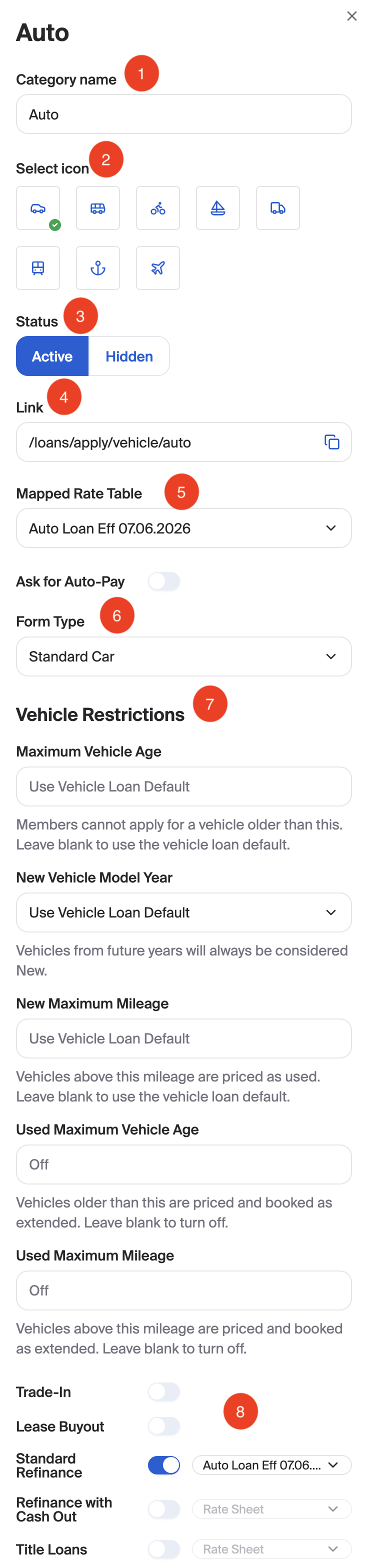
Category Name: Update the internal and applicant-facing name for this vehicle type.
Select Icon: Choose a representative icon to display to the applicant during the application process.
Status: Set an option to Active (visible to all), Hidden (not visible).
Deep Link: This will auto-fill, no changes needed.
Mapped Rate Table: The rate sheet associated with this category.
Form Type: Assign Template by selecting Standard Car, Watercraft, or Non-Standard Car based on the vehicle type to ensure the applicant receives the correct set of questions. See the Form Types section below for more information.
Vehicle Restrictions: These override the defaults on the Vehicle Loan page for this vehicle type only. Leave a field blank to use the default. See the Vehicle Restrictions section below.
Transaction Type Toggles: These toggles will allow/prevent users to select transaction types outside of the standard purchase. Options include: Trade-In, Lease Buyout, Standard Refinance, Refinance with Cashout and Title Loans. Trade-In and Lease Buyout only appear on the Car category.
All options except for Trade-In and Lease buyout allow for a different rate sheet to be configured. Select Default Rate Table to use the rate sheet mapped to the category.
Three toggles ask the applicant which kind of transaction they have. Each one appears only after you set its purpose codes in the LOS Codes section.
Ask for Purchase Type needs a Dealership or Private Party Purchase code.
Ask for Internal vs External Refinance Type needs an Internal or External Refinance code. It also needs a refinance type turned on.
Ask for Internal vs External Lease Type needs an Internal or External Lease Buyout code. It also needs Lease Buyout turned on. It only appears on the Car category.
Categories with Sub-Categories
Category Name: Update the internal and applicant-facing name for this vehicle type.
Select Icon: Choose a representative icon to display to the applicant during the application process.
Status: Set an option to Active (visible to all), Hidden (not visible).
Deep Link: This will auto-fill, no changes needed.
Vehicle Restrictions are set on each sub-category, not on the category.

Sub-Categories
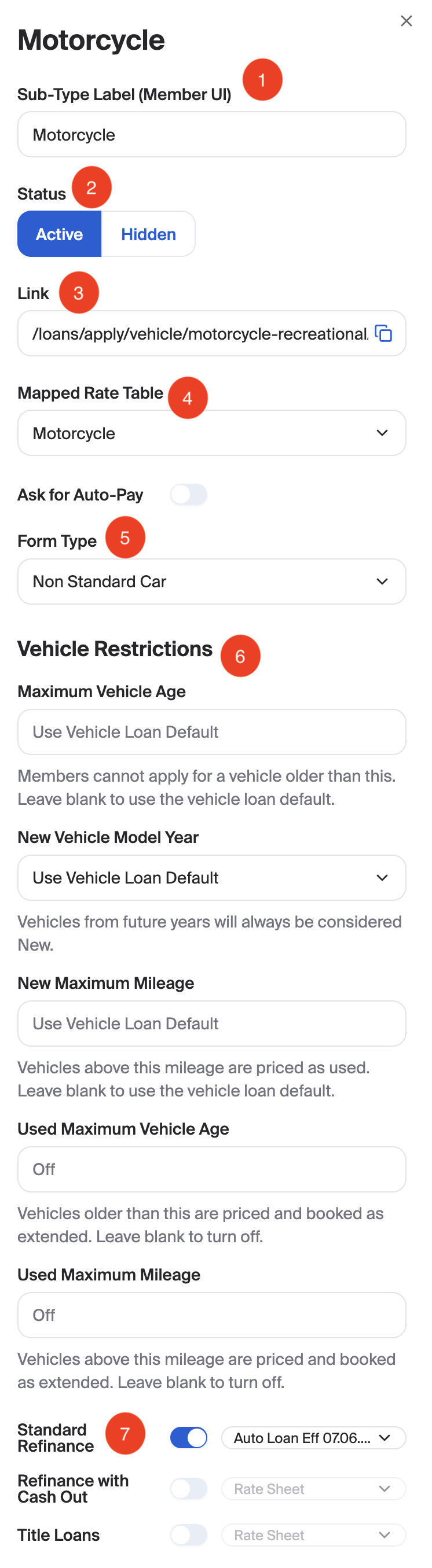
Sub-Category Name: Update the internal and applicant-facing name for this vehicle type.
Status: Set an option to Active (visible to all), Hidden (not visible).
Deep Link: This will auto-fill, no changes needed.
Mapped Rate Table: The rate sheet associated with this sub-category.
Form Type: Assign Template by selecting Standard Car, Watercraft, or Non-Standard Car based on the vehicle type to ensure the applicant receives the correct set of questions. See the Form Types section below for more information.
Vehicle Restrictions: These override the defaults on the Vehicle Loan page for this sub-category only. Leave a field blank to use the default. See the Vehicle Restrictions section below.
Transaction Type Toggles: These toggles will allow/prevent users to select transaction types outside of the standard purchase. Options include: Standard Refinance, Refinance with Cashout and Title Loans.
All options allow for a different rate sheet to be configured. Select Default Rate Table to use the rate sheet mapped to the category.
Ask for Purchase Type and Ask for Internal vs External Refinance Type work the same way as on a category.
Vehicle Restrictions
These fields appear on sub-categories and on categories without sub-categories. Each one overrides the matching default on the Vehicle Loan page for that vehicle type only.
Maximum Vehicle Age: Applicants cannot select a vehicle older than this. Leave blank to use the vehicle loan default.
New Vehicle Model Year: Same choices as the default, plus Use Vehicle Loan Default.
New Maximum Mileage: Vehicles above this mileage are priced as used. Leave blank to use the vehicle loan default.
Used Maximum Vehicle Age: Vehicles older than this are priced and booked as Extended. Leave blank to turn off.
Used Maximum Mileage: Vehicles above this mileage are priced and booked as Extended. Leave blank to turn off.
A Used limit must sit above the matching New limit, whether that New limit is set here or inherited from the Vehicle Loan page. The edit sheet shows the error inline and disables Save. The Vehicle Loan page will not save a default that conflicts with a category or sub-category.
Form Types
Standard Car
Definition: The default form designed for typical passenger vehicles. It prioritizes standard data points like Make, Model, and Mileage.
Examples: Sedans, SUVs, Pickup Trucks, and Minivans.
Watercraft
Definition: A specialized form designed to capture marine-specific details that differ from road vehicles.
Examples: Power boats, Fishing boats, Jet Skis (PWC), and Pontoon boats.
Non-Standard Car
Definition: Used for vehicles that do not fit the traditional "Standard Car" data model, often requiring information for specialized registration or valuation.
Form: Make and Model
Examples: Recreational Vehicles (RVs), Motorhomes, Campers, and specialized Powersports like ATVs or Snowmobiles.
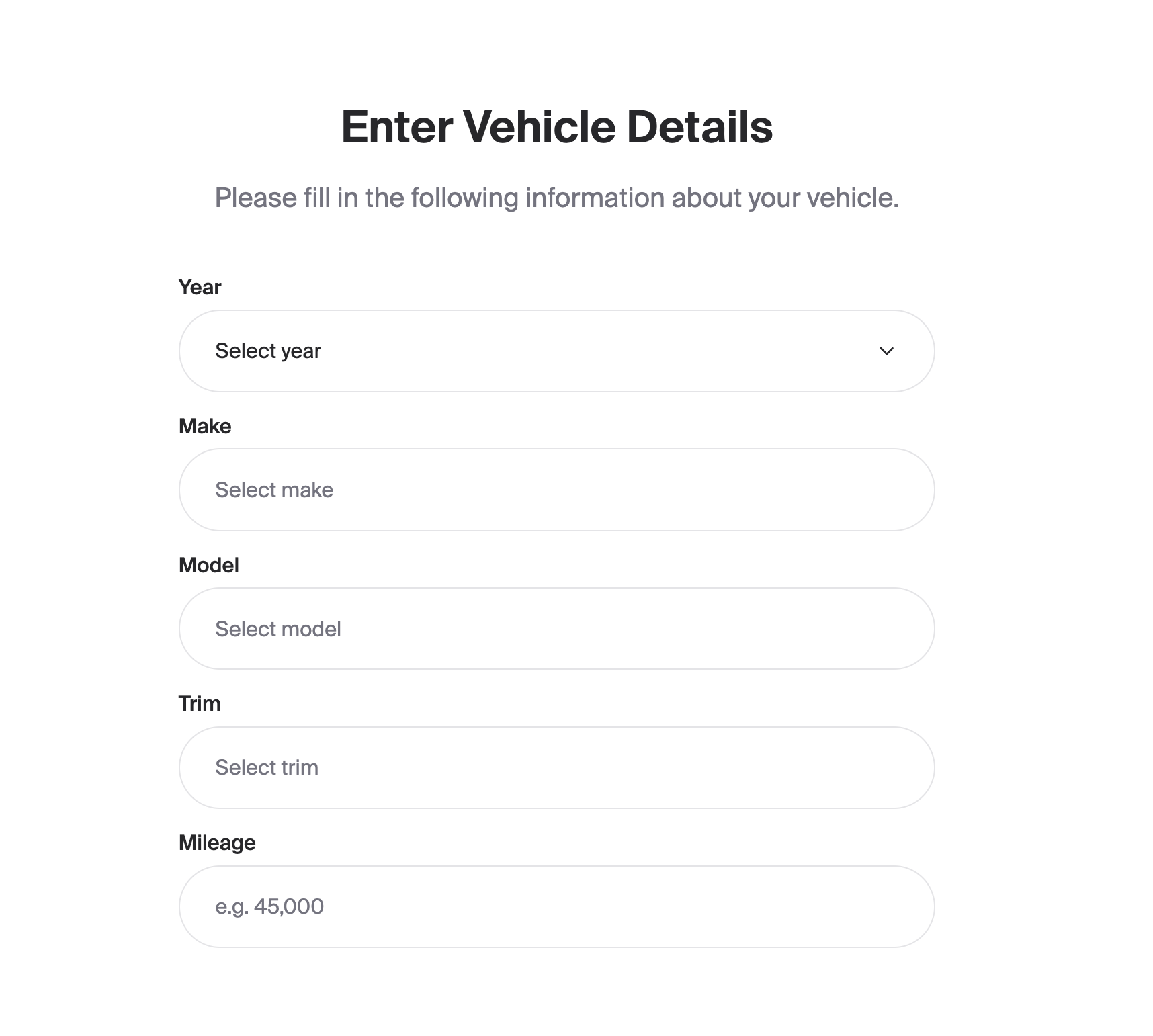
Transaction Type Applicant UI
See below for how different transaction type options are presented to applicants

Saving Changes
After making edits in the sidebar, click the Save button at the bottom of the panel to return to the main configuration screen.
Rate Table Management
Before making changes, it is important to understand how these two components work together:
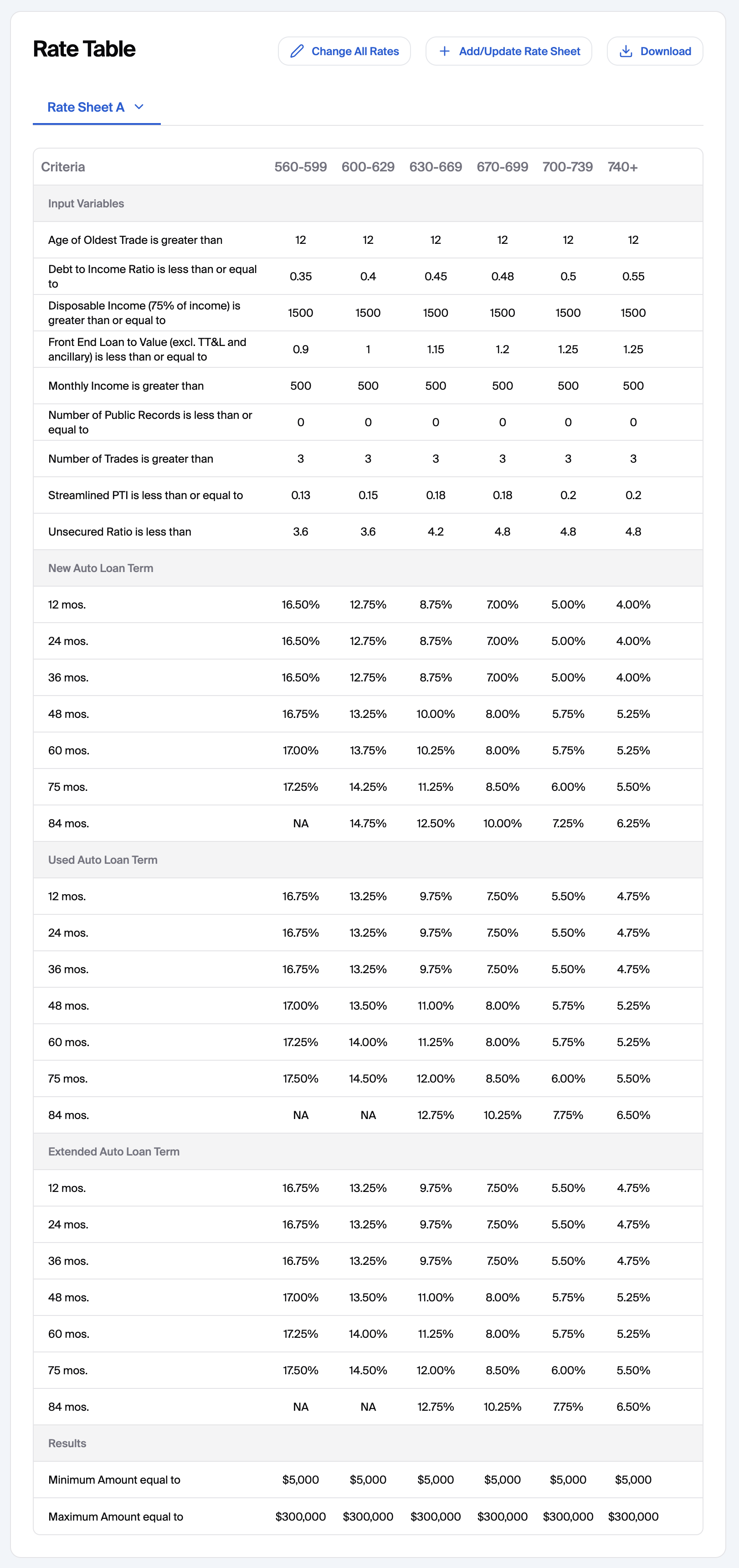
The Rate Table (View-Only): The table you see on your dashboard screen is a live preview of your current configuration. It displays rate sheets that have your active tiers, interest rates, criteria's and loan limits but cannot be edited directly on the screen.
The Rate Sheet (Editable File): To change any data in the table, you must download the Rate Sheet (Recommended) or Start From Blank template, update it in Excel, and re-upload it. This sheet acts as the "source of truth" that updates the dashboard view.
Vehicle Conditions on the Sheet
The Condition column accepts NEW, USED, and EXTENDED. Case does not matter. Rows for each condition show under their own heading in the rate table: New, Used, and Extended Auto Loan Term. The upload rejects any other value, and rejects a row with a blank condition if other rows have one.
If a rate sheet has no EXTENDED rows, an Extended vehicle prices from the USED rows on that sheet. You can add Extended rows to one category's sheet and leave the others alone.
Saving
Click the Save button at the top right of the page to store your configurations.