Product CMS: Product & Offer Management
Last updated: October 5, 2026
Key Benefits of the Product CMS for Financial Institutions
The Product CMS (Content Management System) is designed to give financial institution staff full control and confidence over how deposit account products are configured, displayed, and launched - without relying on engineering support.
With the Product CMS, your team can:
Launch new products faster without deployment delays
Safely test and iterate in staging before impacting members
Control exactly who sees each product and where it appears
Schedule changes around operational readiness and marketing launches
Instantly revert production changes if something needs to be corrected
The result: more agility, fewer errors, and a better member experience, all while maintaining operational control.
Overview
The Product CMS allows staff members to manage deposit account products across the online experience (member flow and onboarding page) and in-branch experience (dashboard). All changes are first made in a staging environment, giving staff a safe space to configure and review products before publishing them to production.
Products Page
Navigation: Configure → Products
The Products page is the primary workspace for viewing, creating, and maintaining deposit account products.
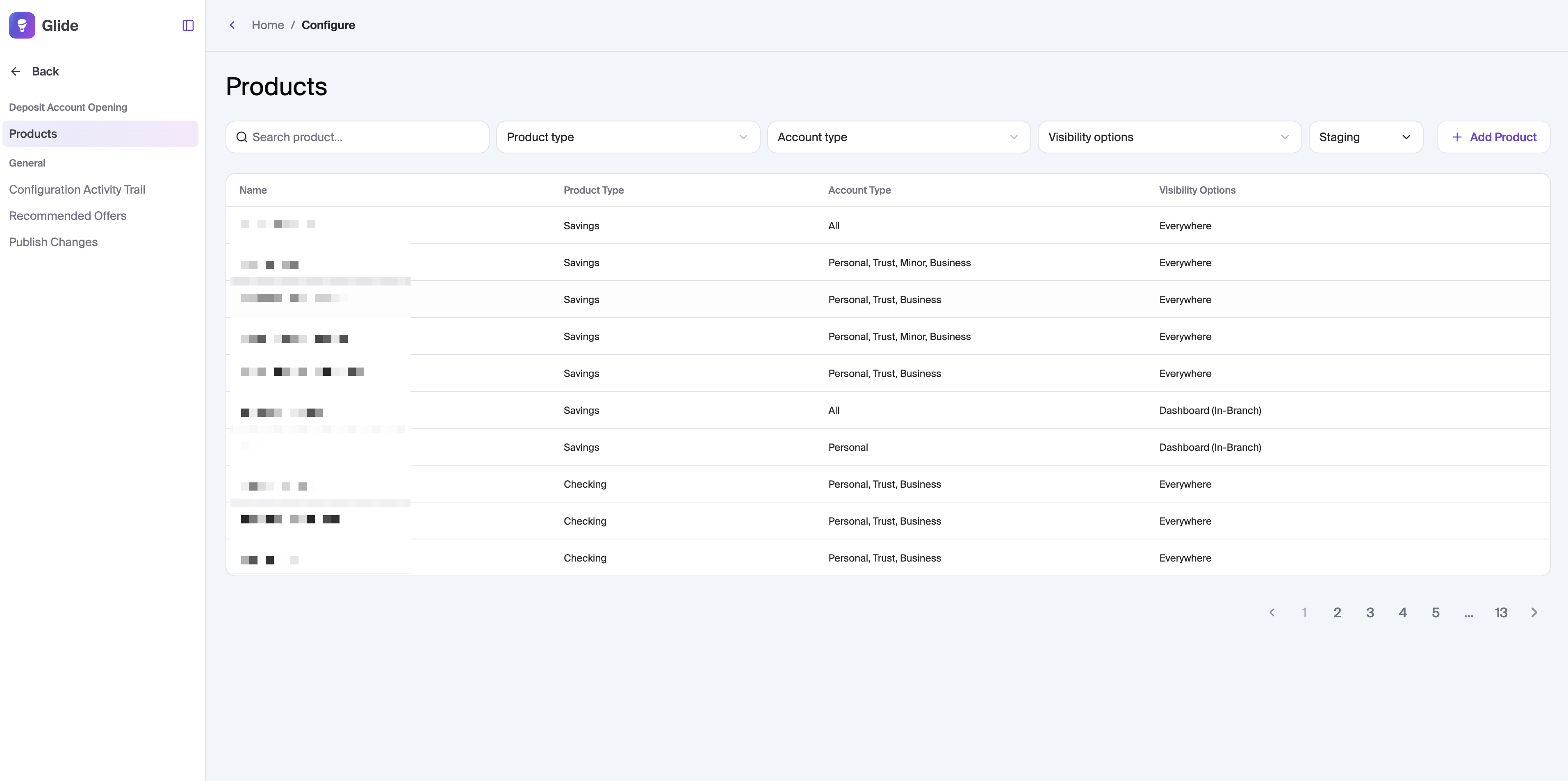
What You Can Do Here
View all configured products in one place
Quickly find products using search and filters
Understand where each product is visible to members
Open any product to review or update its configuration
Products Table
Each row represents a product that exists in the system.
Displayed information includes:
Name – The product name shown to members
Product Type – Savings, Checking, or Share Certificate
Account Type – Eligible account types (ie Personal, Minor, All)
Visibility Options – Where the product appears in member journeys
Important: Products shown here may include unpublished changes. Nothing is live to members until changes are published.
Search and Filters
Staff can efficiently manage large product catalogs using:
Search – Find products by name
Product Type – Filter by Savings, Checking, or Share Certificate
Account Type – Filter by eligible account types
Visibility Options – Filter by member-facing placement
Editing a Product
Click any product to open its configuration
Update settings at any time
Changes are saved as unpublished until explicitly published
This ensures staff can confidently make updates without risk to live member experiences.
Adding a Product
Creating a new product is a guided, staff-friendly process.
To add a product:
Go to the Products page
Click Add Product
This opens the Add Product configuration flow.
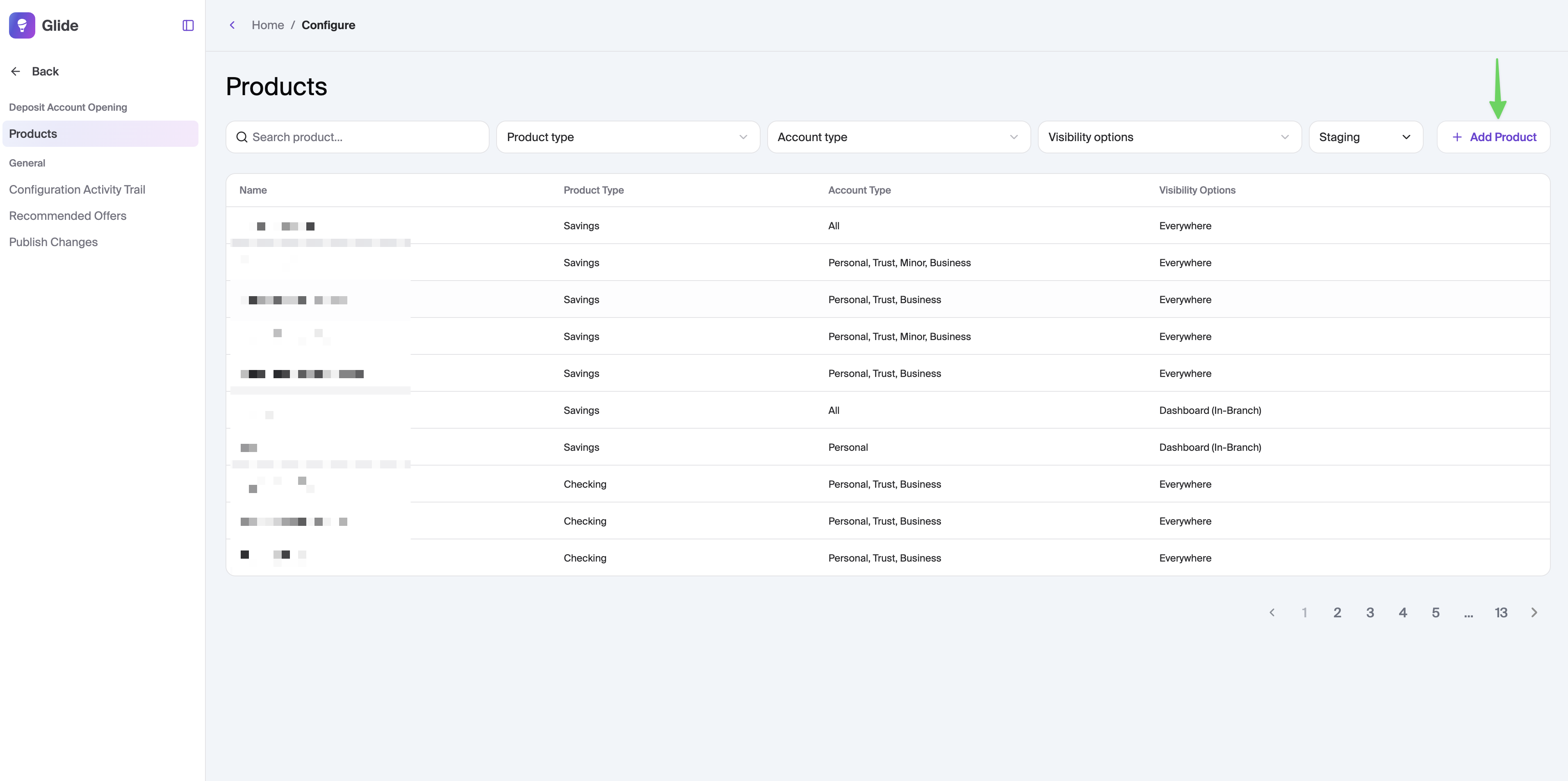
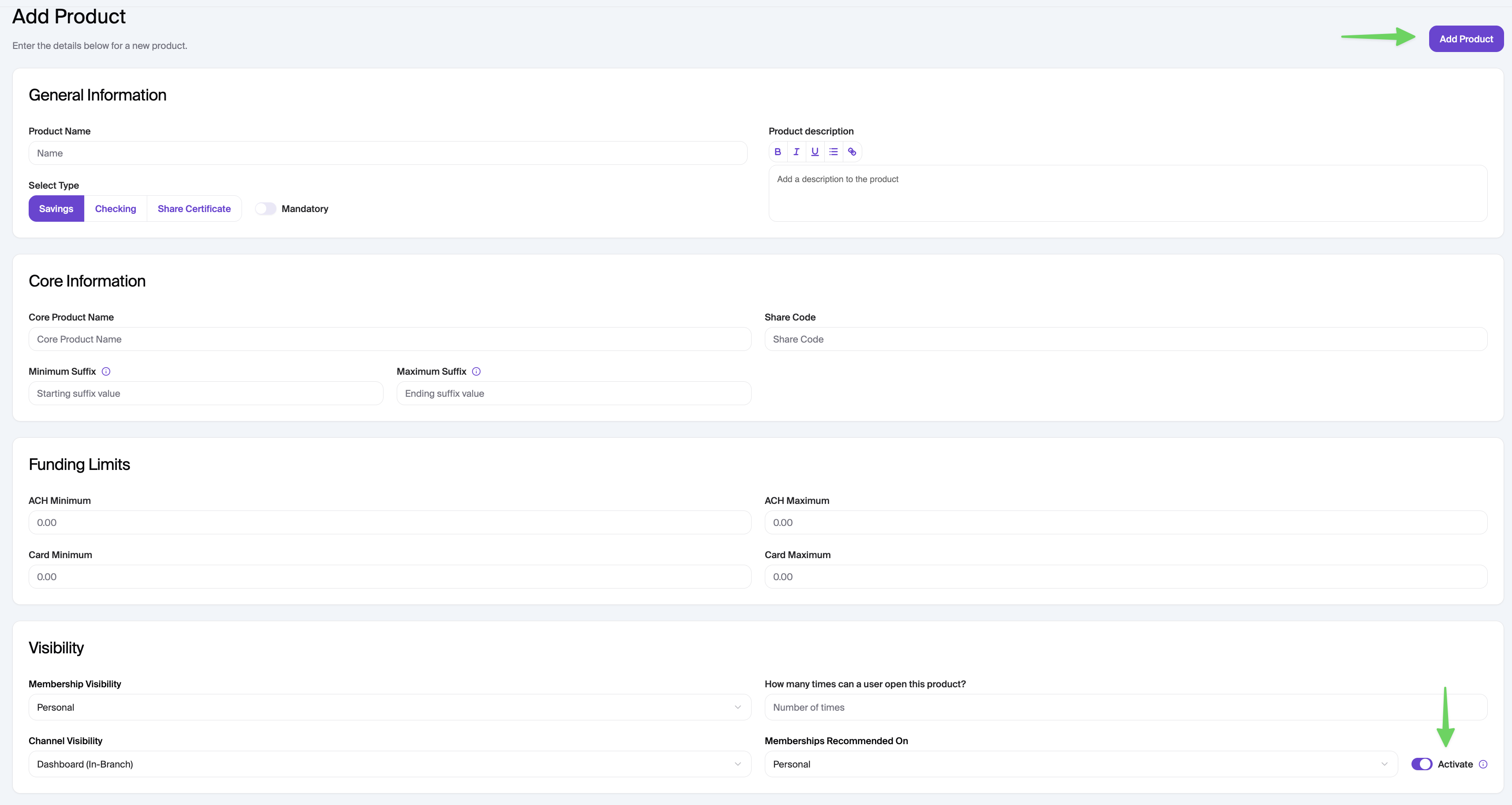
Add Product Configuration
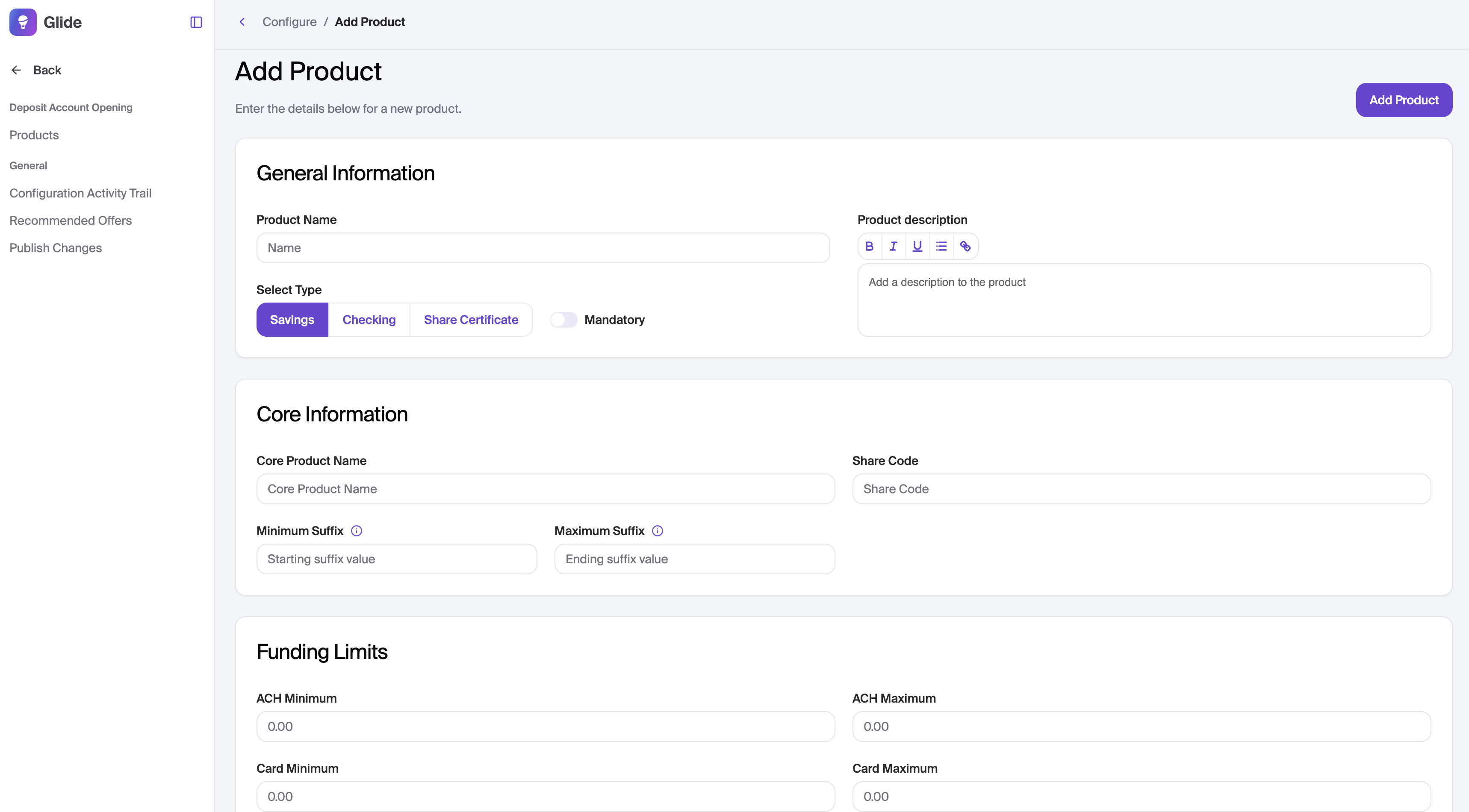
General Information
These fields define how the product appears to members and staff.
Product Name – Display name shown in member flows
Product Type – Savings, Checking, or Share Certificate
Mandatory – Mark the product as required when applicable
Product Description – Optional supporting context for members
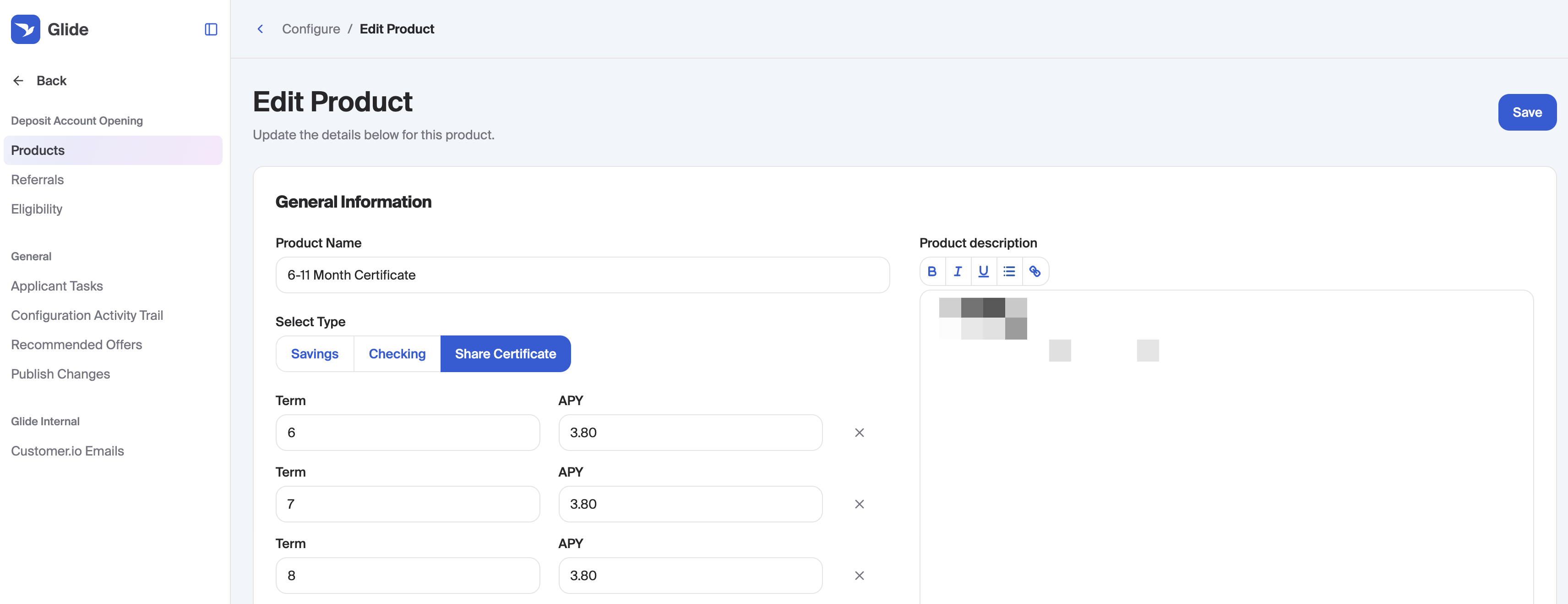
Share Certificate fields — Term length and APY. If you'd like to allow applicants to choose their term length, add additional term rows instead of a single length.
Each product type supports specific fields tailored to that account category.

Core Information
These settings connect the CMS product to your core banking system.
Core Product Name – Core system identifier
Minimum Suffix – Starting suffix value (integer, ≥ 0)
Maximum Suffix – Ending suffix value (integer, ≥ Minimum Suffix)
Share Code – Core share code (For Keystone cores, use Share Type Serial).
Accurate configuration here ensures seamless account creation downstream.

Adding a Share Certificate
Share certificate products are configured with a list of available terms in General Information.
For regular certificates add a Term (months) and APY.
To allow applicants to choose their own term, Use Add Term to offer additional months on the same product (for example, every month from 6 through 11 on a “6–11 Month Certificate”). Term lengths must be unique.
List every month you want people to be able to choose. Only the months you add as rows are valid — a value between two rows is not offered (for example, 7 months is not available if you only listed 6 and 11).
A product with two or more terms cannot be marked Mandatory. Someone has to choose a length before the account is added.
How members see it
A multi-term certificate shows Choose Term instead of Add Account. That opens Choose Your Certificate Term slide out, where they type a month count or use the slider, then confirm. The term must match one of the rows you configured; an unavailable month shows an error and cannot be confirmed. After the product is added, they can Change Term.
How staff see it (Dashboard)
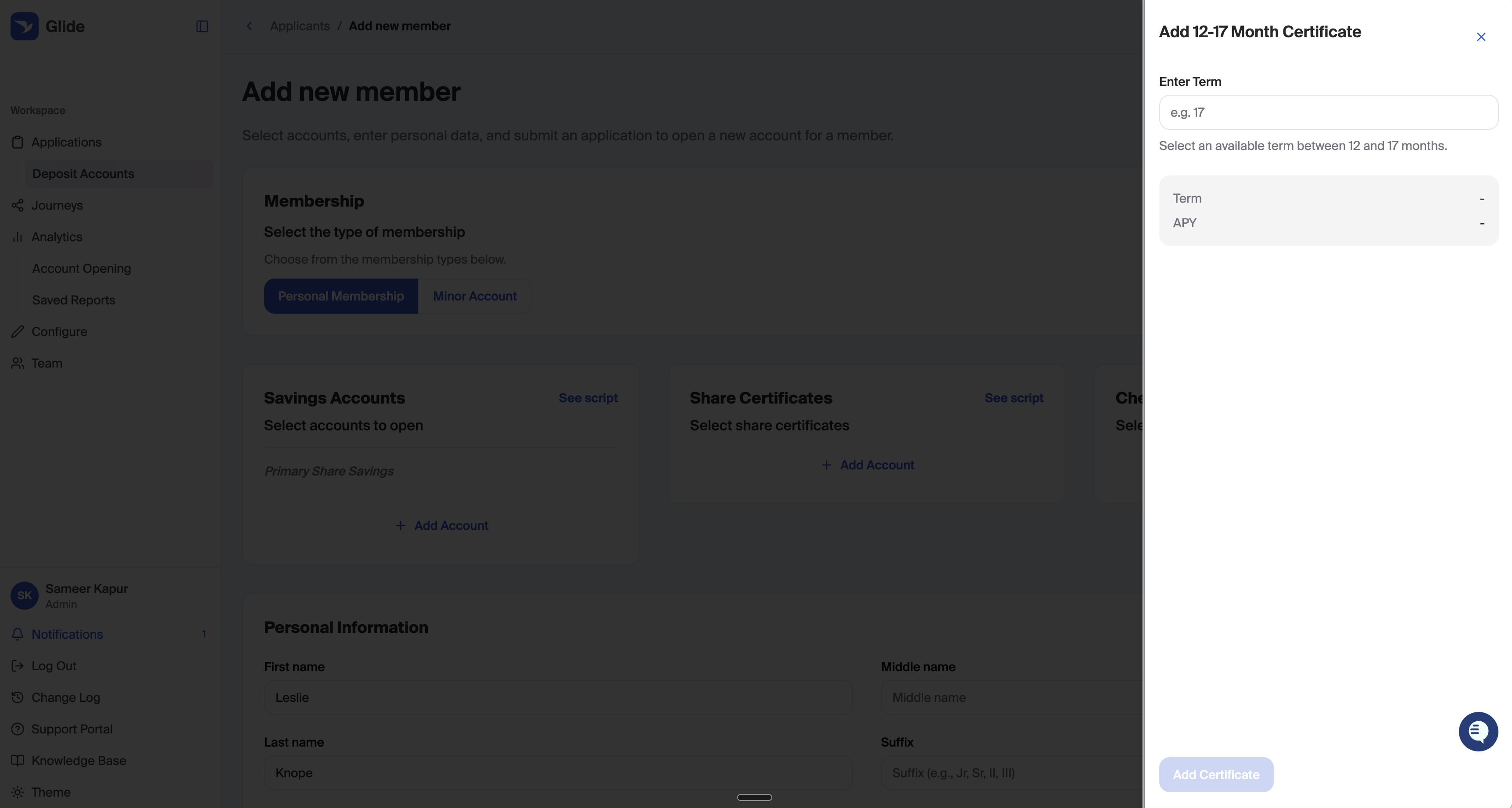
When staff add a multi-term certificate to an application, a slide-out asks them to Enter Term. The chosen length then shows on the selected product as Term: X months. Single-term certificates are unchanged.
What is sent to the core
The chosen term is used as the account’s term length and maturity date when your core mapping is set up for it.
Funding
The Funding section controls how a product is funded: the funding limits for each method, whether funding is required on onboarding, which funding methods members can use via onboarding, and how the "Fund Account" button behaves on the onboarding page.
Funding Limits
Set the ACH minimum, ACH maximum, card minimum, and card maximum for the product. This applies to both the initial membership application and funding via the onboardng page.
To have a product use your institution's default funding limits, leave both the minimum and maximum blank for that method (ACH and/or Card). Any value you enter overrides the default for that method only.
Funding Requirement
Choose whether members are asked to fund this product while opening, when opening it via the onboarding page.
Off – Members are not prompted to fund this product during onboarding. The product does not appear in the funding step.
Optional – Members are shown the funding step for this product and can fund now or choose "Skip, I'll fund my account later."
Required – Members must fund this product to continue. The skip option is hidden.
Defaults: new Savings and Checking products are set to Off. Share Certificate (CD) products are set to Required.
Funding Sources
Choose which funding methods members can use for this product when funding via the onboarding page. One or more of:
Bank Account (ACH)
Debit/Credit Card
Internal Transfer
Only the methods you select are offered to members for this product. All three are enabled by default. If the Funding Requirement is set to Optional or Required, at least one funding source must be selected before you can save. This setting applies to the funding options that appear via the onboarding page, not during the initial application
Fund Account Button Behavior
Controls the "Fund Account" button on the individual account page in the onboarding portal after the account is open. Available for Savings and Checking products, since it will always be hidden after the initial deposit for certificate products.
Always show (default) – The button always appears on the account page. This matches the standard behavior.
Hide after first deposit – The button is removed once the member makes a deposit into the account.
Direct to online banking – The button stays visible, but selecting it shows the member a message directing them to make a deposit through online banking, their mobile app, or a branch, instead of starting the deposit flow. If an online banking URL is configured for your institution, a "Go to online banking" button is included; if none is configured, that button is omitted.
Please note: With Hide after first deposit, card deposits hide the button after a successful deposit, while bank account (ACH) deposits hide the button once the deposit is submitted. If an ACH transfer is later returned, the member will not be able to start another deposit from the account page.

Visibility & Eligibility
This section determines who can open the product and where it appears.
Membership Visibility
Select eligible membership types (ie Personal, Minor)
Open Limits
Define how many times a member can open this product
Channel Visibility
Control where the product is displayed:
Dashboard
New Member Product Selection
Onboarding Page Only
Not displayed anywhere

Recommended Products
Choose membership types where this product should be recommended
These controls help staff tailor offerings without duplicating products or manual workarounds.
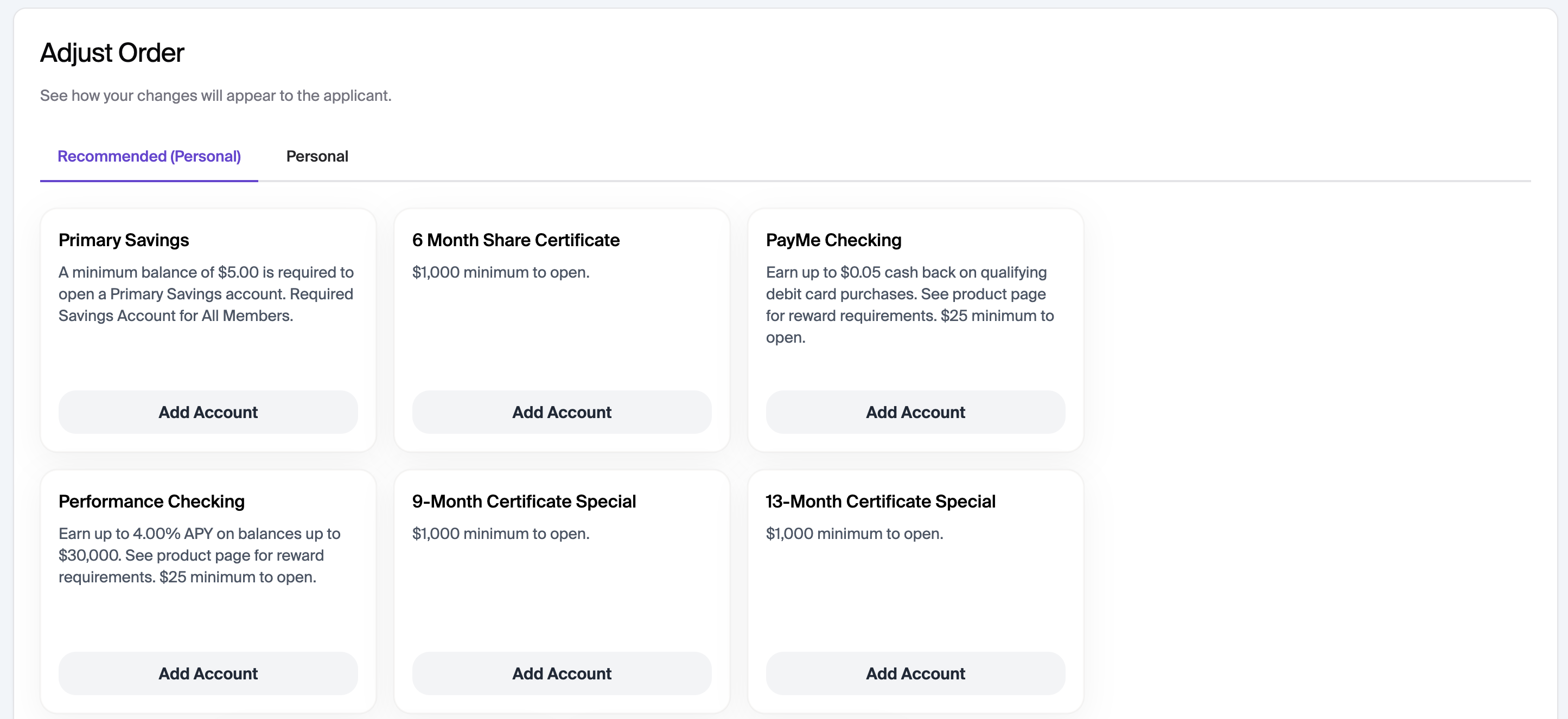
Adjust Order
You can also choose the order of shares here for the recommended section and membership types.
Activation
The Activate toggle controls whether a product is available to members once it is published. It is a separate, manual step — scheduling or publishing a change does not turn Activate on or off automatically.
Activate on – The product is available to members as soon as the change is published.
Activate off – The product exists in the system but is not visible or accessible to members, even after publishing.
When adding a new product, enable Activate before clicking Add Product if you want the product to go live at the time of publishing. If you leave Activate off, the product will be saved and can be published, but members will not see it until you manually turn Activate on and publish that change.
Click Add Product to save. Saving creates an unpublished change, giving staff a final checkpoint before going live.
Changing Activation for a Product Already in Production
You can toggle Activate on or off for any existing product at any time — not just during initial setup. To do this:
Open the product from the Products page.
Toggle Activate on or off under the Visibility & Eligibility section.
Save the change. This creates an unpublished change.
Publish the change from the Publish Changes page for it to take effect in production.
This is useful for a staged launch: push a product to production with Activate off to test it, then toggle Activate on and publish when you are ready for members to see it. Keep in mind that toggling Activate is itself a configuration change — it must be published to take effect, and a scheduled publish will not flip the toggle on your behalf.
End-to-End Launch Walkthrough
The following walkthrough covers a common launch pattern: configure a product in staging, push it to production for testing, keep it hidden from members until go-live, then activate it for launch.
Step 1 — Configure in Staging
Create or update the product on the Products page. Set all fields — including Funding, Visibility & Eligibility, and Channel Visibility — as you want them to appear at launch. Leave Activate off if you do not want members to see the product immediately after your first publish.
Step 2 — Publish to Production for Testing
Go to Configure → Publish Changes and push the change to production. Because Activate is off, the product is live in the system but not visible to members. Staff can now verify the product configuration in the production environment.
Step 3 — Confirm the Publish Executed
After publishing, check the Recently Published Changes section on the Publish Changes page to confirm the change appears there with the correct timestamp and staff name. You can also review the Configuration Activity Trail (Configure → Products → Configuration Activity Trail) and filter by Activity Type or Date to confirm the publish action is recorded. A scheduled change that has executed will appear in Recently Published Changes; if it is still listed under Scheduled Changes, it has not yet run.
Step 4 — Activate at Go-Live
When you are ready for members to see the product, open it from the Products page, toggle Activate on, save, and publish the change. Remember: publishing the activation change is required — toggling the switch alone does not make the product live. ⚠ unverified: Allow up to five minutes for the change to become effective in production after publishing.
Scheduling a Go-Live Publish
If you want the activation to go live at a specific time, you can schedule the publish from the Publish Changes page. However, note that the scheduled publish will only push whatever configuration is saved at that time — it will not automatically toggle Activate on. Make sure Activate is turned on and saved as an unpublished change before scheduling the publish.
Publish Changes
Navigation: Configure → Publish Changes
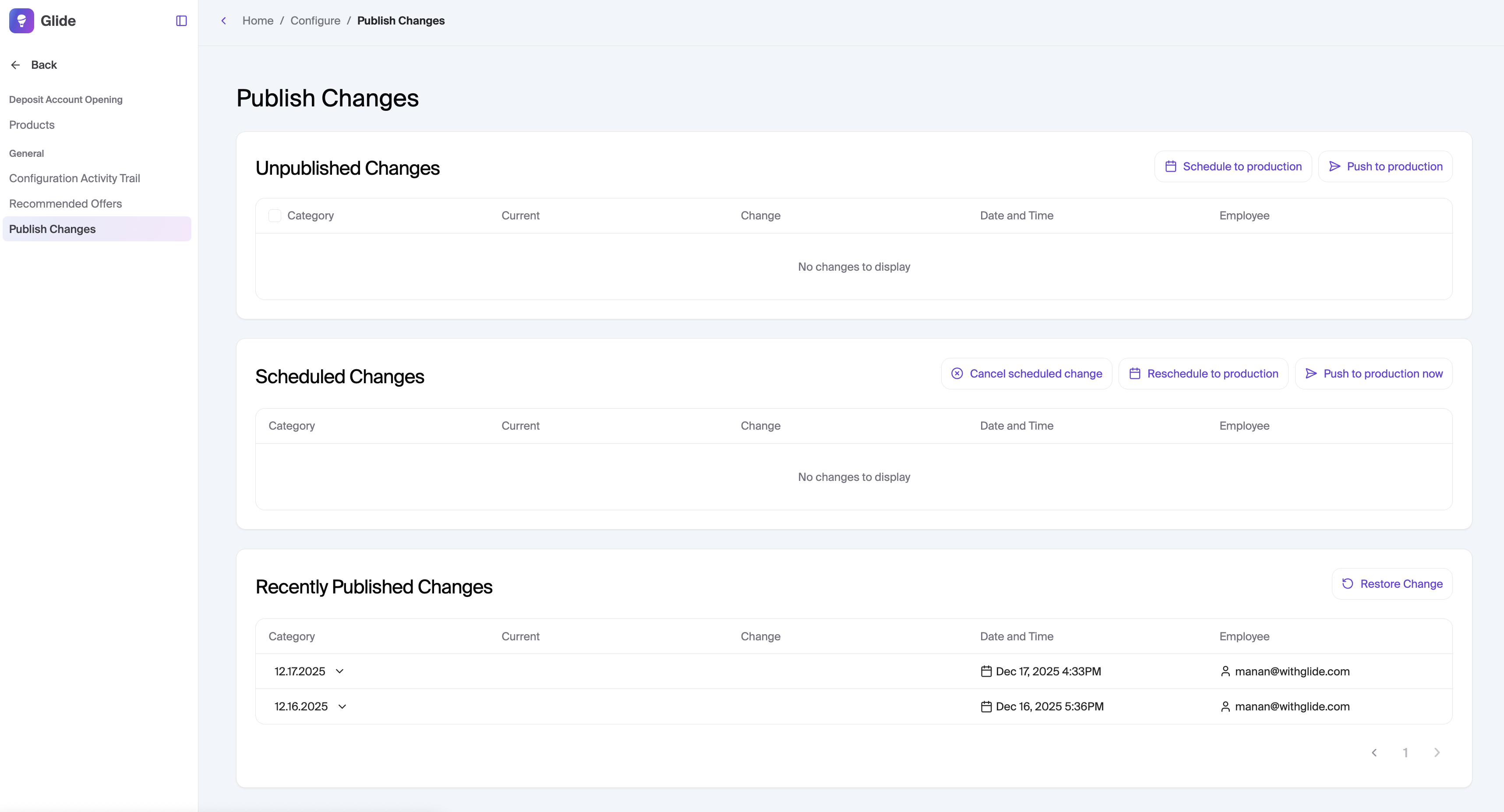
This page gives staff full control over when changes reach production.
Change States
Unpublished Changes
These are new or edited products that are not yet live.
Staff can:
Schedule to production – Ideal for coordinated launches
Push to production – Go live immediately
Scheduled Changes
Changes queued for a future publish time.
Staff can:
Cancel a scheduled change
Reschedule the publish time
Push to production now if timing changes
Recently Published Changes
A record of changes that are live in production. Includes:
Publish date and time
Staff member who published the change
Staff can:
Restore Change – Revert production to a previous state
Restoring creates a new unpublished change that must be republished, maintaining full auditability.
Confirming a Scheduled Publish Executed
After a scheduled publish time passes, check the Recently Published Changes section. If the change appears there with the expected timestamp, it executed successfully. If it is still listed under Scheduled Changes, it has not yet run — verify the scheduled time and, if needed, push to production manually.
Restoring When a Scheduled Change Is Still Queued
If you restore a change while another change is still in the Scheduled Changes queue, the restore creates a new unpublished change in the standard way — it does not automatically cancel or modify the scheduled change. You should separately cancel the scheduled change from the Scheduled Changes section if you do not want it to publish on top of your restored state. Failing to cancel the scheduled change means it will still publish at its scheduled time, potentially overwriting the restored configuration. ⚠ unverified
Please note: Publishing is disabled in staging. You can only publish changes in the production environment.

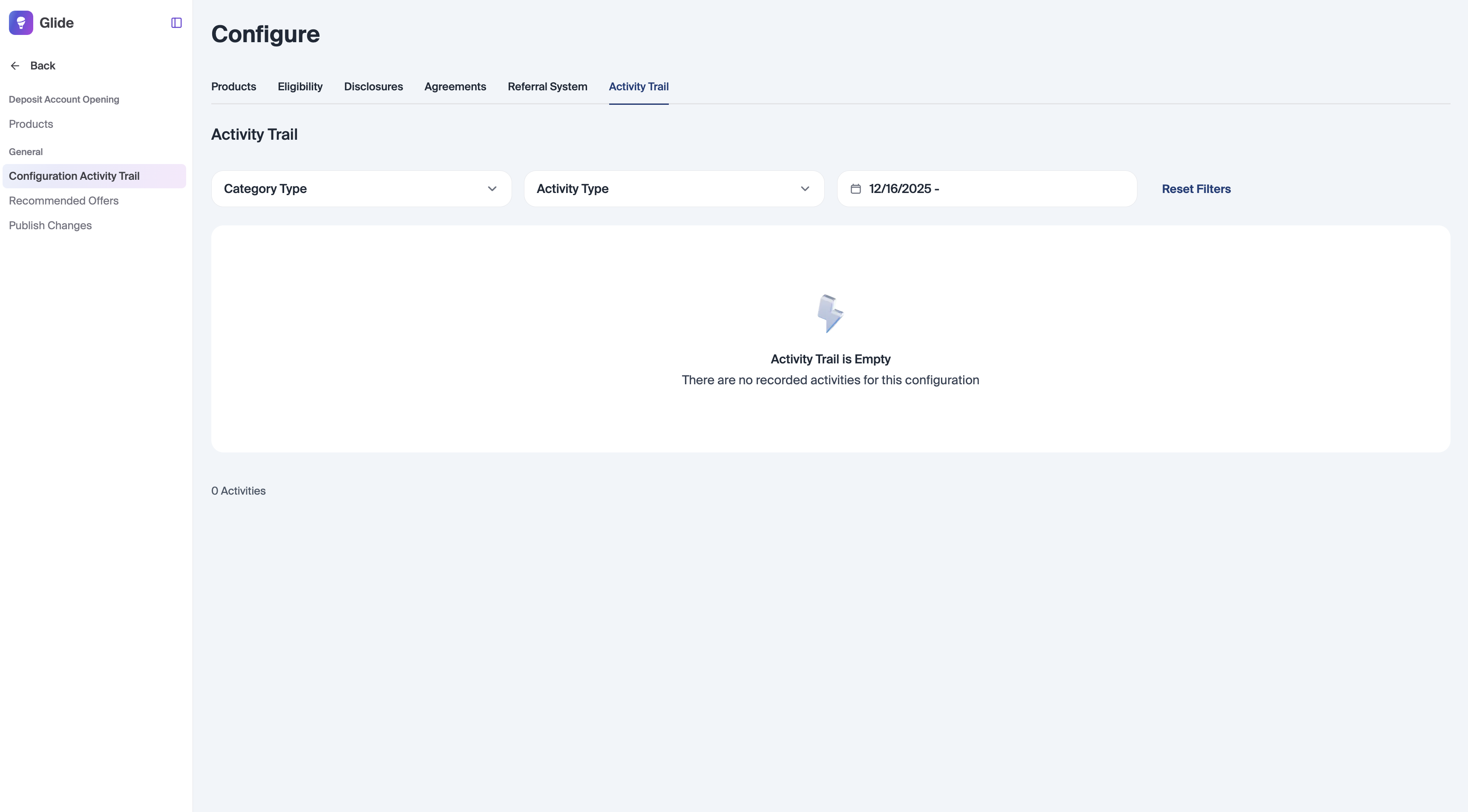
Configuration Activity Trail
Navigation: Configure → Products → Configuration Activity Trail
The trail shows all configuration actions.
Filter by Category, Activity Type, Date
View who made changes and when
Supports audits, troubleshooting, and validation
All activity is read-only. Publishing still follows the standard workflow.
Operational Benefits for FI Teams
Reduced risk: No direct production edits
Operational flexibility: Schedule around marketing and branch readiness
Faster iteration: Update products without engineering dependencies
Audit-ready: Clear visibility into what changed, when, and by whom
Member-first experience: Precise control over eligibility and visibility
Summary
The Product CMS empowers financial institution staff to manage deposit account products with speed, safety, and confidence. By separating configuration from publication, teams can move faster while maintaining the operational rigor required in regulated environments.
FAQs
Q: Can products be edited without going live?
A: Yes — all edits are saved as unpublished until you explicitly publish them, letting teams test and review first.
Q: What happens if I publish and need to undo?
A: You can revert to a previous state via the Publish Changes screen — creating a new unpublished change that reverses a live setting.
Q: Can rates offered for a given a product be mapped to the core?
A: No, mapping APY field to the core is not supported. APY is only shown on the front end (UI).
Q: How long does it take for changes made in production to become effective?
A: It will take up to five minutes for changes to be effective.
Q: How do I make a product available only through a journey link, not the general member flow?
A: In the Product CMS, set the product's visibility to Dashboard only. Then, in your Journey setup, assign the product under Auto Selection Preferences. This way, the product won't appear to members browsing normally but will be automatically selected when they arrive via the journey link.
Q: If I set channel visibility for a product as the Onboarding Page, will it show up as a recommended product on the onboarding portal?
A: No. Setting a product's visibility to "Onboarding Page" makes it available within the Add a Product flow — it won't appear as a recommended product on the portal.