Configuring Your Digital Loan Application: Lending Settings Guide
Last updated: October 23, 2026
Overview
This guide will walk you through managing your Lending Settings within the Glide Dashboard. These settings control the "digital channel" of your digital loan application, including the starter screen text, available loan categories, and credit pull logic.
Accessing Lending Settings
Log in to your Glide Dashboard.
On the left-hand sidebar, navigate to Configure.
Select Settings.
Ensure you are on the Lending Settings tab.
Updating General Flow Settings
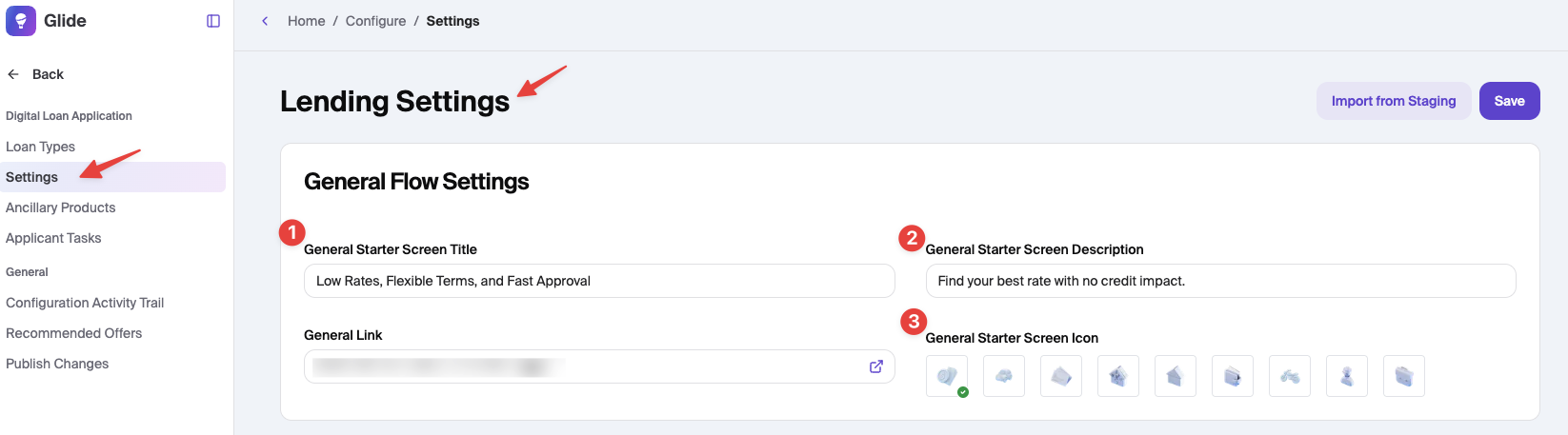
The General Flow section defines what applicants see on the general loan application landing page (e.g. /loans/apply)
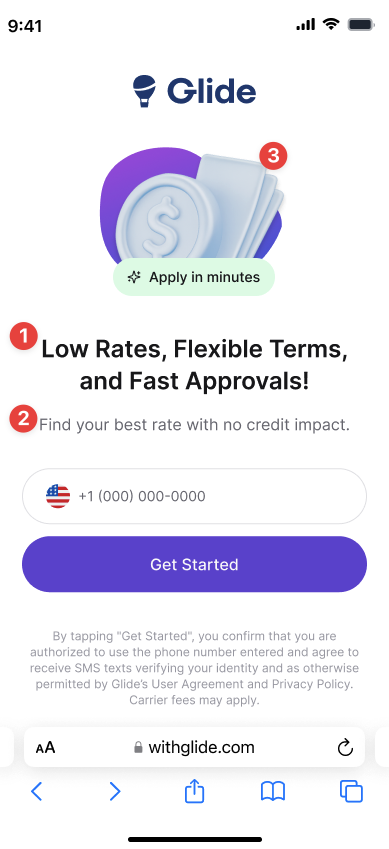
General Starter Screen Title: Enter the primary headline (e.g., "Low Rates, Flexible Terms").
General Starter Screen Description: Provide a brief subtitle or instruction (e.g., "Find your best rate with no credit impact").
General Starter Screen Icon: Click through the available 3D icons to choose the visual that best represents your overall lending brand.
The image below shows the 'End user Display.'
Updating Apply for a Loan Section
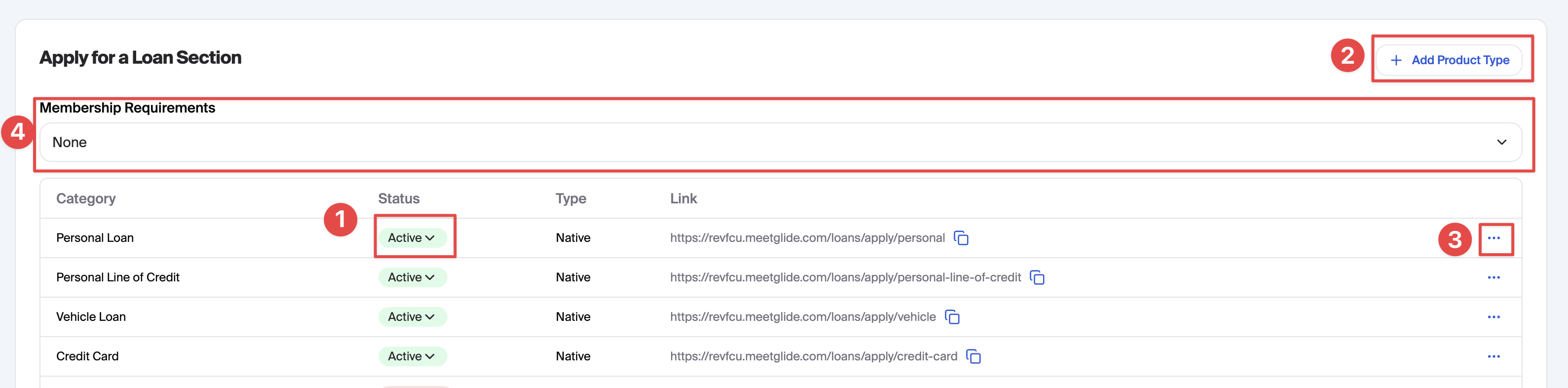
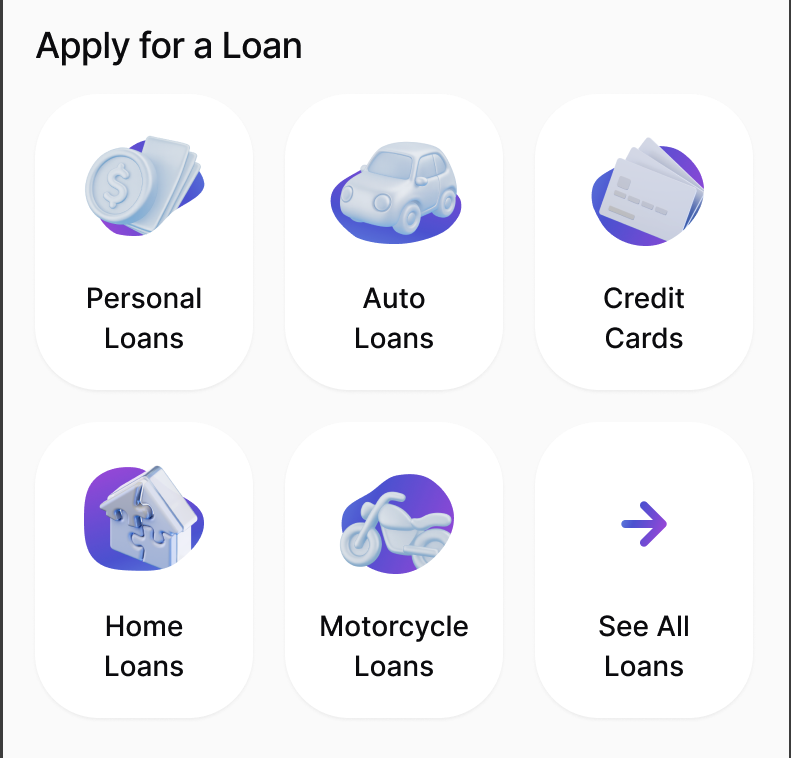
The Apply for a Loan Section allows you to toggle and change what appears in the Apply for a Loan Section on the onboarding page.
Change Status: Use the dropdown in the Status column to switch a category between Active (visible) or Hidden.
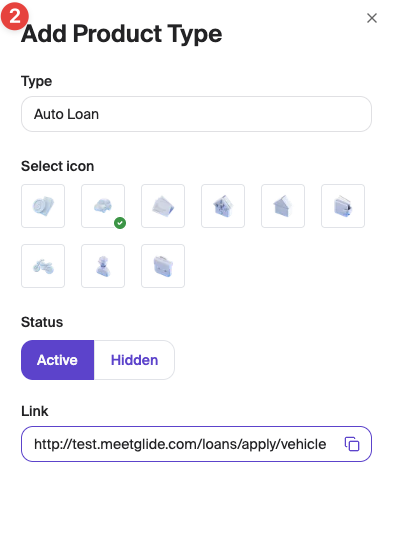
Add a Category: Click the + Add Category button to include a new loan type.
Complete: Type, Select icon, Select Status, Add Deep Link
Add Custom Categories for products not supported within Glide. Simply input the external URL to ensure applicants are sent to the correct external landing page.
Edit/Delete: Click the three-dot menu (...) on the far right of any row to move the category up or down. Add/Delete any Custom Categories.
Membership Requirements:
None: Users will not have any membership or eligibility checks ran when applying for a loan
Existing Member: Only existing members will see links to apply for loans in the onboarding page
Eligible: Non-members will be asked to confirm that they are eligible for a membership before proceeding with a loan application
The image below shows the 'End user Display.'
Configuring Credit Pull Settings
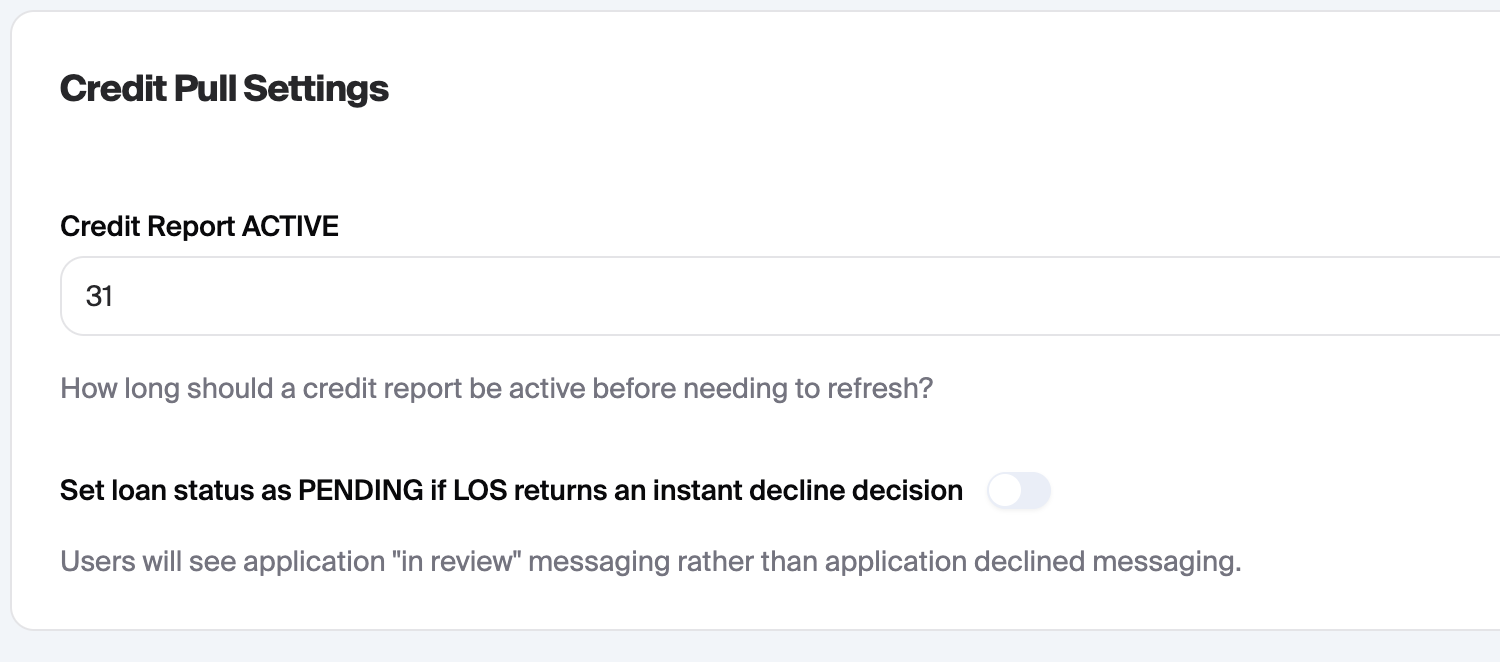
Credit Report Lifespan: In the Credit Report ACTIVE field, enter the number of days a report remains valid before a new refresh is run automatically.
Set loan status as PENDING if LOS returns an instant decline decision: Enable this toggle so that auto-declined users will see a "Pending" status instead of "Denied" upon submission.
Other Settings
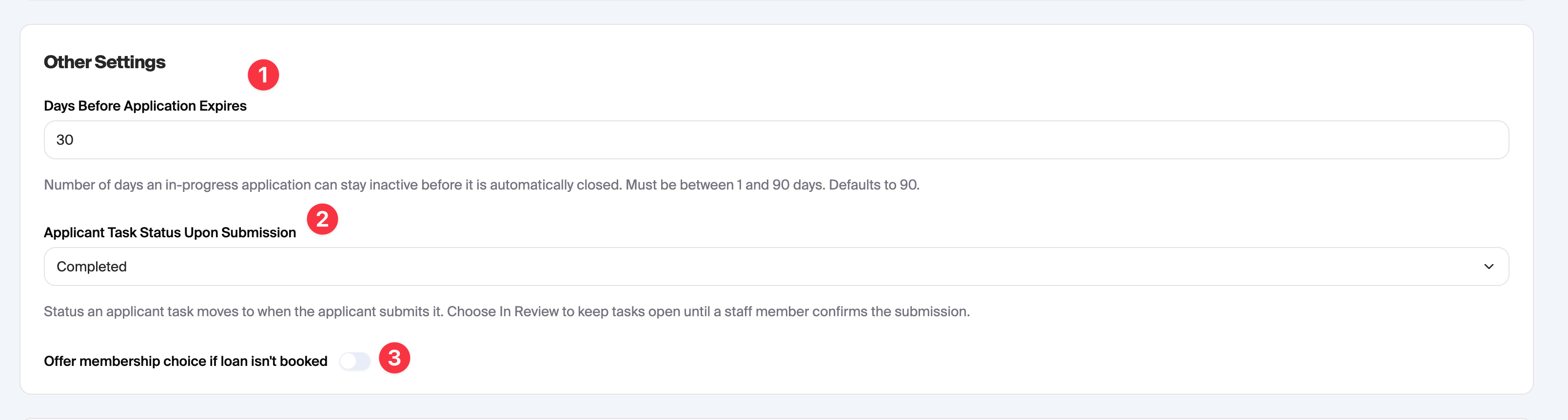
Days Before Applicant Expires: This setting determines how long an application can stay inactive before being automatically closed.
Applicant Task Status Upon Submission: This setting determines the status of an applicant task after it is submitted. By default, applicant tasks will be marked as completed, but this can be set to "In Review" if you would like to review the documents before telling the user that it is completed.
Offer membership choice if loan isn't booked: If enabled, users applying for a membership who have a pending loan application will be asked if they still want the membership without the loan. If users indicate "no", then the membership will not be auto-approved upon submission and will be closed out if the loan application is denied or closed.
Configuring Default Credit Tier
The default tier configured here will be used to show applicants loan terms and payment estimates. If we are not able to determine the users credit score, we will assume they are in the configured tier. This impacts the min/max loan amount the user can apply for as well as the estimated APR and monthly payments.

Updating Passive Disclosures
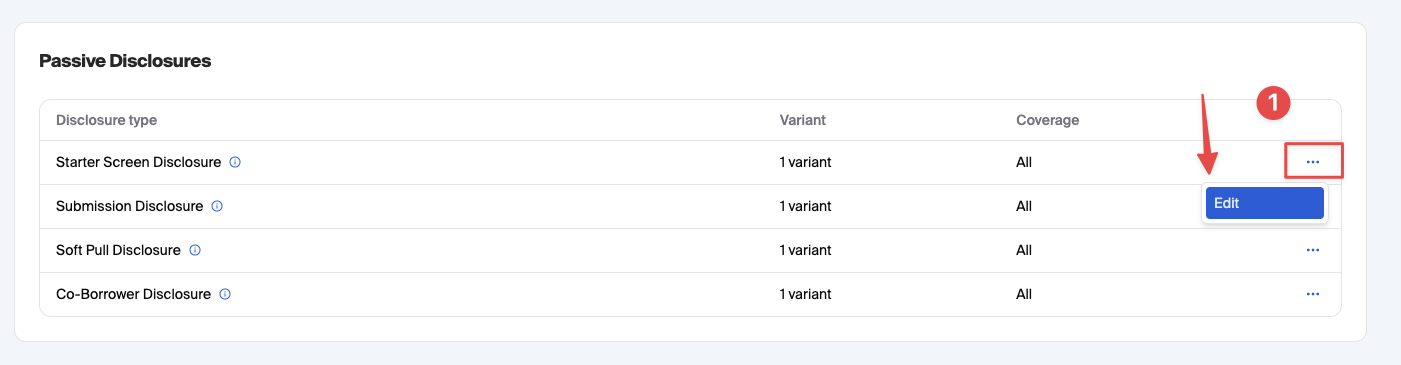
Passive disclosures appear throughout the application flow and do not require users to explicitly acknowledge or accept. To configure passive disclosures:
Select the disclosure you want to update, click the 3 dot menu and select Edit.
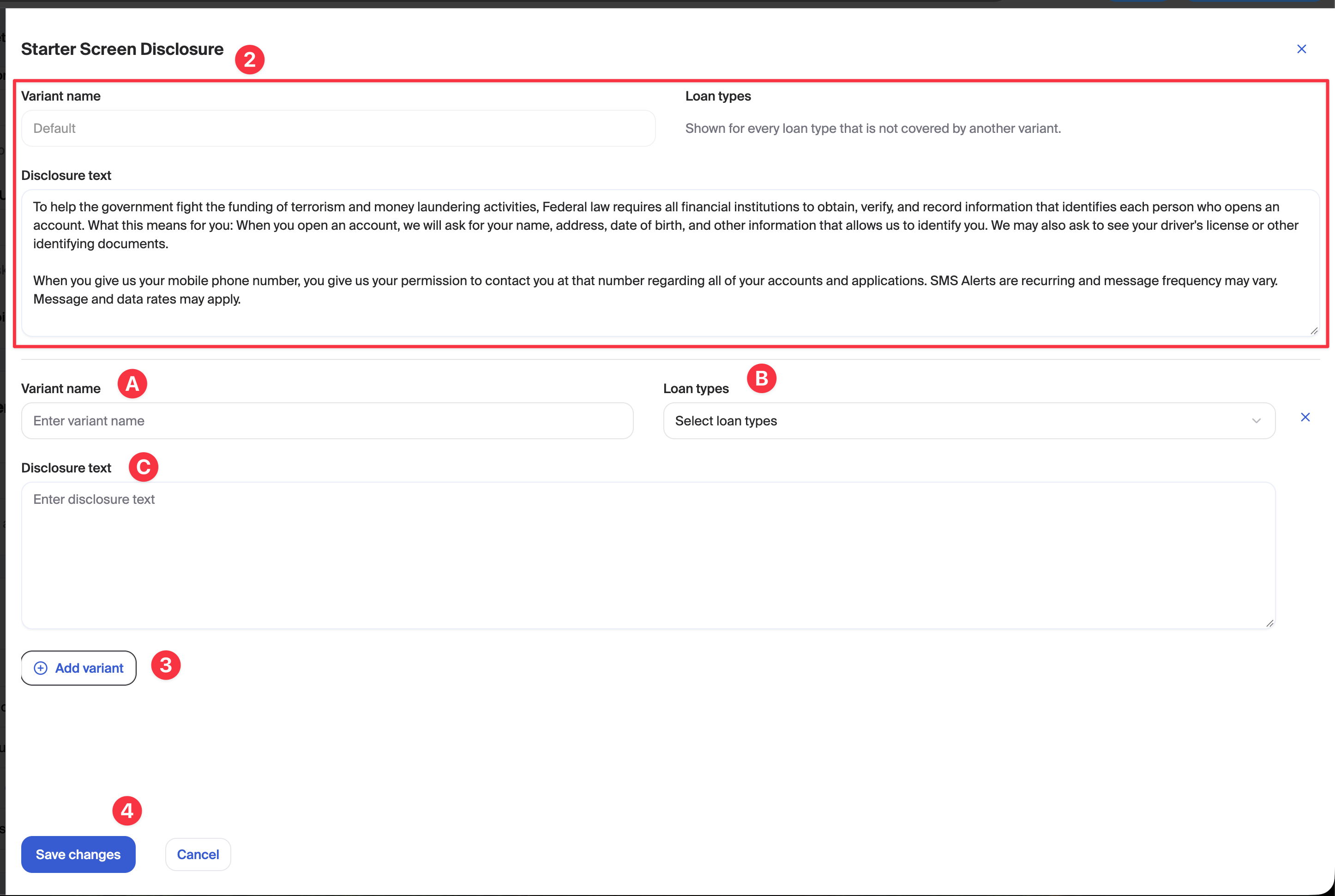
In the view that comes up, you will see a default variant at the top. This version of the disclosure will appear for any loan products that are not associated with another variant.
To add a variant, click the "Add Variant" button
Enter the variant name. This is for internal organization only and will not appear to the user
Select which loan types the variant applies to
Enter in the variant's disclosure text
Keeping disclosures to 250 characters or less is highly recommended for a better user experience
Formatting Links: Use standard Markdown syntax to create the hyperlink. Place the text you want the user to click on inside square brackets
[]followed immediately by the URL in parentheses(). Example:[Google](https://google.com)
Click Save Changes after making your updates
Where Passive Disclosures Appear
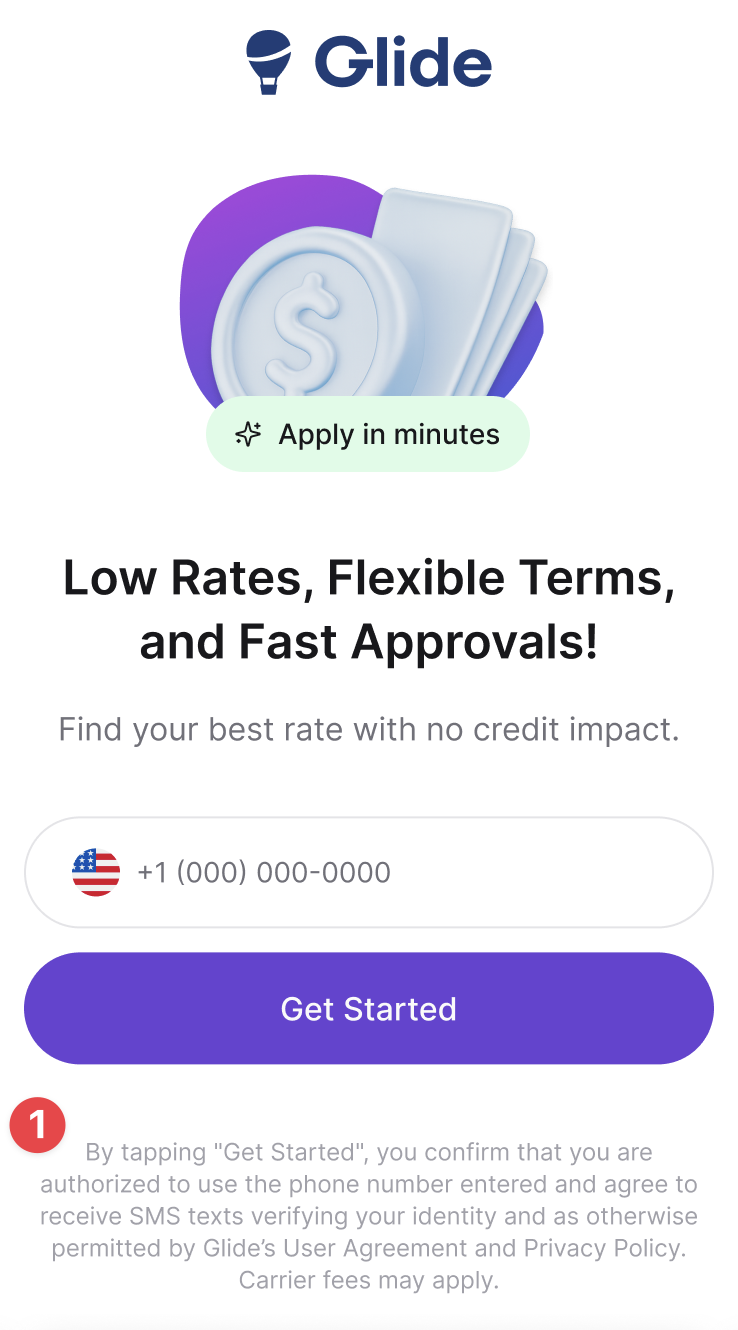
Starter Screen Disclosure: Visible before the user begins.
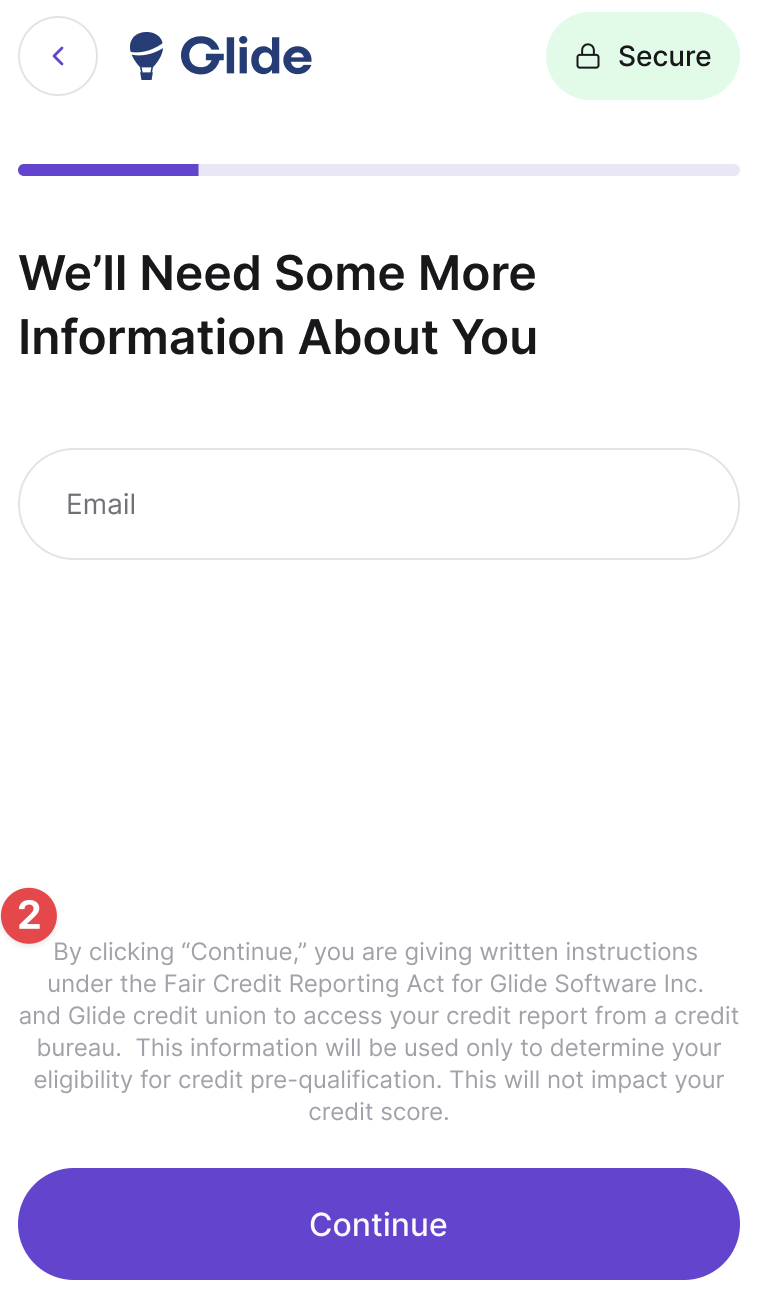
Soft Pull Disclosure: Specific language authorizing the initial credit check.
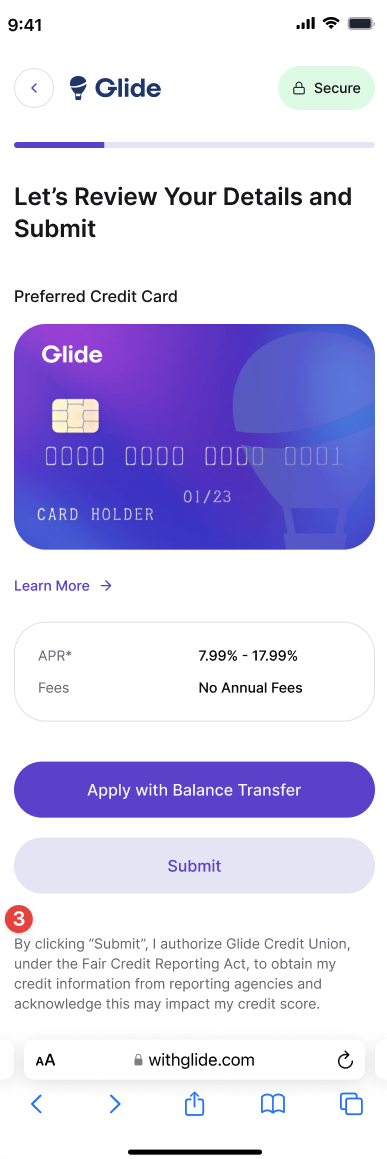
Submission Disclosure: Shown right before the final "Apply" button.
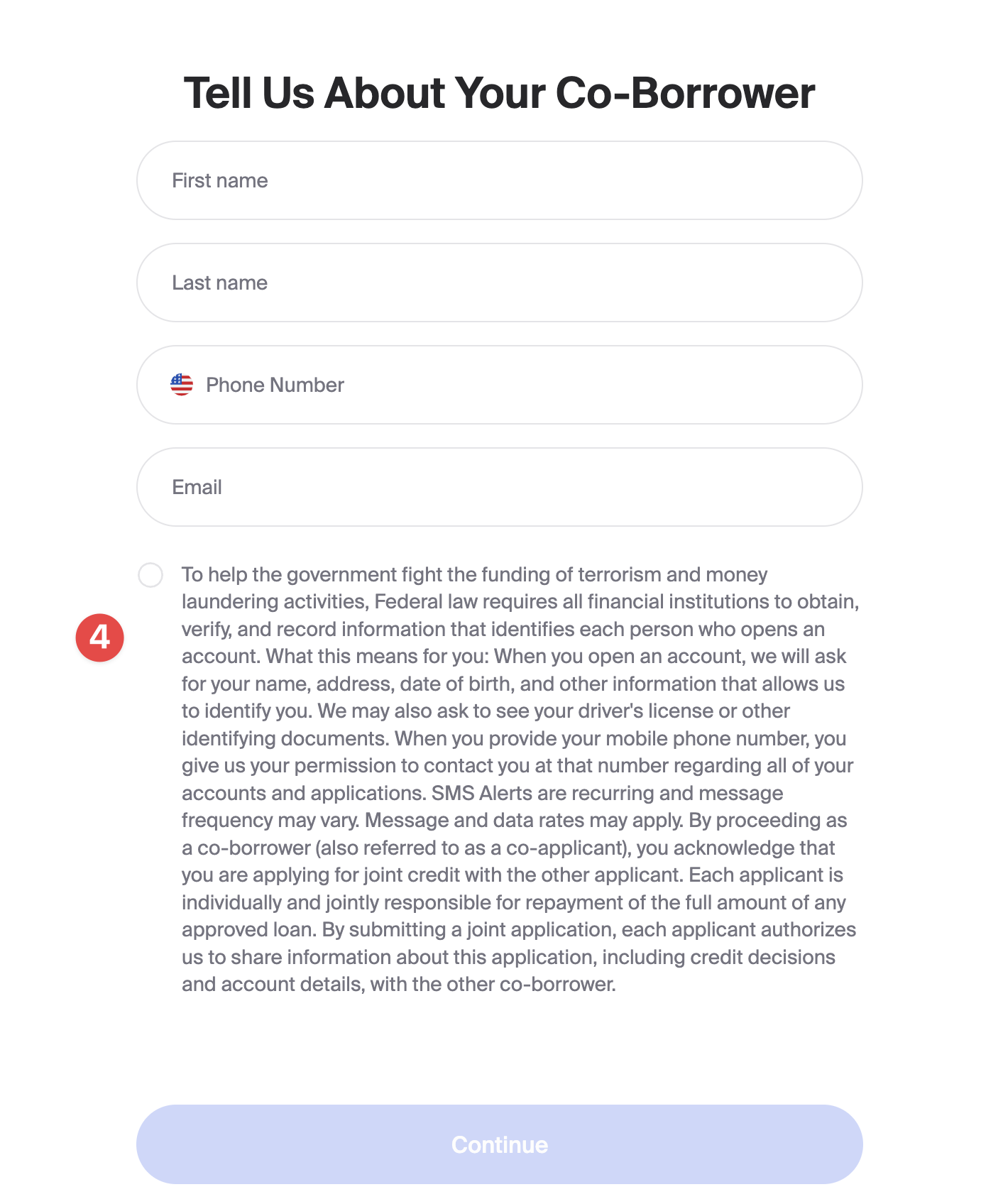
Co-Borrower Disclosure: Appears on the co-borrower PII collection page.
The images below show the 'End user Display.'
Updating Active Disclosures
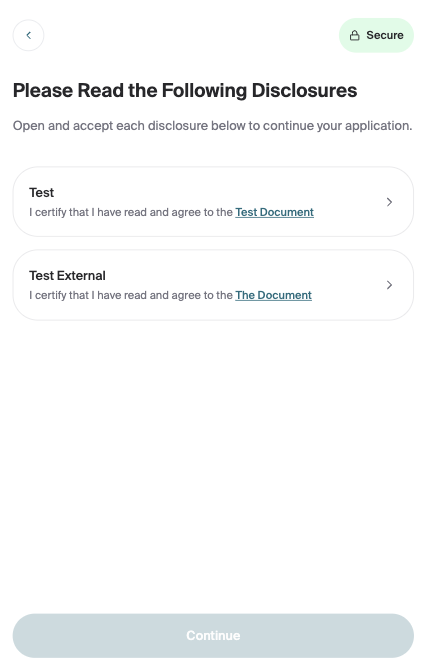
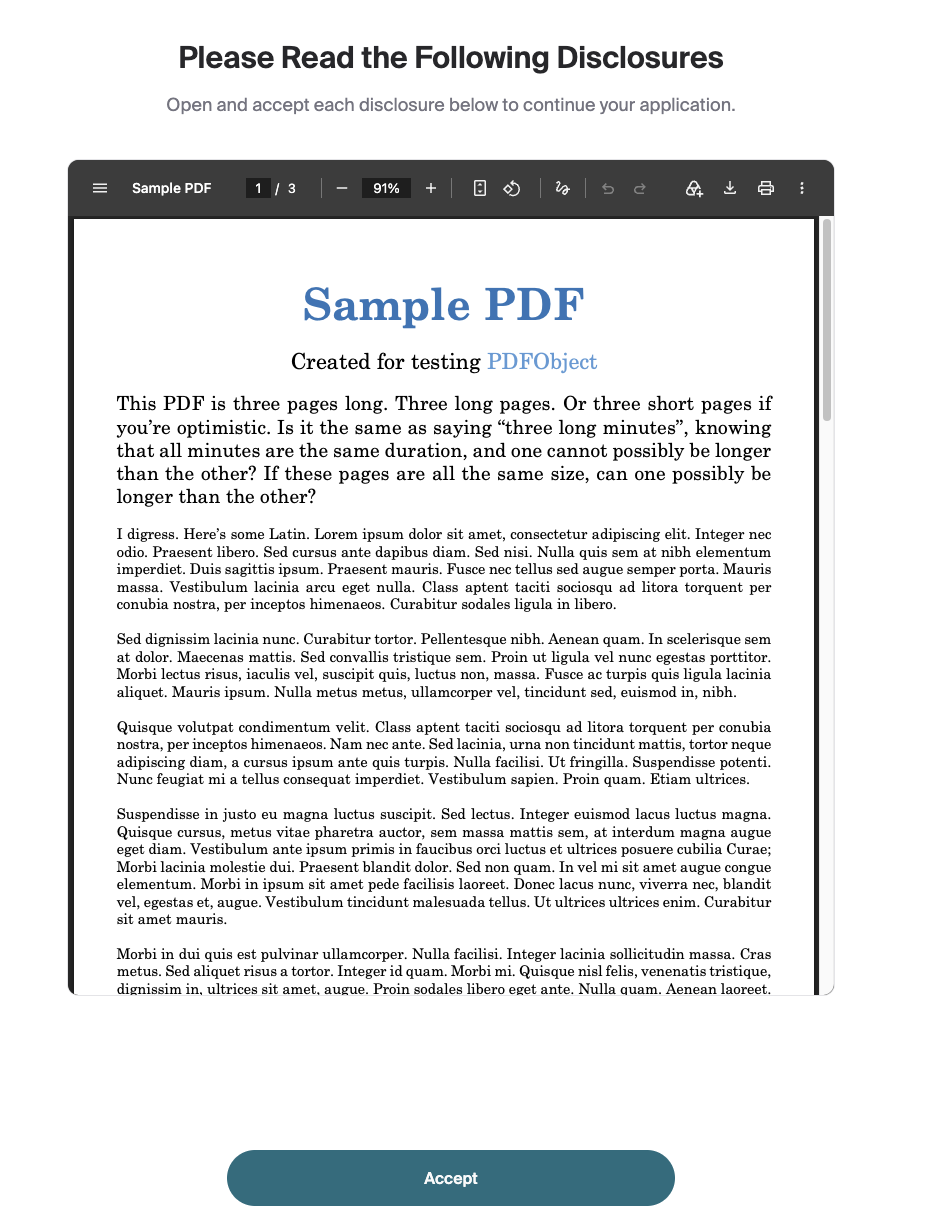
Active disclosures will all appear on 1 page after the user has selected their loan terms. These disclosures require the user to click on them to view and then accept before the user is able to proceed. To add an active disclosure:
Navigate to the Active Disclosures section and click "Add more"
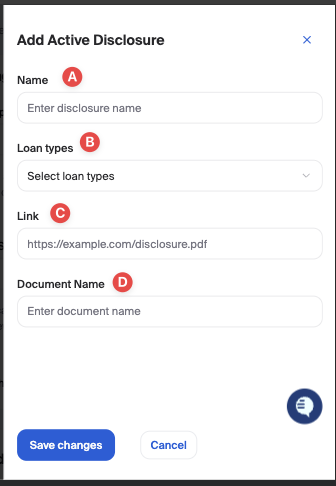
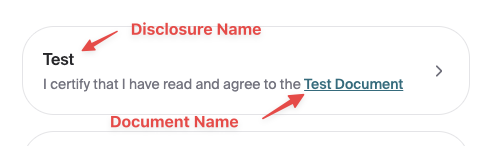
Enter the information related to the disclosure (see below for how these elements appear to the user)
Name: The title that will appear on the disclosure card
Loan Types: Select which loan products the disclosure will appear on
Link: Enter the link to the disclosure. If the link points to a PDF document, we will render the document for the user directly in Glide. Otherwise, the disclosure will open in a new tab.
Document Name: Enter the name of the document so the user knows what they are viewing/agreeing to
Click Save Changes
Active Disclosure Member Experience
Disclosures List
Disclosure Card
Viewing Disclosures
Saving Changes
After making any adjustments, click the Save button in the top right corner.