Promo Code Configurations
Last updated: September 23, 2026
Overview
Glide supports promo codes at two levels: membership and share. In both cases, promo codes are tied to Journeys, if a code isn't configured there first, it won't be recognized as a valid code.
Membership Level Promo Codes
A promo code field is available by default on the membership level, both in the dashboard and in the digital channel.
Promo codes in Glide are powered by Journeys — trackable links that financial institutions can create for campaigns, promotions, and events. Each Journey can optionally include a promotion that awards a bonus (which can be automatically transferred via Glide) when an applicant meets certain requirements. When an applicant enters a promo code, they're activating a Journey.
To add valid promo codes, configure them first in the Journeys tab on the dashboard. When an applicant enters a code, Glide validates it against that list — unrecognized codes will be rejected.
Share Level Promo Codes
Glide also supports promo codes at the share level. This is an optional configuration that must be enabled by your DPM.
On the digital channel, share level promo code field appears on the review screen after adding a share via the onboarding page.
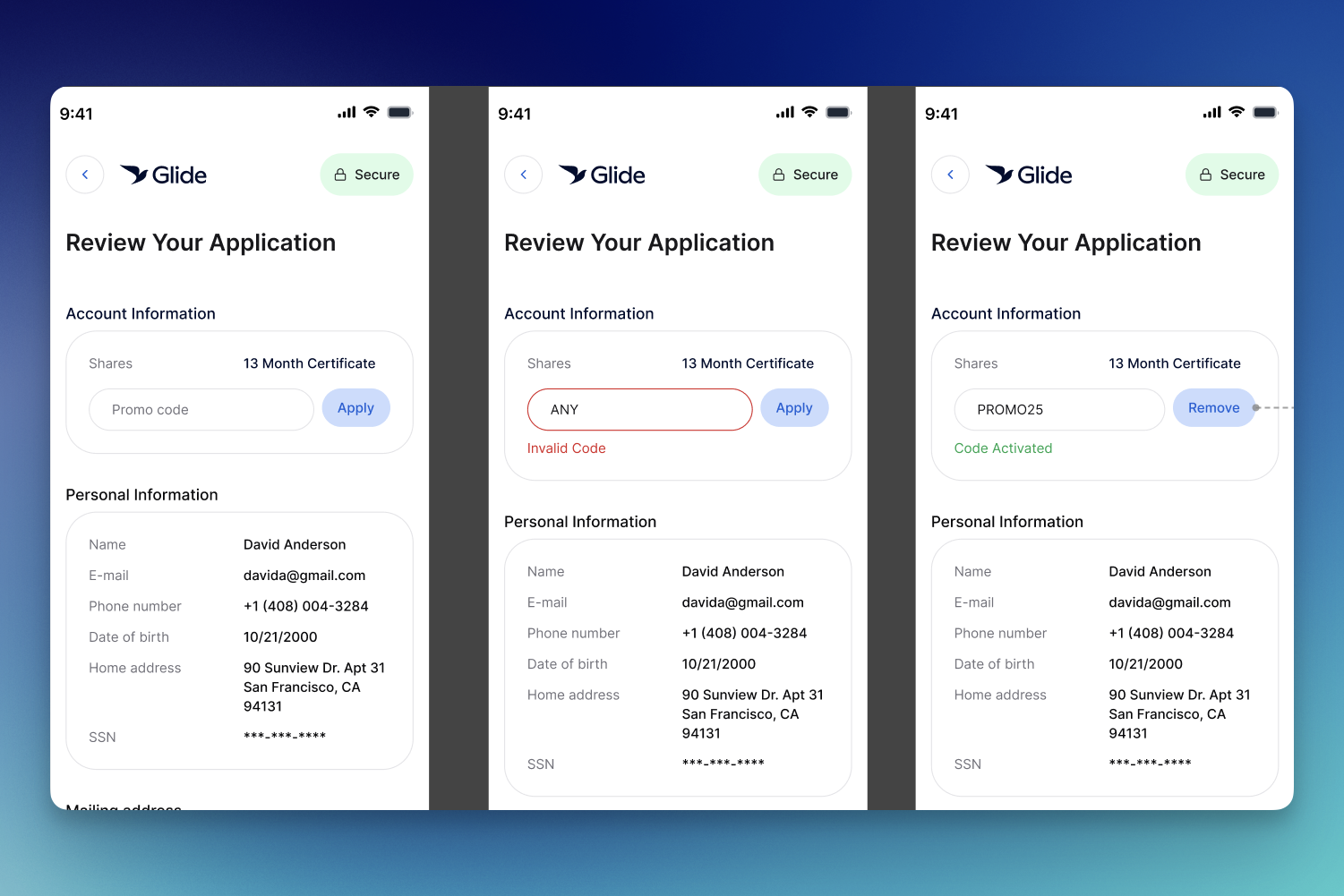
On the dashboard, the selection for adding a promo code appears when adding a product. The input field on the dashboard is a dropdown to allow a staff member to quickly select from a list of valid promo codes.

Like membership level codes, share level codes are validated against the Journeys tab. Codes must be added there before they can be used.
To enable share level promo codes, contact your DPM.
Core Mapping
By default, promo codes are not sent to the core. Behavior varies by core system. For example:
Symitar — Membership level promo codes are typically mapped to a membership level tracking record. Share level codes, if used, are typically mapped to a share level tracking record.
XP2 — See XP2 promo code setup