Journeys
Last updated: September 23, 2026
The Journeys feature allows financial institutions to create trackable links for events, promotions, advertisements, and more. Journeys unlock a new level of attribution by showing which campaigns actually convert into new account holders, and staff can also attach promotions that award bonuses when requirements are met.
Financial institutions can additionally pre-select shares, membership types, and eligibility information for each Journey link. This streamlines the application flow for applicants, while giving staff the ability to launch campaigns with custom URLs and QR codes that are easy to track and manage.
Journeys can now also be branded. A Brand lets you replace the logos, colors, and starter screen copy that an applicant sees when they open a Journey link — so a campaign for a partner, a dealership, a community sponsorship, or a sub-brand can look like that campaign instead of your standard application flow. The underlying application, products, and core integration stay exactly the same; only the presentation changes.
How to Create a Journey
To create a Journey link, navigate to the staff dashboard and click on "Journeys" in the navigation bar. Then, click on the "+Create" button.
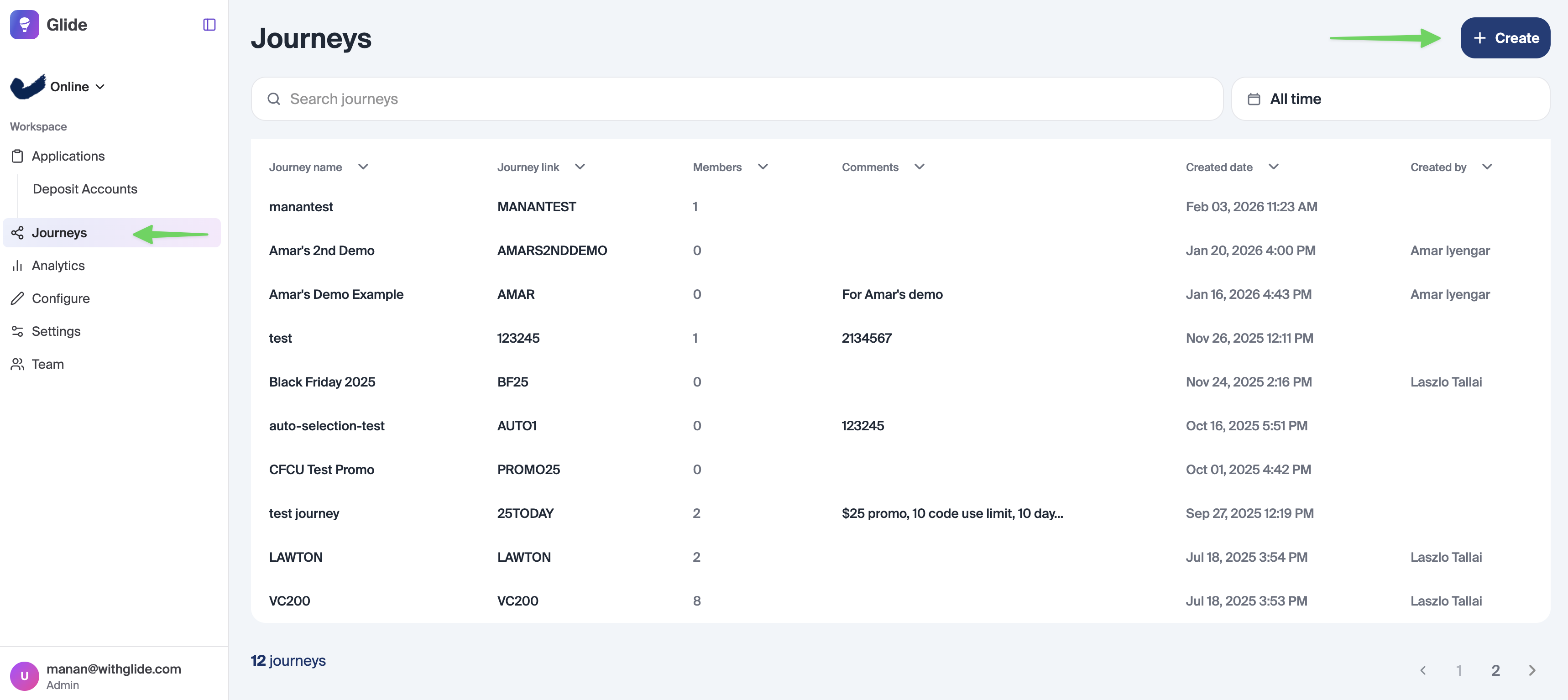
Staff members will be presented with a new page that allows for configuration of the Journey:
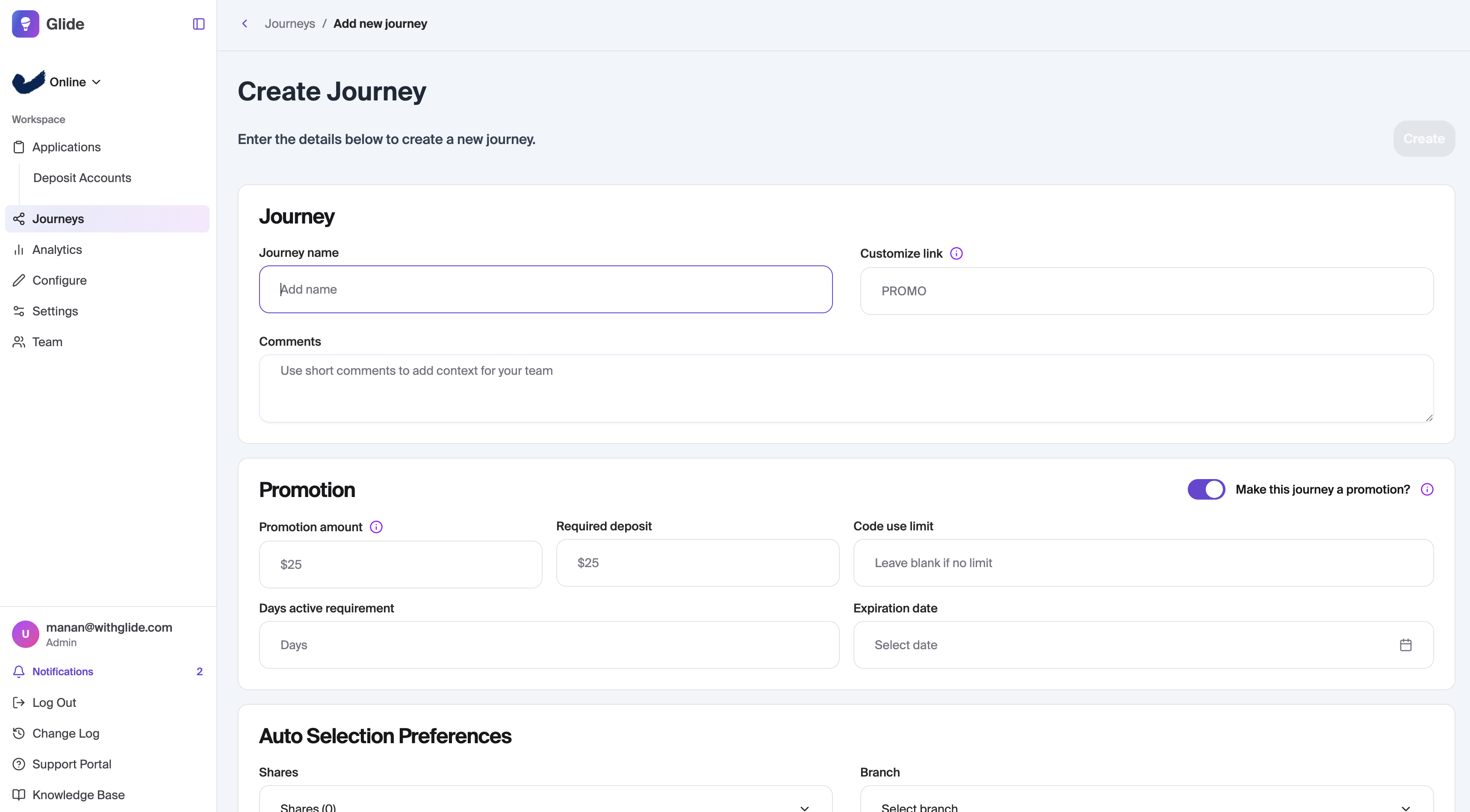
You’ll be presented with configuration options that fall into three main sections:
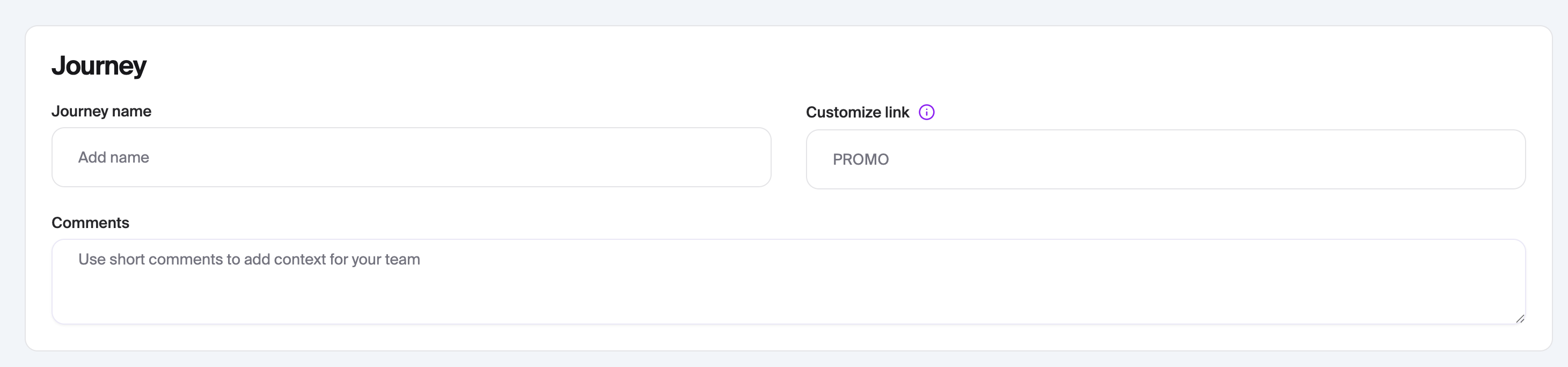
1. Journey
Journey Name
Internal-only name used by staff to identify and manage the journey. Not shown to applicants.
Customize Link
Choose the custom link path for your journey. This will be appended to your financial institution’s domain (for example, join.cu.org/promo). Links are case-insensitive.
Comments
Use short internal comments to add context for your team.
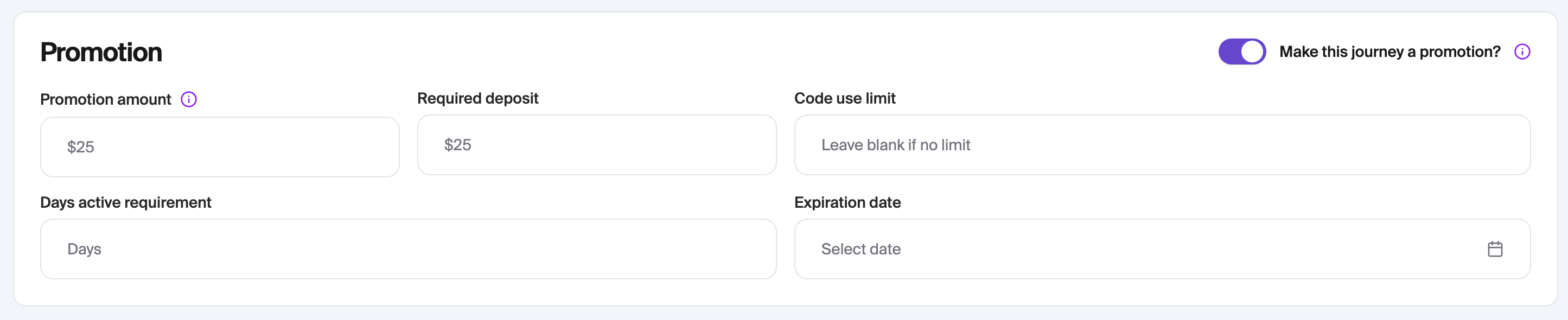
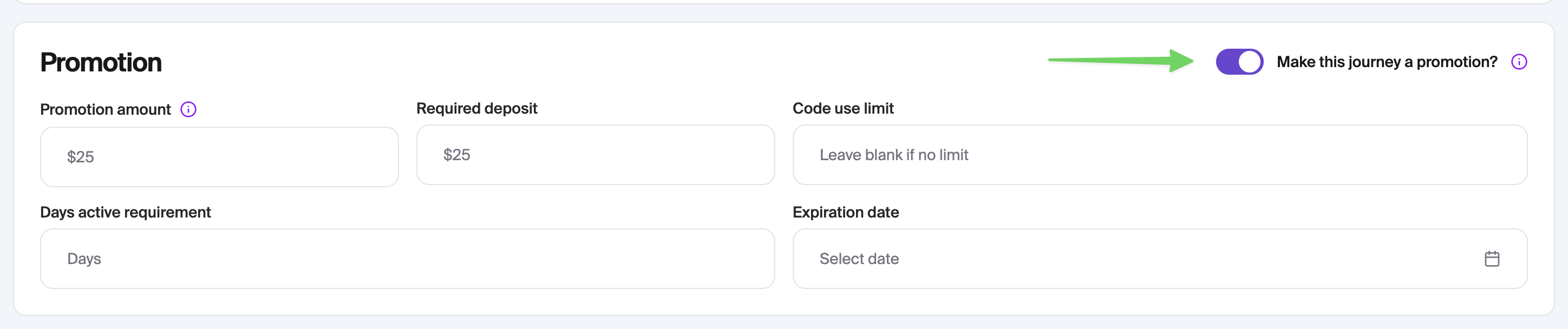
2. Promotion
Make this journey a promotion?
Determines whether the journey is associated with a promotion.
If toggled off, the journey functions as a tracking link only.
If toggled on, promotion settings become available.
Promotion Amount
The dollar amount awarded once promotion requirements are met. Can be set to $0 if no bonus applies.
Required Deposit
Minimum deposit required in the prime share for an applicant to qualify for the promotion.
Code Use Limit
Limits how many account holders can redeem the promotion. Leave blank for no limit.
Days Active Requirement
The number of days a membership must remain active before the promotion is awarded. System minimum is 2 days.
Expiration Date
(Optional) The journey link becomes inactive at 12:00 AM (financial institution local time) on the selected date.
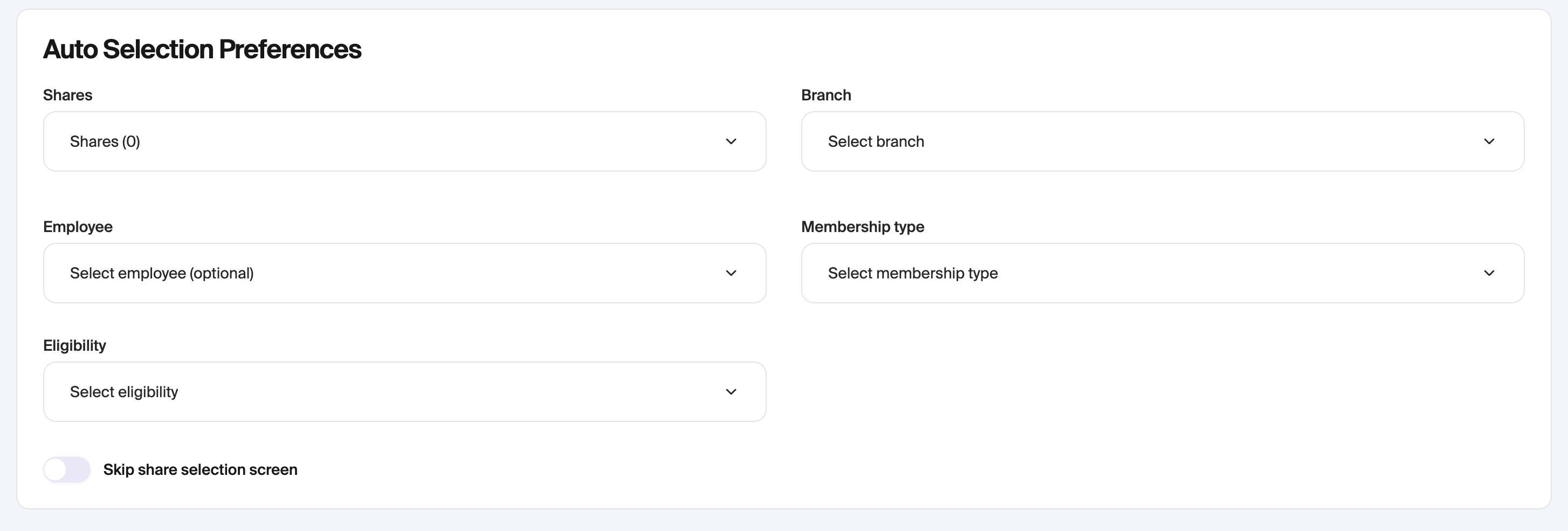
3. Auto Selection Preferences
These options allow staff to pre-fill or skip certain steps in the digital channel:
Shares - Pre-select which share types should be opened for the applicant.
Branch - Select the branch to associate with this journey.
Employee - (Optional) Assign an employee to the journey.
Membership Type - Pre-select the membership type for applicants.
Eligibility - Pre-fill the eligibility requirement. Applicants can update this selection and complete any required fields that are not pre-filled.
Skip Share Selection Screen - If enabled, the applicant skips the share selection step. Note: Applicants can still remove shares by selecting Edit on the product section of the review page.
Managing Journeys
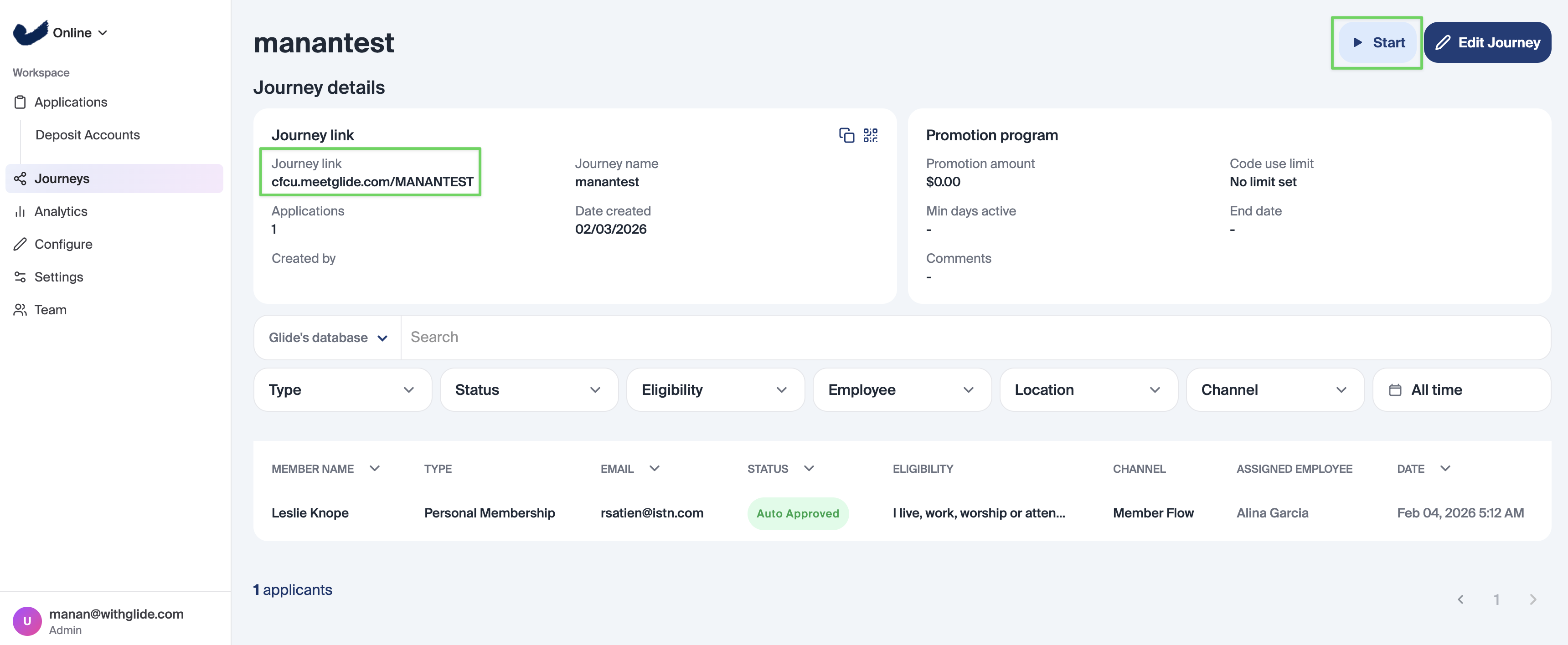
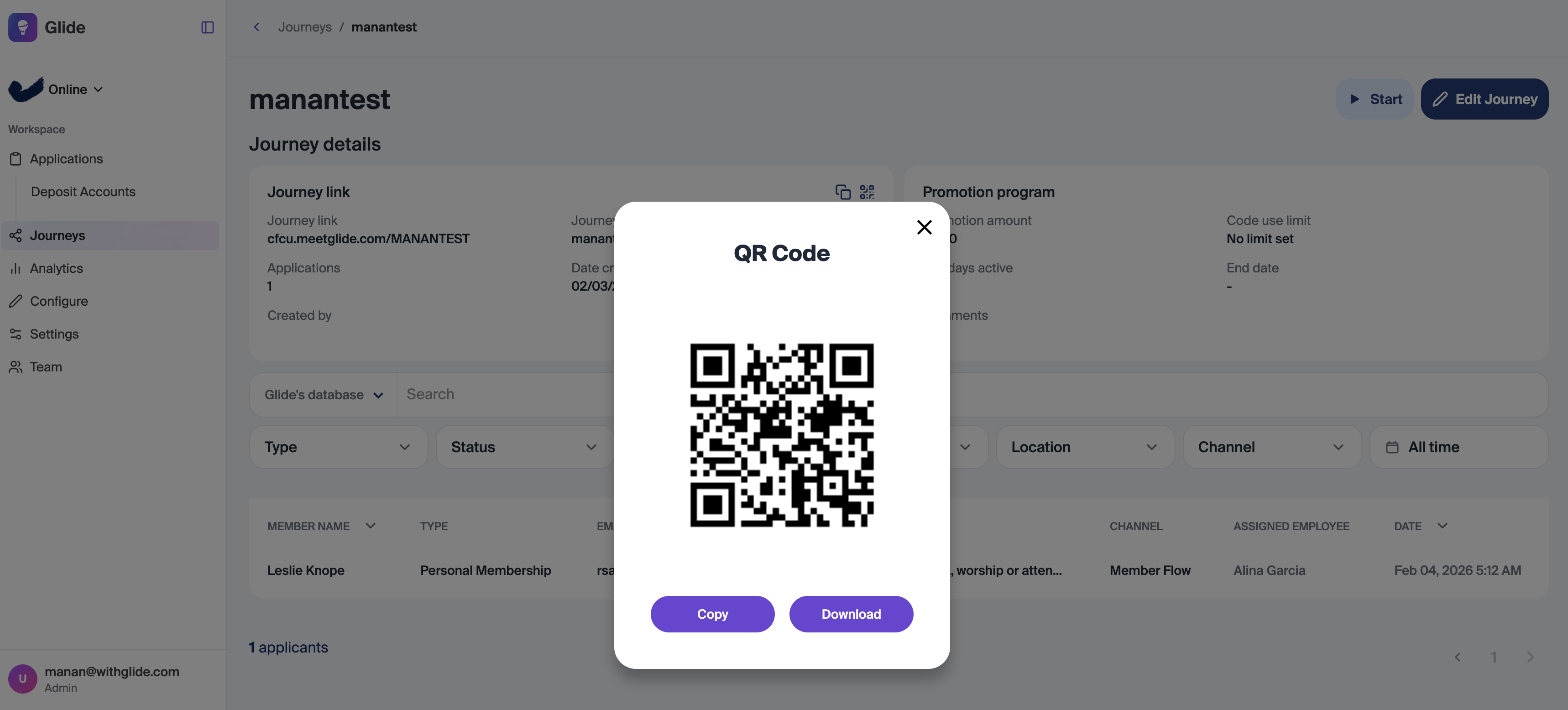
After creating a Journey, Turn it on by clicking the Start button. Copy the link or download a QR code for distribution.
Once you create the journey link, be sure to turn the journey link on by clicking the start button (1). On this page, you'll be able to copy the link and download a QR code (2) for the journey.
Journeys in the Digital Channel
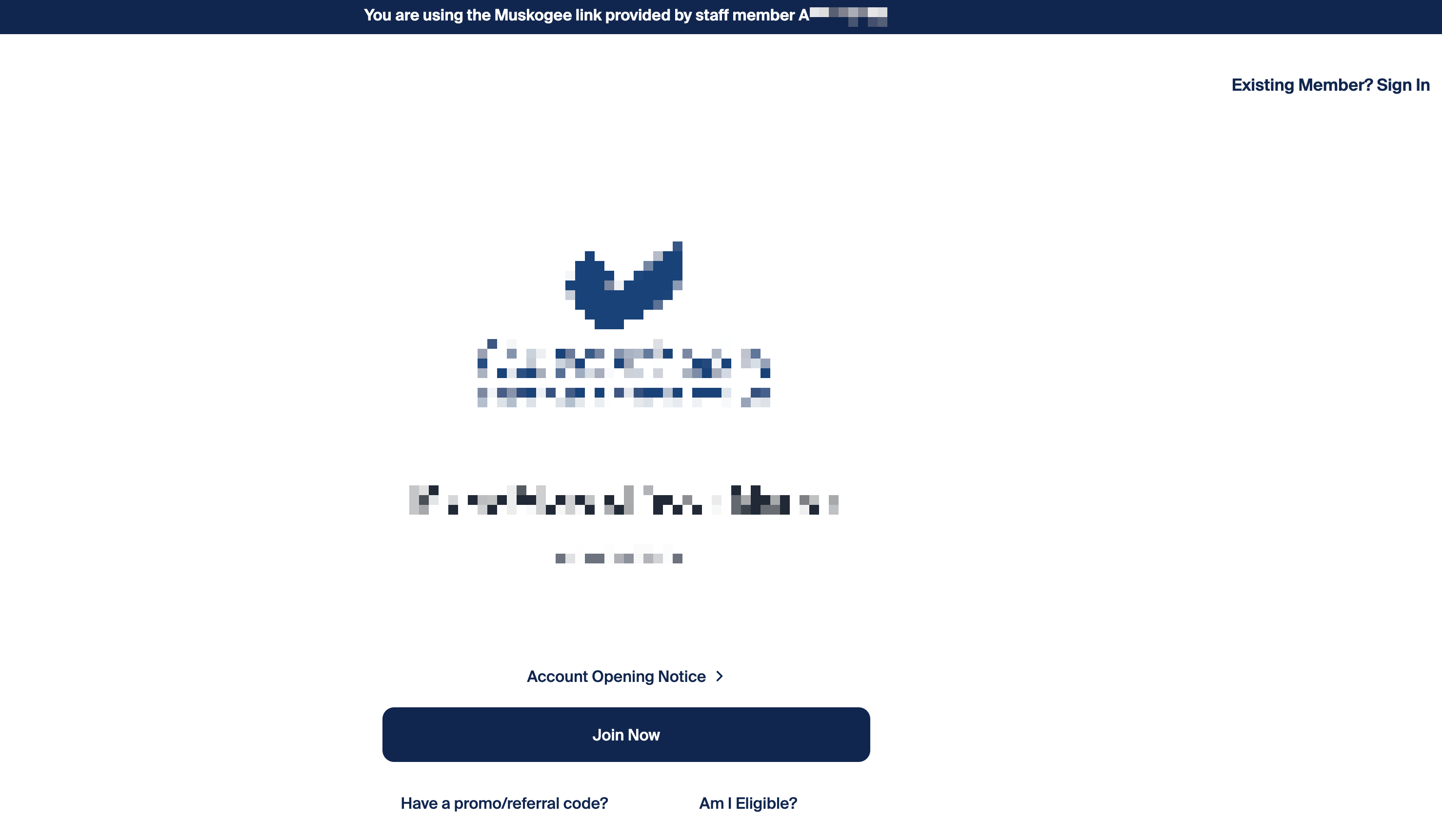
Applicants can activate Journeys in three ways:
Clicking the link directly
Scanning a QR code tied to the link
Entering the Journey code into the promo code field
An applicant can only have one journey or promotion activated at a time.
If a Journey includes a promotion, a banner will display in the digital channel showing that a promotion has been added.
On the funding page, applicants also see the minimum required deposit to qualify for the bonus.
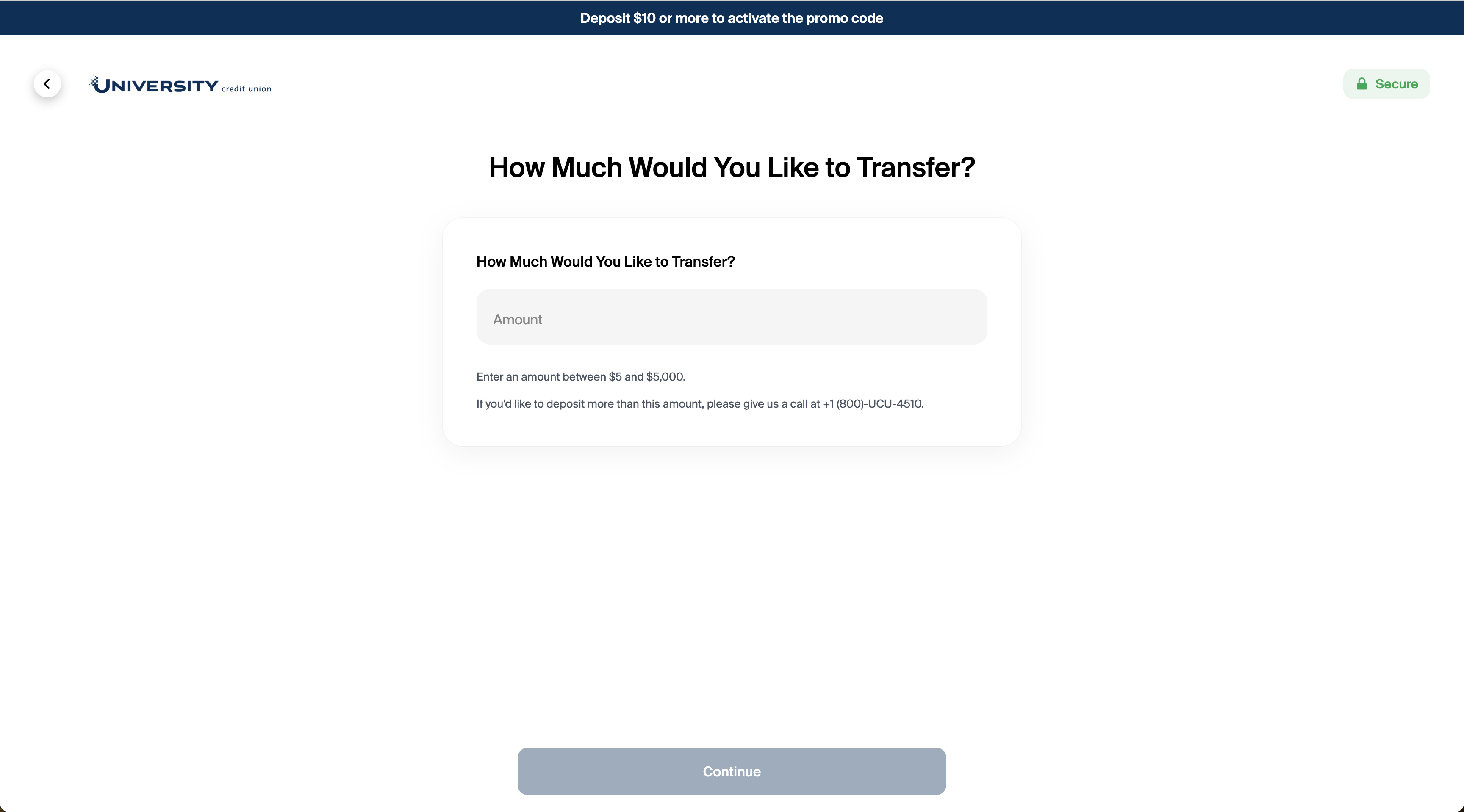
If a journey exists without a promotion, the banner will state "A journey has been activated: [journey name].
How Promotional Amounts Are Awarded
Glide automatically awards promotions based on the Required Deposit and Days Active Requirement:
Glide checks balances in the primary share directly in the core. Account holders don’t need to fund through Glide to qualify.
Once conditions are met, Glide transfers funds from the GL to the account holder’s primary share.
Awards are processed daily between 12 PM and 1 PM ET on business days.
If you've attached a promotion amount, a banner will also appear on the funding page letting applicants know the minimum amount to fund set in the "Required deposit" field to claim the promotion.
Journeys on Dashboard Applications
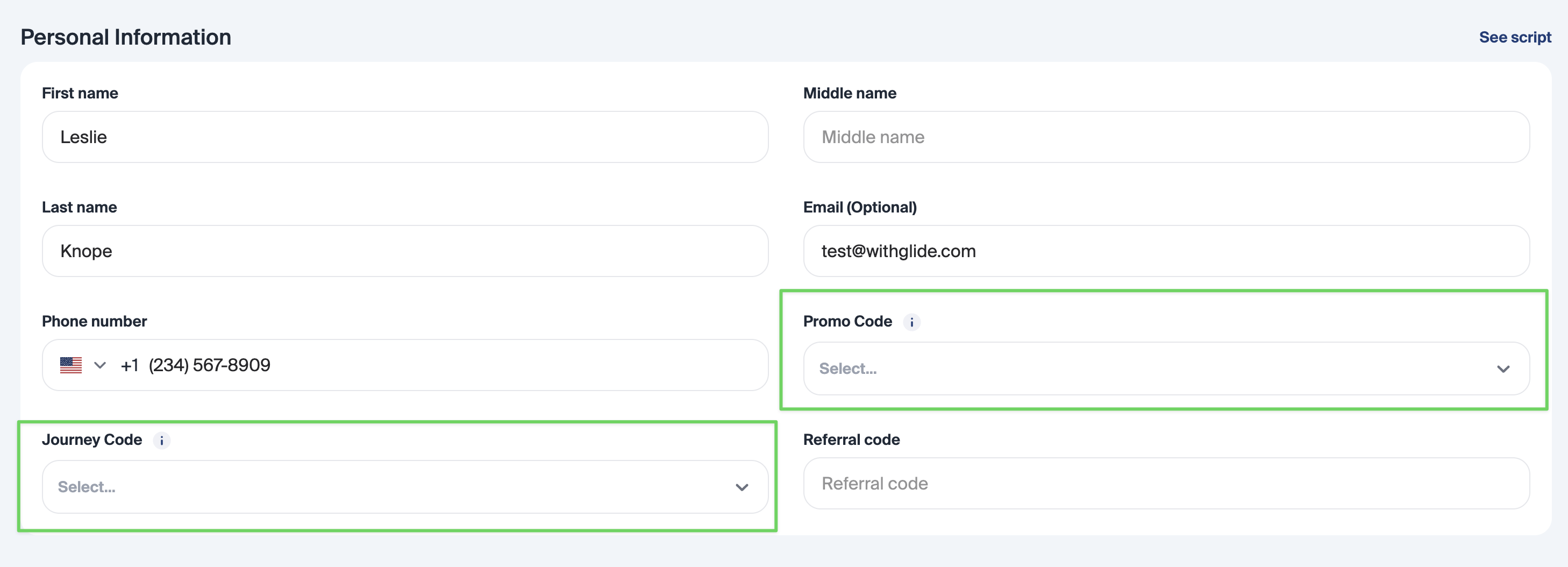
When creating an application on the dashboard, you can associate it with a journey by entering either a Journey Code or a Promo Code in the Personal Information section.
Note: When creating a journey, you can choose to make it usable as a promo code by enabling the “Make this journey a promotion?” toggle in the Create Journey flow.
How Branding Works
Branding is built in two steps:
Create a Brand. A Brand is a reusable set of logos, colors, and starter screen copy. It lives on its own tab and is not tied to any single Journey.
Assign the Brand to a Journey. Each Journey has an optional Brand field. When an applicant opens that Journey link, the Brand is applied to their session.
Because Brands are reusable, you can build one Brand for a partner or campaign family and assign it to as many Journeys as you need. A Journey with no Brand assigned simply uses your institution's standard branding, exactly as before.
How to Create a Brand
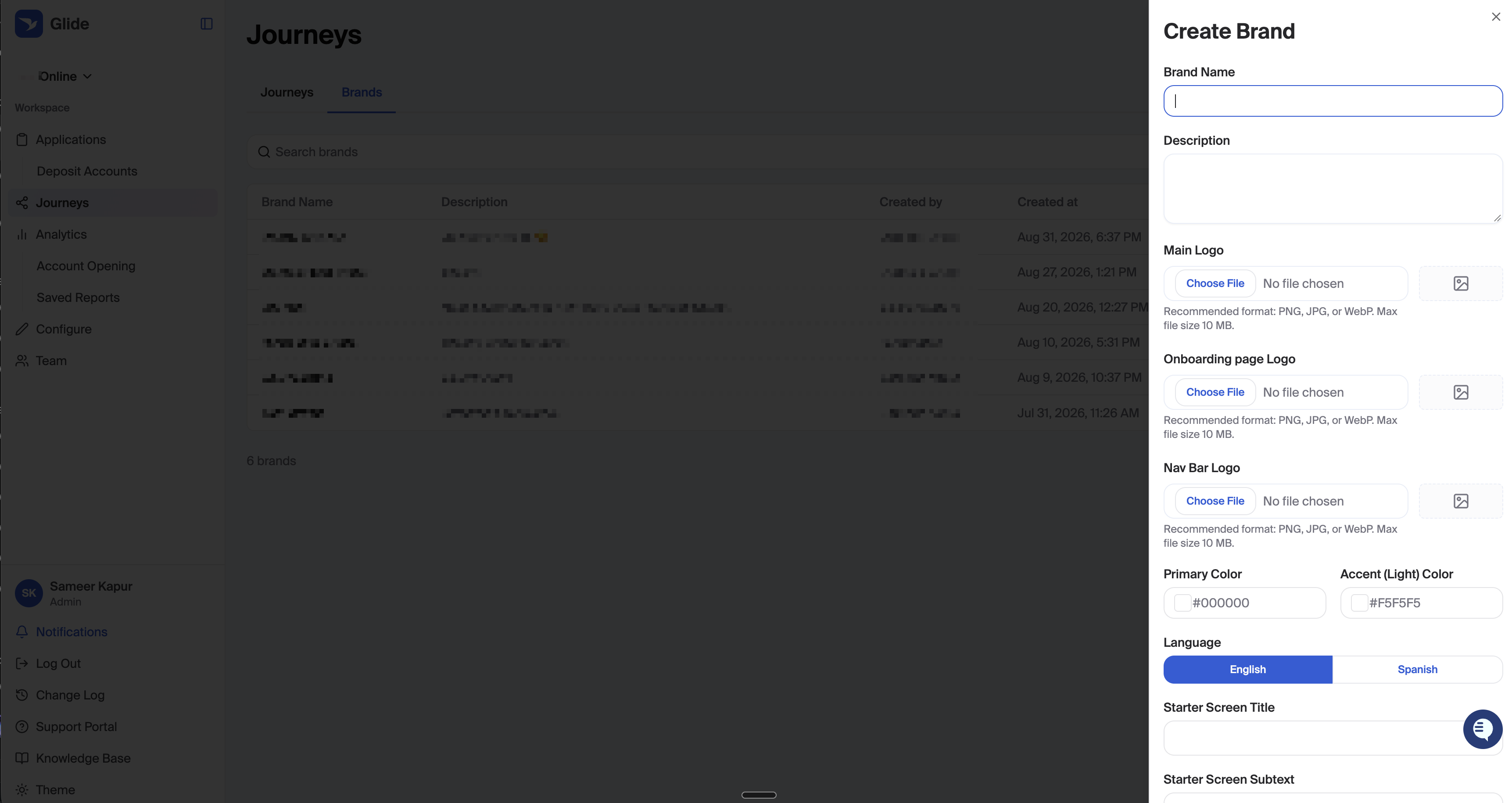
Navigate to the staff dashboard and click "Journeys" in the navigation bar, then select the "Brands" tab. Click the "Create Brand" button.
A panel opens on the right side of the screen with the Brand configuration fields.
Brand Name and Description
Brand Name — Required. This is how the Brand appears in the Brands list and in the Brand dropdown when you configure a Journey. Applicants never see this name, so use something your team will recognize, such as "Riverside Auto Partnership" or "Fall Membership Drive."
Description — Optional internal note describing what the Brand is for and who owns it.
Logos
You can upload three logos, each used in a different place in the digital channel:
Field | Where it appears for the applicant |
|---|---|
Main Logo | The starter screen the applicant lands on when they open the Journey link |
Nav Bar Logo | The navigation header shown throughout the application form pages |
Onboarding page Logo | The onboarding dashboard the applicant sees after their account is created |
To upload, click "Choose File" next to the logo you want to set and select an image. A thumbnail preview appears to the right of the field once the upload finishes. To remove a logo you've uploaded, click the X next to the filename.
Accepted formats are PNG, JPG, and WebP, with a maximum file size of 10 MB. Logos with transparent backgrounds generally look best, since they sit on both light and colored surfaces depending on the screen.
Any logo you leave empty falls back to your institution's standard logo for that placement. You do not need to fill in all three.
Colors
Primary Color — The main theme color. This drives buttons, highlights, and the start of the onboarding gradient.
Accent (Light) Color — The lighter companion color, used for softer surfaces and the end of the onboarding gradient.
Both fields accept hex color values, entered with a leading # (for example, #1A73E8 or #F5F5F5). A color swatch to the left of each field updates as you type so you can confirm you've entered the value you intended. Leave a color blank to keep your institution's standard theme color for that slot.
Starter Screen Copy
The starter screen is the first thing an applicant sees after opening the Journey link. You can override its headline and supporting text so the campaign speaks for itself.
Starter Screen Title — The headline. For example, "Welcome, Riverside Auto customers."
Starter Screen Subtext — The supporting line below the headline. For example, "Open your account in minutes and claim your $100 bonus."
Leave either field blank to keep the standard starter screen copy configured for your institution.
Spanish Copy
If your institution supports Spanish, a Language toggle appears above the starter screen fields with English and Spanish options. Switch to Spanish to enter:
Starter Screen Title (Spanish)
Starter Screen Subtext (Spanish)
Applicants viewing the flow in Spanish see this copy. If you leave the Spanish fields blank, the flow falls back to your English Brand copy, and then to your institution's standard Spanish copy if the English Brand fields are also blank.
Previewing the Brand
Before saving, click "Preview" to see your Brand rendered in a phone frame using the real applicant experience. The preview includes three tabs:
Starter Screen — Your Main Logo, colors, and starter screen copy
Form Page — Your Nav Bar Logo and colors on an application form page
Onboarding — Your Onboarding page Logo and the color gradient on the onboarding dashboard
The preview reflects your current unsaved edits, so you can adjust and re-check before committing anything. You can click "Save" directly from the preview, or "Back" to return to the form and keep editing.
Saving
Click "Create Brand" (or "Save" when editing an existing Brand). The Brand is now available to assign to any Journey.
FAQs
How many Journeys can we create? Is there a cap? There's no cap — you can create as many Journeys as you need. The only requirement is that each Journey has its own unique code/link.
Can we use different GL codes or cost centers for different Journeys/promotions? Yes. Each Journey or promotion can be assigned its own GL code for accounting the reward amount. If you leave it blank, it falls back to your institution's default promotion GL code.
Do Journeys support automatic pause and start? You can pause and resume any Journey instantly with one click in the dashboard. You can also set an expiration date, and the Journey will automatically stop accepting redemptions once that date passes. Beyond the expiration date, there isn't a recurring/scheduled auto-start today — pausing and resuming is done manually.
Does the "Required deposit" field look at the total deposit across all products opened? No. The system checks each deposit account the account holder owns on its own, and the requirement is met when at least one account is funded to the minimum (measured by that account's balance, or the total deposits posted to that single account). In your example, $5 in savings and $15 in checking would not combine to satisfy a $20 minimum, because no single account reached $20 on its own. When the requirement is met, the reward is deposited into the account holder's primary savings/share account.
Can a Journey be permanently deleted? Not from the dashboard today. Instead of deleting, you pause (deactivate) a Journey so its code can no longer be redeemed, while its history is preserved for reporting. Permanent deletion isn't self-service right now — reach out to your Glide team if you need one fully removed.
Can an applicant use more than one code at a time (e.g., our referral code and a promo code)? Applicants can use a referral code and a promo/journey code together.
What is restricted:
One of each type — you can’t stack two promo codes, two journey codes, or two referral codes.
Journey vs promotion — an applicant can enter through a journey or a promotion, not both.
Can we automatically enroll every new applicant into a promo that deposits funds after 1 day of membership? There isn't a single toggle that applies a promo to every new applicant regardless of how they joined. The practical approach: route new sign-ups through a Journey/promo link (everyone who uses it is enrolled) and set the "Days active requirement" to 1. The credit then posts automatically the day after the account is active and any other requirements are met.
Can we use Journeys to fund the initial deposit — e.g., to open accounts at an event — from a GL? Yes. Create a Journey/promo with a reward amount and the GL code you want the funds drawn from. Account holders who open through that Journey are automatically credited from that GL once their account is active. Set the required deposit to $0 and the days-active requirement to your desired timing. Note the credit posts after the account is open and active, rather than literally pre-funding the very first deposit. If you enable funding before submission, account holders will still be prompted to fund during the flow.
Is all of this self-service, or does it require back-end work? Creating and managing Journeys — codes, links, reward amounts, requirements, GL codes, and pausing/starting — is fully self-service in the dashboard, and crediting applicants happens automatically.
Can one Brand be used on multiple Journeys? Yes, and that's the intended use. Editing the Brand updates every Journey assigned to it.
What happens if I only fill in some of the Brand fields? Each field falls back independently to your institution's standard branding. Partial Brands are fully supported.
Does branding change the application itself? No. Products, eligibility, disclosures, and core integration are unchanged. Branding affects logos, colors, and starter screen copy only.
Can I customize the favicon, background images, or other application copy? Not currently. Branding covers the three logos, two theme colors, and the starter screen title and subtext.