How to Prepare FI Logos for Plaid Using Figma AI
Last updated: November 7, 2025
Processing Financial Institution Logos for Plaid Using Figma AI
Plaid requires Financial Institution (FI) logos to be in a specific format. This guide explains how to use Figma’s AI tools to take an FI logo that may not meet the requirements and modify it for use in Plaid.
Steps to Process the Logo:
Open Figma in your browser.
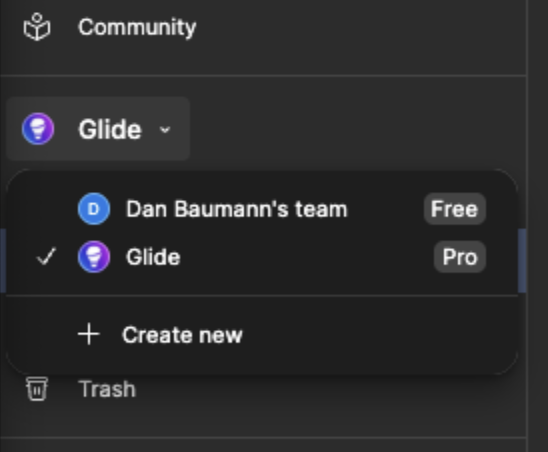
Log in and navigate to “Glide Team” using the dropdown on the left-hand menu.
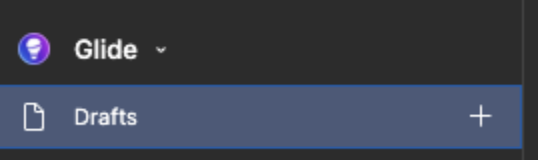
Click “Drafts”, then click the plus (+) sign to create a new draft.
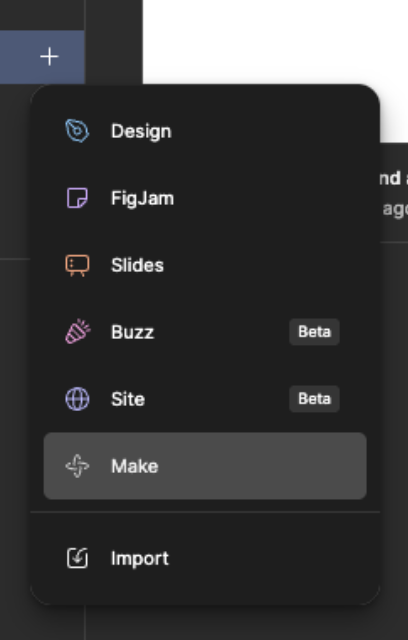
Click “Make” to start a new AI project.
Click “+ Add Attachment”, then “Upload Image”.
In the Finder/Explorer window, locate the FI logo, select it, and click Open.
In the text box, paste the following instructions for Figma AI:
"Remove the background by sampling the color from the top-left corner of the image. Calculate the Euclidean distance between each pixel and the background color, then remove pixels within a tolerance threshold of 60.
Reduce the image to 65% of 256px × 256px while maintaining the original aspect ratio. Center the image horizontally and vertically on a white 256px × 256px background. Flatten the image for download."Press Enter and wait for the AI to process the image.
Review the processed image:
If acceptable, click “Download Processed Image” and save the file.
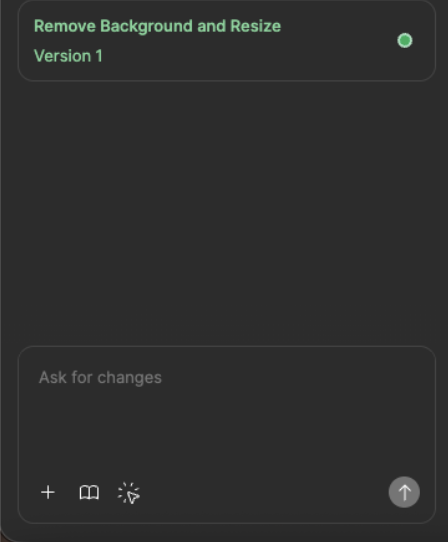
If further adjustments are needed (e.g., some background remains), use the “Ask for Changes” textbox in the lower-left corner to refine the result.
Following these steps ensures your FI logos meet Plaid’s formatting requirements and are ready for integration.