Account Holder Log In Journey
Last updated: September 23, 2026
Overview
Account holders—whether they originally joined through Glide or prior to its implementation—can log in at any time to access their account onboarding page. From this page, they can view account details, open new shares, and access additional features, depending on your financial institution’s configuration.
Log-in Process
Access the Landing Page
The account holder navigates to your Glide landing page and clicks "Existing Member? Sign In" in the upper right-hand corner.
Phone Number Verification
The account holder enters their phone number and receives a one-time passcode (OTP) to complete two-factor authentication. Account holders should enter in their mobile phone number here as they will be getting a text message.
Account holders will receive a text message that states: "[Your Credit Union] verification code is: 12345"
If the account holder was to enter a home phone number, they may receive a call with text message as a voice recording, depending on if their carrier supports text-to-landline.
The phone number entered is validated in two ways:
- Format and deliverability: Glide confirms the number is a valid, dialable phone number before sending the OTP.
- Account holder record match: After the OTP is confirmed, Glide checks whether an account holder record associated with that phone number exists in Glide's system. This determines whether the account holder can proceed and which additional verification steps apply.
Phone Number Validation Against Core Data
Glide supports an optional configuration that validates the phone number an account holder enters against the phone number on file in your financial institution's core system during the login flow. When enabled, this adds an additional layer of verification by confirming the entered number matches core records before allowing the account holder to proceed.
Availability depends on your institution’s core integration and configuration.
This configuration is not enabled by default and varies by financial institution. If you are unsure whether this validation is active for your financial institution, contact your Glide implementation team.
Additional Authentication for pre-Glide account holders
If it is the existing account holder's first time logging in to Glide, they will be asked three additional questions in order to verify their ownership and import their information into Glide.
Member Number
Social Security Number (SSN) or Individual Taxpayer Identification Number (ITIN)
Date of Birth
These credentials are validated against the account holder data on file in Glide's system, which is populated from your financial institution's account holder data. The entered SSN and date of birth must match the values on record for that account holder. For account holders not yet fully imported into Glide, their information is retrieved from your financial institution's core system during this step to complete the match.
Depending on your financial institution's configuration, the Member Number field can be hidden, some financial institutions rely solely on phone number, SSN, and date of birth for this step.
Account Access
Once fully authenticated, the account holder will see all memberships associated with their phone number and can select the one they wish to access.
Log-In Prompt During Account Opening
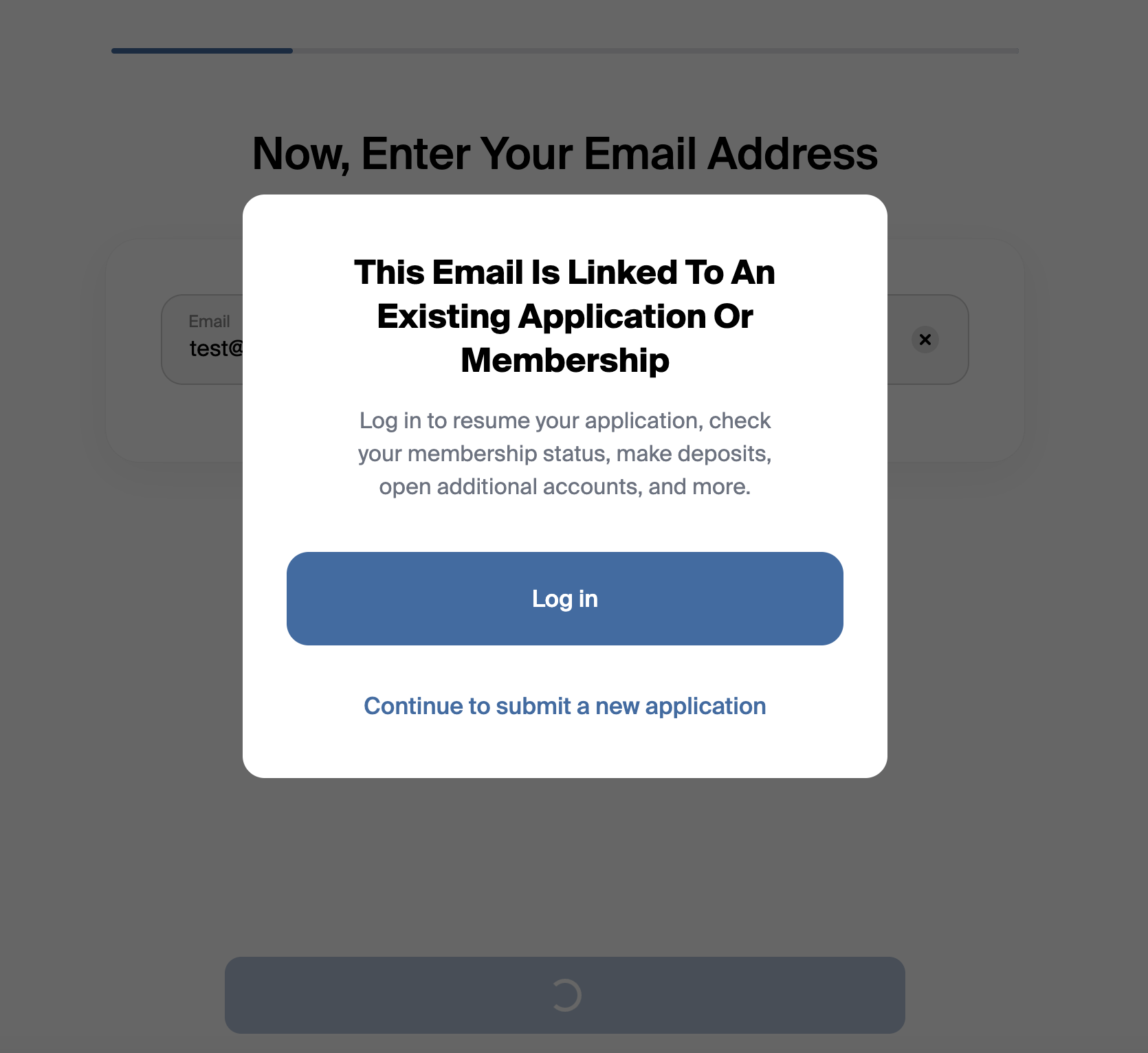
If an account holder begins the account opening workflow and enters an email address that matches an existing application or membership, they will be prompted to either:
Log in to continue with their existing information, or
Proceed to submit a new application.
The email check runs on applications created on Glide from membership imported from the core previously.
If the account holder chooses to log in, they will follow the same authentication steps outlined above to access their account.
Session Timeout
Glide account holder sessions expire after 4 hours from the time of login. This is a fixed, time-based expiration — not an inactivity timer. An account holder who remains on the same page without navigating will still be logged out after 4 hours from when they authenticated.
There is currently no configurable inactivity-based logout (e.g. log out after 15 minutes of no activity). If a session expires mid-flow, the account holder will be prompted to re-authenticate.
A separate, shorter timeout applies during the mid-flow login step: the pending login state (e.g. during DOB verification before a full session is established) expires after 15 minutes.