Passkeys
Last updated: September 23, 2026
Passkeys Introduction
Passkeys are a modern, passwordless authentication method that use device-bound cryptography, such as Face ID or Touch ID, to securely verify a user’s identity.
Passkeys are important because they provide strong, phishing-resistant authentication, protecting accounts from fraud like SIM swaps and credential theft.
For financial institutions, passkeys reduce risk exposure, lower support costs, and enable account holders to sign in within seconds, improving operational efficiency. For account holders, they offer a faster, simpler, and more secure login experience, driving satisfaction and engagement.
All financial institutions will have Passkeys enabled in their staging and production environments, unless requested otherwise. Please contact your DPM if you have any questions.
When Passkeys Are Used
Passkeys are available to both new and existing account holders during login or onboarding.
New account holders: prompted to create a passkey right after their application is approved.
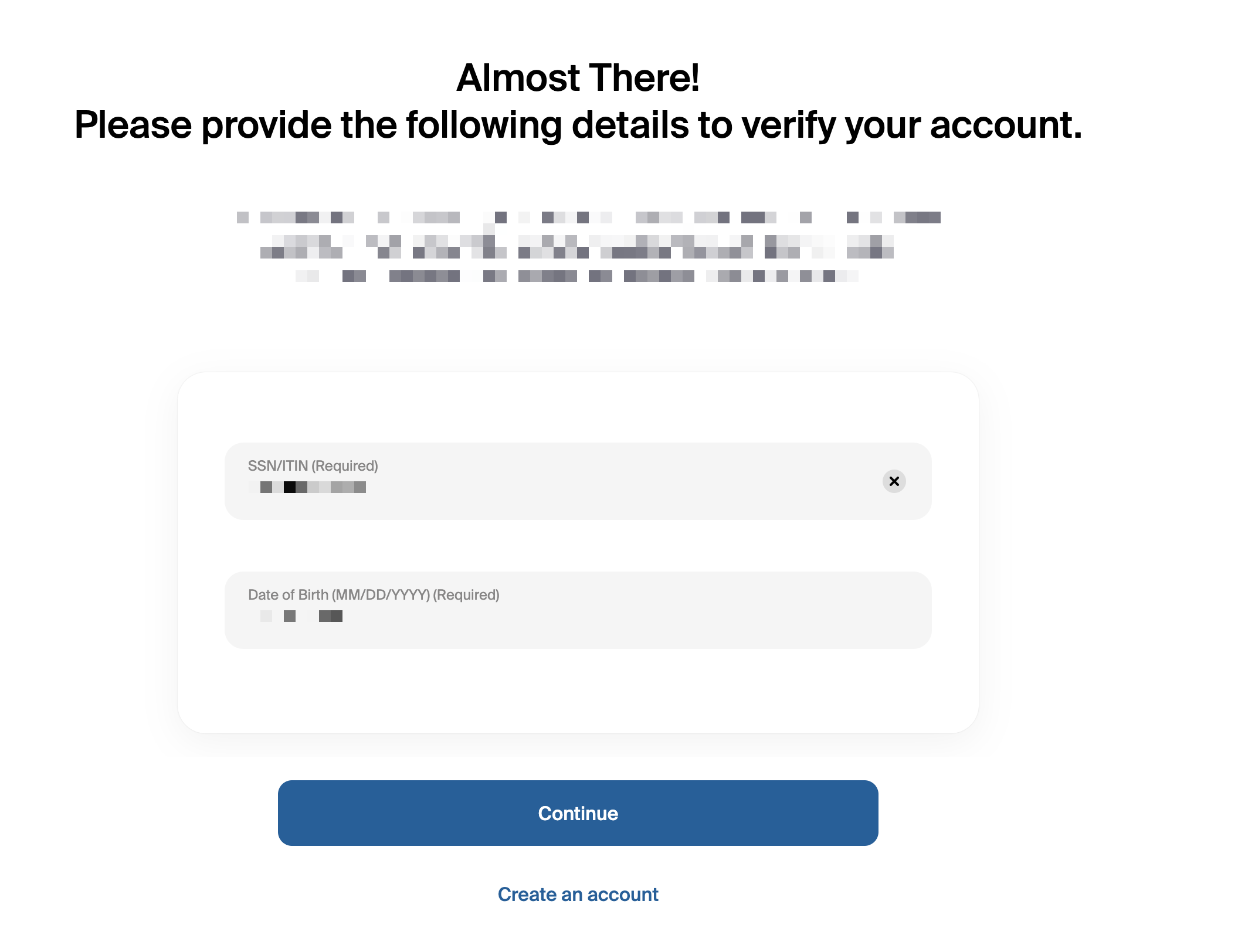
Existing account holders: prompted to set up a passkey after signing in with phone verification and identity info (SSN + Date of Birth).
Returning account holders: can log in using Face ID, Touch ID, or other device-based authentication once a passkey is created.
Member Type | Trigger | Passkey Flow | Fallback |
New | Post-approval | Prompt passkey creation | Phone OTP (One-Time-Passcode) + SSN/DOB |
Existing | Login | OTP + SSN/DOB → prompt passkey | Same |
Returning device | Login | Face ID/Touch ID | OTP + SSN/DOB |
Creating Passkeys
Step-by-Step: How Account Holders Create a Passkey
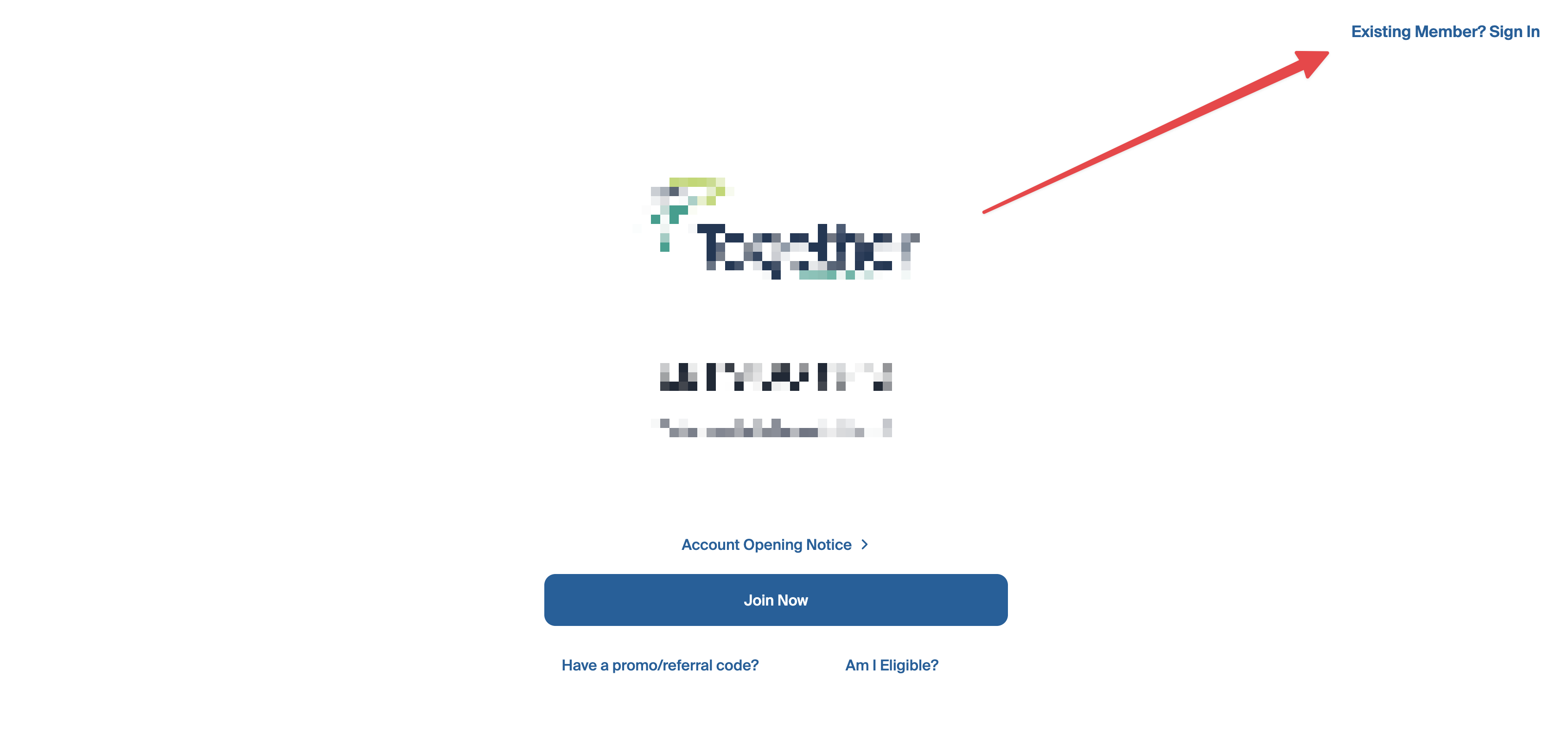
Click “Existing Member? Sign in.”
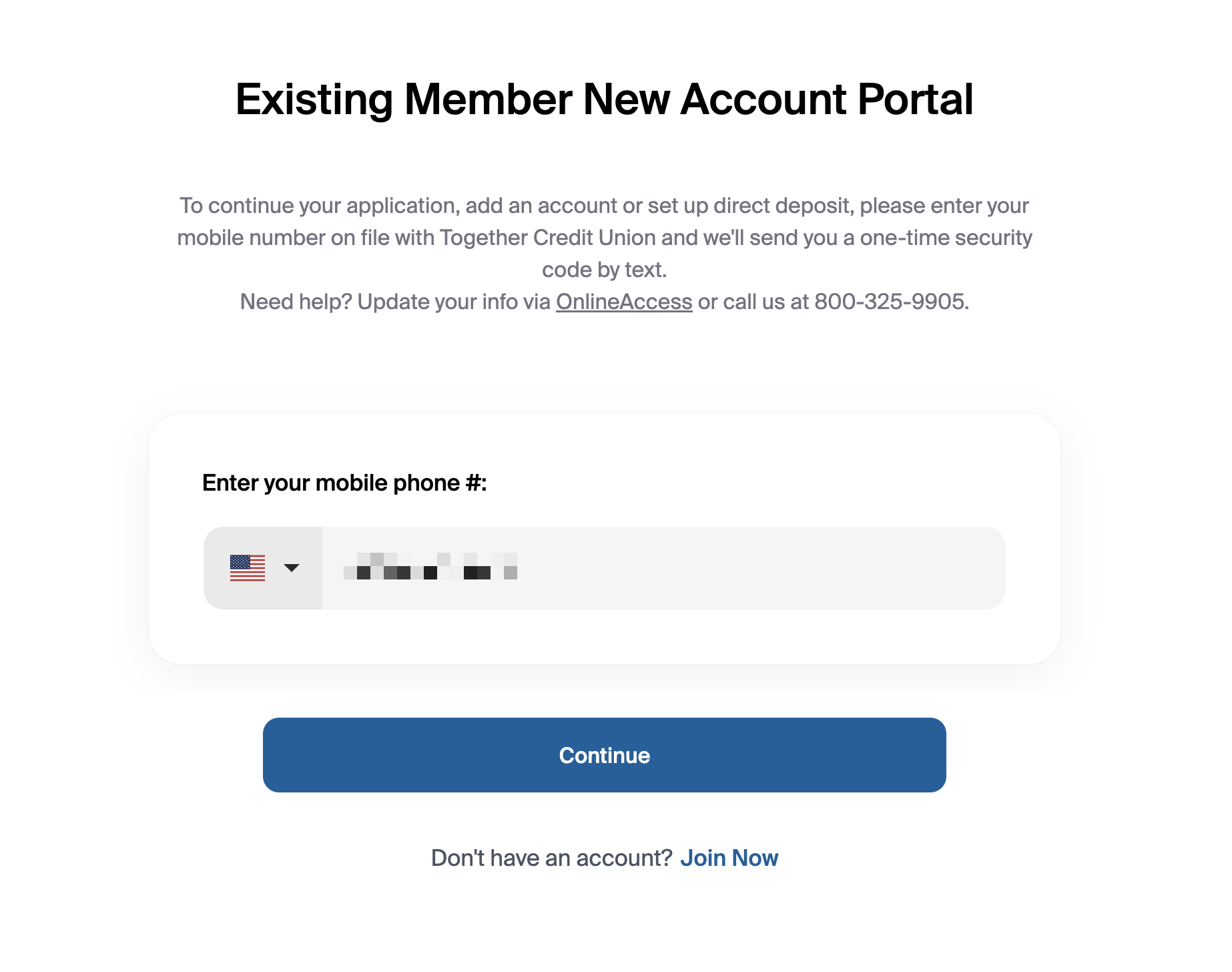
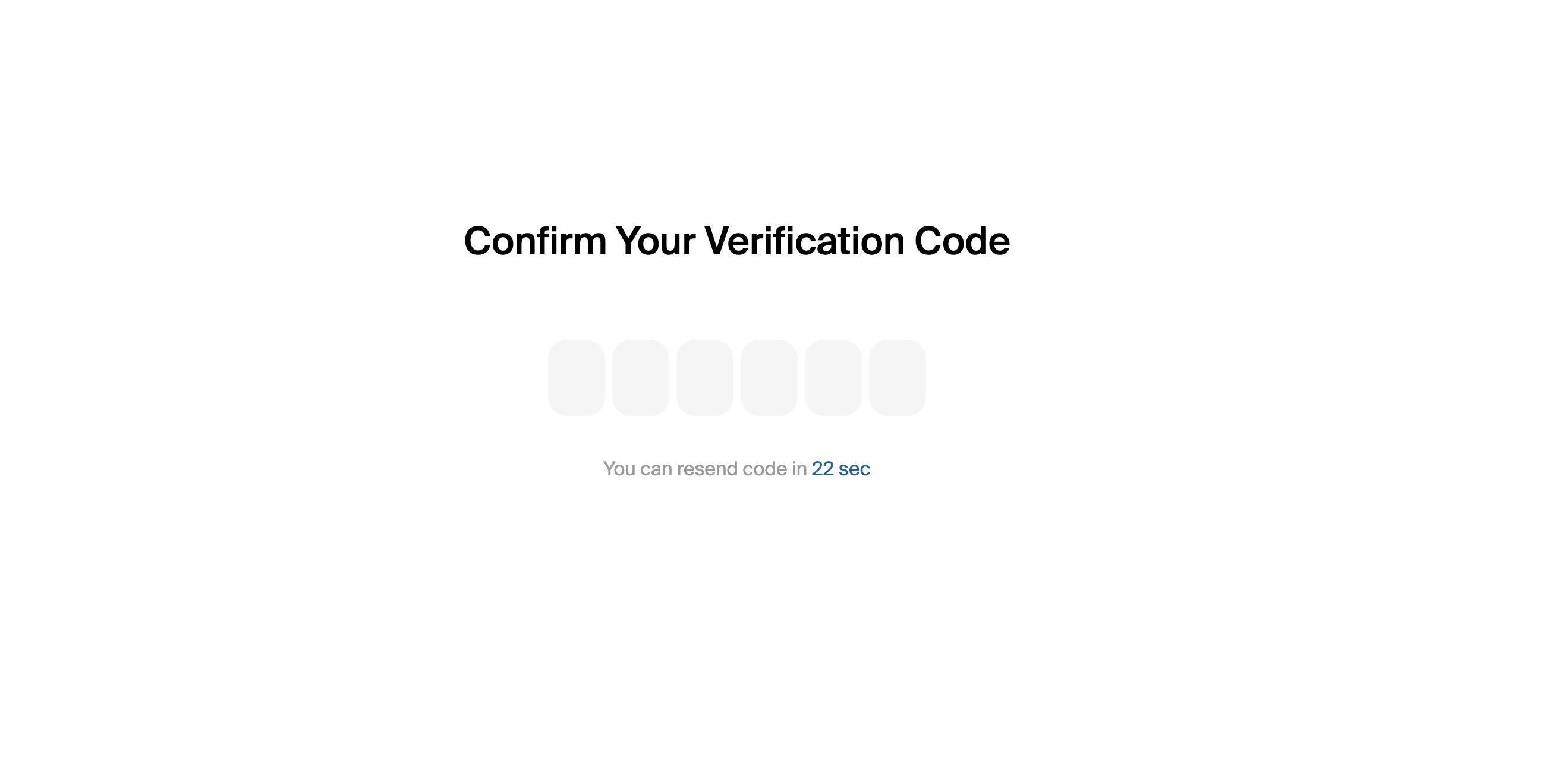
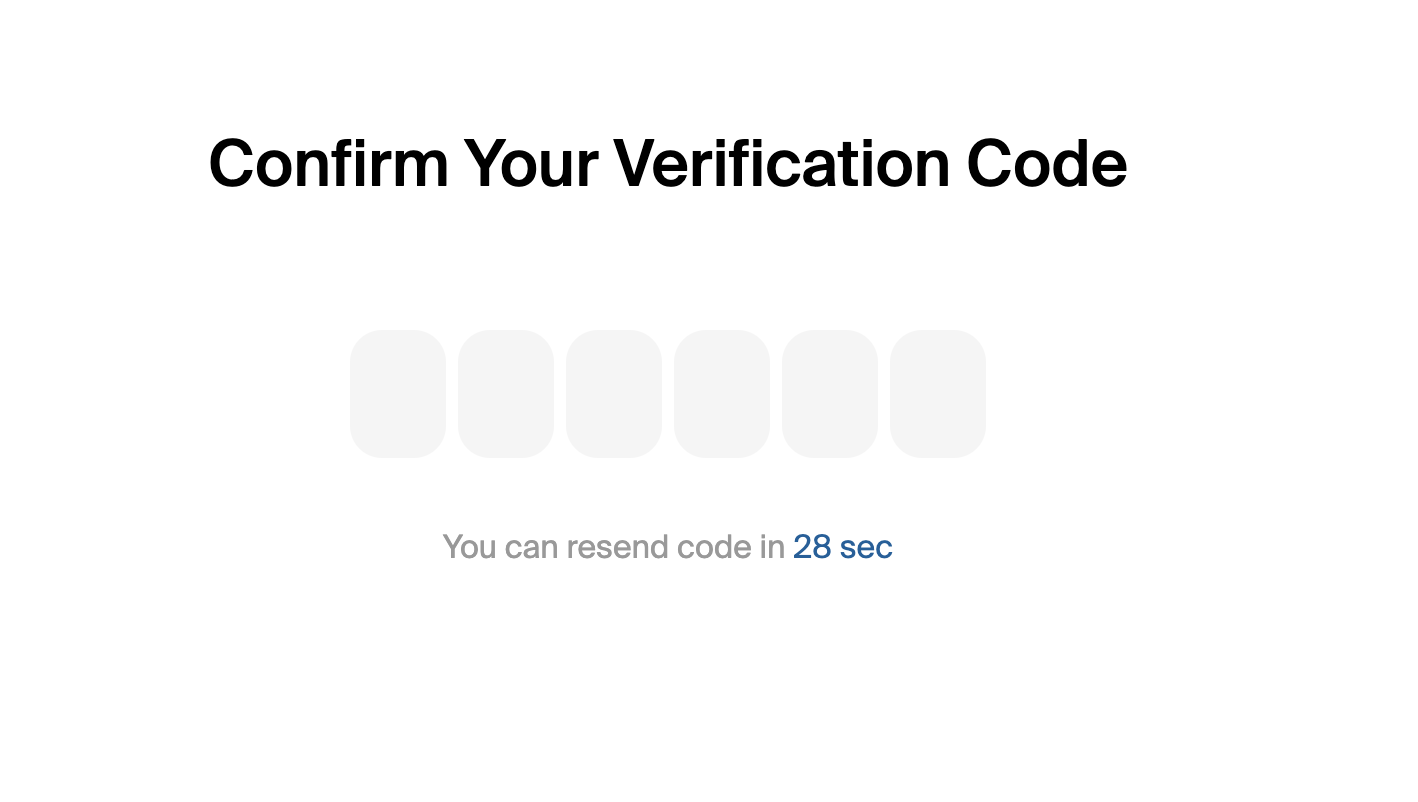
Enter the phone number on file and verify with an OTP.
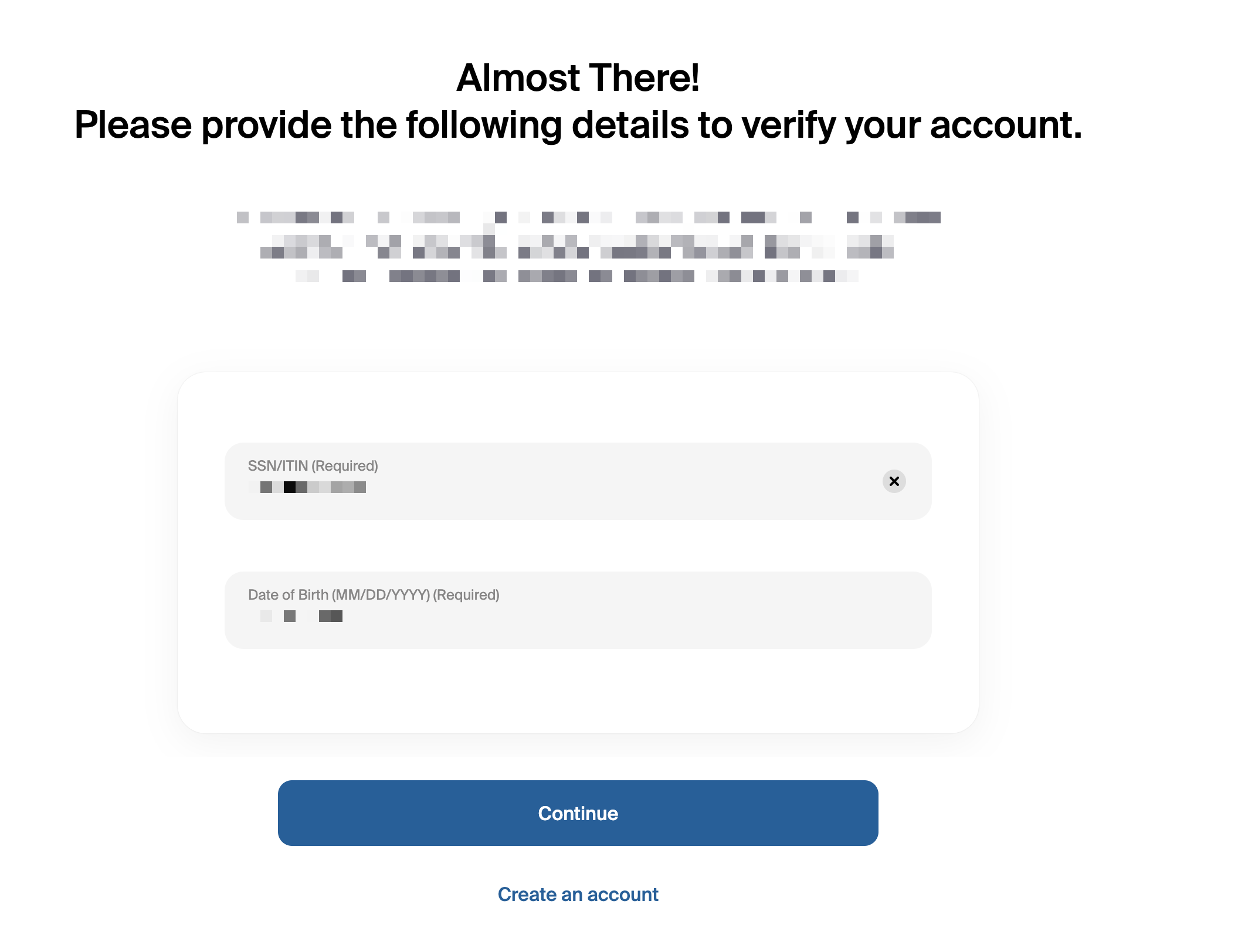
Enter SSN (Social Security Number) and Date of Birth for identity confirmation.
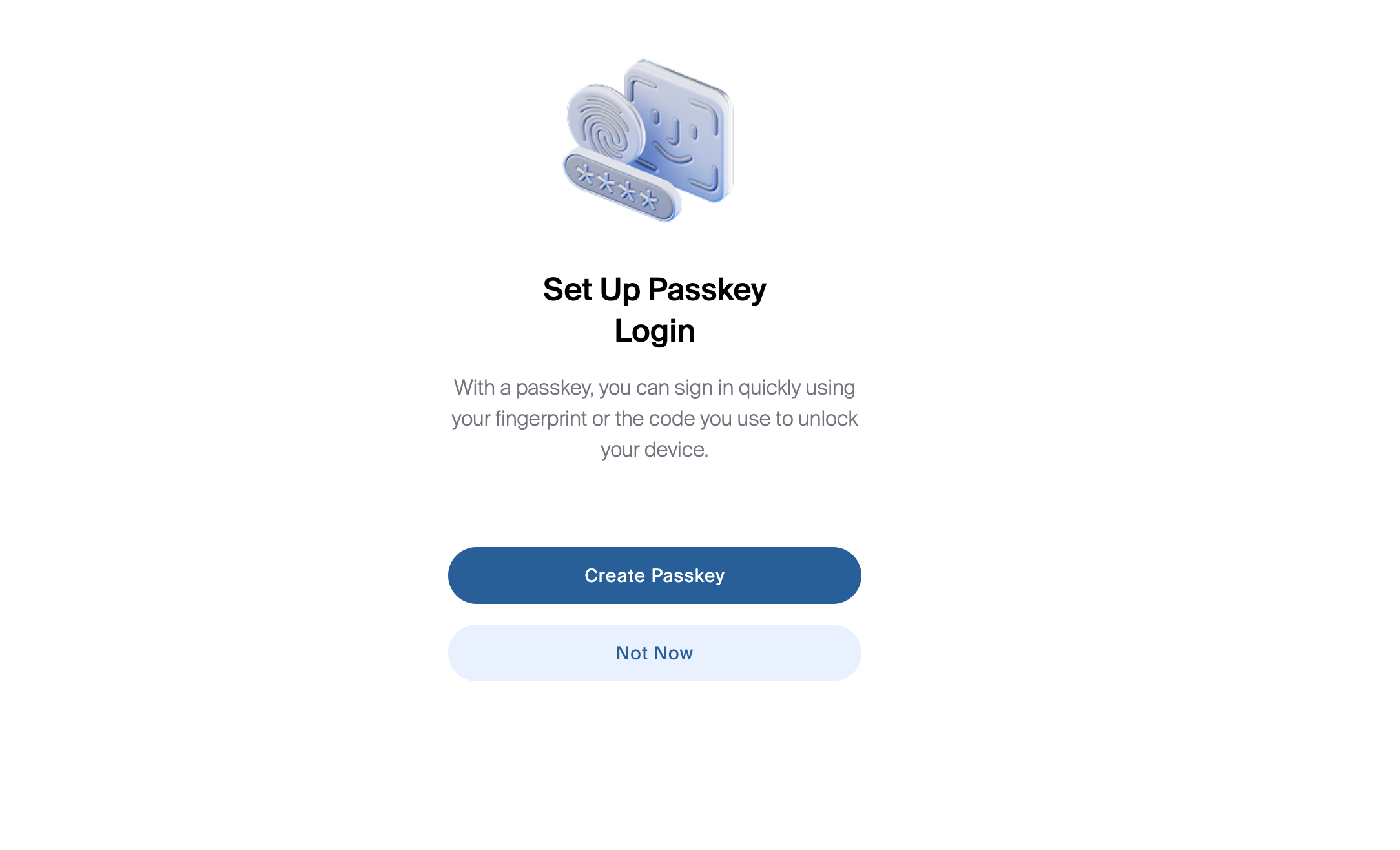
When prompted, choose “Set up passkey login” and follow device instructions (Face ID, Touch ID, or system prompt).
After setup, account holders will see a confirmation message that their passkey has been created and can continue to their memberships.
Tip: Encourage account holders to create passkeys on all devices they regularly use to access their accounts.

Passkey Fallback
Alternatively, if for any reason the user cannot sign in via passkeys, the user can sign in using their One-Time-Passcode and then Social Security Number & Date of Birth.
After this, the user can also optionally create a passkey. This can be helpful if they are using a new device. If they click "Not Now" on that page, they can proceed to log in.
Note: there will be a limit of 5 passkeys in total that an account holder can edit or remove upon logging into their onboarding portal.
Passkey Management
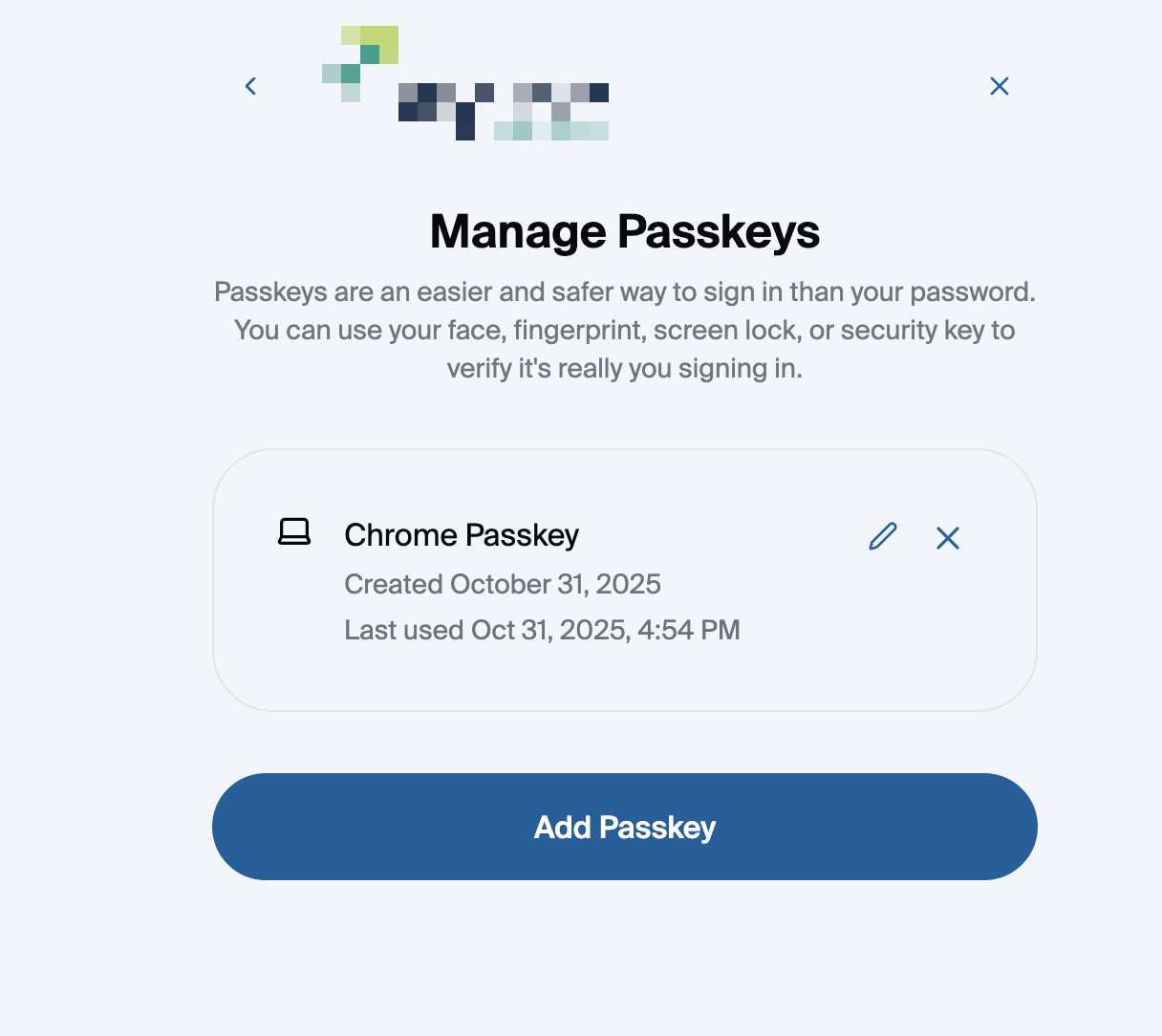
Account holders can have up to 5 active passkeys at a time. Each passkey represents a unique device (ie iPhone, Laptop, Tablet, etc).
If an account holder replaces a device, they can sign in with OTP + SSN + DOB to add a new passkey.
Old or unused passkeys can be removed within the onboarding portal.
If all passkeys are lost, account holders can recover access using the fallback sign-in method (OTP + SSN + DOB).
Passkey Email Notifications
Account holders receive automatic email notifications when key account events occur. These alerts help account holders monitor account activity and report any unauthorized access quickly.
Please note: for any FIs without emails set up in Customer.io, they will need to set emails up here in their workspace.
Passkey Creation
Passkey Removal
Unrecognized Device
Onboarding
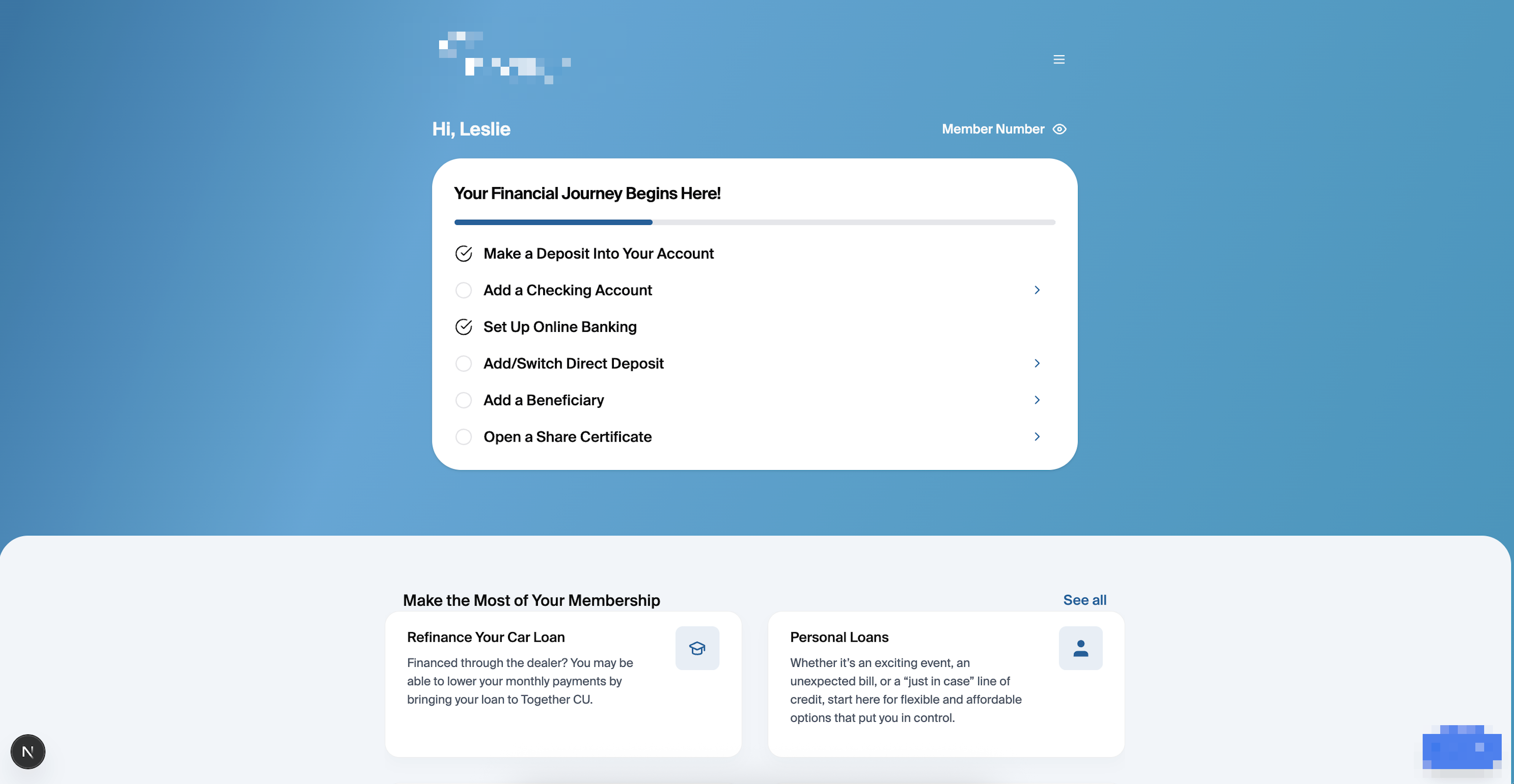
We now offer a redesigned onboarding experience that provides a more streamlined, intuitive, and modern interface for account holders. This is accessible to FIs whenever your account holders are approved post-submission and/or when they try to log back into an approved membership.
The new onboarding page includes the following features:
A post-approval slide-out prompt that encourages account holders to create a passkey
A new sandwich menu with the ability to engage in the following:
Manage and view existing applications
Passkey management and the options to add, delete, or rename passkeys
Open new accounts
Member number button that allows you to view your member and routing number upon click
Onboarding checklist
Link-outs to loan offer sign-up flows
View connected accounts
Add beneficiaries section
Joint account owner section
Open a new account button