Configuring Twilio for SMS Messaging
Last updated: January 18, 2026
Overview
Glide allows clients to leverage SMS as a communication channel to text their customers based on product and lifecycle triggers. SMS messages are sent through Customer.io (CIO) and powered by Twilio.
Clients can either:
Use Glide’s managed Twilio setup, or
Connect their own Twilio account to Customer.io using self-service configuration
This article explains both options and the steps required for each.
Option 1: Using Glide’s Managed Twilio Account (Default)
By default, Glide provides a fully managed Twilio setup for SMS messaging.
How it works
Glide uses its company Twilio account
Glide provisions a new phone number for the client
The client can choose their preferred area code for the number
Glide connects the phone number to Customer.io on the client’s behalf
SMS usage is billed monthly based on the total number of text segments sent
Key benefits
No Twilio setup required by the client
Glide handles number provisioning and configuration
Faster time to launch SMS messaging
Once configured, the client can immediately begin sending SMS messages from Customer.io workflows.
Option 2: Using Your Own Twilio Account (Self-Service)
If a client already has a Twilio account, they can connect it directly to Customer.io and manage SMS independently.
Requirements
To send SMS or MMS messages in Customer.io, you must have:
An active Twilio account
A Sender configured in Twilio, such as:
A standard phone number
A short code
An alphanumeric sender ID (requires a paid Twilio account with alphanumeric sending enabled)
Step-by-Step: Connect Your Twilio Account to Customer.io
Step 1: Set up a Twilio account
Create a Twilio account if you don’t already have one
A trial account is sufficient to get started
Step 2: Purchase or configure a sender
Purchase a phone number from Twilio, or
Configure an alphanumeric sender ID if supported by your account
Make sure the sender is fully set up before continuing.
Step 3: Get your Twilio credentials
From the Twilio dashboard, copy the following:
Account SID
Auth Token
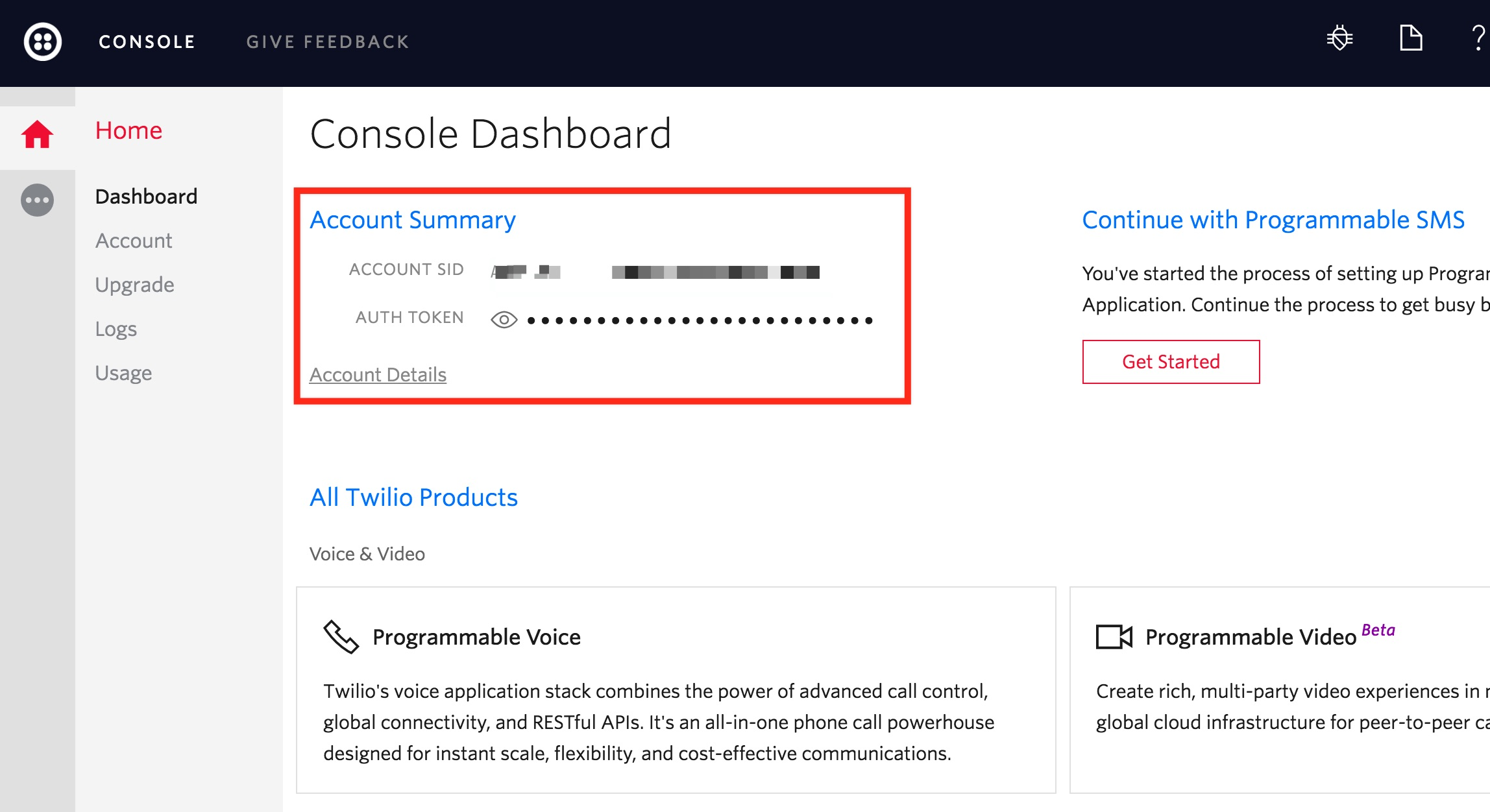
Step 4: Add Twilio credentials to Customer.io
Log into your Customer.io workspace
Navigate to:
Workspace Settings > SMS
Enter your Twilio Account SID and Auth Token
Save your settings
Step 5: Sync phone numbers
After setup:
Customer.io will automatically sync your Twilio phone numbers
SMS will become available as a message type in your workflows and journeys
You can now select your Twilio sender when composing SMS messages.
Billing Notes
When using Glide’s managed Twilio account, SMS charges appear on your Glide monthly invoice based on usage
When using your own Twilio account, all SMS and number costs are billed directly by Twilio