Onboarding Page Deep Links
Last updated: October 22, 2026
Last updated: October 22, 2026
Overview
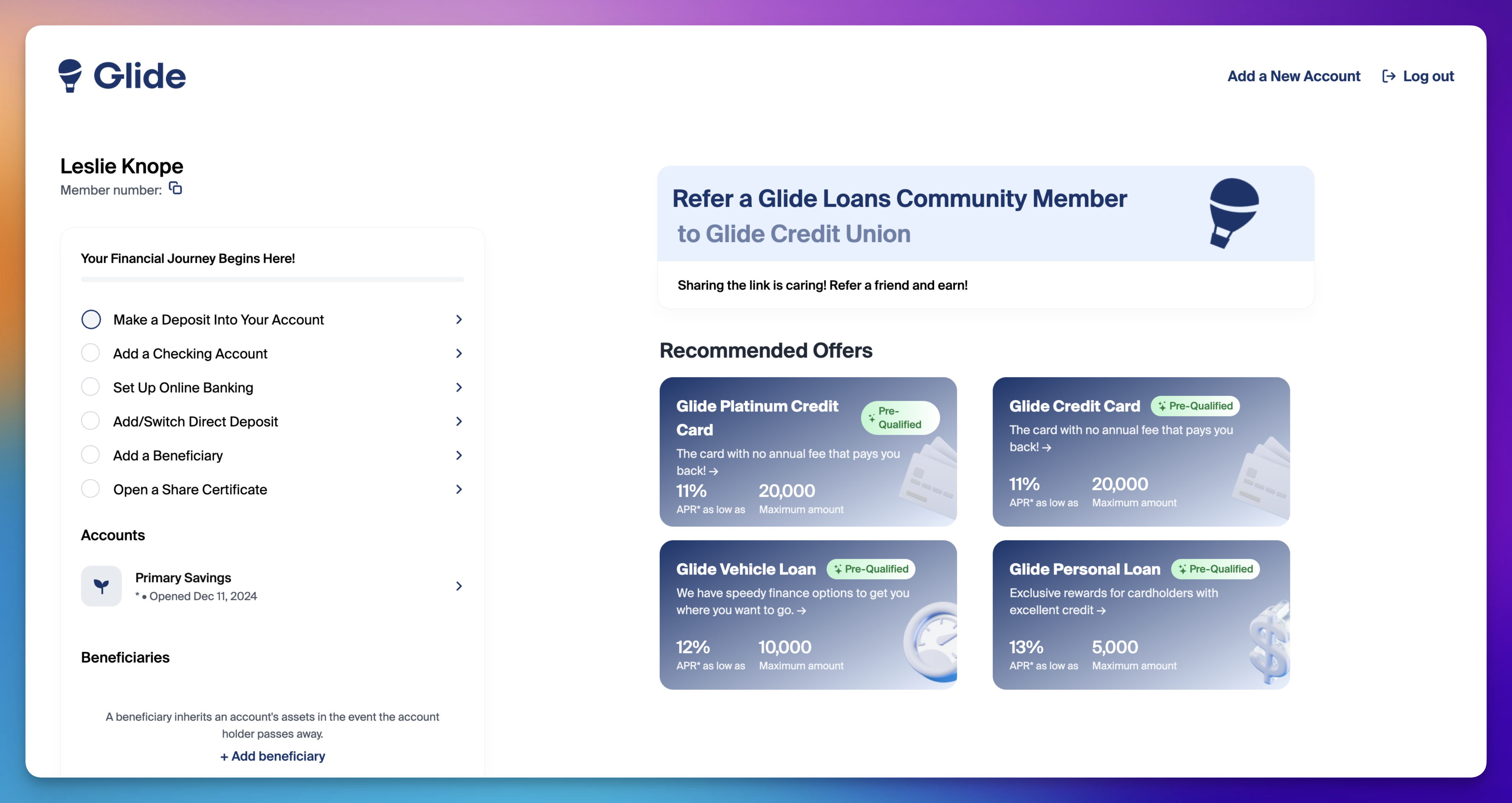
These links direct account holders to a selected action after they sign in to Glide.
Using a link inside online banking? The /login/phone?pathname=... links below use Glide's login flow; they do not establish an OLB SSO session. To carry the online banking sign-in into Glide, configure the navigation item as an SSO launch with a destination using the SSO specification. For Alkami, follow the Quick Apply integration guide.
How to Use Deep Links
To create a deep link, start with the root domain of your Glide environment and append it with the specific path for the desired action.
For example, if your root domain is join.mycu.org, you can use the following paths:
Online Banking Registration:
/login/phone?pathname=/online-banking/registrationDirect Deposit Setup:
/login/phone?pathname=/funding/direct-depositAdd a New Share:
/login/phone?pathname=/review/newReferrals (if enabled):
/login/phone?pathname=/review/new-referrals
Full URL Examples
Using the example root domain join.mycu.org, here are the complete deep links:
Online Banking Registration:
join.mycu.org/login/phone?pathname=/online-banking/registrationDirect Deposit Setup:
join.mycu.org/login/phone?pathname=/funding/direct-depositAdd a New Share:
join.mycu.org/login/phone?pathname=/review/newReferrals (if enabled):
join.mycu.org/login/phone?pathname=/review/new-referrals
How It Works
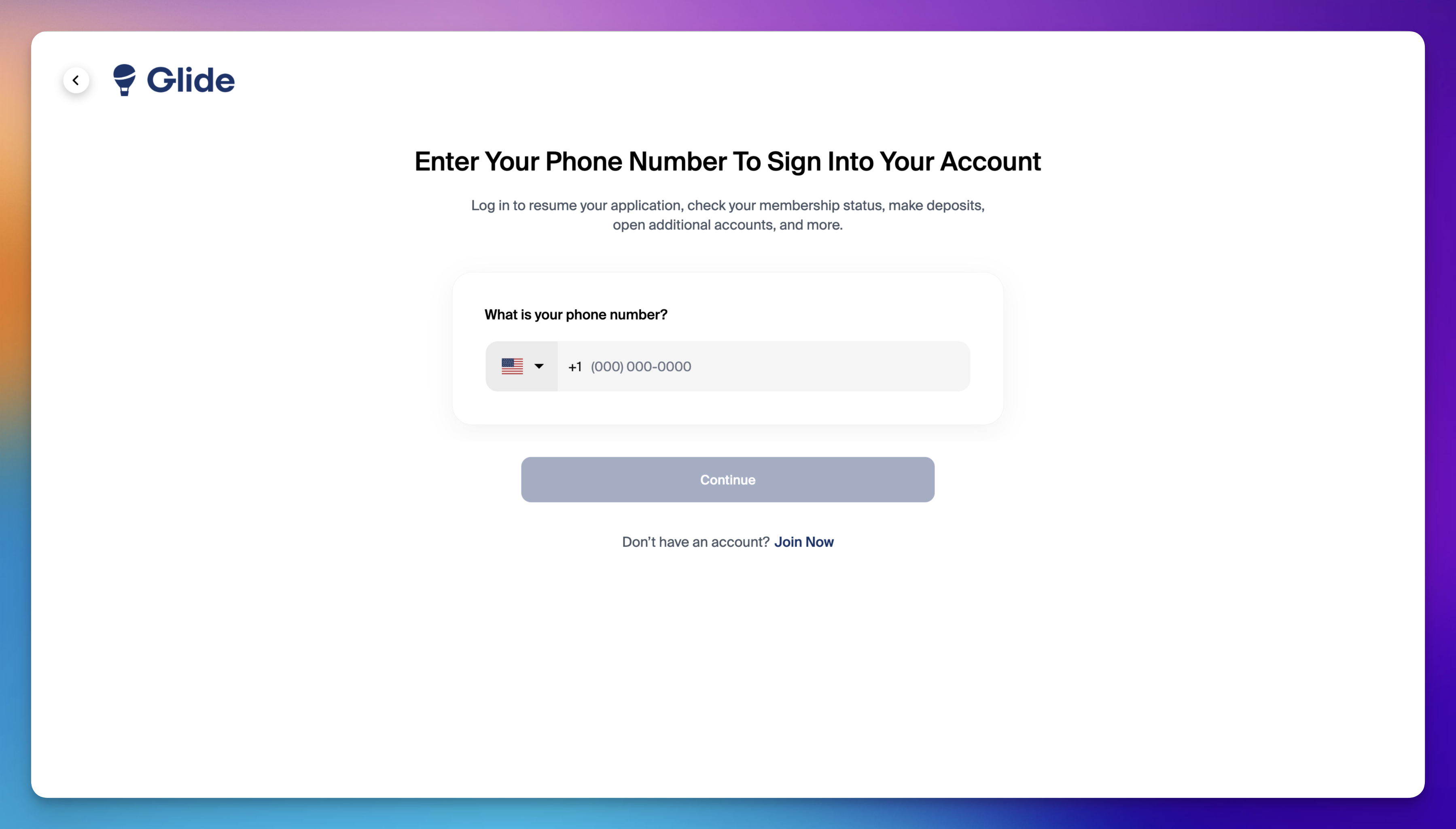
When an account holder clicks on one of these links, they are first routed to the login page. After successfully authenticating, they are automatically directed to the specific onboarding page corresponding to the deep link.
This functionality ensures a streamlined and efficient experience, guiding account holders exactly where they need to go without unnecessary navigation.
Can Deep Links Be Used for State-Specific or Audience-Specific Products?
Deep links can support a limited form of audience targeting when combined with how your financial institution organizes links on its own website. For example, if you offer a loan product that should only be promoted to account holders in a specific state, you can configure that loan category to be accessible via link only, then place that link exclusively on the relevant page of your financial institution's website (such as a state-specific loans page). Account holders who arrive through that page will see the targeted product; account holders who do not visit that page will not encounter the link.
Placing a link on an audience-specific page controls where it is promoted; the link itself is not an eligibility control. Applicants can share links. Configure and verify any required product or applicant eligibility rules separately.
A deep link navigates to its target; it does not by itself define which products appear on the main onboarding page. Review product visibility and eligibility configuration separately with Glide.