Salesforce Integration
Last updated: September 23, 2026
Connect Glide to your Salesforce org so new account holders flow into Salesforce automatically the moment they're approved.
Overview
Glide can push new account holder data directly into Salesforce Financial Services Cloud (FSC). When a membership is approved in Glide, Glide instantly creates or updates a Person Account in Salesforce with the account holder's identity, contact, address, membership, and origination details.
A few things worth knowing up front:
It's real-time. The record appears in Salesforce as soon as the application is approved in Glide, not on a nightly batch. Your team gets same-day visibility of new account holders.
It's one-way. Data flows from Glide into Salesforce. Glide does not read from or change anything else in your Salesforce org.
It doesn't replace your existing sync. If you already sync core account and product data from your core system into Salesforce, that continues unchanged. Glide only adds the new account holder record at the point of onboarding, including account holders who enter the flow but aren't yet funded.
Setup is self-service. A Salesforce admin connects the two systems from the Glide dashboard, then chooses which fields to send. No engineering work or custom development required on your side.
You'll do a one-time setup in Salesforce (create a connected app, turn on Person Accounts, add a couple of custom fields), then connect and map your fields in Glide.
What gets synced
When a personal membership is approved in Glide, Glide creates or updates a single Person Account in Salesforce. You control exactly which fields are sent during setup. Available fields include:
Identity: first, middle, last name, suffix, date of birth, SSN/Tax ID
Contact: primary email, phone
Address: residential and mailing street, city, state, postal code, country
Membership and application: membership/member number, application channel (e.g., digital channel vs. staff dashboard), and a link back to the application in Glide
Staff attribution: the branch and staff member who originated the application, so you can distinguish assisted from online applications
If Glide collects a data point you don't see here, your Glide team can add it to the mapping. Glide identifies records using a unique Glide application ID.
Prerequisites
Before you start, make sure you have:
A Salesforce admin login for the org you want to connect (use a sandbox first if you want to test).
Permission to create apps and enable features in Salesforce Setup.
Access to Configure → Integrations in your Glide dashboard.
Before going live, plan to connect your Salesforce sandbox environment to Glide's staging environment.
Step 1: Create a connected app in Salesforce
This is what lets Glide securely connect to your Salesforce org over OAuth.
Log in to your Salesforce org (sandbox or production, matching your Glide environment).
Go to Setup → Apps → App Manager.
Click New External Client App.
Fill in Basic Information:
External Client App Name: e.g.
Glide IntegrationAPI Name: leave the default
Contact Email: your admin email
Distribution State: Local
Open the API (Enable OAuth Settings) section.
Callback URL
Add the callback URL for your Glide dashboard environment:
https://<your-glide-dashboard-host>/api/integrations/salesforce/callback
The callback must match exactly what Glide sends, with no trailing slash. If you're unsure of your dashboard host, your Glide contact can confirm it.
OAuth scopes
Move these two scopes into the Selected OAuth Scopes list:
Scope | Why it's needed |
|---|---|
Manage user data via APIs ( | Lets Glide write account holder records |
Perform requests at any time ( | Keeps the connection alive without re-logging in |
Leave all other scopes unselected.
Settings
Set the following:
Setting | State |
|---|---|
Enable OAuth Settings | Checked |
Require Secret for the Web Server Flow | Checked |
Require Secret for Refresh Token Flow | Checked |
Require Proof Key for Code Exchange (PKCE) | Unchecked |
Enable Client Credentials Flow | Unchecked |
Enable Device Flow | Unchecked |
Issue JSON Web Token (JWT)-based access tokens | Unchecked |
Enable Refresh Token Rotation | Unchecked |
Introspect all tokens | Unchecked |
Click Save.
Open the app, go to Settings → OAuth Settings (or Manage Consumer Details), and copy the Consumer Key and Consumer Secret. You'll provide these when connecting in Glide.
If users can't authorize
If a user is blocked when trying to log in from Glide, open the app's Policies:
Permitted Users: allow the users who will connect from Glide (often "All users may self-authorize," per your security policy).
IP Relaxation: relax only if required for server-side OAuth, and coordinate with your security team if your org is locked down.
Step 2: Add custom fields in Salesforce
Much of the account holder data maps to standard Person Account fields that already exist in Salesforce once Person Accounts are enabled (FirstName, LastName, PersonEmail, PersonMailingStreet, and so on). For everything else, you create a custom field on the Account object (not Contact) and map it in Glide.
If Glide collects a piece of data, Glide can expose it to Salesforce. The list below isn't a hard limit. To send something Glide captures that isn't listed, create a matching custom field and ask your Glide team to expose it to the mapping.
Custom fields to create on Account
Create these on the Account object. Salesforce adds the __c suffix automatically, so type the field name without it. Suggested API names are shown; you can use different names as long as the Salesforce field and the Glide mapping match.
# | Salesforce label | API name | Field type | Required settings | Maps to (Glide field) | Example |
|---|---|---|---|---|---|---|
1 | Glide System Id |
| Text (255) | External ID ✓, Unique ✓ | Glide Application ID |
|
2 | Glide System Link |
| URL (or Text) | — | Glide Application link |
|
3 | Member Number |
| Text | — | Member number |
|
4 | Glide Application Channel |
| Text or Picklist | Picklist values: | Application channel |
|
5 | Origin Branch |
| Text | — | Origin branch |
|
6 | SSN / Tax Id |
| Text (use Encrypted Text) | Restrict field-level security | SSN |
|
7 | Glide Application Status |
| Picklist | At minimum: | Application status |
|
8 | Teller ID |
| Text | — | Teller ID |
|
9 | Staff Email |
| — | Staff email |
|
Notes:
Match key (row 1) must be marked External ID and Unique. This is how Glide upserts records without creating duplicates. If it isn't mapped, Glide falls back to matching on
PersonEmail.Opt-in syncing. Most of these fields appear in Glide's Account fields tab but don't sync until an admin turns them on (the Enable sync option in the row's
⋯menu) and saves. This lets you create the Salesforce fields first and switch on syncing only once they exist, without breaking anything.SSN is sensitive PII. Use Encrypted Text in Salesforce and enable it only if your security policy allows.
Grant Read + Edit on every custom field you create to the profile of the user who connects Glide.
Standard fields (already exist in Salesforce)
These exist as soon as Person Accounts are enabled. You map them in Glide; you don't create them.
Glide field | Salesforce API name | Format Glide sends |
|---|---|---|
Legal first name |
| Text |
Legal last name |
| Text |
Middle name |
| Text |
Date of birth |
|
|
| ||
Phone |
|
|
Mailing street |
| — |
Mailing city |
| — |
Mailing state |
| — |
Mailing postal code |
| — |
Mailing country |
| ISO code (e.g. |
Residential and shipping addresses are also supported as optional fields (PersonOther* and Shipping* respectively) if you want to send them in addition to the mailing address.
A note on State and Country picklists
If your Salesforce org uses State and Country/Territory Picklists, map your country fields to the *CountryCode versions (PersonMailingCountryCode, etc.). Glide sends ISO codes (US, not United States) and handles the state/country code conversion automatically. Don't map country to the legacy text fields (PersonMailingCountry, ShippingCountry) on a picklist-enabled org, as those writes will fail.
Step 3: Connect and map fields in the Glide dashboard
In the Glide dashboard, go to Configure → Integrations → Salesforce.
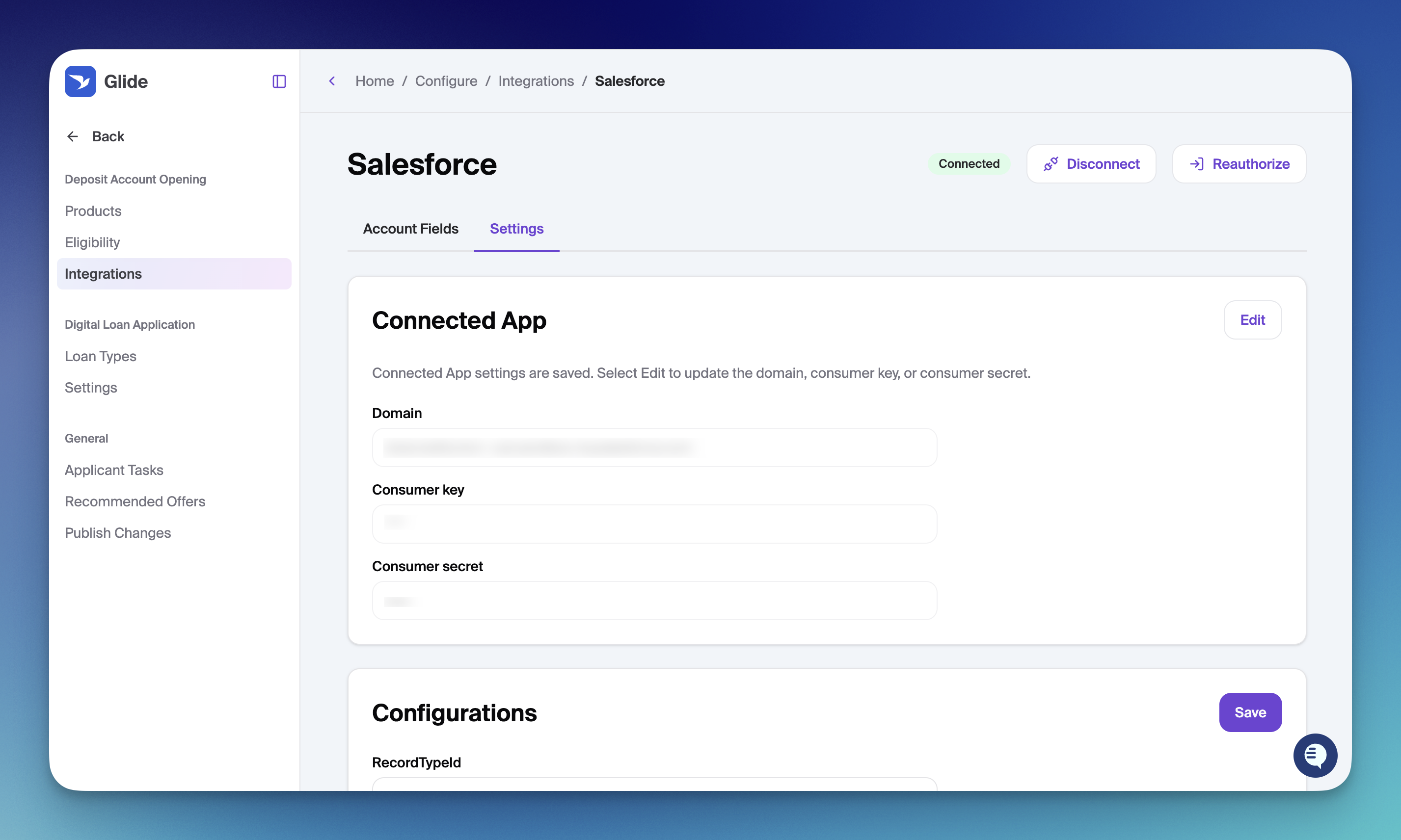
2.Domain: enter your Salesforce org hostname (e.g. acme or acme.my.salesforce.com) and click Submit.
Use your org login domain (
*.my.salesforce.com), not a Lightning-only URL.The field locks once submitted. Click Edit to change it. Saving a new domain disconnects OAuth and you'll need to log in again.
Click Log in, approve the request in Salesforce, and you'll return to Glide showing Connected.
Person Account record type ID: Paste the specific person type to associate with records. This can be different per membership type or role.
Open the Account fields tab and map your fields to the Salesforce API names:
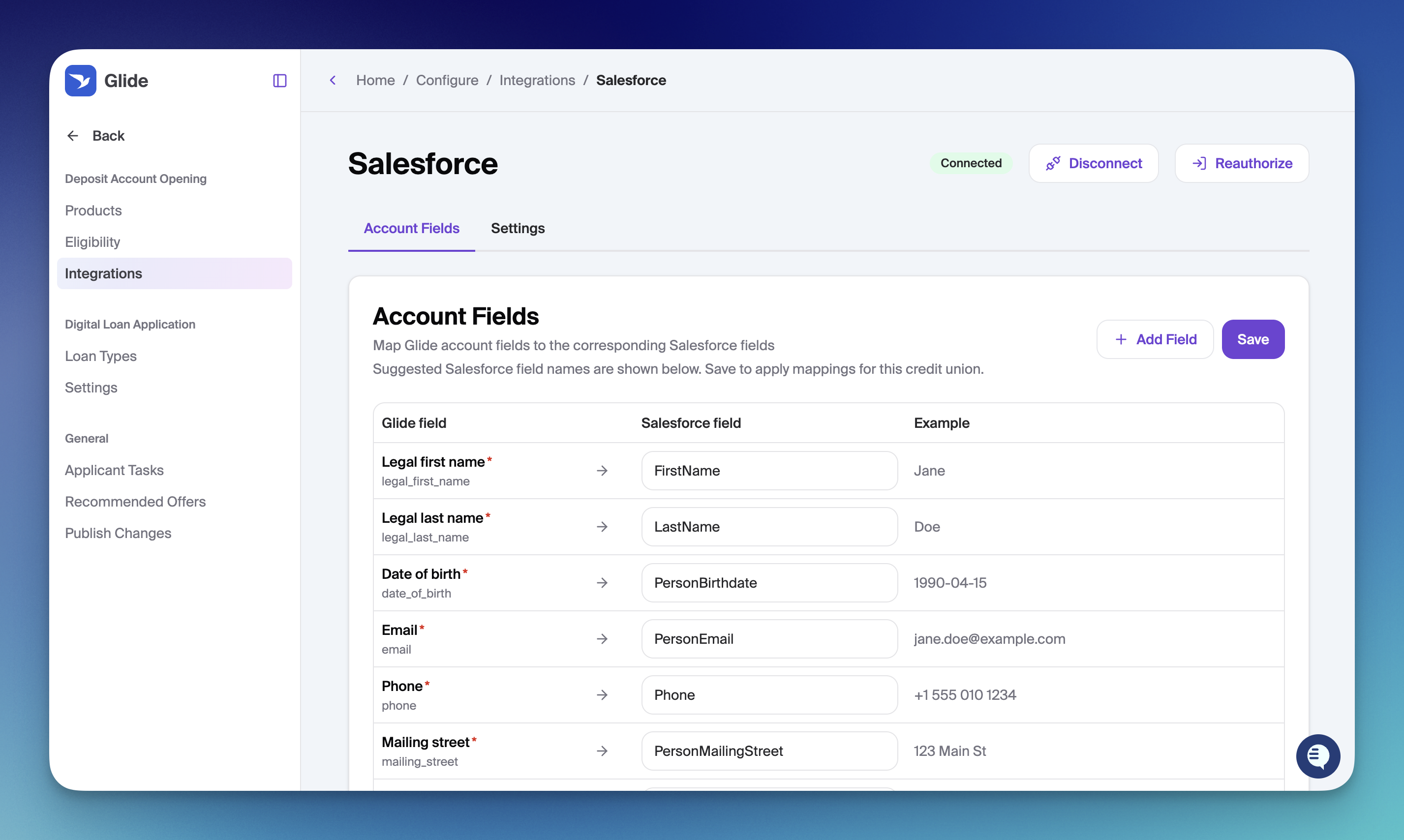
Standard fields: legal name, date of birth, email, phone, mailing address (
FirstName,LastName,PersonBirthdate,PersonEmail,Phone,PersonMailing*).Glide Application ID → your external-ID field (e.g.
Glide_Application_Id__c).Glide Application link → your link field.
If your org uses State and Country/Territory picklists, map Mailing country to
PersonMailingCountryCode(ISO code, e.g.US).
Click Save. You can save once all required fields are mapped.
You can Reauthorize or Disconnect at any time from the integration header.
Troubleshooting
Symptom | Likely cause | Fix |
|---|---|---|
| Callback URL doesn't match | Make sure the connected app's callback exactly matches your Glide dashboard host plus |
Login is blocked | App permissions | In the connected app's Policies, allow the relevant permitted users and check IP settings |
Connection works but no refresh / keeps asking to log in | Missing refresh token scope | Confirm the |
| Field missing, on the wrong object, or not set as External ID | Create the field on Account, mark it External ID, and fix the mapping |
| Person Accounts not enabled | Complete Step 2 and assign the record type to your profile |
Country or state | State/Country picklists are enabled | Map Mailing country to |
FAQ
Does this replace our existing core-to-Salesforce sync? No. Glide only adds the new account holder record at onboarding. Your existing sync for core account and product data continues unchanged.
Is the sync real-time or batched? Real-time. The record is created or updated the moment a membership is approved in Glide.
Can data flow from Salesforce back into Glide? No. This is a one-way integration from Glide into Salesforce.
Will it create duplicate records? No. Glide matches on a unique application ID, so re-approving the same applicant updates the existing Person Account.
What happens if the integration is disconnected? Approvals in Glide still succeed normally. The Salesforce record simply isn't created until the connection is restored.
Need help with setup? Contact your Glide implementation team.