Plaid Self-Serve Sample Identity Manager
Last updated: May 17, 2026
Overview
The Sample Identities Manager is a self-serve tool in the Plaid Dashboard that lets you create and manage custom test identities for IDV (Identity Verification) testing. Rather than being limited to the default Leslie Knope test case listed in our test credentials article, you can now define your own test users with specific attributes to simulate a wider range of real-world verification scenarios.
Sample Identities work across all IDV templates configured for an environment and are supported in Glide's staging environments.
What Are Sample Identities?
Sample Identities are custom test users that:
Can be created and managed directly by your team in the Plaid Dashboard
Work in Glide's staging environments
Simulate response behavior for both data source and documentary verification checks
Support domestic and international template test identities
This enables more realistic and flexible testing across your IDV flows — without needing to coordinate with Glide to get new test cases added.
Note: Any sample identities you create will not trigger prefill. Prefill can only be tested using the Leslie Knope identity outlined in the Test Credentials article.
Creating a Sample Identity
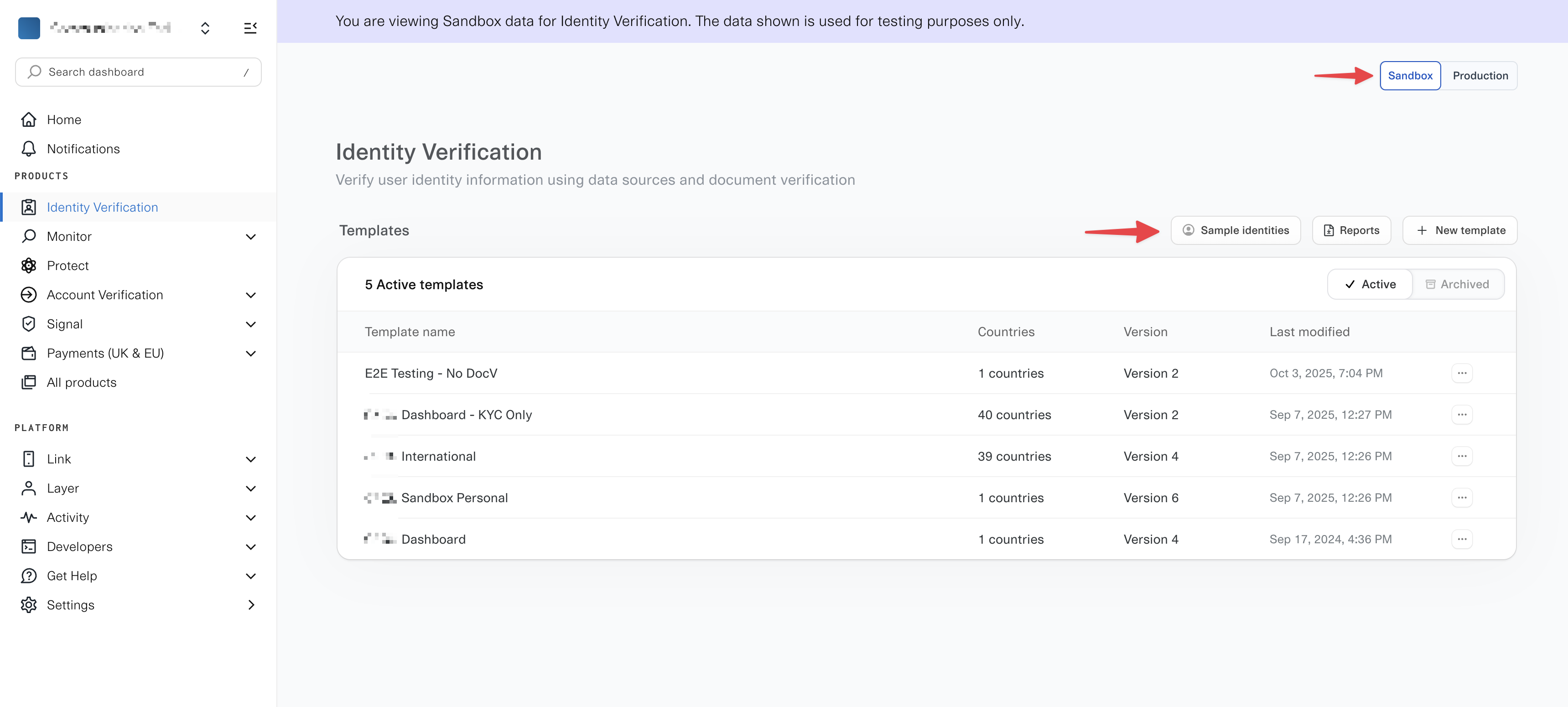
In the Plaid Dashboard, navigate to Identity Verification in the left sidebar.
Make sure you are in Sandbox mode (toggle in the top right).
Click Sample Identities.
Click + New Identity.
Fill in the three sections:
Basic Info — First name, last name, phone number, date of birth
Address — Street address, city, state, zip
Documents — SSN
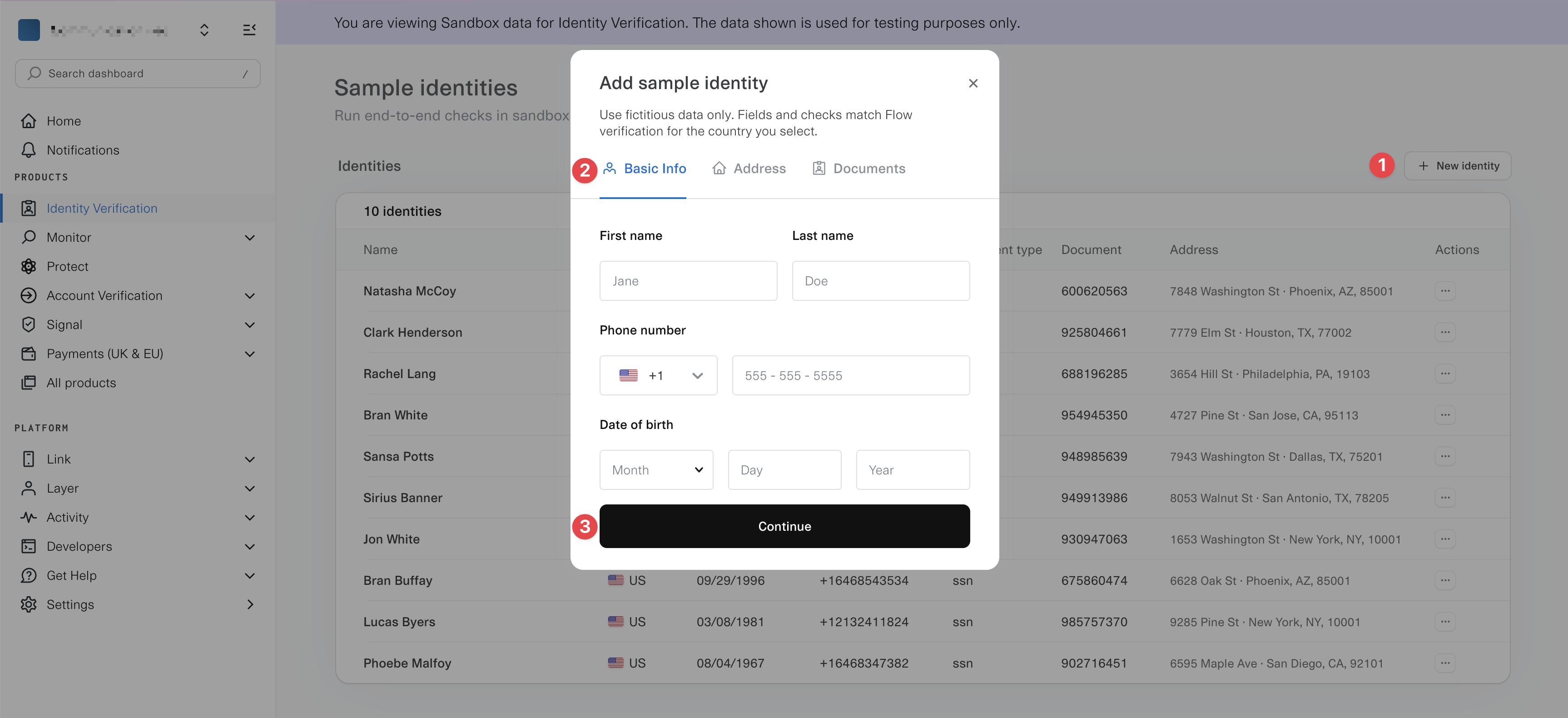
Once created, the identity is available immediately for use in sandbox IDV sessions.
Reserved Names
The following names are reserved and cannot be used for custom sample identities:
Name | Purpose |
|---|---|
Leslie Knope | Default happy path (passing) identity |
[Any first name] Gergich (e.g., Larry Gergich, Terry Gergich, Jerry Gergich) | Known failure persona |
Sandbox Verification Behavior
Understanding how Plaid processes checks in Sandbox is important for designing test scenarios.
Data Source Checks
Data source checks are compared against the identity attributes you provide. You can simulate different outcomes by adjusting individual fields (e.g., entering an incorrect birthdate) and configuring Identity Rules accordingly.
Document Checks
Documents uploaded in Sandbox are always interpreted as genuine and are matched against the Leslie Knope name and date of birth — regardless of what identity you're testing. Document check passes if the data from the Data Source check matches Leslie Knope's name and DOB, and fails otherwise.
Users get three attempts before a document check status updates to failed in the Dashboard.
See Document checks in Sandbox.
Selfie Checks
Selfie checks do not run in Sandbox, even if enabled in your template.
Simulating Specific Pass/Fail Combinations
Data Source passes, Document Verification fails
Configure your template to always enable both Data Source checks and Document checks.
Set Identity Rules to not require a match on name or date of birth.
Enter correct address, SSN, and phone from a sample identity (or Leslie Knope's test data).
Enter incorrect name and date of birth.
Result: Data source check passes (address/SSN/phone match), document check fails (name/DOB mismatch against Leslie Knope).
Data Source fails, Document Verification passes
Configure your template to enable Data Source checks with Document checks as a fallback.
Set Identity Rules to require a match for address, SSN, and phone number.
Enter the correct name and date of birth from a sample identity (or Leslie Knope's test data).
Enter incorrect address, SSN, or phone number.
Result: Data source check fails (address/SSN/phone mismatch), stepping the user up to documentary verification, which then passes (name/DOB match Leslie Knope).
Risk Rules for Testing
Repeated IDV attempts on the same device with different credentials may be flagged as risky behavior, causing verification to fail. To work around this during testing:
Temporarily set Acceptable Risk Level for Network Risk and Device Risk checks to High in the template editor under Rulesets → Risk Rules.
Reset to your intended level before going to Production.
To force a risk check to fail: set Acceptable Risk Level for Network Risk and Device Risk to Low. Checks will begin failing after the first few attempts.