Post Submission Offers
Last updated: October 15, 2026
Overview
Post Submission Offers let you present additional loan or deposit products after an applicant submits an application. For example, you can offer a checking account after a vehicle loan application, or a credit card after a checking account application.
You can choose which products to offer, when they appear, and the text applicants see.
Accessing Post Submission Offers
Log in to your Glide Dashboard and navigate to Configure.
Open the Upsell and Cross-sell tab, previously called Recommended Offers.
Locate the Post Submission Offers section.
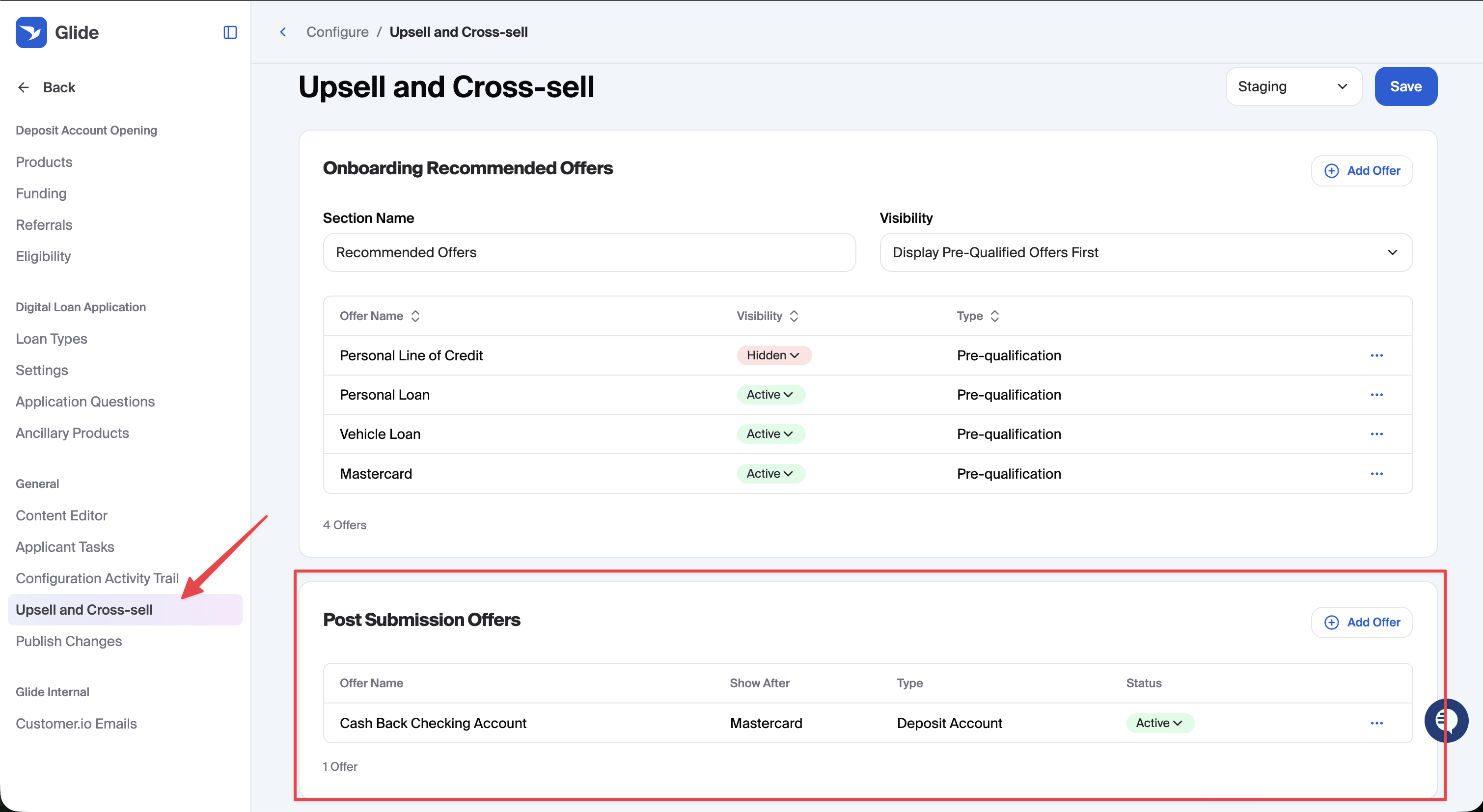
Adding an Offer
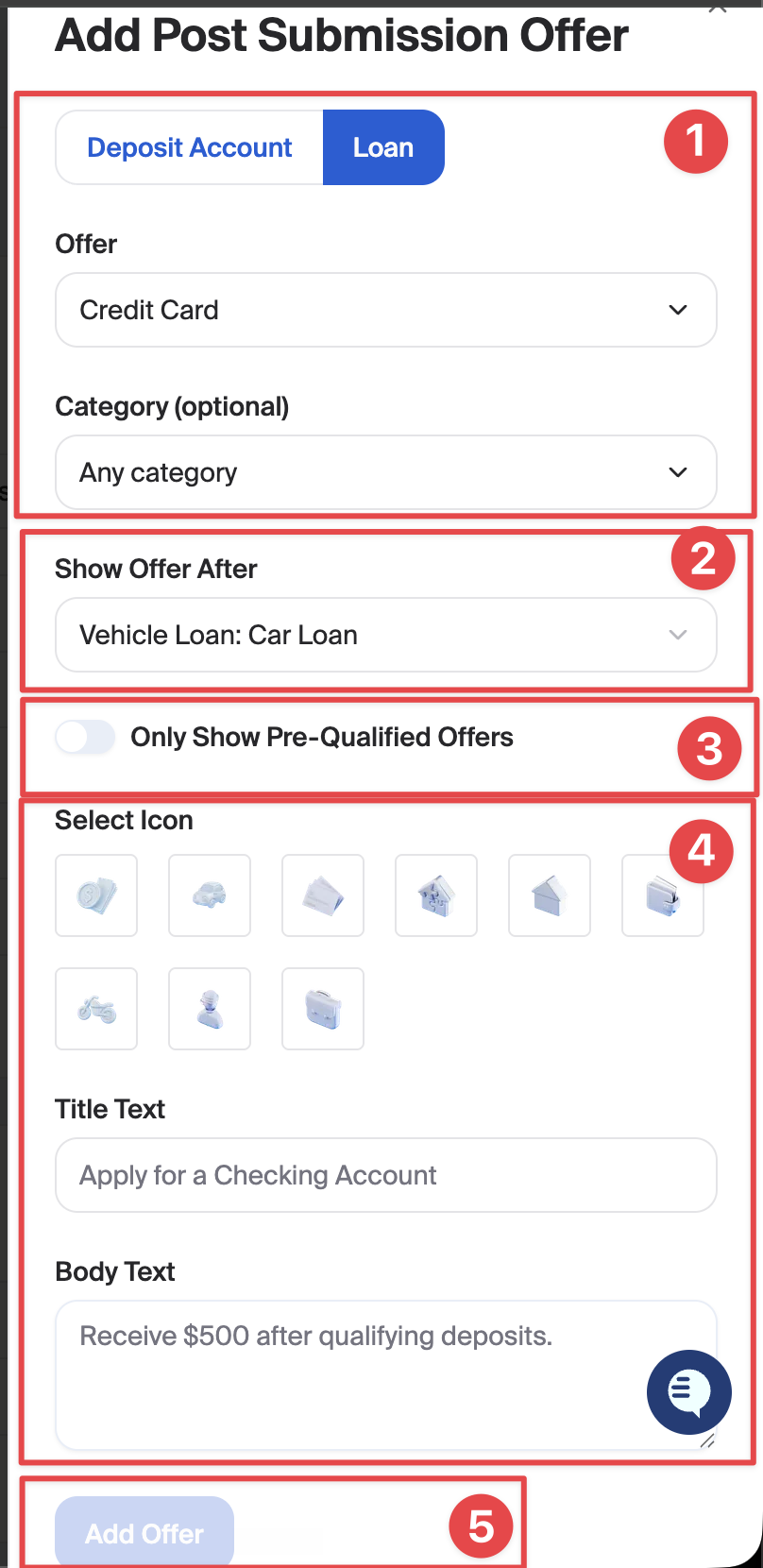
1. Select the product
Add an offer in the Post Submission Offers section and select the loan type or deposit account share type you want to promote.
2. Choose when the offer appears
Select the application types that will trigger the offer after submission. You can select one or more loan or deposit application types.
For example, to promote a checking account after a vehicle loan application:
Offer: Checking account
Show after submission of: Vehicle loan application
3. Configure pre-qualification requirements
For loan offers, enable Only Show Pre-Qualified Offers if you want the offer to appear only when the applicant is pre-qualified for that loan.
This setting applies to loan offers only.
4. Customize the offer text and Icon
Enter the text applicants will see:
Icon: The icon that will be associated with the offer.
Title Text: A short heading, such as “Apply for a Checking Account.”
Body Text: A brief description of the product or promotion, such as “Explore checking options for your everyday banking.”
5. Finalize
Click Add Offer to add the offer. Be sure to click Save on the Upsell and Cross-Sell page to save your changes.
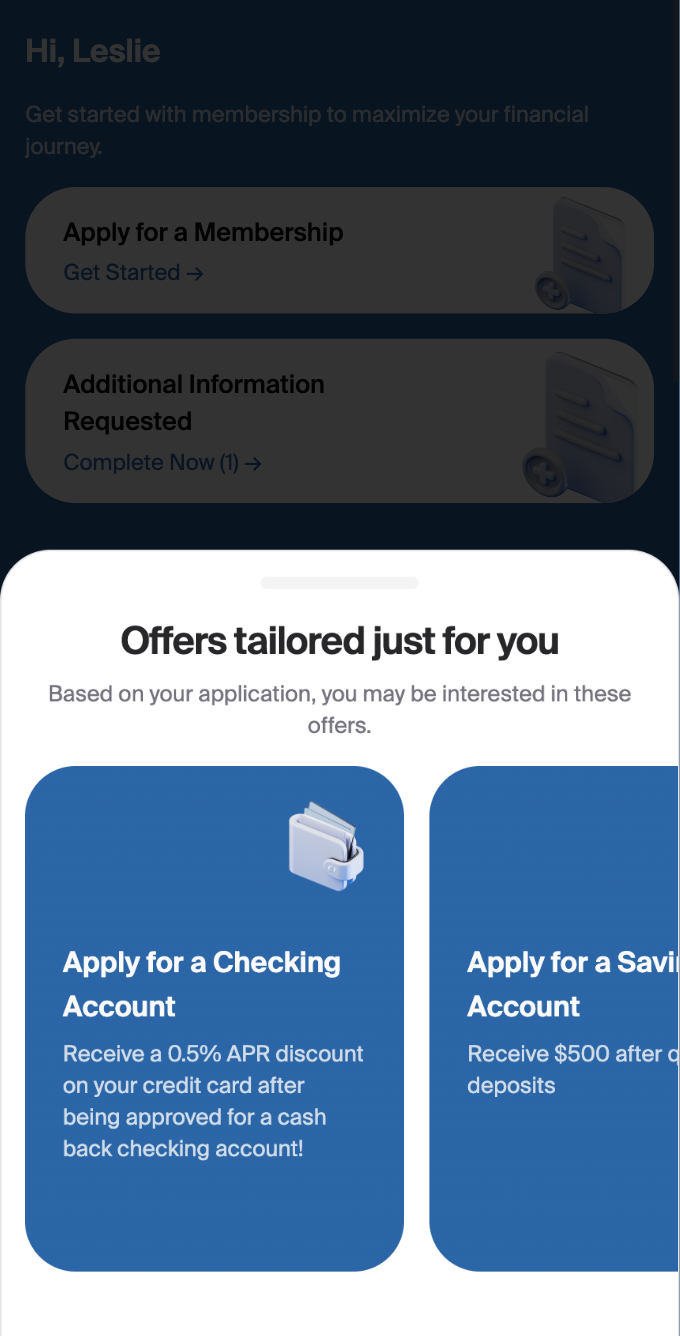
What Applicants See
The applicant submits a loan or deposit application and returns to the onboarding page.
If they qualify for one or more configured offers, a panel opens titled “Offers tailored just for you.”
The panel displays the applicable offers using your configured titles and descriptions.
The applicant can select an offer to go directly to its application page, or close the panel without selecting an offer.
When Offers Are Hidden
Glide applies the following rules when deciding which offers to display:
Application type: An offer appears only after submission of an application type selected in its configuration.
Existing accounts or applications: Deposit offers are hidden for membership types the applicant already has or has a submitted application for.
Pre-qualification: When Only Show Pre-Qualified Offers is enabled, the loan offer is hidden if the applicant is not pre-qualified.
Membership status: If your institution restricts loan links to active members, loan offers are hidden for applicants whose membership has not been approved.
If an expected offer does not appear, review these rules along with the offer’s configuration.