Applicant Tasks
Last updated: September 28, 2026
Applicant Tasks let your team send targeted requests for documents or information to applicants directly within Glide. When a task is assigned to applicant, they see it directly in their portal and can respond from any device.
Use Applicant Tasks to:
Request supporting documents (proof of address, government ID, proof of income, insurance)
Collect short-form responses (source of funds, secondary contact information, clarifying questions)
Track the status of each outstanding item in one place, across all applicants on a membership
How It Works
There are two parts to the feature:
Templates — created once under Configure → Applicant Tasks and reused across applications
Task assignments — added to a specific application from the Applicant Tasks tab in the application view.
When a task is assigned, the applicant sees it under Additional Information Requests in their onboarding portal with a clear status (Missing or Completed). Staff can monitor progress, send reminders, and manually update statuses from the dashboard.
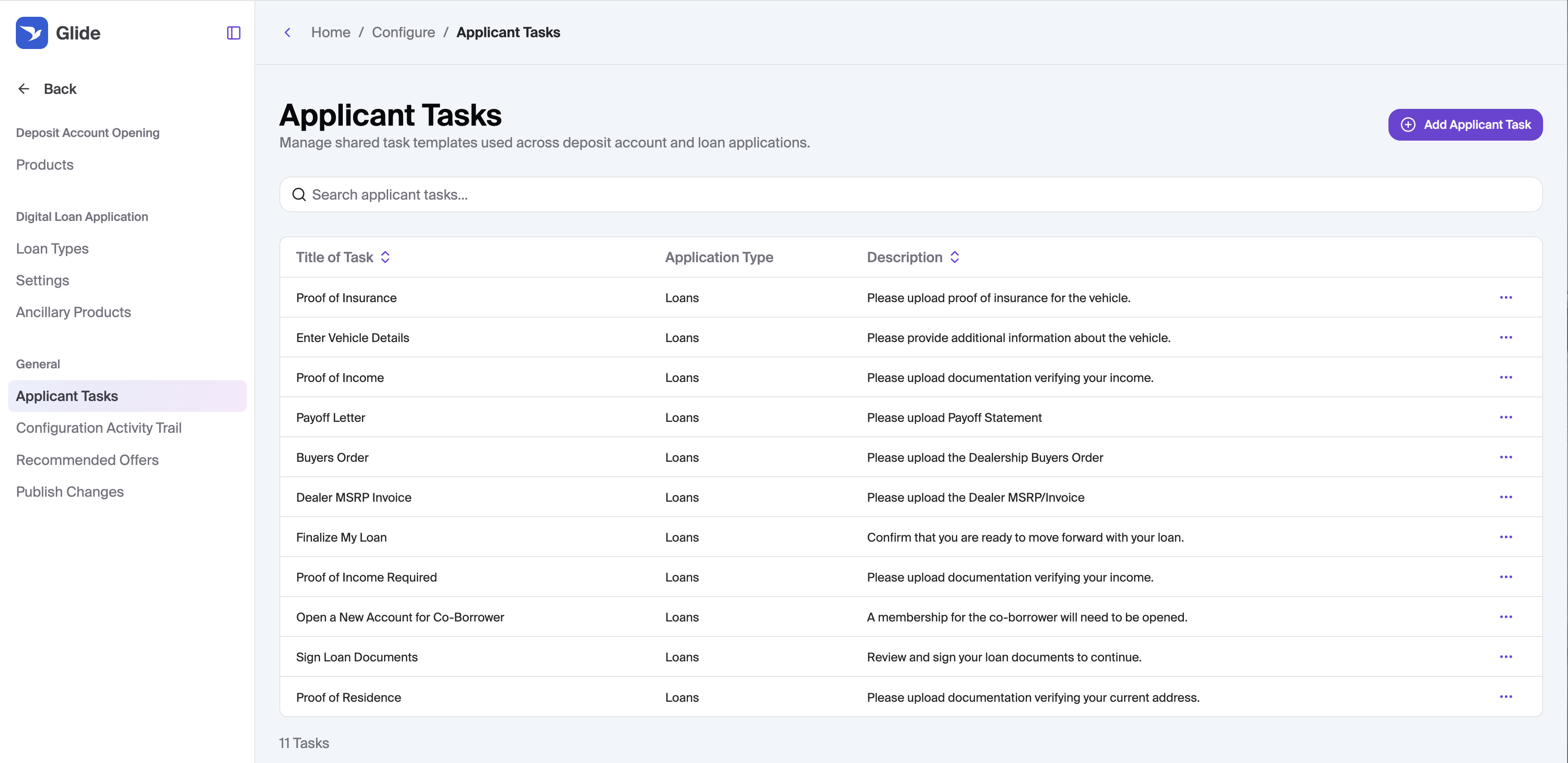
Setting Up Applicant Task Templates
Before assigning tasks to individual applications, create reusable templates so your team doesn't have to re-enter the same details every time.
To create a template:
Go to Configure → Applicant Tasks
Click Add Applicant Task
Select an Application Type — either Deposit Account or Loans
Select a Task Type — either Document upload or Form (see Task Types below)
Enter a Title of Task — this is the headline the applicant sees
Enter a Description of Request — additional context shown to the applicant
Fill in any task-type-specific fields (see below)
Click Add Task
Templates are shared across all applications of the matching type (Loans or Deposit Account). Editing or deleting a template does not affect tasks already attached to an application — each task is a snapshot taken at the time it was added.
To edit or delete an existing template, find it in the table and use the kebab row menu.
Permissions: Creating, editing, and deleting templates requires "Configure" permission. Without it, the page is read-only.
Task Types
Document Upload
Use this when you need the applicant to provide a file.
When creating the template, you'll fill in two additional fields:
Document Title — the headline shown to the applicant inside the upload drawer (e.g., "Pay Stub")
Specific Instructions — detailed guidance about what to upload (e.g., file format, date range, what information must be visible)
Variable number of documents - If enabled, the user can upload any number of documents before indicating that they have finished. Use this toggle when the number of documents required may vary from app to app.
Required Documents - Enter the number of documents users are asked to upload for the applicant task.
Applicant experience: The applicant sees an Upload button and an Accepted documents link that opens a drawer with your Document Title and Specific Instructions. They can upload one or multiple files.
Accepted file types: PDF, JPG/JPEG, PNG. Other file types are rejected at upload.
Once the applicant uploads any file, the task automatically moves to Received. They can still attach additional files afterward using Upload additional documents.
Form
Use this when you need short written answers from the applicant rather than a file.
When creating the template, add one or more questions under the Questions section. Click + Add Question to add additional fields. Each question renders to the applicant as a single-line text input.
Applicant experience: The applicant sees an Enter details button that opens a drawer with your questions. They fill in their answers and click Submit. Once submitted, the task moves to Received.
Note: Form questions are free-text and dropdown only. There are no date pickers, required/optional flags, or conditional logic supported. Use the description and question labels to set clear expectations.
External Link
Use this when you need the applicant to take an action on an external site such as fill out a form or complete a certification.
When creating the template, you'll fill in one additional field:
Action URL — the url that the user will be directed to
Applicant experience: The applicant sees an Open Secure Link button that will take them to the specified URL. After the link is clicked, a new I've Completed This Step button appears for the user to indicate that they have finished.
After the link is clicked, the task status is updated to Link Opened. Once the user clicks I've Completed This Step, the task status is updated to Received.
Assigning Tasks to an Application
Once you have templates, you can assign them to specific applications — or create one-off custom tasks on the fly.
To assign a task:
Open the application from your queue
Click the Applicant Tasks tab
Click + Add Task
Select a template from the Add Task dropdown, or choose Custom to create a one-time task
Fill in any required assignment fields (see DAO and DLA sections below)
Click Add Task
The task is created with a status of Requested and immediately visible to the assigned applicant in their portal.
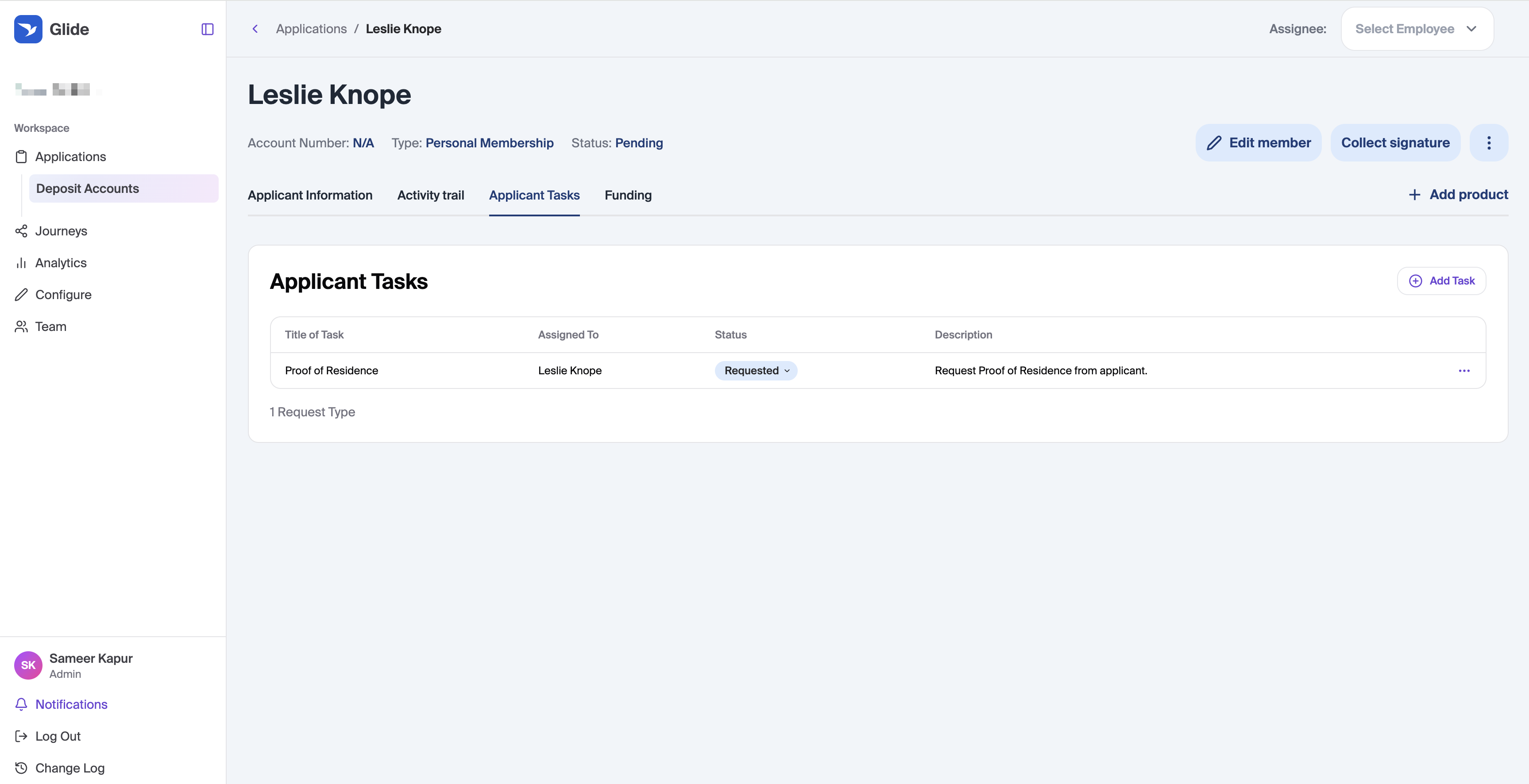
Task Statuses
Status | What it means |
|---|---|
Requested | Sent to the applicant; waiting for them to complete it |
Received | The applicant responded, or a staff member manually marked it complete |
Waived | Staff cleared the request without applicant action — hidden from the applicant's view |
You can change the status at any time by clicking the status badge on a task row and selecting a new value. To re-open a completed task, click into the task detail and use Send Again (resets to Requested).
Viewing Submissions
Click any task row to open the submission details:
Document upload tasks: Shows a table of uploaded files with names and upload dates. Each file links to the document.
Form tasks: Shows the applicant's submitted answers.
Deposit Account Opening (DAO)
Assigning to a Role
When you click + Add Task on a deposit application, the slide-over includes an Assign To dropdown. This lists every person currently on the membership, starting with the primary applicant.
The dropdown shows people by name (e.g., "Jane Smith"). The underlying role — Primary, Joint Owner, Beneficiary, Authorized Signer, Trustee, etc. — determines who appears, but you select the individual.
To request the same task from multiple roles (e.g., proof of ID from both the primary and a joint owner), add the task once per person. Each assignment becomes its own task row with its own status.
What Staff See
The Applicant Tasks table for deposit applications includes an Assigned To column showing which applicant each task belongs to. All tasks across all roles on a membership are visible in one table when you're viewing the primary applicant's application.
What Applicants See
Each applicant only sees tasks assigned to them. A joint owner, for example, logs into their own portal and sees only their outstanding tasks — not tasks assigned to the primary applicant.
Digital Loan Applications (DLA)
When Tasks Become Available
The Add Task button is not available until the loan application has been approved or counter-offered. Before that point, the Applicant Tasks tab shows:
Tasks will be available once the application has been approved or counter-offered.
LOS Stipulation ID
When creating loan task templates, you can include an LOS Stipulation ID — a reference code used to link the task to a specific requirement in your loan origination system.
For FIs integrated with supported LOS systems, applicant tasks are automatically added to applications if the matching stipulation is added within the LOS and documents uploaded by the applicant are automatically pushed to the matching loan record in the LOS.
Conditionally Created Applicant Tasks
If your LOS does not fully support stipulation creation, the rules for when applicant tasks are created can be configured directly within Glide.
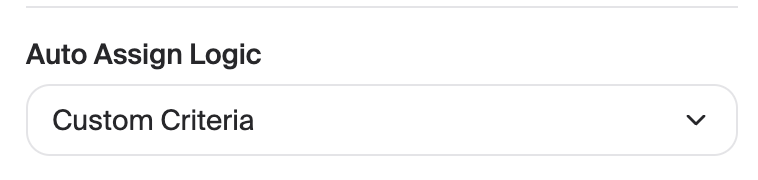
On the Applicant Task editing page, set the Auto Assign Logic to "Custom Critera"
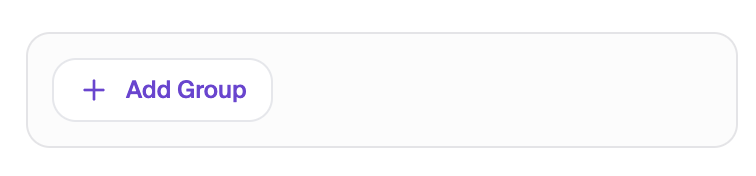
Click Add Group
Configure the group
Loan Status - Whether the loan needs to be Approved, or just Submitted in order to trigger the task
Additional Filters can be added by clicking Add Filter
Loan Type - Select which loan types or categories or sub-categories the task applies to
Loan amount - Choose the range of loan amounts the task applies to. Supported operators are: equals, greater than, less than, greater than or equal, less than or equal, and between.
Credit Score - Choose the range of credit scores the task applies to. Supported operators are: equals, greater than, less than, greater than or equal, less than or equal, and between.
Additional Income Type - Select which additional income types will require the task.
Form Answer - Trigger the applicant task based on answers to a form applicant task (see Form type above)
Employment Status - Trigger the applicant task based on the applicant's employment status
Group Logic
Within a given group of rules, AND logic will be used. E.g., Loan is approved AND credit score is below 700 AND employment status is retired.
Across groups OR logic will be used. E.g., group 1 OR group 2 OR group 3
System-Managed Loan Tasks
The following tasks are created automatically by Glide for certain loan states:
Create a membership — shown to loan applicants who don't yet have a membership
Vehicle information — shown on vehicle loans when vehicle details are missing
Finalize my loan — shown once all other tasks are complete; the applicant uses this to complete the loan flow
Email Reminders
Applicant tasks connect to a drip campaign in Customer.io. There is a unique drip campaign for DAO applicant and DLA applicant tasks.
In addition to the automated drip campaign, from the applicant task tab, you can send a manual email reminder to the assigned applicant for any task. This is connected to trigger a transactional email in Customer.io, separate from the individual campaigns.
To send a reminder:
Find the task row in the Applicant Tasks tab
Click the ⋯ overflow menu
Select Send Email Reminder
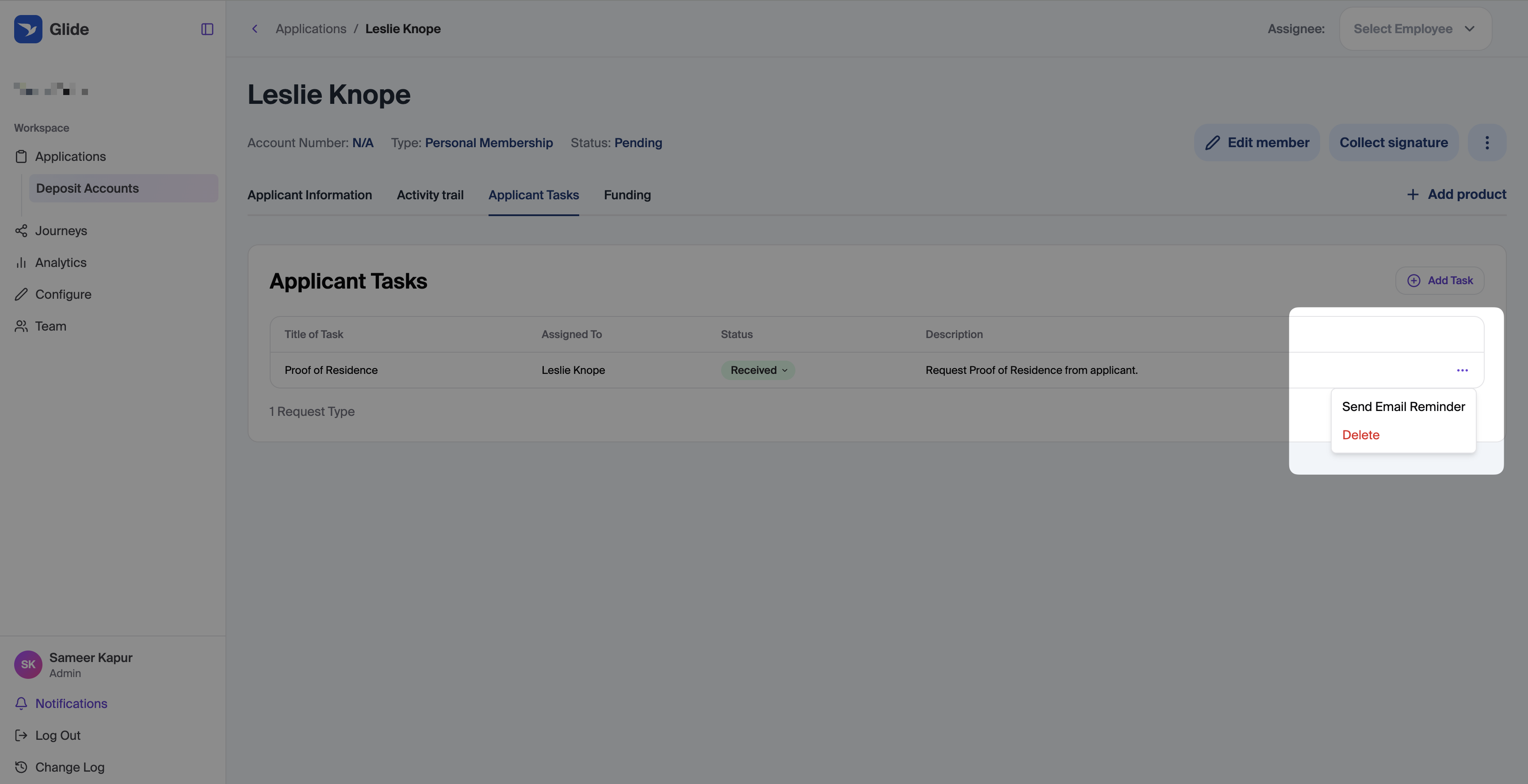
The reminder is sent to the assignee's email on file and logged in the Activity Trail. A success message will confirm: Reminder sent for [Task Title] to [Assignee Name].
Common errors and what they mean:
Error | What to do |
|---|---|
This assignee does not have an email address on file. | The applicant's email is missing from their profile. |
This applicant task does not have an assignee to email. | The task was not assigned to a specific person. |
Email reminder template missing. Contact us to add your email template. | Your FIs reminder email template hasn't been configured within customer.io. Contact Glide support to add. |
Activity Trail
Every action taken on an Applicant Task is logged in the application's Activity Trail:
Task added
Task status updated
Task deleted
Email reminder sent
Document uploaded by applicant
Form submitted by applicant
This gives your team a full audit history of each request without any additional tracking.
Staff Notifications
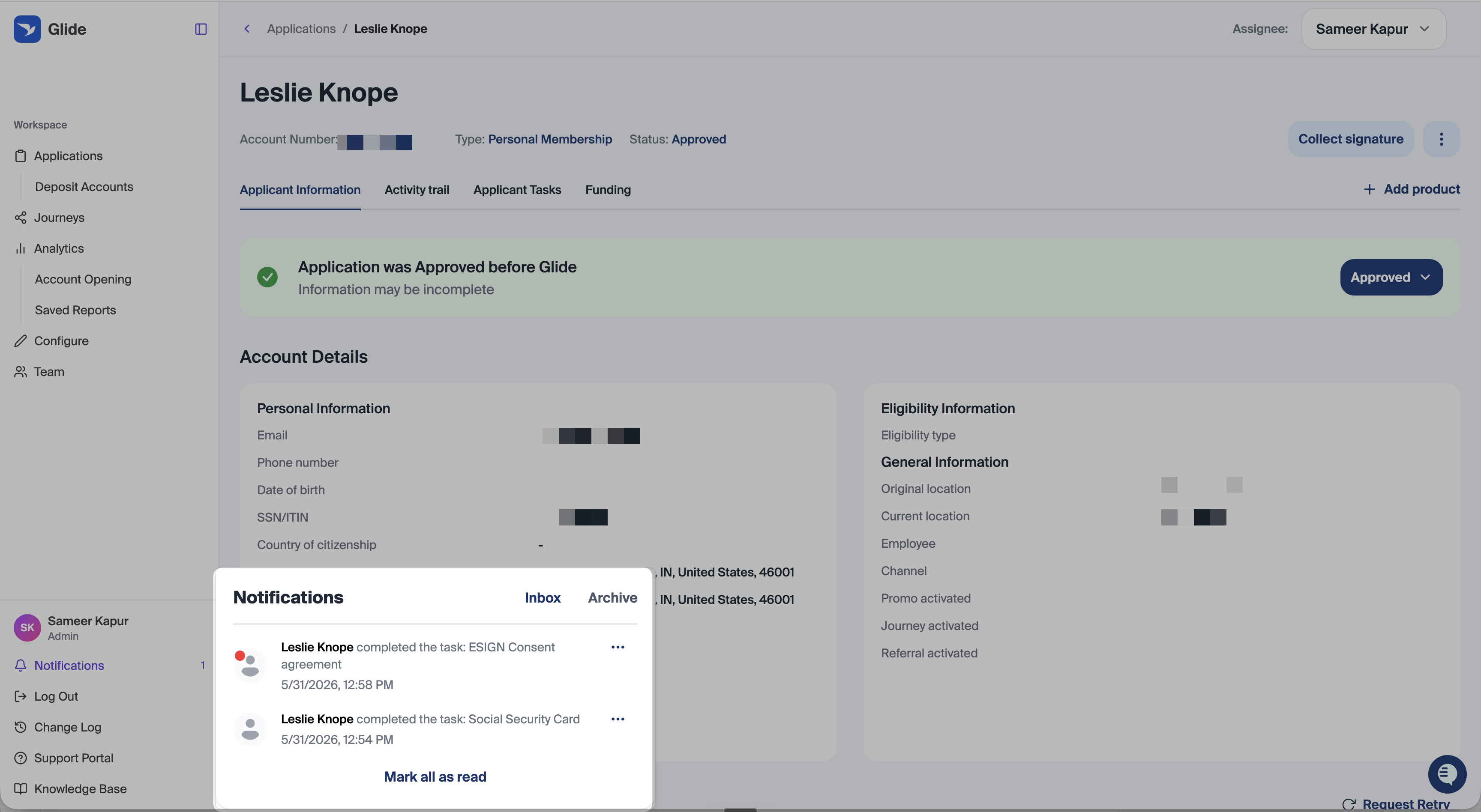
When an applicant completes a task — by uploading a document, submitting a form, or signing — Glide automatically notifies the relevant staff members so they can follow up without manually checking the application.
Who gets notified:
The staff member who created the task
Any staff member assigned to the application (DAO only — DLA does not have an application assignee)
If the same person created the task and is assigned to the application, they receive one notification, not two.
How you're notified:
In-app — a notification appears in the dashboard notification center (the bell icon in the bottom-left). It includes the applicant's name, the task title, and a direct link to the Applicant Tasks tab.
Email — an email is sent with the applicant's name, task title, and a link back to the application.
Tips
Build your template library first. Templates save time and ensure consistent instructions across your team.
Use Specific Instructions thoroughly. Clear guidance reduces back-and-forth — tell the applicant exactly what format you need, what dates should be visible, and what qualifies as an acceptable document.
Use Waived, not Delete, when a task is no longer needed. Waived keeps the task in your staff view for audit purposes; Delete removes it entirely.
For the same request across multiple DAO roles, add the task once per assignee rather than creating separate templates.