Account Revision
Last updated: October 6, 2026
Account Revision lets your team update existing membership information and account services in the Glide dashboard. It also supports adding and removing business signers in the digital flow when enabled for your institution.
Available fields and services depend on your institution’s configuration, membership type, and core integration.
What is included in Glide’s Account Revision package?
Glide’s Account Revision package helps your team maintain existing memberships after account opening. It includes:
Dashboard updates: Edit supported approved account holder, owner, signer, business, and trust information across your enabled membership types.
Account services: Manage supported settings such as eStatements, Courtesy Pay, overdraft sources, and service restrictions. Note: Anything that is in the "Account services" section of the dashboard.
Digital business/organization signer management: Let the primary business applicant add and remove authorized signers through the digital flow, when enabled.
What is already included with Glide?
The following capabilities are part of Glide’s standard functionality and do not require the Account Revision package:
Adding joint owners, beneficiaries, and other roles through the dashboard and digital flow.
Adding new shares or accounts to an existing membership through the dashboard and digital flow.
Requesting debit cards.
How to update account holder information in the dashboard?
Search and open the approved membership you want to update. Accounts can be imported from the core by searching by SSN or account number if they do not exist in Glide's database.
Open the edit form for the membership or the individual owner or signer.
Update the available fields.
Select Save Application/Organization.
Supported changes are sent to your core and tracked in the activity trail.
What can be updated?
Account Revision covers personal, minor, trust, business, and organization memberships. Each membership shows the fields that apply to it.
Personal and minor memberships
Information | Fields |
|---|---|
Personal details | First, middle, and last name; email; phone number |
Addresses | Primary and mailing address, including street, apartment or unit, city, state, ZIP code, and country |
Identification | Date of birth and Social Security number |
Employment | Employer and occupation |
Membership eligibility | Eligibility type and related details, such as location, employer, or a qualifying family member’s name and account number |
Additional questions | Anything your FI has configured e.g. Mother’s maiden name, preferred location, how the member heard about your institution, and associate name, where applicable |
Business memberships
Business memberships include:
Legal business name, entity type, and tax identification number or EIN.
DBA name and whether the business has a DBA.
Business phone number, website, and industry.
Primary and mailing addresses.
Membership eligibility.
Business questionnaire answers: expected cash deposits and withdrawals, wire and ACH activity, storefront, revenue source, estimated annual revenue, and business activities.
Business documents and individual owner or signer information.
An owner or signer’s form also includes job title, occupation, ownership percentage, authorized-signer status, and control-person status where applicable.
Trust memberships
Trust memberships include:
Trust title, type, and original effective date.
Tax identification number, or the legal name and trustor’s Social Security number, depending on how the trust is identified.
Certification of Trust documents.
Information for the people associated with the trust, such as trustees and beneficiaries.
Joint owners, trustees, beneficiaries, and other individuals
Open the individual’s edit form to update the information collected for their role. This can include name, contact details, addresses, date of birth, Social Security number, employment, eligibility, and additional questions.
Where available, the form also includes citizenship information, government-issued ID details, and supporting documents. ID details include the ID type, number, issuing state or country, issue date, and expiration date.
Beneficiary forms may collect fewer details than other roles.
Updating account services
Open Services in the membership edit form. The General tab contains membership-level settings. Separate checking and savings tabs contain settings for each eligible account.
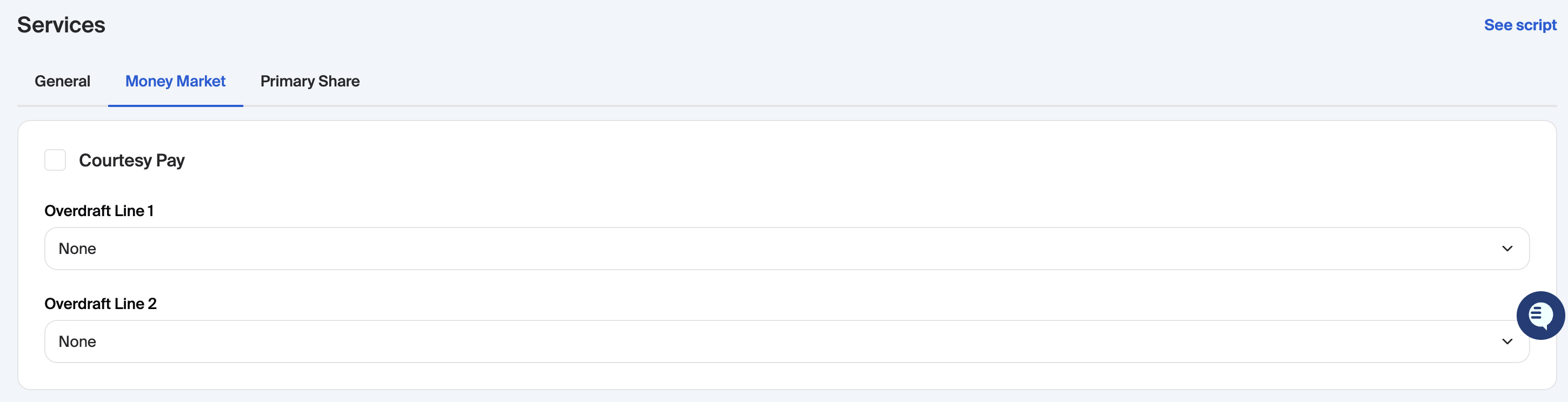
Adding and removing business signers digitally
When enabled, the primary business applicant can manage signers from the digital business flow.
Add a signer
Select Add Signer and follow the prompts to invite the person. The invitee completes the required information and verification steps. The signer list shows their progress, and pending invitations can be resent.
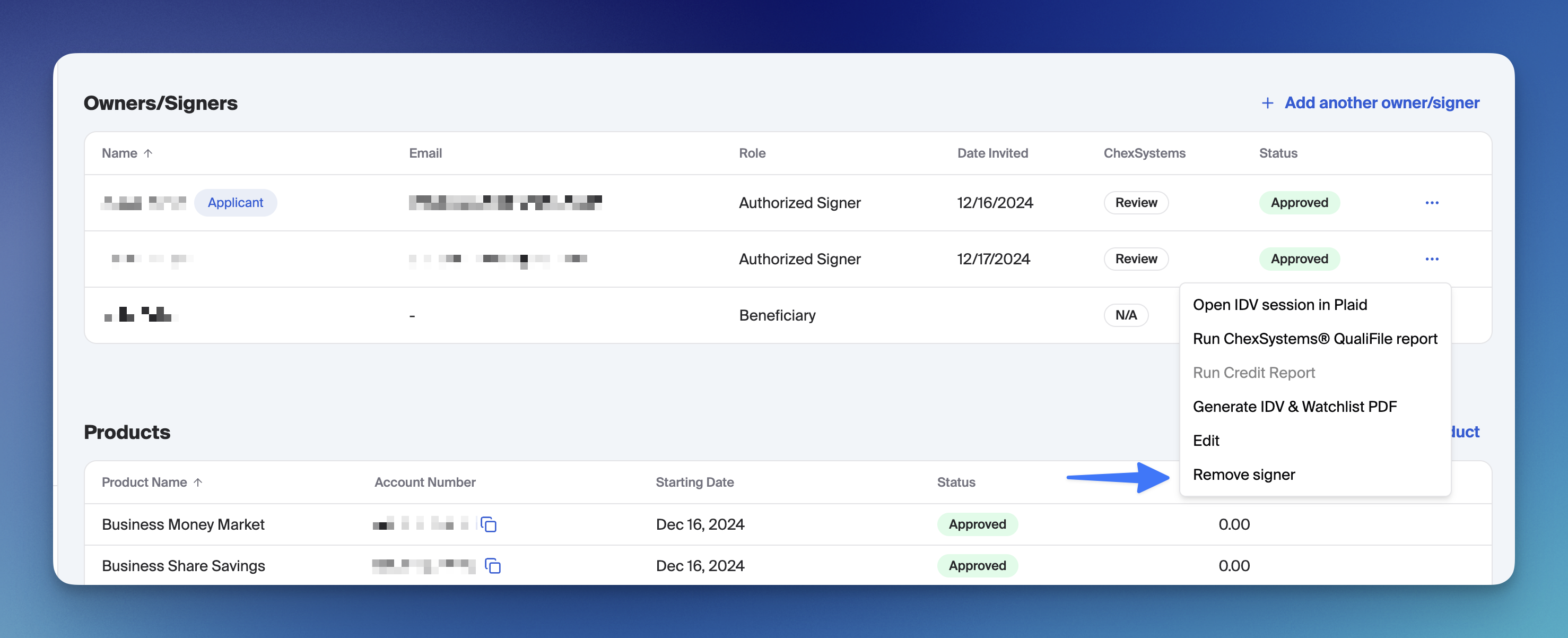
Remove a signer
Select the signer’s remove action, review the confirmation, and provide supporting documents if your institution requires them.
Removing a pending invitation cancels that invitation. Removing an active authorized signer updates their association with the business and, when supported and enabled, removes their signer records from the connected core.
The primary applicant cannot remove themselves through this flow. At least one authorized signer must remain.
Coming H1 2027
Dashboard support for removing existing beneficiaries and joint owners is planned for the first half of 2027.
These removals are not currently included in the dashboard Account Revision workflow.
Getting started
Contact your Glide team to enable Account Revision and confirm the fields, services, and digital signer options available with your core integration.